
How to Find the Hardware Version on Your TP-Link Device
Knowing your TP-Link hardware version is important before downloading firmware, drivers, or contacting support. It tells you exactly which version of the product you have, so you can make sure you're getting the right files. There are three ways to find the TP-Link hardware version: checking the product label, reading the engraved text on the device body, or looking it up in the web management interface.
Key Takeaways
- The hardware version is printed on the product label, typically on the bottom or back of the device, shown as "Ver: X.X" or "VX."
- USB adapters that do not have a label have the hardware version engraved directly on the device body.
- You can also find the hardware version in the device's web management interface, usually under a Status or System Info section.
- You need the correct hardware version to download matching firmware or drivers from the TP-Link Download Center.
- The hardware version is not the same as the firmware version. Hardware version refers to the physical revision of the product itself.
Method 1: Check the Product Label
For most TP-Link devices, including routers, range extenders, Deco units, and adapters, the hardware version is printed on a label on the bottom or back of the device. Look for text that reads "Ver:" or simply "V" followed by a number, such as "Ver: 2.0" or "V2." This information is typically located near the model number and serial number on the same label.
You may also find the product’s firmware region and serial number on the label.
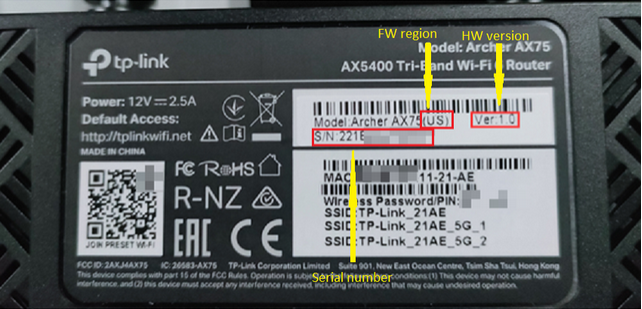
If you need help locating your model number on the label, see how to find the model number of your TP-Link device.
Method 2: Read the Engraved Text (USB Adapters)
Some TP-Link USB adapters do not have a printed label. For these products, the hardware version is engraved directly on the adapter body. Check the surface of the adapter for "Ver:" or "V" followed by a version number.
Method 3: Use the Web Management Interface
If you have a TP-Link device with an admin panel, you can look up the hardware version without physically checking the device. Log in to your device's web management page and navigate to a section such as Status or System Info. The hardware version will be listed there alongside other device details.
If you prefer using your phone, the TP-Link Tether app and the Deco app both offer a way to view device information without opening a browser. Check the device details section within the relevant app.
Why the Hardware Version Matters
TP-Link products can go through multiple hardware revisions over time. For example, a model may have a V1, V2, and V3 version, each with different firmware requirements. Downloading firmware or drivers meant for a different hardware version can cause compatibility issues. Always confirm your TP-Link hardware version before visiting the Download Center to find the right files for your device.
If you need to upgrade your router firmware after confirming your hardware version, see how to upgrade the firmware on TP-Link Wi-Fi Routers. For range extenders, see how to upgrade firmware on a TP-Link range extender.
Looking For More
Is this faq useful?
Your feedback helps improve this site.


TP-Link Community
Still need help? Search for answers, ask questions, and get help from TP-Link experts and other users around the world.