
How to Get and Send Deco App Log to TP-Link Support
When troubleshooting an issue with TP-Link support, you may be asked to send your Deco logs so the team can analyze the problem. The entire process is done within the Deco app and only takes a few taps to complete your Deco router logs submission.
Key Takeaways
- Deco router logs are accessed and sent directly to TP-Link support through the Deco app. There is no separate download or export step.
- To get started, open the Deco app, tap the three-line icon in the top-left corner, and select Support Center.
- After browsing the related FAQs, scroll down and tap "No, I need more help," then tap "Email Us" to open the support form.
- On the support form, check "Add System Logs" before tapping Send. This automatically attaches your Deco router logs to the email.
- If you already have a TP-Link support reference number, such as a TKID number, include it in the Opinions and Questions field when submitting.
System Log is critical for further analysis of the problem. This article introduces the steps to collect the system log of the Deco App. If necessary, please follow these steps to send it to TP-Link technical support:
How to Send Deco App Log to TP-Link Support
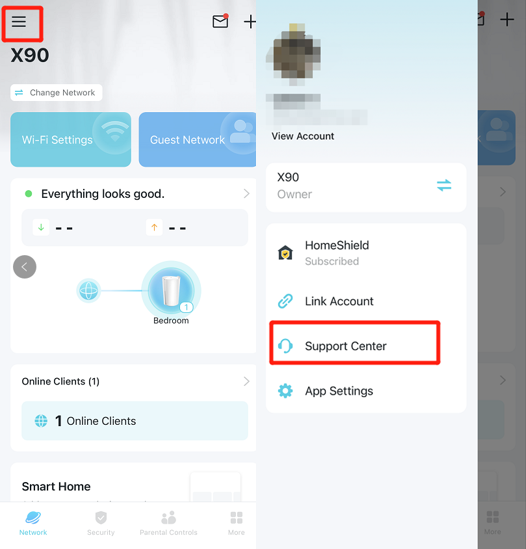
Step 1. Launch the Deco app and log in. Tap the three-line icon at the top left corner of the Deco app, and then select Support Center.
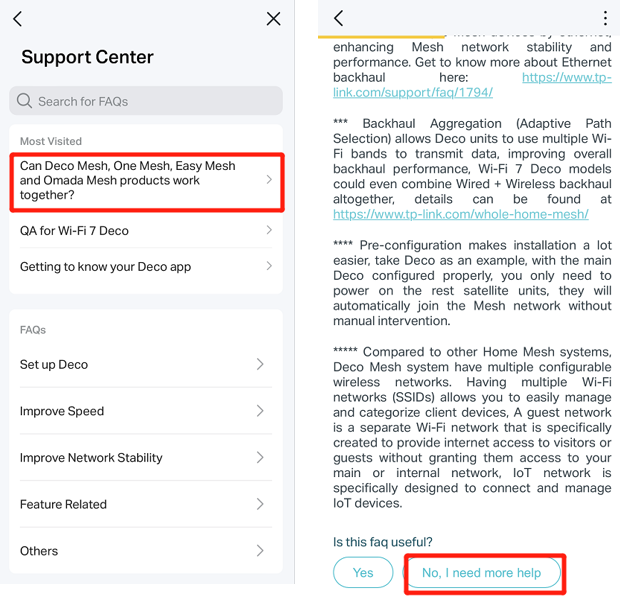
Step 2. Open any FAQ, scroll down, and tap “No, I need more help”.
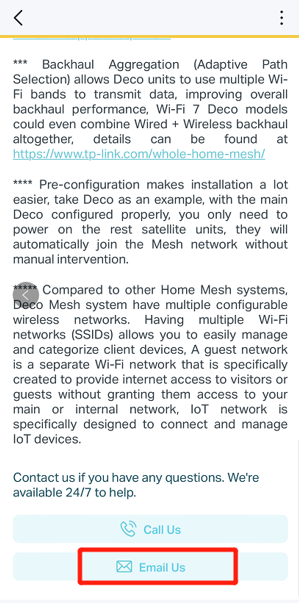
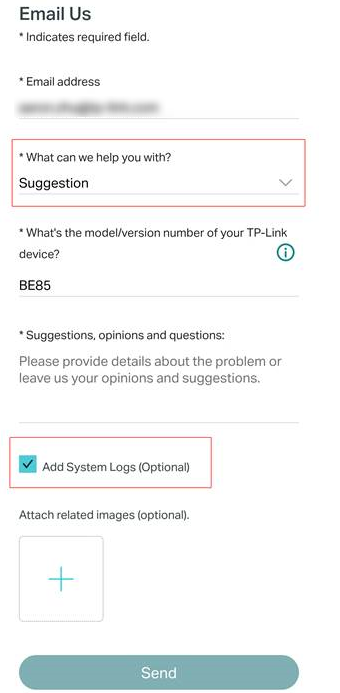
Step 3. Tap on “Email Us”, choose Suggestion in the "What can we help you with" option, and fill in the remaining consultation information. Then check Add System Logs and tap Send.
Note: If you have contacted TP-Link technical support, include your reference number (for example, TKID123) in the Opinions and Questions field.
Looking For More
Is this faq useful?
Your feedback helps improve this site.

_Overview_normal_20211130005706l.png)
_EU_1.0_Overview_1_normal_20220411032339n.png)

TP-Link Community
Still need help? Search for answers, ask questions, and get help from TP-Link experts and other users around the world.