What Is UPnP, and Should You Enable It on Your Router?
UPnP, or Universal Plug and Play, is a feature on most home routers that lets devices on your network connect to the Internet automatically, without any manual setup.
When you plug in a gaming console or add a smart home device, UPnP handles the communication between that device and your router, so everything just works. Most routers enable it by default, but it comes with security trade-offs worth understanding. This post explains what UPnP does, how it works, and whether you should leave it on or turn it off.
Key Takeaways
- UPnP (Universal Plug and Play) lets devices automatically request open ports from your router, so they can access the Internet without any manual setup on your end.
- It's most useful for gaming consoles, smart home devices, and media streaming apps, which often need open ports to work correctly.
- UPnP has no built-in authentication, meaning any device on your network, including a compromised one, can request port access without your approval.
- For most home users, turning UPnP off is the safer default unless you actively rely on it for gaming or smart home features.
- Manual port forwarding is the more secure alternative, giving you direct control over which ports are open and which devices can use them.
What Does UPnP Stand For and What Does It Do?
UPnP stands for Universal Plug and Play. It is a networking protocol that allows devices to discover each other on a local network and automatically configure the connections they need to reach the Internet.
Think of it this way: when you connect an Xbox to your router, UPnP is what lets the console communicate with the router and open the right communication channels (called ports) so you can play online without configuring anything yourself. The same thing happens with smart TVs, home security cameras, and voice assistants. UPnP handles the setup behind the scenes, so you never have to.
How Does UPnP Work?
When a device joins your network, UPnP kicks off a short automated process. The device announces its presence, exchanges information with other devices, and then sends a request to the router to open the specific ports it needs. All of this happens automatically and invisibly. Most users never see it happening.
The process runs in three stages:
Discovery: The device broadcasts its presence on the local network. Other devices, including the router, respond to that broadcast.
Description: Devices share information about what they are and what they can do, so the router knows what kind of connection to prepare.
Control: The device sends a request to the router to open specific ports. The router acts on that request without requiring a password or user approval.
Two underlying protocols make this work: SSDP (Simple Service Discovery Protocol), which handles the device discovery stage, and SOAP (Simple Object Access Protocol), which carries the control messages between devices and the router. You do not need to understand either one to use UPnP, but knowing they exist helps explain why the process is fully automatic.
What Is UPnP Used For? Common Use Cases
UPnP is most noticeable when something stops working after you disable it. Here are the scenarios where it matters most.
Gaming
Gaming consoles like Xbox and PlayStation rely on UPnP to automatically open the ports needed for online multiplayer.
When UPnP is disabled or unavailable, players often see error messages like "NAT (Network Address Translation) Type: Strict" or "UPnP Not Successful," which can affect matchmaking quality and connection stability.
Enabling UPnP on your router resolves these errors without requiring any manual configuration. For step-by-step guidance on getting Xbox games running smoothly with UPnP, see TP-Link's Xbox and UPnP FAQ.
Smart Home Devices
Smart home devices (cameras, thermostats, smart plugs, voice assistants) often use UPnP to establish connections to communicate with their apps and cloud services. Disabling UPnP can break remote access to these devices, meaning you may not be able to check your camera feed or adjust your thermostat when you are away from home.
If you want to keep smart home devices on your network while limiting their interaction with other devices, TP-Link's Device Isolation feature lets you do that without disabling UPnP entirely.
Media Streaming and File Sharing
Home media servers like Plex use UPnP to allow connections from outside your local network, so you can access your media library remotely. Peer-to-peer applications also rely on UPnP to establish direct connections for file sharing. If you use either of these, disabling UPnP will likely break remote access.
Is UPnP Safe? Understanding the Security Trade-Offs
UPnP is a convenience feature, and like most conveniences, it involves a trade-off.
The main security concern is that UPnP requires no authentication. Any device on your network can send a request to your router to open ports, and the router will act on it automatically. This includes devices that may have been compromised by malware. Historically, some malware has exploited UPnP to open ports and establish unauthorized connections from outside the network.
That risk is real, but context matters. A home network with up-to-date router firmware, strong Wi-Fi passwords, and a small number of trusted devices poses a much lower level of risk than an enterprise network. For most home users, the threat from UPnP is significantly lower than the threat from weak passwords or outdated firmware.
The practical takeaway: UPnP is not inherently dangerous, but it reduces your visibility into which ports are open on your router. If you are not actively using devices that depend on it, disabling it removes something that is not needed.
Should You Enable or Disable UPnP on Your Router?
Here is a direct answer: for most home users, disabling UPnP is the safer default.
If you are not gaming online, running a home media server, or relying on smart home devices that need remote access, there is no practical reason to leave UPnP enabled. Turning it off removes a potential security risk with no real downside.
If you do game regularly, use a home media server, or have smart home devices that depend on remote access, keeping UPnP enabled is reasonable, as long as your router firmware is up to date and your network uses a strong password.
The middle-ground option is manual port forwarding, which gives you the same connectivity as UPnP with more control. Instead of letting devices request open ports automatically, you specify exactly which ports stay open and for which devices. It takes more setup, but nothing opens without your approval.
UPnP vs. Port Forwarding
UPnP is automatic and hands-off: devices request what they need, and the router responds, with no input from you. Port forwarding is manual: you define specific rules in your router settings that direct incoming traffic to a particular device. UPnP is easier to set up but offers less visibility. Port forwarding takes more effort but gives you precise control over your network.
For users who want to keep specific ports open for specific devices without relying on automatic requests, port forwarding is the better option. You can find setup instructions in the TP-Link port forwarding guide, and if something is not working as expected, the port forwarding troubleshooting FAQ covers the most common issues.
How to Enable or Disable UPnP on Your Router
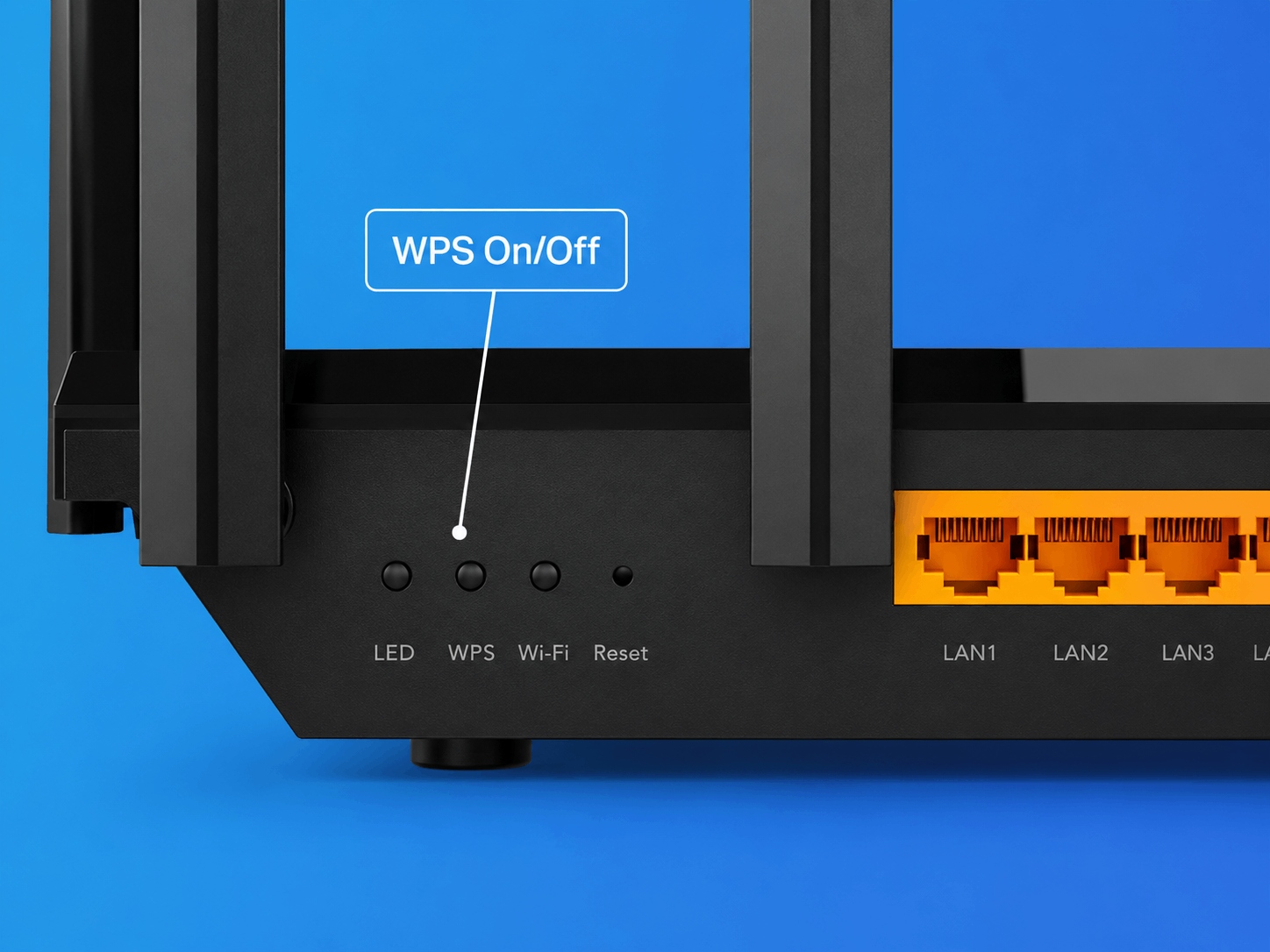
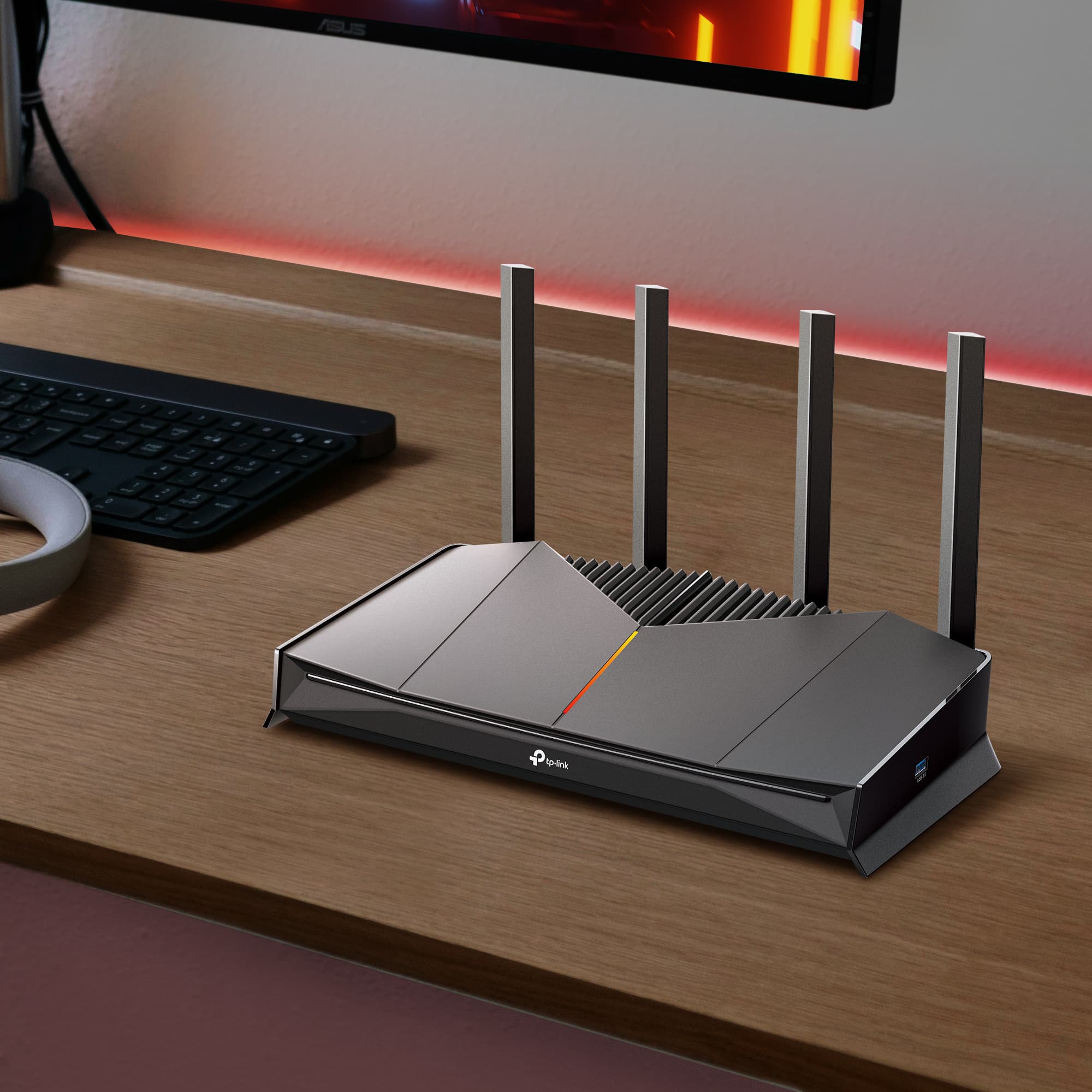
[IMAGE: Product image. TP-Link Archer router or Deco unit, positioned on a shelf in a home environment, representing the product context for the how-to steps.]
The exact steps vary by router model, but the general approach is consistent across most devices.
On a TP-Link Archer Router
- Log in to your router's web management page (typically at tplinkwifi.net or 192.168.0.1).
- Go to Advanced > NAT Forwarding > UPnP.
- Toggle UPnP on or off based on your preference.
On a TP-Link Deco
- Open the Deco app on your phone.
- Go to More > Advanced > NAT Forwarding.
- Find UPnP and toggle it on or off.
For a full overview of how UPnP works across TP-Link routers and Deco systems, see the TP-Link UPnP introduction FAQ.
On Other Routers
Most routers follow a similar path. Look for a section labeled Advanced, NAT, or NAT Forwarding in your router's admin panel. UPnP is typically a single toggle in one of those menus. If you are unsure, check your router manufacturer's support documentation.
The Bottom Line on UPnP
UPnP is a convenience feature that works well for gaming, smart home devices, and media streaming, but it reduces your visibility into network security in exchange for ease of setup. For most home users, the smart default is to disable it unless you have a specific need, and use manual port forwarding where greater control is worth the extra steps.
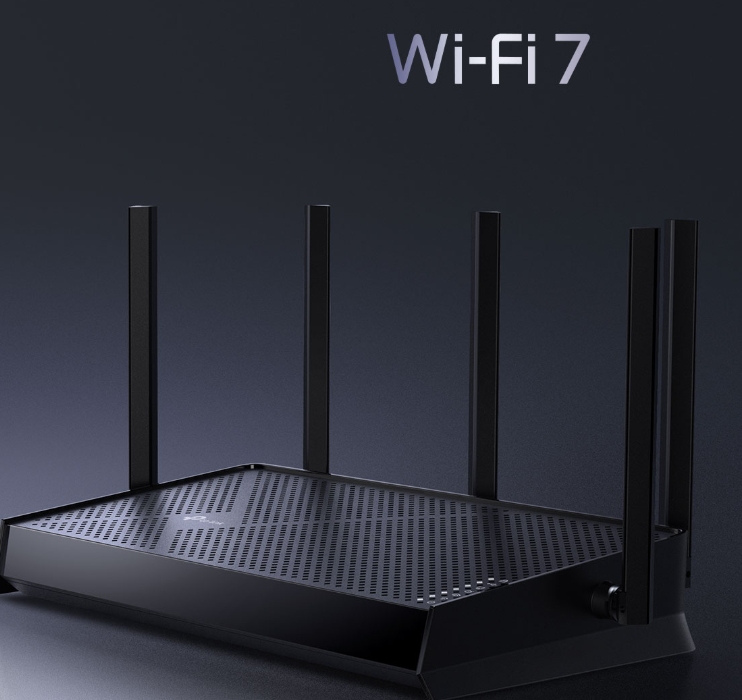
If you want a router that makes managing these settings simple, TP-Link's Wi-Fi 7 lineup has an option for every kind of home network. The Archer BE400 is a straightforward entry point for everyday connected homes. The Archer BE670 steps up with tri-band performance for busier households. And the Archer BE770 is built for homes with many devices running at once.
All three include easy access to UPnP controls and TP-Link HomeCare for real-time network visibility. For a broader look at home network security, the TP-Link home network security guide is a good next step.
Frequently Asked Questions
What does UPnP do on a router?
UPnP allows devices on your home network to automatically request that the router open the communication channels (called ports) they need to access the Internet. It removes the need to configure these settings manually, so devices like gaming consoles and smart home hubs connect and work right away.
Should UPnP be on or off on my router?
It depends on what you use your network for. If your setup is mostly browsing, streaming, and general use, turning UPnP off is the safer call; there is no functional cost to disabling it. If you have a gaming console, a home media server, or smart home devices that need remote access, leaving them on makes day-to-day use simpler. Either way, keeping your router firmware up to date matters more than whether UPnP is on or off.
Does disabling UPnP affect gaming or Xbox?
Yes, often noticeably. Without UPnP, your console cannot automatically negotiate the connections it needs for online play. The most common result is a "Strict" NAT type, which limits who you can connect with in multiplayer and can cause lag or dropped sessions. Re-enabling UPnP typically fixes it immediately. If you prefer to keep UPnP off, setting up manual port forwarding for your console achieves the same result.
What is the difference between UPnP and port forwarding?
UPnP is automatic: your devices handle everything without any input from you. Port forwarding is manual: you log into your router and specify exactly which ports are open for which device. The practical question is which fits your situation. If you want a set-and-forget experience and are comfortable with the trade-offs, UPnP is simpler. If you want to know exactly what is open on your network and why, port forwarding gives you that visibility.
Is UPnP safe for smart home devices?
UPnP makes it easier for smart home devices to connect and maintain remote access through your router. The security consideration is that UPnP does not authenticate these requests: any device on the network can ask the router to open a port. On a well-managed home network with updated firmware and trusted devices, the practical risk is low. If you want an extra layer of control, pairing UPnP with Device Isolation limits how your smart home devices interact with the rest of your network without disrupting remote access.