The Complete Guide to WPS: What It Does and When to Turn It Off
If you've spotted a button labeled "WPS" on your router and aren't sure what it does, here's the short answer: it's a shortcut for connecting devices to your Wi-Fi network without a password.
WPS stands for Wi-Fi Protected Setup. It's a feature built into most routers that lets you connect a device to your Wi-Fi network without entering a password. Instead, you press a button or enter a short PIN, and the connection happens automatically. The WPS button on your router makes that process possible.
It's a convenient shortcut, but it comes with some security trade-offs worth knowing about. This guide covers what WPS is, how it works, when to use it, and when to leave it off, whether you have a TP-Link router or any other brand.
Key Takeaways
- WPS (Wi-Fi Protected Setup) lets you connect devices to Wi-Fi without typing a password, using a button press or PIN.
- The push-button method is simple and low-risk for occasional use. The alternative PIN method has a known security vulnerability.
- A WPS button allows Wi-Fi connection when active. It’s a short-lived window, but can be exploited if someone nearby is trying to access your network.
- For most households, disabling WPS when you're not using it is the safer choice.
- On TP-Link routers, you can check and manage WPS status through the Tether app.
What Is WPS?
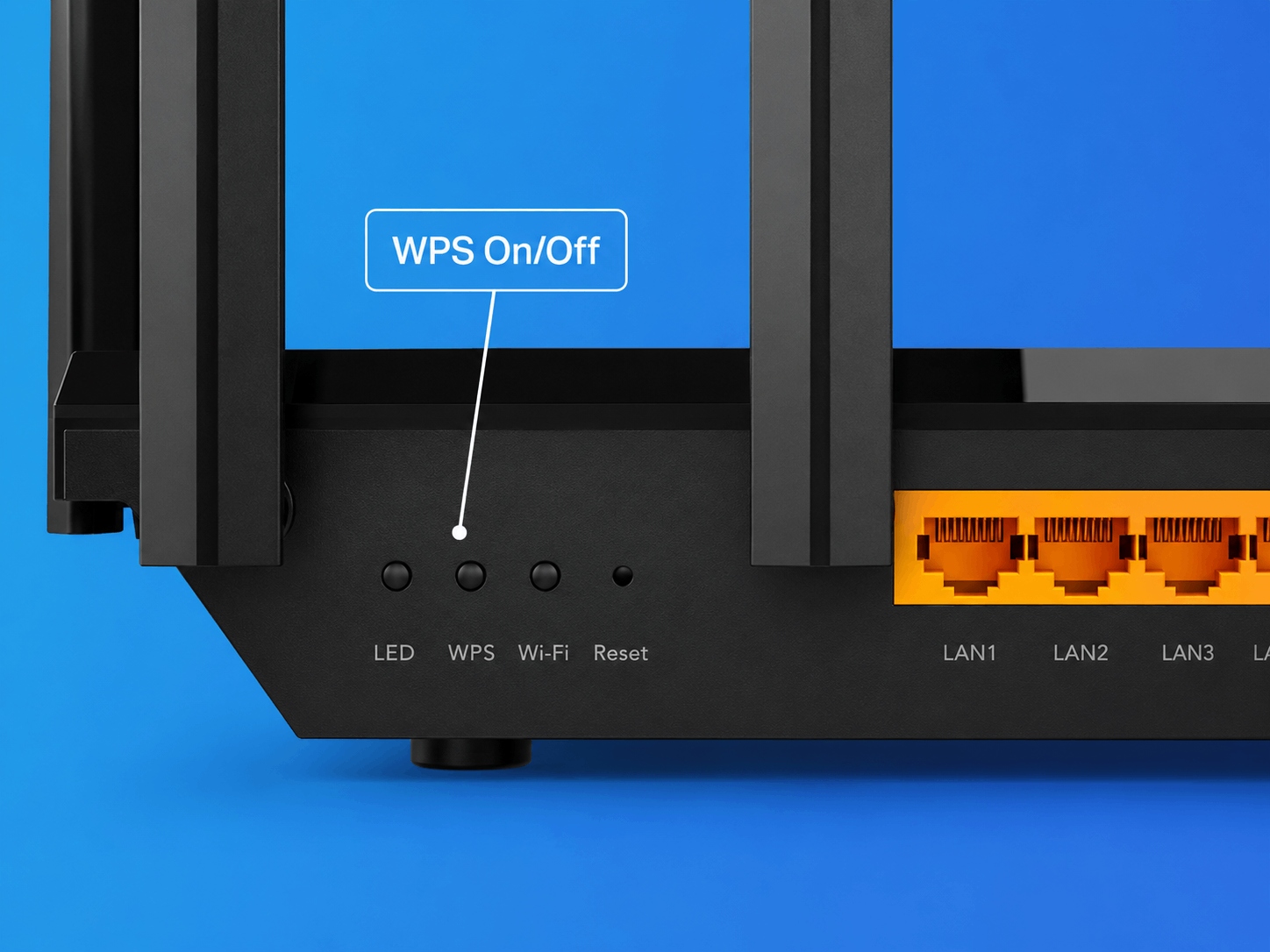
WPS, which stands for Wi-Fi Protected Setup, is a wireless network security standard, commonly used in routers to make connecting devices to a home network faster and easier. It was introduced in 2006 to solve a common frustration: trying to enter a long Wi-Fi password into devices without a keyboard, like printers and smart TVs. WPS removes that friction by letting devices connect through the press of a button or a short numeric PIN.
Most routers manufactured in the last decade include WPS support. You'll typically find the WPS button on the back or side of your router, sometimes labeled "WPS" and sometimes marked with a symbol that looks like two curved arrows forming a circle.
What Does the WPS Button Do?
The WPS button on your router initiates a short, temporary window during which nearby devices can connect to your Wi-Fi network without a password. There are two ways this works.
The first is the push-button method. You press the WPS button on your router, then activate WPS on the device you want to connect, usually through its Wi-Fi settings. The two devices find each other and complete the connection automatically. This is generally regarded as the safer option.
The second is the PIN method. Your router generates an eight-digit PIN, and you enter it on the device you're connecting. Some routers also allow the client device to generate the PIN instead. The PIN method can be useful when your router is in a hard-to-reach spot and pressing the physical button isn't practical. However, it has a known security vulnerability, so if you use it, this is something to be mindful of.
How to Use the WPS Button to Connect a Device
Using the WPS push-button method takes less than two minutes. Here's how:
- Make sure the device you want to connect (a printer, laptop, or smart home device) has WPS support. This is usually listed in the device's specs or visible in its Wi-Fi settings.
- Press the WPS button on your router. A light on the router will usually blink to indicate it's in pairing mode.
- Within two minutes, go to your device's Wi-Fi or network settings and select the WPS option. On most devices, this appears as "Connect via WPS" or a similar prompt.
- Wait a few seconds. The router and device will complete the handshake and establish the connection.
- If the connection doesn't complete within the two-minute window, the router cancels pairing automatically. You can simply try again by pressing the WPS button once more.
Is WPS Safe?
WPS is generally safe, but it has some security limitations worth understanding. The level of risk depends on which method you use and whether you leave it enabled when you're not actively connecting a device.
The PIN vulnerability
The PIN method has a well-documented structural flaw. The eight-digit PIN is verified in two halves rather than as a single code, reducing the number of combinations an attacker needs to try. This makes it vulnerable to attacks where software systematically cycles through combinations until one works. It's the main reason most security guidance recommends avoiding the PIN method entirely.
The open connection window
When you press the WPS button, your router enters pairing mode for roughly two minutes. Any nearby device with WPS enabled can attempt to connect during that window. In a detached house this is low-risk in practice. In an apartment building or dense neighborhood, it's worth being mindful about when you activate it.
Leaving WPS on permanently
The simplest risk to manage is leaving WPS enabled when you have no active use for it. Turning it off between uses removes any ongoing exposure without any real trade-off.
The push-button method is the lower-risk option
If you use WPS, push-button is safer than PIN. You're physically at the router, you initiate the connection deliberately, and the window closes automatically. For occasional use, it's a reasonable convenience with manageable risk.
Should You Leave WPS On or Turn It Off?
For most households, turning WPS off when you're not actively using it is the safer approach. The WPS button on your router only needs to be enabled the moment you're connecting a new device. Leaving it on permanently adds ongoing exposure without a clear benefit.
If you frequently connect WPS-compatible devices and find it genuinely useful, the push-button method is the lower-risk option.
If you rarely add new devices, or if you share walls with close neighbors in an apartment building, disabling WPS entirely is a straightforward way to reduce your network's attack surface.
On TP-Link routers, you can enable or disable WPS through the router's admin settings or through the Tether app, which gives you a simple way to manage it without logging into a browser interface.
How to Check If WPS Is On or Off on Your Router
The steps for checking WPS status vary slightly by router brand, but the general process is the same for most models.
Check WPS Settings on Any Router
- Open a browser and type your router's IP address into the address bar. This is usually 192.168.0.1 or 192.168.1.1.
- Log in with your admin username and password. (If you haven't changed these from the manufacturer’s default, check the label on the back of your router.)
- Navigate to the wireless or Wi-Fi settings section.
- Look for a WPS setting. It will usually show a toggle or checkbox to enable or disable it.
Check WPS Settings on a TP-Link Router
The Tether app makes it easy to check your TP-Link router’s WPS settings. Open the app, select your router, and go to the wireless settings. You'll find the WPS toggle there without needing to navigate a browser-based interface. For more details, TP-Link's WPS support guide walks through the steps for specific models.
Use WPS When You Need It, Disable It When You Don't
WPS is a useful shortcut for connecting devices quickly, but it's not something that needs to run in the background all the time. Use the push-button method when it's genuinely convenient, skip the PIN method, and turn WPS off when you're not actively using it.
If you want to strengthen your home network security beyond WPS, learn more about the built-in protections in TP-Link's Deco mesh routers.
Frequently Asked Questions
What happens if I press the WPS button on my router?
Pressing the WPS button puts your router into pairing mode for about two minutes. During that window, any nearby device that also has WPS enabled can connect to your network without a password. If no device connects in time, the router cancels pairing automatically and returns to its normal state.
How long do you hold down the WPS button?
On most routers, you press and release the WPS button rather than holding it down. A single press is usually enough to activate pairing mode. Some routers require a press of one to three seconds. Check the indicator light on your router, and when it starts blinking, pairing mode is active.
Should I keep my WPS on or off?
For most home networks, keeping WPS turned off when you're not using it is recommended. The push-button method is low-risk for occasional use, but leaving WPS enabled means your router has an extra access point that doesn't need to be there. Anyone visiting your home could connect to your network without the password. Disable it between uses and turn it back on only when you're connecting a new device.
How do I know if my WPS is on or off?
Log in to your router's admin panel through a browser using your router's IP address, typically 192.168.0.1 or 192.168.1.1. Go to the wireless settings section and look for a WPS option. On TP-Link routers, you can view and change WPS settings directly in the Tether app, under wireless settings.