
How to Find Your Optimal MTU Size Using a Ping Test
Maximum Transmission Unit (MTU) is the largest packet size your network can send without fragmenting the data. Setting the wrong MTU can cause slow connections, dropped packets, and application timeouts. This guide covers three areas: what MTU is and why the correct size matters for network performance; how to find MTU using a DOS MTU test; and how to troubleshoot MTU issues specific to virtual private network (VPN) connections. Note that MTU must be set to 1492 or lower when using PPPoE connectivity.
Key Takeaways
- MTU stands for Maximum Transmission Unit. It is the largest packet size your network can handle without fragmenting the data.
- The correct MTU for your network can be found by running a ping test from a DOS prompt, progressively lowering the packet size until fragmentation stops.
- Once you find the largest packet size that does not fragment, add 28 bytes (20 for the IP header and 8 for the ICMP header) to get your optimal MTU setting.
- MTU must be set to 1492 or lower when using PPPoE connectivity.
- If applications stall or time out after connecting to a VPN, an incorrect MTU setting is a common cause. Follow the VPN-specific guidance at the bottom of this page.
Helpful hint
One way to verify whether it is an MTU problem is to try to access the application or website via dial-up access. Since dial-up uses a default MTU of 576 bytes, you will not have the same problems as broadband. If you have problems with both broadband and dial-up access, then the problem is probably something else.
How the MTU Ping Test Works
One of the easiest and most accurate ways to test for optimum MTU is to do a simple DOS Ping test. Send out ping requests and progressively lower your packet size until the packet no longer needs to be fragmented. Although this simple test is accurate for testing endpoints, users may find that a lower MTU may be better for their particular circumstances. MTU must be 1492 (or lower) when using PPPoE connectivity.
Important Notes
- Due to the additional complexity of VPN connections, a different MTU test method is required. Please refer to the end of this article.
- If your network has multiple computers, every device should be configured with the same MTU setting. Additionally, some PCs may use several Network Adapters or a VPN client adapter on one PC, so you must verify you are changing the Network Adapter associated with your broadband service or VPN client.
- The built-in PPPoE client for Windows XP uses an MTU of 1480. This only applies if you are running the built-in XP PPPoE client!
How to Find Your Optimal MTU Size: Ping Test Method
To find the correct MTU for your network, run a simple DOS ping test. You will simply send out ping requests and progressively lower your packet size until the packet no longer needs to be fragmented. Please reference the following steps:
The command for this ping test is ping www.tp-link.com -f -l xxxx.
•You can use any well-known, pingable domain like ping www.google.com -f -l xxxx in place of www.tp-link.com for the test.
•There is a single space between each command.
•"-l" is a lower-case letter L, not the number one.
•The last four numbers are the test packet size.
Step 1. Open a DOS prompt screen by clicking on Start>Programs>MSDOS-PROMPT. You can also use the Run Command by clicking Start > Run, then typing "cmd" for Windows 2000/XP/Vista or "command" for Windows 95/98/ME.
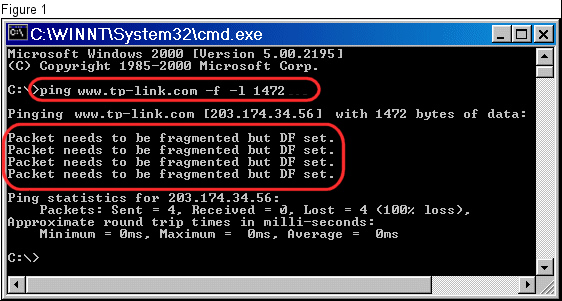
Step 2. At the DOS Prompt, type in ping www.tp-link.com -f -l 1472 and hit Enter. Notice that the packet needs to be fragmented. (Figure 1)
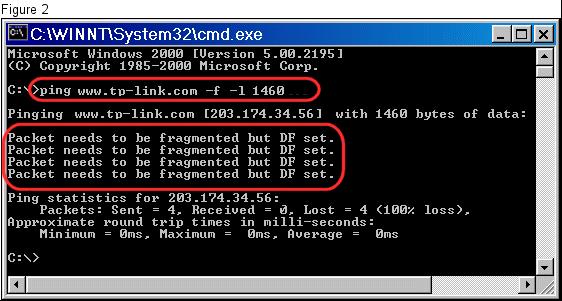
Step 3. Drop the test packet size down (10 or 12 bytes) and test again. Notice that the packet still needs to be fragmented. (Figure 2)
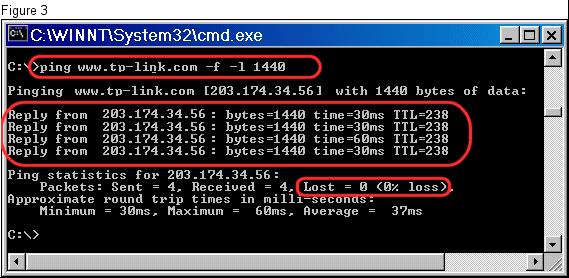
Step 4. Reduce the test packet size further and test again until you reach a packet size that does not fragment. (Figure 3)
Step 5. Once you have a test packet that is not fragmented, increase your packet size in small increments and retest until you find the largest possible packet that doesn´t fragment.
Step 6. Take the maximum unfragmented packet size from the ping test and add 28. You add 28 bytes because 20 bytes are reserved for the IP header and 8 bytes must be allocated for the ICMP Echo Request header.
Remember: You must add 28 to your ping test results!
An example:
1440 Max packet size from Ping Test
+ 28 IP and ICMP headers
1468 is your optimum MTU Setting
MTU Issues with VPN Connections
Problems connecting to my VPN, or my applications stall and time out.
There are usually two common problems associated with VPN connectivity.
You can't connect to the VPN server at all
If you cannot connect to your VPN server at all and have a router, the VPN application may require you to open certain ports, assign an IP address to a specific computer, or use a separate PPPoE client directly on the computer.
You can connect, but applications stall or time out
If you can connect and authenticate, but applications stall, time out, or fail to load, your MTU (Maximum Transfer Unit) may be incorrect.
Looking For More
Is this faq useful?
Your feedback helps improve this site.

TP-Link Community
Still need help? Search for answers, ask questions, and get help from TP-Link experts and other users around the world.