How to Fix DNS Server Not Responding: A Step-by-Step Guide
A "DNS server not responding" error means your device can't reach the system that translates website names into addresses your browser can load. In practical terms, this means websites won't load, even if your Internet connection is otherwise working fine.
It sounds technical, but most DNS errors are fixable in minutes. This troubleshooting guide walks you through how to fix DNS server not responding errors, starting with the quickest fixes and moving to more advanced solutions if the problem persists.
Key Takeaways
- A DNS error means your device can't connect to the server that translates website names into IP addresses. Without this process, websites won't load.
- Most DNS errors are resolved by restarting your router and device or flushing your DNS cache.
- Switching to a public DNS server like Google (8.8.8.8) or Cloudflare (1.1.1.1) can fix errors caused by a slow or unreliable ISP server.
- Overly strict firewall or antivirus settings can block DNS traffic and trigger the error.
- If DNS errors keep coming back, your router may be the root cause.
What Does "DNS Server Not Responding" Mean?
DNS means Domain Name System. It translates the website names you type in your browser (like google.com) into the numerical IP addresses computers use to find and load them. When you see a "DNS server not responding" error, your device sent a request to that system, and got no answer back.
This type of DNS issue affects how your device looks up website names, not your Internet connection itself. Your connection may be working fine, but without a functioning DNS server, your browser has no way to find the websites you're trying to reach.
How to Test Whether DNS Is the Problem
Before working through the fixes, confirm that DNS is actually the issue. Open your browser and type a direct IP address into the address bar, such as 8.8.8.8. If a page loads, your Internet connection is working, but DNS is not resolving correctly. If nothing loads at all, the problem may be with your connection rather than DNS.
Why Is Your DNS Server Not Responding? The Most Common Causes
DNS problems can have several causes. Understanding which one applies helps you choose the right fix.
- Corrupted DNS cache: Your device stores recent DNS lookups to speed up browsing. If that data becomes outdated or corrupted, it can return incorrect results and trigger an error.
- ISP server outage: Your Internet provider assigns you a DNS server by default. If that server goes down or becomes overloaded, your requests go unanswered.
- Router issue: Your router manages DNS requests for every device on your network. A glitch, outdated firmware, or underpowered hardware can cause requests to fail.
- Firewall or antivirus interference: Security software configured too strictly can block DNS traffic entirely.
- Outdated network settings: An out-of-date network adapter driver may prevent your device from communicating correctly with your DNS server.
How to Fix DNS Server Not Responding: From Simplest to Most Advanced
The fixes below are ordered from quickest to the most involved. Start at the top and work down until the error clears.
Fix 1: Restart Your Router and Device
Restarting is the most effective first step for most users. When your router restarts, it clears temporary memory, drops stale DNS data, and re-establishes a fresh connection with your ISP's DNS server.
- Unplug your router from the power outlet.
- Wait 30 seconds, then plug it back in.
- Allow the router to fully restart (usually 60-90 seconds).
- Restart your device and try loading a website.
This single step resolves the majority of DNS server not responding errors for home users.
Fix 2: Flush Your DNS Cache
Your device keeps a local record of recent website lookups. If that cache becomes corrupted, it can cause DNS errors even when your DNS server is working fine. Flushing it forces your device to fetch fresh data and is one of the most reliable fixes for how to fix DNS issues that come and go.
On Windows:
- Press the Windows key, type cmd, and select "Run as administrator."
- Type ipconfig /flushdns and press Enter.
- Restart your browser and try again.
On Mac:
- Open Terminal (Applications > Utilities).
- Type sudo dscacheutil -flushcache; sudo killall -HUP mDNSResponder and press Enter.
- Enter your password if prompted, then restart your browser.
Fix 3: Switch to a Public DNS Server
If your ISP's DNS server is slow or down, switching to a public alternative is a proven fix for DNS failure. Google's public DNS (8.8.8.8 and 8.8.4.4) and Cloudflare's DNS (1.1.1.1) are free, widely used, and generally more stable than ISP defaults.
On Windows:
- Open Settings and go to Network and Internet.
- Select your connection and click "Edit" under DNS settings.
- Switch to Manual, enable IPv4, and enter 8.8.8.8 as preferred and 8.8.4.4 as alternate.
- Save and reconnect.
On Mac:
- Open System Settings and go to Network.
- Select your active connection and click Details.
- Go to the DNS tab, click "+" and add 8.8.8.8 and 8.8.4.4.
- Click OK and apply.
Fix 4: Check Your Firewall and Antivirus Settings
Security software configured too strictly can block DNS traffic, causing a DNS error even when your connection is working. This can appear suddenly after a software update.
To test whether this is the cause, temporarily disable your firewall or antivirus and try loading a website. If the error clears, check your security software for rules blocking DNS traffic (port 53) and add an exception. Re-enable your security software immediately after testing.
Fix 5: Update or Reinstall Your Network Adapter Driver
If you have tried every fix above and DNS problems persist, an outdated network adapter driver may be the cause. A network adapter driver is the software that allows your operating system to communicate with your network hardware. This is a Windows-specific fix.
- Press the Windows key, type Device Manager, and open it.
- Expand "Network Adapters" and right-click your adapter.
- Select "Update driver" and choose "Search automatically for drivers."
- Restart your computer and test your connection.
If updating doesn't help, uninstall the device and restart. Windows will reinstall the driver automatically.
How to Change DNS Settings on Your Device
By default, most devices automatically use whatever DNS server your ISP assigns, which isn't always the fastest or most reliable option. If Fix 3 resolved your DNS server unavailable error, making that change permanent ensures your device always uses a reliable DNS server, regardless of what your ISP provides.
Windows and Mac: Follow the steps in Fix 3. Once saved, the setting persists until you change it.
iPhone:
- Open Settings and tap Wi-Fi.
- Tap the info icon next to your network.
- Tap "Configure DNS," select Manual, and add 1.1.1.1 or 8.8.8.8.
- Tap Save.
Android:
- Open Settings and go to Network and Internet.
- Tap Private DNS, then select "Private DNS provider hostname."
- Enter 1dot1dot1dot1.cloudflare-dns.com for Cloudflare or dns.google for Google.
- Tap Save.
If you have a TP-Link router, you can also change your DNS settings at the network level, so every connected device uses your preferred DNS server automatically. See how to change DNS settings on a TP-Link wireless router or how to change DNS settings on a TP-Link Deco for step-by-step instructions.
How Your Router Can Cause DNS Server Errors
If you're experiencing recurring DNS server unavailable errors that device-level fixes haven't resolved, your router may be the root cause. An outdated or underpowered router can struggle to handle DNS requests efficiently, particularly on networks with many connected devices.
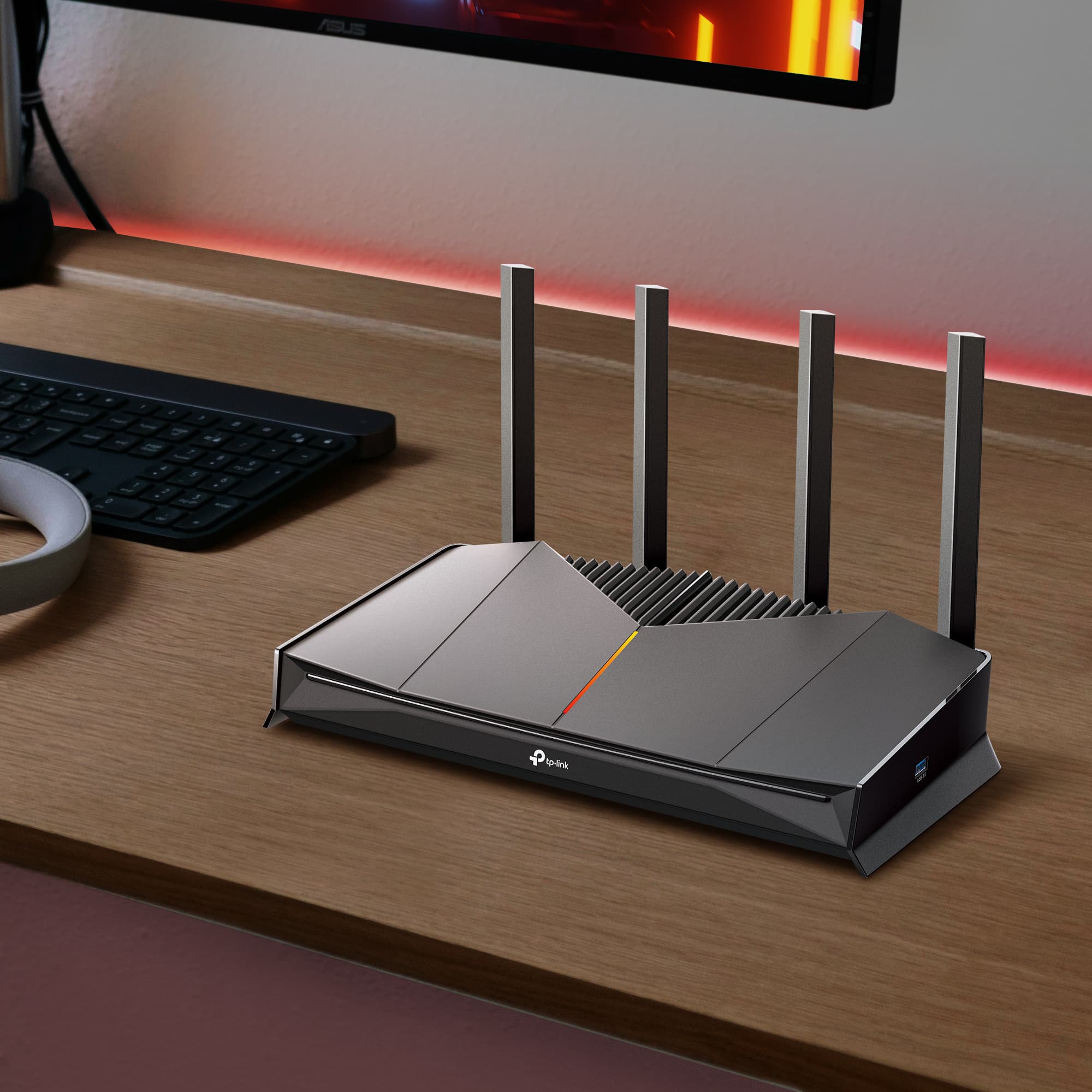
TP-Link routers are designed to manage connections reliably across all your devices. Select models include a built-in VPN support, allowing more control and privacy of your DNS traffic. With a VPN installed at the network level, every device on your network is covered without needing separate software on each one.
How to Fix Slow DNS Lookups
A slow DNS lookup is different from a full error. Your Internet works, but pages take longer than they should to start loading. This delay often comes from an ISP-assigned DNS server that is overloaded or geographically distant.
Switching to a faster public DNS is the most effective fix for how to fix slow DNS lookup issues. Cloudflare's 1.1.1.1 is widely cited as one of the fastest public options available, and Google's 8.8.8.8 is a reliable alternative. If slow lookups persist after switching, upgrading to a newer router can also improve response times.
Preventing DNS Errors
A few simple habits can stop DNS issues from coming back.
- Keep your router firmware up to date. Firmware updates fix bugs that can affect DNS handling. Check your router's admin settings regularly or enable automatic updates.
- Switch to a reliable public DNS server. Moving away from your ISP's default reduces your exposure to outages and slowdowns.
- Consider a router with built-in VPN support. VPN routers encrypt your DNS requests across every connected device, and route them through secure servers. VPNs add a layer of protection that helps prevent DNS issues while keeping your browsing private and secure.
DNS Server Still Not Responding? Your Next Steps
If you have worked through all the fixes and the error persists, here are three more options.
Contact your ISP. They can check for server-side outages or problems with the DNS settings assigned to your account.
Check your router firmware. Log in to your router's admin panel and install any available updates. Outdated firmware is a common cause of recurring errors that device-level fixes can't address.
Consider upgrading your router. If your router is several years old and DNS errors keep returning, the hardware itself may be the limiting factor. For TP-Link router users, check out the router DNS settings guide to make sure your current settings are optimized before upgrading.
DNS Errors Are Fixable
Most DNS server not responding errors are temporary and clear quickly with a restart or cache flush. If the problem keeps coming back, work through the fixes in order and check your router firmware before anything else.
For households dealing with repeated DNS issues, explore TP-Link's recommended routers for models built for reliable DNS handling and whole-home performance.
Frequently Asked Questions
How do I fix the DNS server isn't responding?
Start by restarting your router and device. This resolves most DNS errors in under two minutes. If the error returns, flush your DNS cache or switch to a public DNS server like Google (8.8.8.8) or Cloudflare (1.1.1.1). Work through the fixes in order from simplest to most advanced until the error clears.
How can I reset my DNS server?
Flush your DNS cache on your device using ipconfig /flushdns on Windows or a Terminal command on Mac. You can also switch your DNS server manually to a public option like Google or Cloudflare, or restart your router to reset its DNS connection to your ISP.
What does DNS 8.8.8.8 and 8.8.4.4 do?
8.8.8.8 and 8.8.4.4 are Google's public DNS servers. When you set these as your DNS addresses, your device sends requests to Google's servers instead of your ISP's default. They are free, reliable, and widely used as an alternative when an ISP's DNS is slow or experiencing outages.