
Как проверить использование трафика в приложении TP-Link Deco или Tether
Если вы хотите узнать, сколько данных потребляют ваши устройства, функция Использование трафика — это самый простой способ. Некоторые модели также поддерживают детальную статистику, которая показывает, сколько данных используется конкретными приложениями или категориями. В этом руководстве объясняется, как получить доступ к этой функции и использовать её.
Основные выводы
- Функция «Использование трафика» позволяет отслеживать, сколько данных потребляют устройства в вашей сети.
- Вы можете просматривать статистику трафика по дням или неделям, а также проверять использование на уровне устройств из списка клиентов.
- Некоторые модели поддерживают детальную статистику, которая показывает трафик с разбивкой по приложениям или категориям.
- Данные о трафике не являются данными в реальном времени; ожидайте задержку обновления в 1–5 минут.
- Трафик между устройствами в локальной сети (например, передача файлов между устройствами) не включается в статистику.
Как получить доступ к использованию трафика в приложении Deco или Tether
Есть два способа найти функцию «Использование трафика»:
Способ 1: Перейдите в Сеть > Использование трафика.
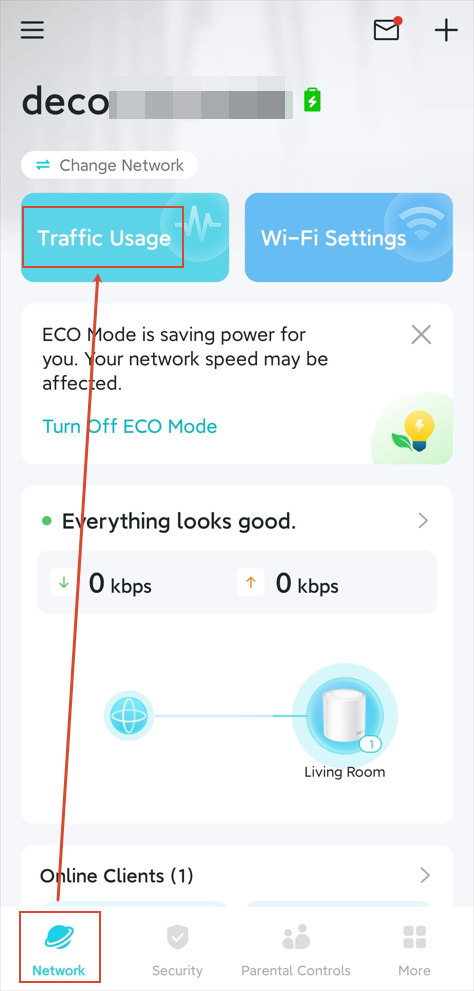
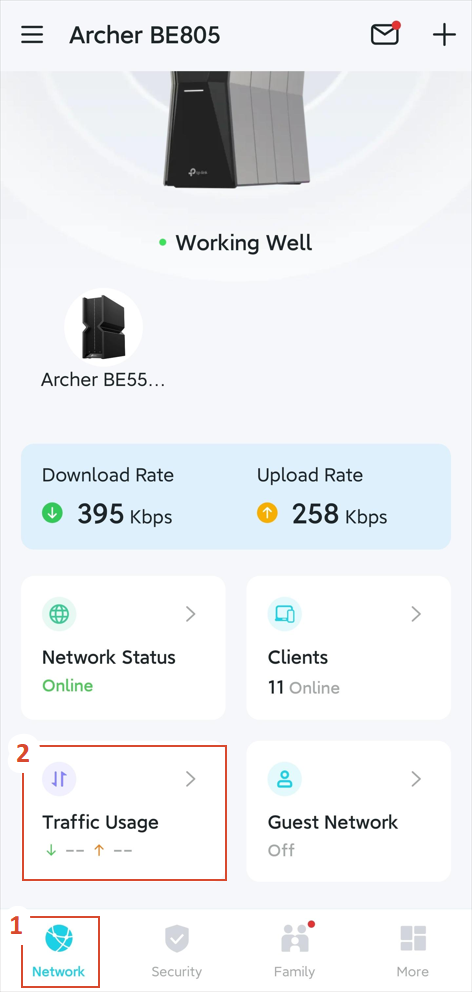
Способ 2: Перейдите в Сеть > (Онлайн) Клиенты > Нажмите на устройство > Использование трафика.
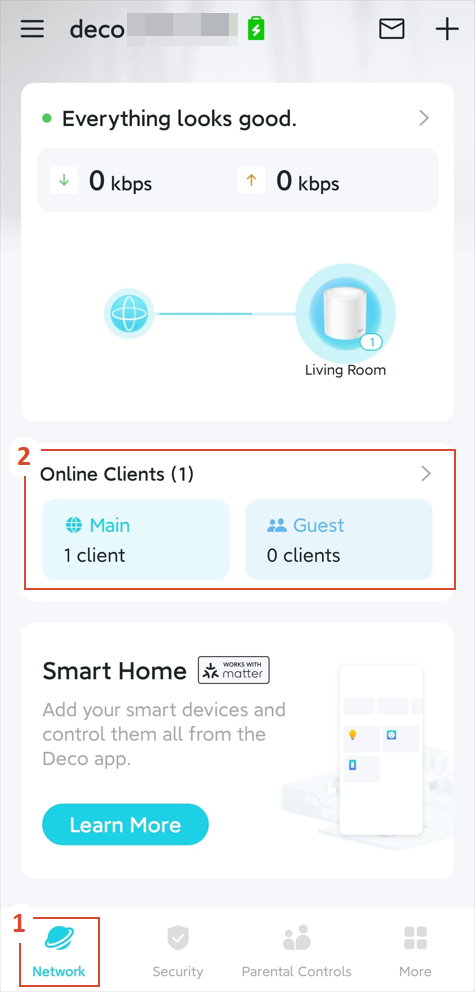
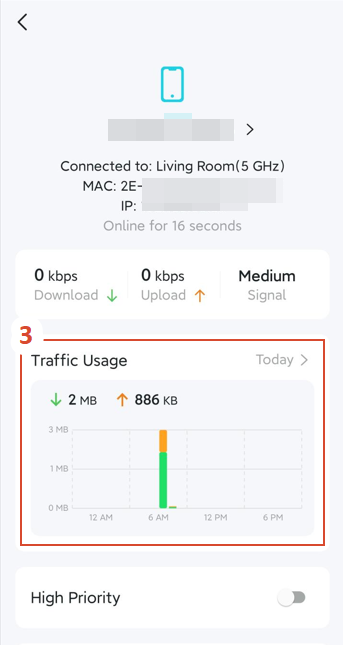
Обзор функции
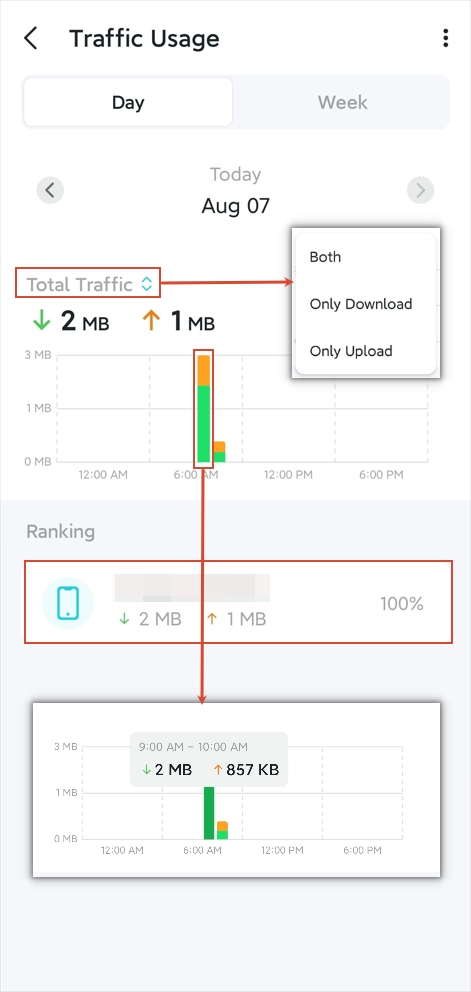
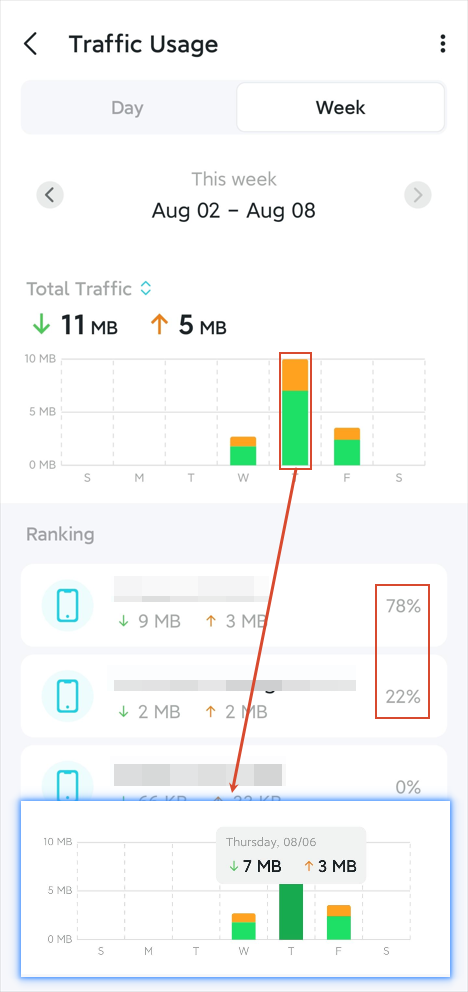
Страница «Использование трафика» отображает данные о трафике по дням или неделям. Модели с детальной статистикой также позволяют просматривать трафик на уровне приложений.
Просмотр по дням и неделям
В режиме просмотра по дням или неделям вы можете увидеть:
Почасовой (дневной режим) или ежедневный (дневной режим) трафик загрузки и скачивания за последние 7 дней (дневной режим, включая сегодня) или последние 4 недели (недельный режим, включая текущую неделю)
Переключатель для отображения: Только загрузка, Только скачивание или Оба.
Рейтинг всех устройств по использованию трафика с указанием процента.
Собственное использование трафика устройства при нажатии на него.
Просмотр детальной статистики
Примечание: Эта функция доступна не на всех моделях. Проверьте страницу вашего приложения для получения точной информации.
Детальная статистика отключена по умолчанию. Чтобы включить её, перейдите на страницу Использование трафика, нажмите значок с тремя точками > Настройки и включите переключатель.
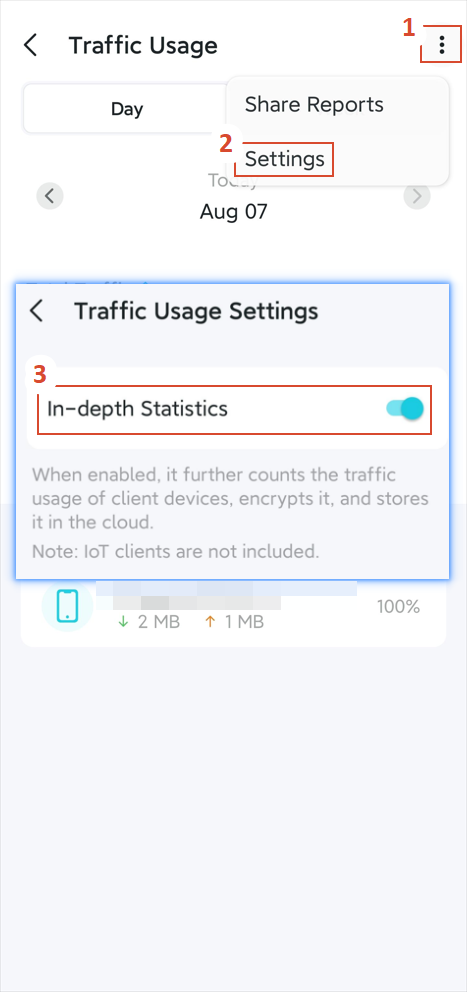
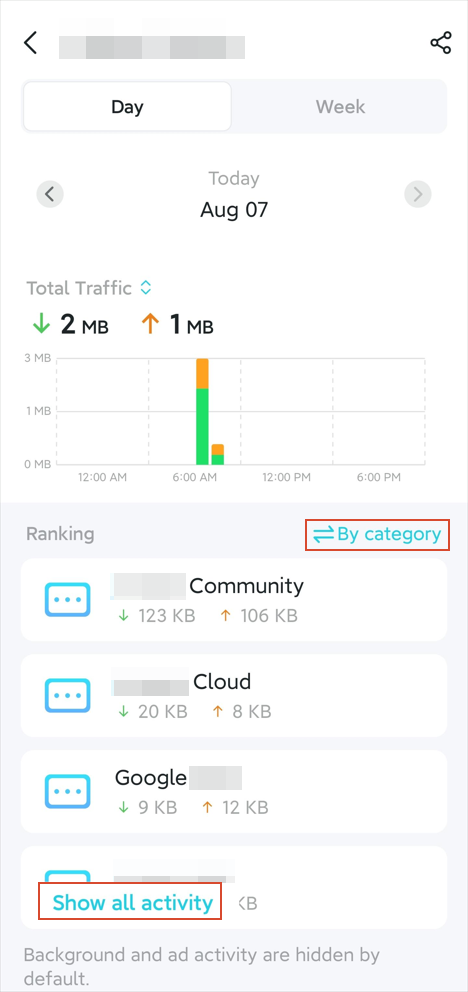
После включения нажмите на устройство в списке рейтинга, чтобы увидеть:
Почасовой или ежедневный трафик загрузки и скачивания для этого устройства
Переключатель для отображения: Только загрузка, Только скачивание или Оба
Рейтинг приложений или категорий по использованию трафика
Вы также можете поделиться отчётом о трафике в любое время.
Вопросы и ответы
В1: Почему мой трафик веб-сёрфинга записывается как «ПРИЛОЖЕНИЕ» в статистике трафика?
Это нормально. Использование трафика классифицируется на основе доменных имён. Когда вы получаете доступ к такому сервису, как YouTube, через браузер или приложение, оба используют один и тот же домен (например, youtube.com). Система объединяет этот трафик в одну категорию. Даже если приложение не открыто, фоновый доступ к тому же домену всё равно может учитываться в трафике этого приложения.
В2: Охватывает ли статистика использования трафика все сети (основную, гостевую и IoT)?
Да, система записывает трафик со всех подключённых устройств, независимо от того, к какой сети они подключены. Однако умные домашние устройства, такие как камеры, не поддерживают детальную статистику, даже если основной Deco или маршрутизатор её поддерживает.
В3: Я только что сгенерировал некоторый трафик, но он ещё не отобразился. Какая задержка?
Данные об использовании трафика не обновляются в режиме реального времени. Для обеспечения производительности системы данные отправляются пакетами через регулярные интервалы. Задержка в 1–5 минут является нормальной. Подождите и обновите страницу, чтобы увидеть последнюю статистику.
В4: Почему трафик локальной сети (например, передача файлов между устройствами) не отображается?
Функция «Использование трафика» фокусируется на интернет-трафике (WAN). Локальная связь между устройствами в вашей локальной сети, такая как передача файлов или трансляция экрана, не проходит через модуль статистики интернета маршрутизатора, поэтому она не включается.
Чтобы узнать больше о каждой функции и настройке, перейдите в Центр загрузок, чтобы скачать руководство для вашего продукта.
Ищете больше информации?
Полезен ли этот FAQ?
Ваши отзывы помогают улучшить этот сайт.



TP-Link Community
Still need help? Search for answers, ask questions, and get help from TP-Link experts and other users around the world.
From United States?
Получайте информацию о продуктах, событиях и услугах для вашего региона.