
How to Enable and Use AI Zoom on Tapo Cameras
AI Zoom enhances your Tapo camera viewing experience by automatically focusing on detected people, pets, or vehicles in Live View. This FAQ explains how AI Zoom works, how to enable it, the differences between single-lens and dual-lens cameras, and how it integrates with tracking for clearer, more detailed monitoring.
Key Takeaways
- AI Zoom automatically highlights detected objects while keeping them centered in Live View.
- Single‑lens and dual‑lens cameras differ in how they display views when AI Zoom is triggered and when no detections occur.
- AI Zoom works independently of Auto/Smart Tracking but performs best when tracking is enabled.
- 4K resolution is recommended for clearer and more detailed zoom results.
- Manual zoom temporarily overrides AI Zoom, with automatic recovery after inactivity.
AI Zoom Feature Overview
AI Zoom automatically zooms in on detected objects (such as people, pets, or vehicles) and displays them prominently in the camera’s Live View.
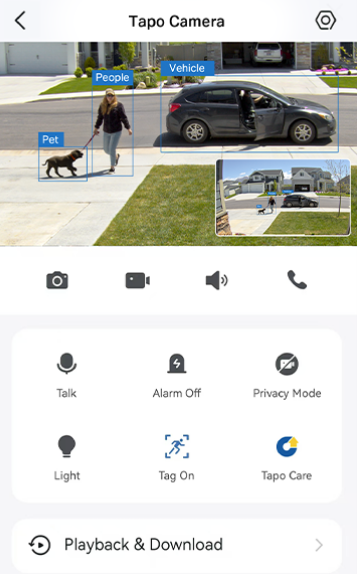
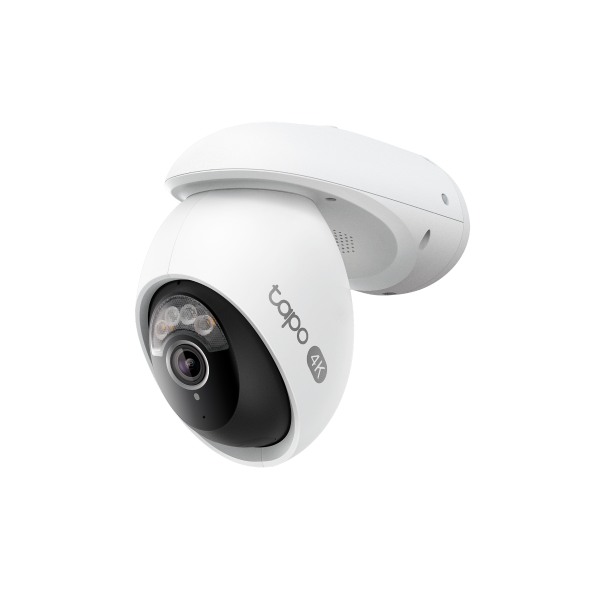
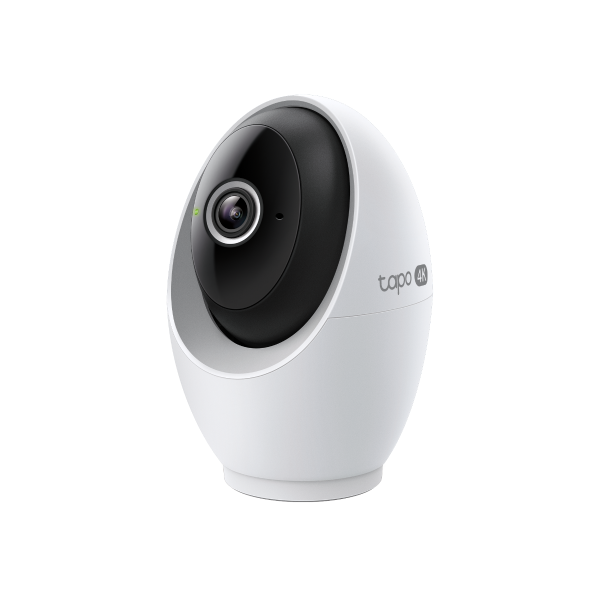
- Single-Lens Camera: AI Zoom works like a smart magnifier. The zoomed-in view is shown alongside the full scene, which remains visible in a smaller window.
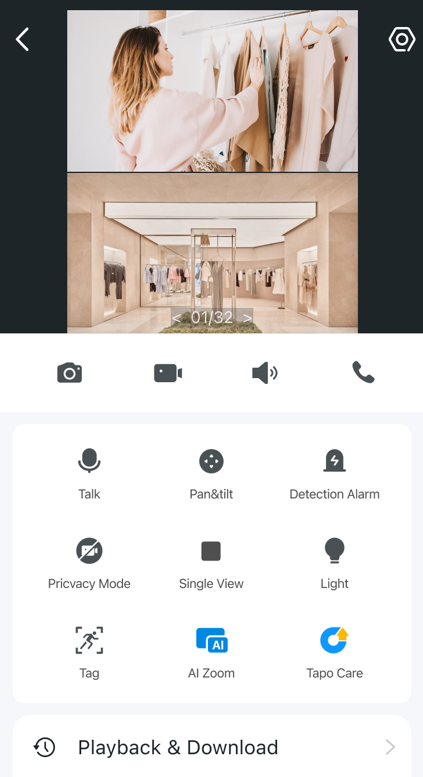
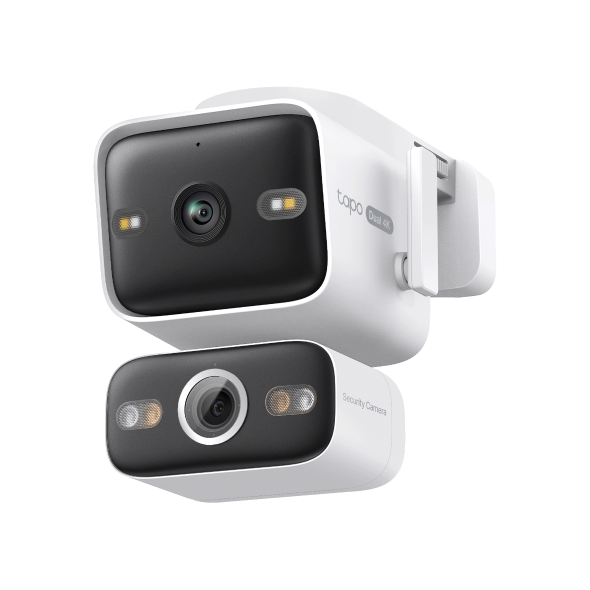
- Dual-Lens Camera: AI Zoom smoothly zooms in on detected targets using the Pan/Tilt Telephoto Lens, keeping them centered for clearer detail. Meanwhile, the Fixed Wide-Angle Lens continuously shows the full field of view.
For the best experience, set the Live View resolution to 4K.
How to Enable AI Zoom
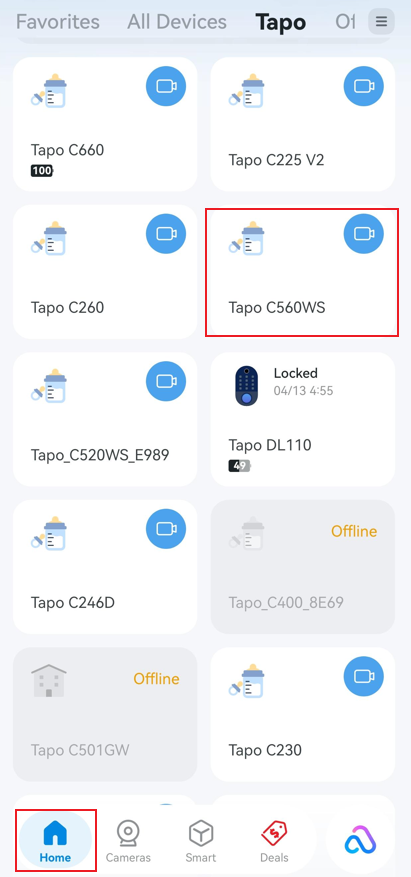
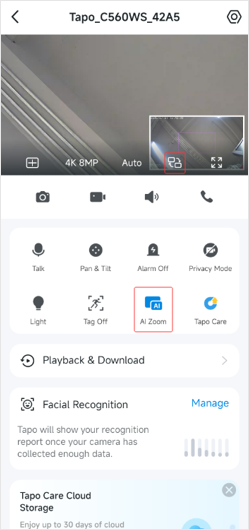
To enable the AI Zoom feature for your Tapo camera:
- Open the Tapo App Home page, tap the device model card to enter Live View.
- Tap AI Zoom to enable or disable this feature.
Key Differences: Single-Lens vs. Dual-Lens Cameras
1. Picture-in-Picture (PiP) Behavior
Single-Lens Cameras: PiP is always enabled. You can tap the small window or use the Screen Swap icon to switch views, or long-press and drag it to any corner of the screen.
Dual-Lens Cameras: PiP is not supported. In Dual View mode, the Fixed Wide-Angle Lens always displays the full FOV, and the Pan/Tilt Telephoto Lens displays AI Zoom output. Under Single View mode, only one lens is shown, and AI Zoom is available only in the Pan/Tilt Telephoto Lens view.
2. Display Behavior When No Detection Occurs
Single-Lens Cameras: When no AI event is detected, the camera stays zoomed in on a fixed central area (2.5x) of the scene.
Dual-Lens Cameras: If tracking is lost or the target leaves the Pan/Tilt Telephoto Lens view, the telephoto lens smoothly zooms out to the default (unzoomed) view.
Relationship Between AI Zoom, Auto/Smart Tracking and Smart Dual Tracking
AI Zoom operates independently of Auto/Smart Tracking and Smart Dual Tracking, but they can work together to enhance the user experience.
1. Single-Lens Cameras
AI Zoom Enabled, Auto/Smart Tracking Disabled
AI Zoom works based on target detection, but the camera does not follow the target.
AI Zoom Enabled, Auto/Smart Tracking Enabled
AI Zoom works based on target detection, and the camera follows the target until it leaves the field of view.
2. Dual-Lens Cameras
AI Zoom Enabled, Auto/Smart Tracking Disabled, Smart Dual Tracking Disabled
AI Zoom works based on detections, but the Pan/Tilt Telephoto Lens does not follow the target.
AI Zoom Enabled, Auto/Smart Tracking Enabled, Smart Dual Tracking Disabled
- AI Zoom continues to operate based on detection. If a target is detected within the Pan/Tilt Telephoto Lens view, the Telephoto Lens zooms in and follows the target using Auto/Smart Tracking.
- If a target is detected only in the Fixed Wide-Angle Lens view and is NOT currently visible in the Pan/Tilt Telephoto Lens view, the Telephoto Lens does not move to acquire the target, and AI Zoom is not triggered.
AI Zoom Enabled, Auto/Smart Tracking Disabled, Smart Dual Tracking Enabled
- If a target appears only in the Pan/Tilt Telephoto Lens view and not in the Fixed Wide-Angle Lens view, AI Zoom works normally, but the Telephoto Lens does not follow the target.
- If a target is detected in the Fixed Wide-Angle Lens view, the Telephoto Lens moves to acquire the target. Once the target is acquired, AI Zoom engages automatically.
AI Zoom Enabled, Auto/Smart Tracking Enabled, Smart Dual Tracking Enabled
- This configuration provides the best overall experience.
- If a target is detected within the Pan/Tilt Telephoto Lens view, the Telephoto Lens zooms in and follows the target using Auto/Smart Tracking.
- If a target is detected in the Fixed Wide-Angle Lens view but is NOT yet visible in the Pan/Tilt Telephoto Lens view, the Telephoto Lens automatically moves to acquire the target. Once the target is acquired, AI Zoom engages automatically.
Q&A
Q1: What should I do if AI Zoom doesn’t work properly?
- Make sure AI detection (e.g., Person, Pet, or Vehicle Detection) is enabled.
- Turn on Detection Tags in Live View to verify events are being detected.
- Ensure Auto/Smart Tracking is enabled for optimal performance.
- Increase detection sensitivity, then toggle AI Zoom off and on again.
Q2: Do I need to use the highest resolution for AI Zoom?
Not required, but recommended. Higher resolution (e.g., 4K) provides clearer details and delivers a better AI Zoom experience.
Q3: What is the detection priority for AI Zoom?
Priority order for selecting an objective when multiple types exist: people > vehicles > pets. Once AI Zoom locks onto a target, it will not switch to another object type mid-tracking, even if a higher-priority target appears.
Q4: Can I manually zoom into an area that is different from the detected target?
Yes. Manual control overrides AI Zoom temporarily. After you manually zoom into another area, the view stays for 10 seconds. If AI detects an event after 10 seconds, AI Zoom resumes and focuses on the detected target. If no AI event is detected during this time:
- Single-lens camera: Zoomed in on a fixed central area (2.5 x) of the scene.
- Dual-lens camera: Telephoto lens returns to the default (unzoomed) view.
To learn more about each function and configuration, please visit the Download Center to download the manual for your product
Tìm kiếm thêm
Câu hỏi thường gặp này có hữu ích không?
Phản hồi của bạn giúp cải thiện trang web này.

TP-Link Community
Still need help? Search for answers, ask questions, and get help from TP-Link experts and other users around the world.