
How to Set Up Range Extender Mode on a TP-Link Wireless Router
This page explains how to use a TP-Link router as a WiFi extender by enabling Range Extender Mode. This guide applies to select TP-Link router models only — check your product's spec page to confirm your model supports this feature. Range Extender Mode allows a compatible router to extend an existing Wi-Fi network without a separate range extender, making it a useful option for users who want to eliminate weak signal areas with hardware they already own.
Note: Only some wireless router models support Range Extender Mode. The Archer A54 V1 is used as the demonstration model in this guide.
Key Takeaways
- Range Extender Mode allows a compatible TP-Link router to copy and extend an existing wireless signal, helping eliminate dead zones in larger spaces.
- Only select TP-Link router models support Range Extender Mode. Check your product's spec page to confirm compatibility.
- Setup is completed via Quick Setup in the router's web management page. Select Range Extender as the operation mode and follow the on-screen instructions.
- When a router is set to Range Extender Mode, several functions become unavailable, including Guest Network, parental controls, port forwarding, IP and MAC binding, Access Control, and security features.
Can I Use a TP-Link Router as a WiFi Extender?
Yes, you can use a TP-Link router as a WiFi extender — if your model supports Range Extender Mode. This is useful when you have a compatible TP-Link router and want to extend coverage to areas with a weak or no signal, without buying a dedicated range extender.
Range Extender Mode works by having the router connect to your existing Wi-Fi network wirelessly and rebroadcast the signal to expand its reach. This is also sometimes referred to as using a TP-Link router as a repeater without a cable. The setup takes just a few minutes through the router's web management page.
How to Set Up Range Extender Mode on a TP-Link Router
Step 1. Log in to the router's web management page. For help accessing it, see How to Log In to the TP-Link Range Extender Web Management Page.
Step 2. Click Operation Mode in the left menu, select Range Extender as the operation mode, and follow the on-screen instructions to complete the setup.
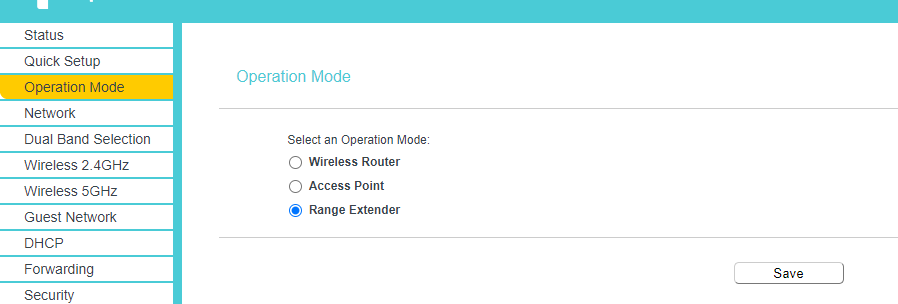
Note: When switching to range extender mode, some router functions, including Guest Network, parental controls, forwarding, IP/MAC binding, Access Control, and security, will be unavailable.
Looking For More
Is this faq useful?
Your feedback helps improve this site.


3.0&4.0-F_normal_1584493102128p.png)

TP-Link Community
Still need help? Search for answers, ask questions, and get help from TP-Link experts and other users around the world.