What Is a Wi-Fi Adapter, and Do You Need One?
If your computer can't get on your Wi-Fi network, you may have heard that a Wi-Fi adapter could fix it. So what is a Wi-Fi adapter? It's a device that lets a computer connect to a wireless network.
Adapters come in two main types. A USB (Universal Serial Bus) adapter plugs into a port on your computer. A PCIe (Peripheral Component Interconnect Express) adapter fits into a slot inside a desktop tower.
You might need one if your computer has no built-in Wi-Fi or its internal Wi-Fi card is failing. It's also a way to upgrade to newer Wi-Fi technology without buying a new computer. An adapter improves the connection only on the computer it's attached to. It won't fix weak Wi-Fi that affects every device in your home.
Key Takeaways
- A Wi-Fi adapter lets a computer connect to a wireless network through a USB port or PCIe slot, without needing an Ethernet cable.
- USB Wi-Fi adapters work with desktops and laptops, while PCIe adapters install only in desktop towers.
- Wi-Fi adapters add Wi-Fi to a computer that lacks it, replace a failing internal card, or bring a newer Wi-Fi standard.
- Match the adapter’s Wi-Fi standard to your router, such as Wi-Fi 6 or Wi-Fi 7, and confirm it supports your computer’s operating system before buying.
- A Wi-Fi adapter improves the connection on one computer only, and weak Wi-Fi across a whole home needs a different fix, like a range extender.
What Is a Wi-Fi Adapter?
A Wi-Fi adapter, also called a wireless adapter, is a device that lets a computer send and receive Wi-Fi signals. It links your computer to your router's wireless network, so you can get online without an Ethernet cable.
Wi-Fi adapters work with both desktop PCs and laptops, and they come in different types that attach in different ways. Some desktops have no Wi-Fi at all, so an adapter is the way to get them online. Laptops usually have built-in Wi-Fi, and an adapter is more often used to improve a weak signal or move to a newer Wi-Fi standard.
How Does a Wi-Fi Adapter Work?
A Wi-Fi adapter picks up the wireless signal from your router and passes it to your computer. It also sends your computer's data back the other way. Three parts make that happen:
- Antenna and chip. These handle the wireless connection itself.
- Connection point. The USB port or PCIe slot links the adapter to your computer.
- Driver. This small piece of software tells your operating system how to use the adapter.
Reasons You Might Need a Wi-Fi Adapter
There are three main reasons to use a Wi-Fi adapter:
- Adding Wi-Fi. Your computer has no built-in Wi-Fi, and an adapter adds it without an Ethernet cable.
- Improving signal on a single device. An adapter with external antennas can help one computer get a stronger connection.
- Upgrading your Wi-Fi standard. A Wi-Fi standard is a generation of Wi-Fi technology, such as Wi-Fi 6 or Wi-Fi 7. With a compatible router, an adapter lets your computer move to a newer one without replacing the whole machine.
An adapter helps one computer, but it doesn't fix weak coverage across the house. If that sounds like your home, a range extender may be a better fit.
For Desktop PCs
Some desktops, especially custom or budget builds, don't include Wi-Fi. A Wi-Fi adapter for PC setups like these gets them online without running an Ethernet cable.
For Laptops
Laptops usually ship with Wi-Fi built in. If you're shopping for a Wi-Fi adapter for laptop use, the goal is to improve a weak signal or upgrade to a newer Wi-Fi standard. A USB Wi-Fi adapter suits this, since it plugs into an open port and travels with you.
Benefits of Using a Wi-Fi Adapter
A Wi-Fi adapter is a practical alternative to buying a new computer when you need to add or upgrade Wi-Fi.
You also get more freedom in where you put your computer. A desktop or workstation no longer needs a nearby wired connection, which lets you move it to the spot that works for you.
Adapters come in enough variety to fit different desks and setups, including small plug-in models and cards with repositionable antennas.
Types of Wi-Fi Adapters
The two main types, USB and PCIe, differ in how they install and where they work best. A USB Wi-Fi adapter for PC or laptop plugs in from the outside, while a PCIe adapter goes inside a desktop. Comparing USB vs. PCIe Wi-Fi side by side shows how each fits different setups.
USB Wi-Fi Adapters
A USB Wi-Fi adapter plugs straight into a USB port on the outside of your computer, with no need to open the case. Setup is usually the simplest of the two types, often needing just a driver install. Because it plugs in, a single adapter works on laptops and desktops alike and can move between them.
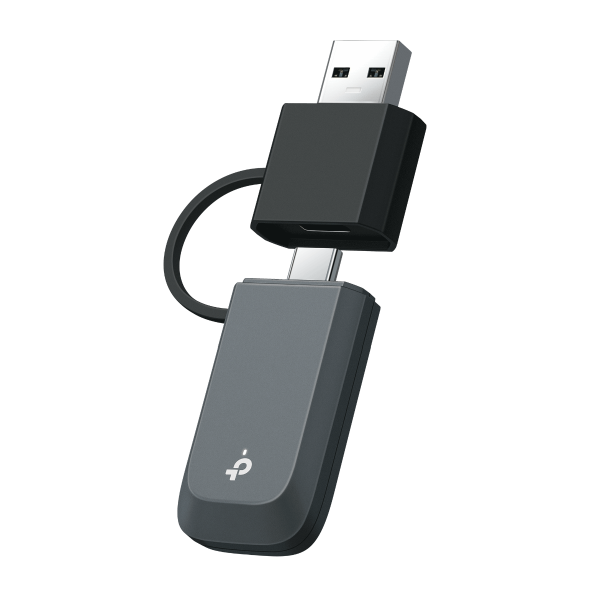
A tiny USB adapter, often called a Wi-Fi dongle, is a good pick where a low profile matters, such as on a laptop you carry from room to room. Faster models need a USB 3.0 port to reach their full transfer speed, and the port’s shape, USB-C or USB-A, matters too.
The Archer TBE400U is a mini Wi-Fi 7 adapter built for that mix of ports. It switches between USB-C and USB-A connectors with no extra adapter, which helps if your laptop and desktop have different ports. Its built-in driver means you can set it up on compatible Windows systems without installing a separate driver. You may still need driver updates for certain features or after an operating system update.
Operating system support varies by model, so check compatibility before you buy. Archer TBE400U supports 64-bit versions of Windows 10 and 11.
See how well USB Wi-Fi adapters work in everyday use.
PCIe Wi-Fi Adapters
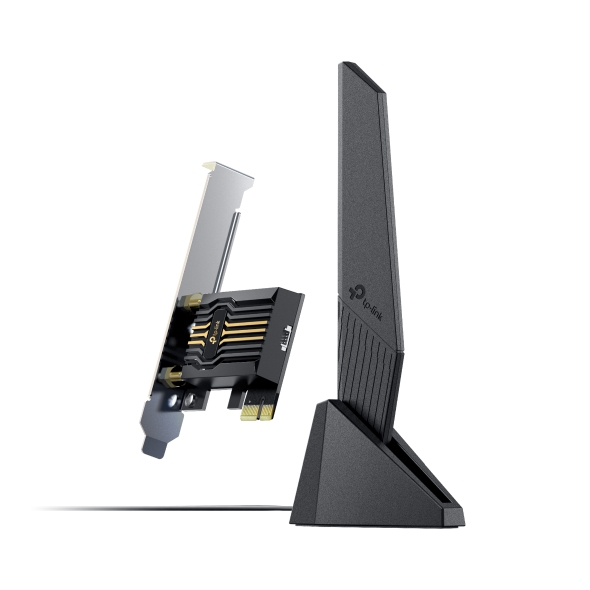
A PCIe Wi-Fi adapter is a card that installs inside a desktop tower, in an open slot that connects directly to the motherboard, the computer’s main circuit board. It’s a desktop-only option, since a desktop PCIe card won’t fit in a laptop. It also stays with that one computer, rather than moving between machines the way a USB adapter can.
If you’re looking for the best Wi-Fi adapter for PC towers that stay in one place, a PCIe card is an option. Some PCIe cards also add Bluetooth, which usually needs a cable connected to a USB header, an internal USB connector on the motherboard. If you plan to use Bluetooth, check that your tower has both an open PCIe slot and a free USB header before you buy.
The Archer TBE553E is a Wi-Fi 7 PCIe adapter with Bluetooth 5.4 for connecting game controllers, headphones, and keyboards. Its two antennas sit on a magnetized base you can place on your desk, which helps if your tower sits under the desk or against a wall. A low-profile bracket in the box fits mini tower cases.
Archer TBE553E supports 64-bit versions of Windows 10 and 11. Check product details for compatibility.
How Do You Install a Wi-Fi Adapter?
There are two installation paths, one for each type. For a USB adapter, plug it into an open USB port and install the driver. For a PCIe adapter, power down the computer, open the case, and insert the card into an open PCIe slot. Then turn the computer back on and install the driver.
How to Choose the Right Wi-Fi Adapter
Four checks will narrow down your options:
- Desktop or laptop: USB adapters work with both, while PCIe adapters fit desktops only.
- Wi-Fi standard: Check which Wi-Fi standard your router uses, then pick an adapter at that level or newer. You don’t need an exact match, since Wi-Fi standards are backward compatible. A Wi-Fi 7 adapter works with a Wi-Fi 6 router, but you get only the features your router supports. Wi-Fi 7 features like Multi-Link Operation (MLO), which switches between bands, also need operating system and driver support.
- Operating system: Confirm the adapter supports your operating system and version. Check product details for compatibility.
- USB port speed: For a faster USB model, plug it into a USB 3.0 port.
This guide to choosing a Wi-Fi adapter for PC and laptop goes into more detail.
Find the Right Fix for Your Connection
A Wi-Fi adapter connects one computer to your wireless network and can add Wi-Fi, replace a failing card, or bring a newer standard. Choose USB for convenience and portability, since one adapter can move between laptops and desktops. Choose PCIe for a more permanent desktop setup, as long as your tower has an open PCIe slot.
The best USB Wi-Fi adapter or PCIe card for you also works with your router, your ports, and your operating system. Browse TP-Link’s USB Wi-Fi adapters or TP-Link’s PCIe adapters to compare options.
If other devices in your home struggle with Wi-Fi too, the issue may be coverage, not your computer. Explore TP-Link range extenders for wider coverage, or start with these ways to boost your home Wi-Fi.
Frequently Asked Questions
How do I connect my Wi-Fi adapter?
Connecting a Wi-Fi adapter takes two steps. First, attach it: USB models go into a free port, and PCIe cards go into a slot inside your desktop with the power off. Second, install the driver, unless your model has one built in, like Archer TBE400U.
Do I need a Wi-Fi adapter for my PC?
It depends on what your PC can do right now. If it can't connect to Wi-Fi on its own, an adapter adds that ability. If it already has Wi-Fi but the card is failing or uses an older standard than your router, an adapter can take over.
Is a Wi-Fi adapter the same as a router?
No. A router creates your home's Wi-Fi network, and a Wi-Fi adapter lets one computer join that network. The two work as a pair: the router broadcasts the network, and the adapter connects your computer to it. An adapter needs that network to do its job.
What does a Wi-Fi adapter look like?
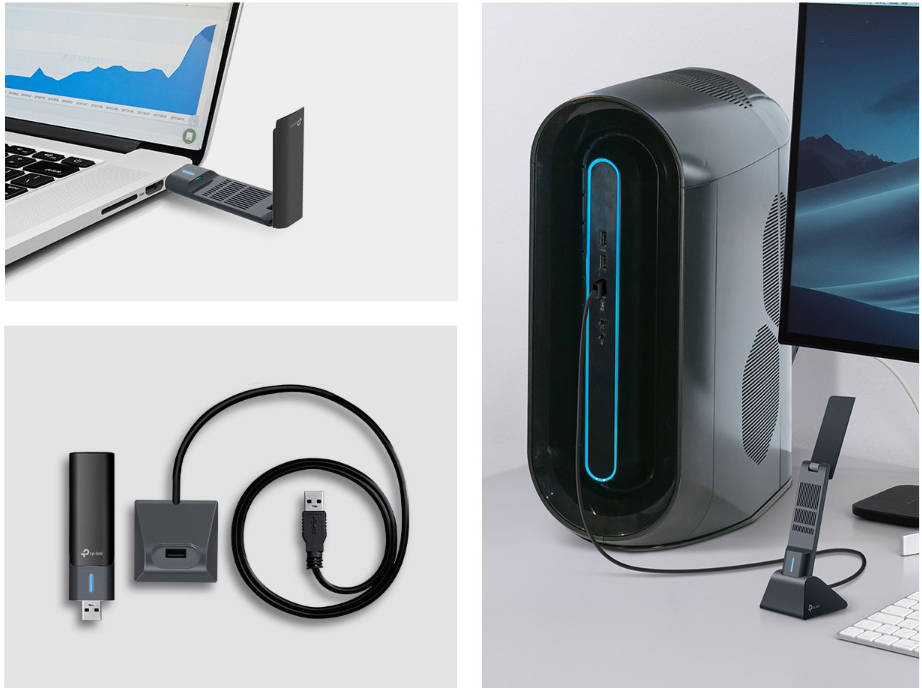
The two types look different. On the USB side, you'll see a compact device that sits in one of your computer's ports. A PCIe adapter is a card mounted inside a desktop tower, and some come with separate antennas. Size and shape vary by model.
Will a Wi-Fi adapter work on a Mac?
Not always. A Wi-Fi adapter works on a Mac only if macOS appears in its system requirements, and not every model lists it. Both TP-Link adapters in this article list only Windows 10 and 11 (64-bit) as supported systems. Check product details for compatibility.