Best Wi-Fi Adapter for PC and Laptop: How to Choose the Right Type
“Wi-Fi adapter" is a broad term for any device that gives a computer wireless Internet access or upgrades it to a faster Wi-Fi generation. It covers two distinct hardware types: USB adapters and PCIe cards. There's no inherent best Wi-Fi adapter for a PC. The right choice depends on your setup and what you need it to do.
This article explains the differences between the two and how they apply to desktops, which often have no built-in Wi-Fi, and laptops, which usually have it but may need a faster generation, and shares TP-Link's top picks for each.
Key Takeaways
- USB Wi-Fi adapters work with both desktops and laptops, making them the simpler, more flexible option for most setups since they plug into a standard USB port.
- PCIe Wi-Fi cards only work in desktops with a free PCIe slot, since they install inside the case and connect directly to the motherboard.
- Wi-Fi generation sets part of an adapter's speed ceiling; channel width, spatial streams, interface, antennas, drivers, and router support also shape real-world speed.
- PCIe's main advantage is one less external device to manage, plus some cards let you place the antenna wherever you get the best signal.
- USB is the simplest, broadly compatible external option for a laptop, though some models permit an internal M.2 module swap instead.
What Is a Wi-Fi Adapter for a PC or Laptop?
A Wi-Fi adapter is a small piece of hardware that adds Wi-Fi to a computer without it built in, or upgrades an older computer to a newer Wi-Fi generation such as Wi-Fi 6E or 7.
For a desktop, you have two options: a USB adapter or a PCIe card. For most laptop users, a USB adapter is the simplest external upgrade. Some serviceable laptops have an internal M.2 Wi-Fi module that can be replaced.
What Is a USB Wi-Fi Adapter?
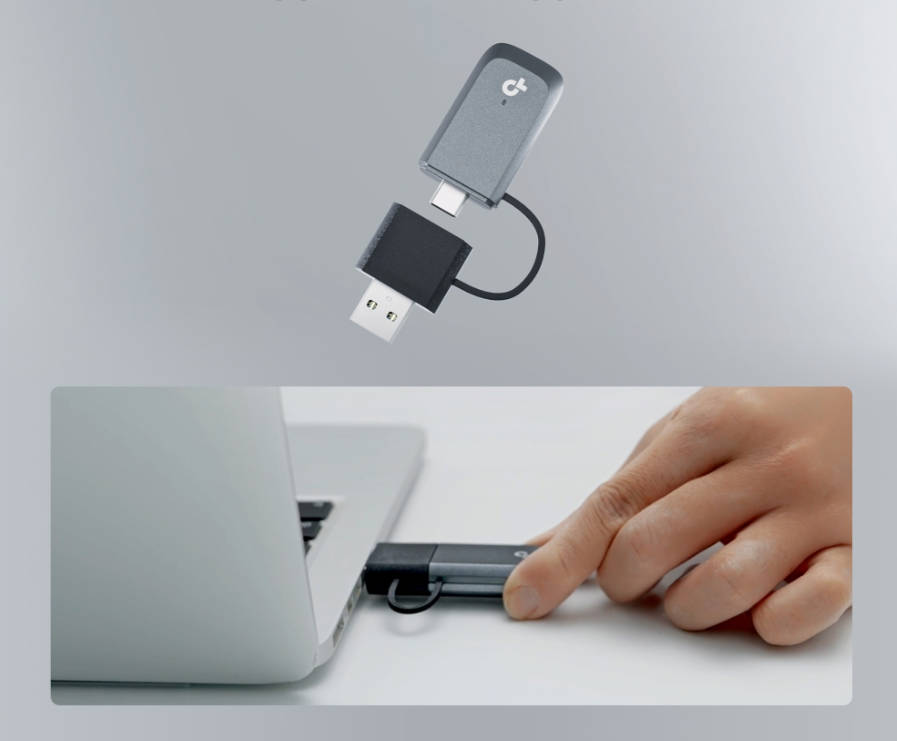
A USB Wi-Fi adapter plugs into a USB port on a PC or laptop to either add Wi-Fi or upgrade it to a newer generation. You'll also see these called Wi-Fi dongles. Inside, it has its own wireless radio and antenna, so it connects to your Wi-Fi network independently of the computer's existing hardware. It's a simple, fast way to add these capabilities to a laptop or desktop.
USB Wi-Fi adapters come in different Wi-Fi generations, which define the supported technologies and part of the theoretical performance ceiling. Real-world speed and reliability depend on the rest of the setup, including the router, drivers, antennas, and environment, not the generation alone.
What Is a PCIe Wi-Fi Card?
A PCIe Wi-Fi card adds Wi-Fi to a desktop or upgrades it to a newer generation. It is installed inside the computer's case and connects directly to the motherboard. Installing one requires opening the case and having a free PCIe slot to plug it into.
Before you buy, check a few things: that you have a free slot of the right type and room to fit the card, a good spot for the antenna, and, if the card has Bluetooth, that your motherboard supports it. Your card's installation guide will confirm exact requirements and driver compatibility.
Comparing Your Wi-Fi Adapter Options: USB or PCIe
Picking the right wireless adapter for a PC comes down to USB versus PCIe, and this decision only applies to desktops. If you have a laptop, you can skip ahead to TP-Link's USB picks, since a USB adapter is your only option.
Wi-Fi generation sets the speed ceiling, not whether the adapter is USB or PCIe. Reaching that ceiling also depends on your router: it needs to support the same Wi-Fi generation as the adapter, or the connection settles for whichever generation they have in common. Within the same generation, actual speed can still vary between USB and PCIe. A USB adapter's throughput depends partly on the USB host controller, the port and hub setup, and what else is drawing bandwidth from the same connection at a given moment, so its consistency varies by system rather than being a fixed drawback. A PCIe card connects directly to the motherboard without that variability.
A USB adapter is external, so it takes up a port but can move between multiple devices. A PCIe card is internal, meaning it's tied to the one desktop it's installed in.
Wi-Fi Adapter Differences at a Glance
This table puts speed, install difficulty, and laptop compatibility side by side so you can compare them at a glance.
|
|
Speed |
Ease of Install |
Best For |
Laptop Compatible |
|
USB Wi-Fi Adapter |
Depends on Wi-Fi generation and the rest of your setup |
Easy: plugs into a USB port, no tools required |
Laptops, or a desktop without a free PCIe slot |
Yes |
|
PCIe Wi-Fi Card |
Depends on Wi-Fi generation and the rest of your setup |
More complex: requires opening the case and a free PCIe slot |
An internal installation, specific antenna placement, Bluetooth integration, or verified performance needs |
No |
Choosing the Right Wi-Fi Adapter
Match your situation to the list below to find the right Wi-Fi adapter for desktop or laptop use.
- Have a laptop: a USB adapter is your only option, since laptops don't have a PCIe slot.
- Desktop with an easy-to-open case and a free PCIe slot: PCIe provides a more stable connection.
- Desktop with a sealed or hard-to-access case: USB keeps setup simple.
- Desktop with several other USB devices already connected (external drives, webcams, controllers): PCIe avoids competing for USB bandwidth.
- Desktop with few or no other USB devices in use: USB is sufficient, since there's little bandwidth competition to worry about.
TP-Link's Best USB Wi-Fi Adapter for Your PC or Laptop
If you've decided on USB for your desktop, or your laptop needs a faster Wi-Fi generation than it currently supports, here are TP-Link's top picks.
Across its USB Wi-Fi adapter lineup, TP-Link makes different form factors for different needs: a compact nano adapter built for portability, and a High Gain model with an external antenna for stationary desktop use. Speeds and features also depend on your router’s compatibility, so check your router's specs alongside the adapter's.
Archer TX1800U Nano: Best for Laptops
The Archer TX1800U Nano is TP-Link's pick for laptops, built around a nano design that stays low-profile while you're working and tucks away easily when you're not. At just over an inch long, it slips into a laptop bag without adding bulk.
It supports Wi-Fi 6 features built for smooth streaming, downloads, and video calls. OFDMA and MU-MIMO help a compatible router coordinate traffic with multiple connected devices at once, so your connection can stay responsive even when other devices on the network are active, as long as your router supports these features. Setup is plug-and-play, with the driver preloaded, so it works with Windows 10 and 11 right out of the box.
Archer TXE5400UH: Best for Desktops
For a stationary desktop, TP-Link's pick is the Archer TXE5400UH, a High Gain adapter built for signal strength rather than portability.
It supports tri-band Wi-Fi 6E speeds across the 6 GHz, 5 GHz, and 2.4 GHz bands, giving your PC access to the 6 GHz band, which tends to have less crowding from older devices than 2.4 GHz or 5 GHz. How much of that benefit you see still depends on range, obstacles, your router's configuration, and your operating system's support for the band.
Its high-gain antennas with Beamforming help pull in a stronger signal from farther away. It connects over USB 3.0 for fast data transfers, comes with the driver preloaded, so setup works the same on Windows 10 or 11. Reaching the 6 GHz band itself requires Windows 11, since Microsoft hasn’t added 6 GHz support to Windows 10.
Archer TBE550E: Best PCIe Wi-Fi Card for PC
For desktop users who choose PCIe, TP-Link's pick from its PCIe Wi-Fi card lineup is the Archer TBE550E, a Wi-Fi card for PC built for speed and stability. It reaches tri-band Wi-Fi 7 speeds across the 6 GHz, 5 GHz, and 2.4 GHz bands, giving demanding tasks like 4K streaming, competitive gaming, and large downloads more room to run without crowding onto a single band.
Multi-Link Operation (MLO) combines multiple Wi-Fi bands at once, so games, video calls, and downloads stay smooth even when your network is busy. Two magnetized, multi-directional antennas are easy to angle and reposition to find the strongest signal, instead of settling for wherever the card happens to sit.
Bluetooth 5.4 also lets you connect wireless devices like game controllers, headphones, and keyboards without extra hardware, though it needs the included Bluetooth header cable connected to a compatible internal USB header on your motherboard to work. It requires Windows 11 (64-bit), so confirm your computer's operating system before you buy.
Get the Right Wi-Fi Adapter for Your Setup
Choosing the best PC Wi-Fi card or adapter starts with the form factor. USB works for a laptop or a desktop that needs the simplest setup, while PCIe suits a desktop with room for a card and a need for the most stable connection. From there, match your pick to your Wi-Fi generation and your setup's specific needs.
Ready to compare full specs? Browse TP-Link's Wi-Fi adapter collection to find the right fit.
Frequently Asked Questions
What is the best Wi-Fi adapter for a PC?
It depends on your desktop. If you can open the case, a PCIe card like TP-Link's Archer TBE550E gives the most stable connection. If you'd rather skip that, a USB adapter like the Archer TXE5400UH offers simple, plug-and-play setup instead.
Do I need a Wi-Fi adapter for my laptop?
Only if you want a newer Wi-Fi version than what your laptop currently supports, or if your built-in Wi-Fi has stopped working. Check your current speeds first, or run a quick troubleshoot if it's stopped connecting. A USB adapter is the simplest way to upgrade.
What is the best Wi-Fi dongle for a laptop?
A nano-style USB adapter makes the best Wi-Fi dongle for a laptop. Its compact design stays plugged in, and it typically delivers Wi-Fi 6 speeds or faster, with a preloaded driver for setup.
What is the fastest Wi-Fi adapter for a PC?
By “fastest”, this means highest advertised link rate, not tested throughput. Among TP-Link’s highest-rated current PCIe options are BE9300 Wi-Fi 7 adapters such as the Archer TBE550E, rated up to 5764 Mbps on 6 GHz.
Does it matter what Wi-Fi adapter I get for my PC?
Yes. The right adapter depends on your Wi-Fi generation, your case's PCIe slot availability, and how many other USB devices you're already running. Match it to your router's Wi-Fi generation too, or you won't see the full benefit.