What Is a USB Wi-Fi Adapter, and Does It Actually Work?
A USB Wi-Fi adapter is a small device that plugs into your computer's USB port and lets it connect to a wireless network. It doesn't create Internet service on its own; it picks up an existing Wi-Fi signal, like the one from your home router or a hotel network. It's often a simpler upgrade than installing hardware inside your computer, and many models come with built-in drivers for easy setup.
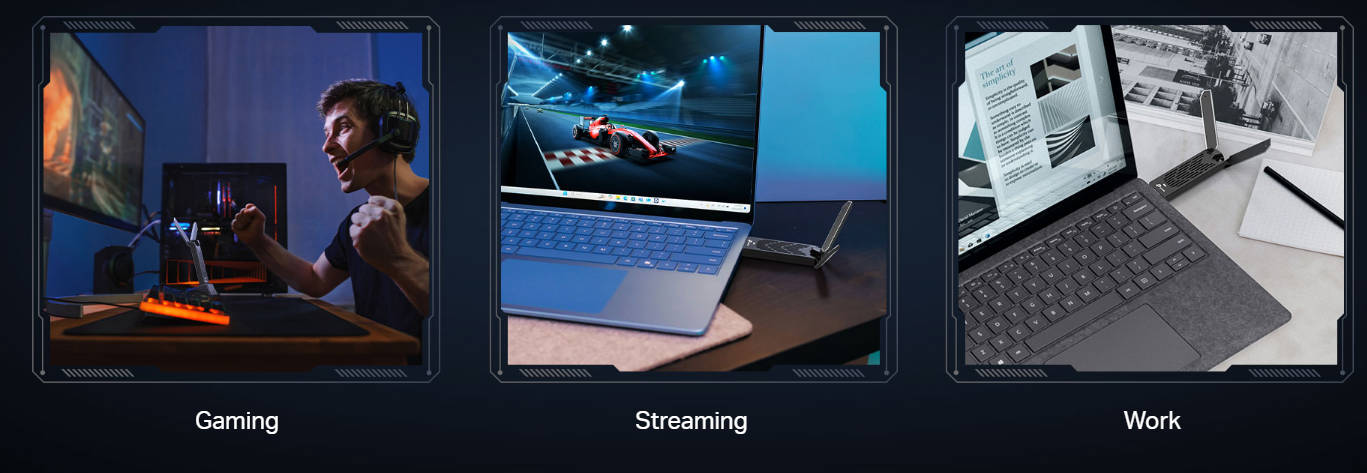
Older desktops without wireless hardware, laptops that need a speed boost, and travelers who want to connect to a hotel’s Wi-Fi network are common reasons to get a USB Wi-Fi adapter. While traveling, the adapter connects your laptop to an available network or hotspot rather than supplying a cellular connection of its own. This guide covers how the device works, what it's for, and how to tell whether it fits your setup.
Key Takeaways
- Compatibility across the computer, adapter, router, and operating system determines whether a USB Wi-Fi adapter works, though it only improves the one device it's plugged into.
- A dead zone across a room or home isn't something a USB Wi-Fi adapter can fix; it may need router relocation, a mesh system, an access point, or a range extender.
- A USB Wi-Fi adapter plugs into a computer's USB port to add or upgrade wireless connectivity, without creating its own Internet connection.
- Pre-loaded drivers make setup simple on many USB Wi-Fi adapters, though driver and operating system requirements vary by product.
- Adapter sizes range from nano-sized models built for portability to high-gain designs with larger antennas for stronger reception at a distance.
What Is a USB Wi-Fi Adapter?
A USB Wi-Fi adapter connects a computer to a Wi-Fi network by plugging into its USB port from the outside, rather than being installed inside the case like a PCIe card. Both fall under the broader term "Wi-Fi adapter," but this guide focuses only on the USB kind.
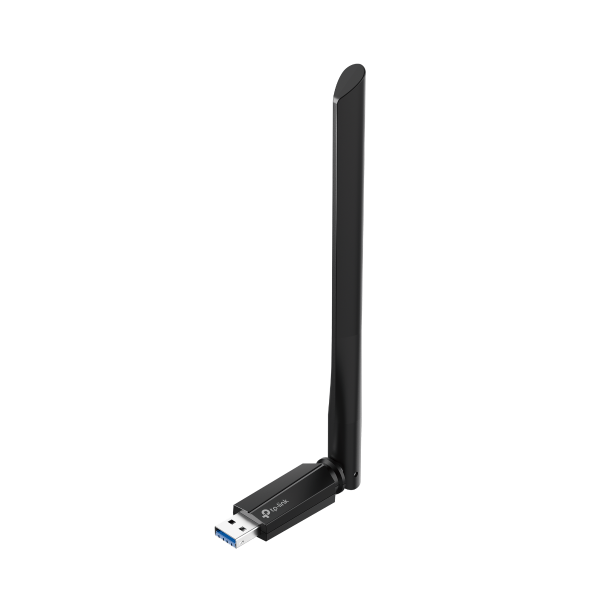
USB Wi-Fi adapters come in a few sizes. Nano designs are low-profile enough to remain inserted during normal use, though it’s best to remove them before packing up or moving your laptop. Mini adapters are only slightly larger. High-gain models use external antennas that can be angled or repositioned independently of the adapter body, trading some portability for placement flexibility. The sections below cover what a USB Wi-Fi adapter does and its limits.
Nano designs are low-profile enough to remain inserted during normal use, though it's best to remove them before packing or moving the laptop.
What Does a Wi-Fi Adapter Do?
Here's the specific set of jobs it handles for your computer:
- Lets your computer detect and connect to nearby Wi-Fi networks.
- Adds Wi-Fi to a compatible computer that doesn't have wireless built in.
- Brings an older computer up to a newer Wi-Fi generation, as long as the router and operating system support it too.
How Does a USB Wi-Fi Adapter Work?
It's also called a Wi-Fi dongle, and it works using a few core parts. A radio and antenna send and receive the same wireless signals a router uses, processed by a chipset, a small circuit built for that job. Your computer also needs a driver, software that lets the operating system talk to the adapter. Depending on the model, that driver might come preloaded on the adapter, download automatically once it's plugged in, or require manual installation from the manufacturer's site.
The Wi-Fi standard it supports, such as Wi-Fi 6, 6E, or 7, sets its top theoretical speed. It also decides which frequency bands the adapter can use, like 2.4 GHz or 5 GHz. Reaching top speed depends on your router, the channel width (how much data can move through it at once), signal conditions, and the USB connection.
Do USB Wi-Fi Adapters Actually Work?
Yes, USB Wi-Fi adapters work well for adding or upgrading wireless connectivity on a compatible computer, depending on the adapter, router, Wi-Fi environment, drivers, and the problem you're solving.
Some people assume a USB adapter is a lesser option than an internal PCIe card, but that's not the whole story: both can support the same Wi-Fi standards, and how each performs depends on the specific product and setup rather than the connection type alone. For a closer look at how the two compare, see TP-Link's guide to Wi-Fi adapters for PC and laptop.
Common Uses for a USB Wi-Fi Adapter
A USB Wi-Fi adapter, sometimes called a USB to Wi-Fi adapter, solves a handful of specific problems, not every Wi-Fi issue. Here's where it tends to make the most sense:
- Older devices. An older computer can pick up newer Wi-Fi speeds and bands with the right adapter.
- No built-in Wi-Fi. Some compatible desktops and laptops skip wireless hardware, and an adapter adds it later.
- Travel. A compact adapter connects a laptop to a hotel's Wi-Fi network or a portable hotspot.
- A weak built-in signal. If your computer's own wireless hardware is the weak link, a stronger adapter can help, though it won't fix poor coverage across the whole location.
- Gaming. The same logic applies: a stronger adapter helps if built-in wireless is the bottleneck, not a router or coverage problem elsewhere in the house.
Benefits of Using a USB Wi-Fi Adapter
If you're wondering whether you need a Wi-Fi adapter for your PC, these are the practical advantages that usually make the case.
- Affordable. Often costs a fraction of other networking upgrades, like a new router or mesh system.
- Closes the generation gap. If your router already supports a newer Wi-Fi standard than your computer does, an adapter lets it catch up without replacing the whole device.
- Simple setup. Many come with built-in drivers, so you plug in and connect. Setup often requires minimal effort, though some models need manual driver installation, administrator access, or troubleshooting after an operating system update, since requirements vary by product.
- Portable. Small enough to move between devices, including while traveling.
- Flexible. Reuse the same adapter across devices, or carry it over if you replace your computer.
What Are the Disadvantages of a USB Wi-Fi Adapter?
A few real trade-offs come with a USB Wi-Fi adapter. It sticks out of the port rather than sitting inside the case, and it needs a free USB port.
It only helps the one device it's plugged into. If a dead zone or weak signal affects multiple devices, a range extender, powerline adapter, or mesh system is a better fix.
There's also a size-versus-range tradeoff. Larger designs fit bigger, higher-gain antennas and offer more placement flexibility, though compact, nano-sized adapters trade that away for portability.
For some setups, an internal Wi-Fi card makes more sense. A desktop that stays in one place, with a free slot to spare, can fit a larger antenna for a steadier connection. Take a look at TP-Link's internal PCIe Wi-Fi adapters if that fits your setup better. Neither type is inherently better; it depends on your setup.
Factors That Affect USB Wi-Fi Adapter Performance
Whether USB Wi-Fi adapters are good for your setup comes down to a handful of concrete factors, not the adapter as a whole.
- Wi-Fi generation. The adapter and router don't need to match to work, but you only get a newer standard's full benefits when both support it.
- Antenna design. More or higher-gain antennas can improve reception.
- Port version. USB 3.0 transfers data faster than USB 2.0, so choose 3.0 when available.
- Drivers. Some adapters need a driver installed, especially on older operating systems.
- Operating system compatibility. Newer features like the 6 GHz band and Wi-Fi 7 can depend on operating system support.
- Router capability. Your router's standard and bands limit how far any adapter can reach.
- Distance and obstacles. Walls, floors, and distance from the router affect signal strength.
- Band selection. The right frequency band affects both speed and range.
How to Use a USB Wi-Fi Adapter on a PC
Setting up a USB Wi-Fi adapter follows roughly the same steps regardless of the model, though the exact steps differ by product.
First, confirm the adapter is compatible with your operating system, since some models only support specific versions of Windows. Next, plug it into an available USB port. If port types don't match, that's fine: a USB 3.0 adapter still works in a USB 2.0 port, just at USB 2.0 speeds.
If a driver isn't already loaded, install it from the included software or the manufacturer's support page. Once it's running, open your Wi-Fi settings and select your network.
TP-Link's USB Wi-Fi Adapters
Match the adapter to the problem you're solving, and TP-Link's lineup covers most of them.
An older desktop with no wireless hardware at all gets Wi-Fi 6 from the Archer TX20U Nano, a nano-sized adapter small enough to leave in a USB port and forget about. When built-in wireless is behind the buffering or the dropped connections, the Archer TXE70UH steps up to Wi-Fi 6E with high-gain antennas for a stronger connection. If your router has already moved on to a newer standard than your computer can match, the Archer TBE400U Plus adds Wi-Fi 7 hardware to a compatible desktop or laptop; access to specific Wi-Fi 7 features depends on the router, driver, and operating system.
Choosing the Right USB Wi-Fi Adapter for Your Setup
USB Wi-Fi adapters can work well when they fit your computer, router, and the problem you're solving. They're not a universal fix for every Wi-Fi issue. But for upgrading an older machine, adding wireless to a compatible desktop, or staying connected while traveling, they're a reliable and straightforward option.
Ready to compare models? Browse TP-Link's USB Wi-Fi adapters to see the available generations and form factors.
Frequently Asked Questions
Does a USB Wi-Fi adapter give you Wi-Fi, or just a connection to it?
Just a connection to Wi-Fi. The adapter adds the hardware your computer needs to detect and join a wireless signal that's already broadcasting nearby, whether that's your router at home or a hotspot on the road. Without a signal in range, the adapter has no network to connect to.
Is a Wi-Fi dongle the same as a USB Wi-Fi adapter?
For Wi-Fi, yes: "dongle" is a common nickname for a USB Wi-Fi adapter. The word is also used for cellular and Bluetooth devices, so a Wi-Fi dongle and a cellular dongle are not the same thing. A Wi-Fi dongle plugs into a USB port and connects a computer to wireless networks its built-in hardware can't reach.
Do I need a Wi-Fi adapter for my PC?
You need one if your PC doesn't have Wi-Fi built in, or if its existing wireless hardware is outdated and holding back your speed. If your computer already has reliable, up-to-date wireless hardware built in, an adapter probably won't add much value.
Do you just plug in a Wi-Fi adapter?
For many models, yes: plug it in and select your network in your operating system's Wi-Fi settings. Some adapters need a driver installed first, especially on older operating systems, so check the setup instructions before you assume it's ready to connect.
Where should I plug in my USB Wi-Fi adapter?
Plug it into any available USB port on your desktop or laptop. If that spot gets poor signal, like the back of a desktop tower, some models include an extension cable or a cradle so you can reposition the antenna for better reception.
Can a USB Wi-Fi adapter fix weak Wi-Fi?
Sometimes. If your computer's built-in wireless is the bottleneck, swapping in an adapter with a better antenna can improve reception on that machine. It won't help a dead zone spanning a room or a whole house, since that's a coverage problem, not a device problem. If several devices have weak signal in the same area, the issue is broader Wi-Fi coverage rather than the computer itself. A range extender, access point, mesh system, or other coverage solution may be a better fit.