
How to Submit a TP-Link Warranty Replacement Request
This page explains how to submit a TP-Link warranty replacement request through the TP-Link Product Registration System. This process applies after TP-Link technical support has confirmed your product is defective and still under warranty. Before you begin, you will need a TP-Link ID and a product that has already been registered.
Key Takeaways
- To request a warranty replacement, TP-Link technical support must first confirm your product is defective. Technical support will then create a return merchandise authorization (RMA) case on your behalf.
- The replacement request is submitted through the TP-Link Product Registration System at myproducts.tp-link.com using your TP-Link ID.
- You must have a physical shipping address on file before submitting. TP-Link cannot ship to PO Box addresses.
- Shipping method options include Standard (you ship the defective unit first at your own expense, and TP-Link ships the replacement back at no additional charge) and Advanced options (the replacement ships first, with a hold charge placed for the non-returned unit).
- The non-return product hold charge is only processed if the defective unit is not returned within 25 days of the RMA being submitted.
- Payment for applicable shipping fees is completed through PayPal. You can pay as a guest without a PayPal account.
Note: If you have not yet registered your product, see How to Register a Product on the TP-Link Product Registration System before continuing.
Step 1: Log In to the TP-Link Product Registration System
Open a web browser (Chrome, Edge, or Safari) and go to the TP-Link Product Registration System at https://myproducts.tp-link.com. Log in with your TP-Link ID.
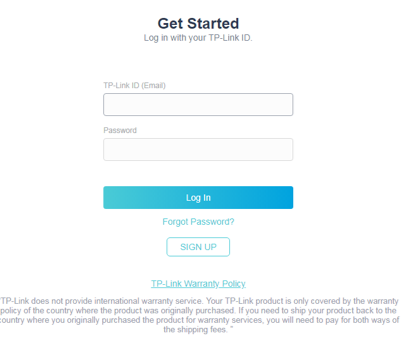
Step 2: Go to Account Info and Open the Edit Screen
Go to Account Info, then click the Edit icon in the middle of the page.
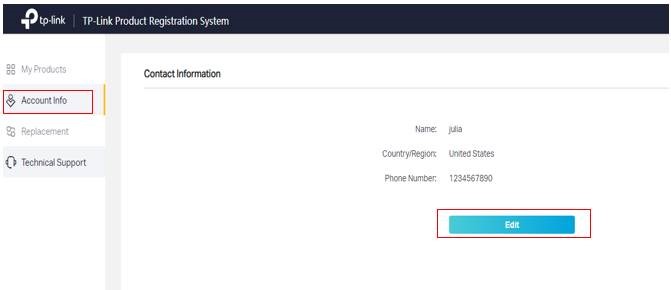
Step 3: Enter and Save Your Shipping Address
Fill in your physical shipping address, click Save Address, and then click Submit.
Note: TP-Link cannot ship to PO Box addresses. You must provide a physical address.
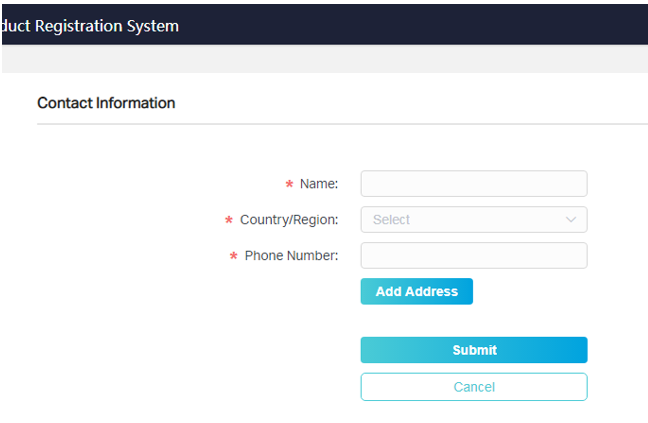
Step 4: Contact TP-Link Technical Support
You must complete this step before an RMA can be created. Contact TP-Link technical support to troubleshoot your product. If technical support confirms your product is defective and still under warranty, they will create an RMA case for your product.
Step 5: Find Your RMA Case
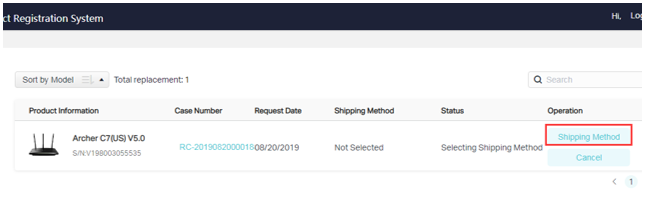
Click Replacement in the left sidebar. You will see the RMA case for your defective product listed there.
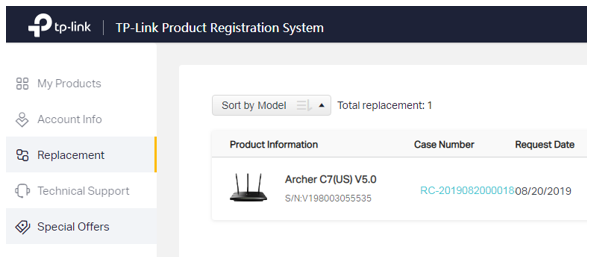
Step 6: Select a Shipping Method
Click Shipping Method to proceed to shipping selection.
Step 7: Confirm Your Address and Choose Your RMA Shipping Method
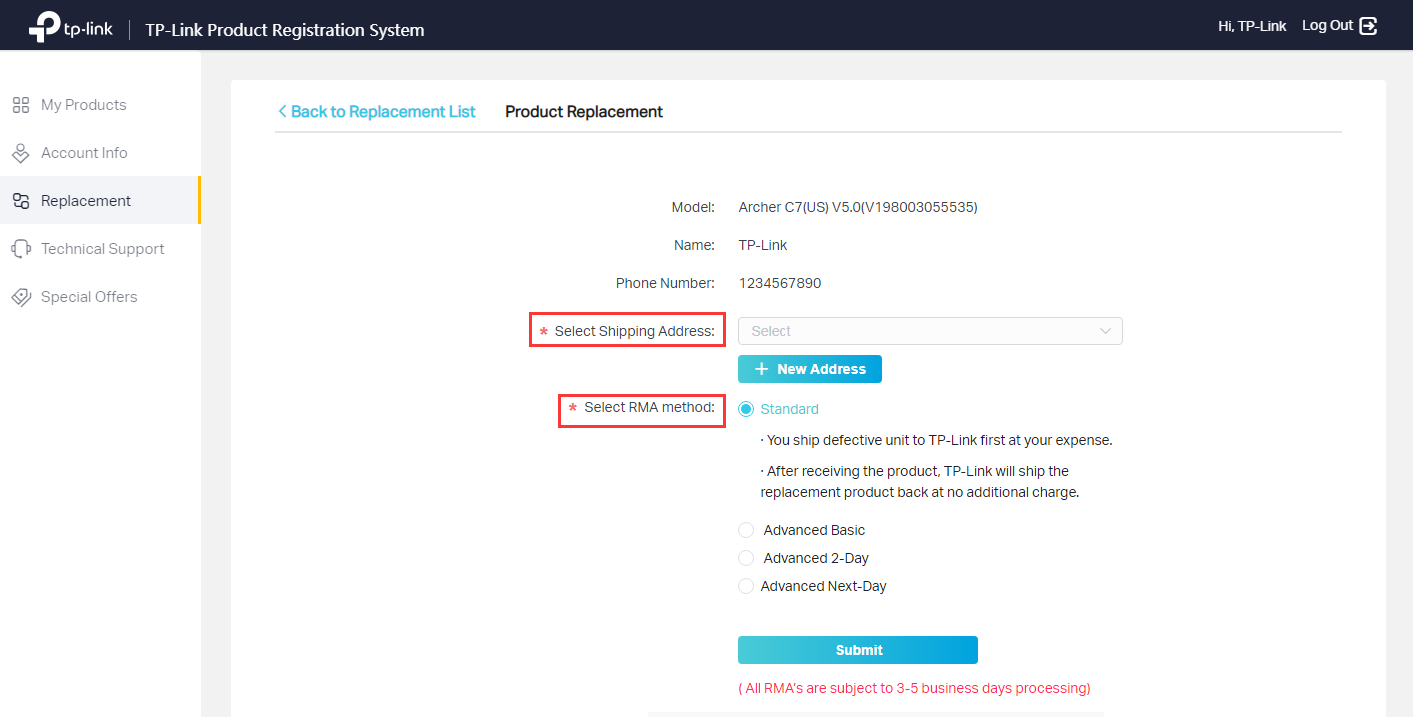
Select your shipping address and choose your RMA shipping method. If you do not have a shipping address on file, click + New Address to add one.
Shipping method options are: Standard, Advanced Basic, Advanced 2-Day and Advanced Next-Day.
- With a Standard RMA, you ship the defective unit to TP-Link first at your own expense. TP-Link ships the replacement at no additional charge after receiving it.
- Advanced RMA options allow TP-Link to ship the replacement unit before receiving the defective product. A convenience fee applies depending on the shipping speed chosen: $14.99 for Advanced Basic, $24.99 for Advanced 2-Day, and $49.99 for Advanced Next-Day.
For a full explanation of available options, see TP-Link Shipping Methods and Advanced RMA Fees Explained.
Step 8: Review Your Case Summary
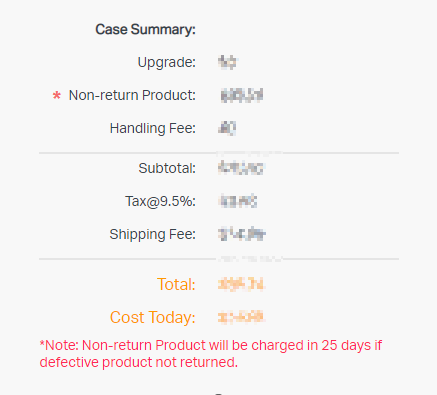
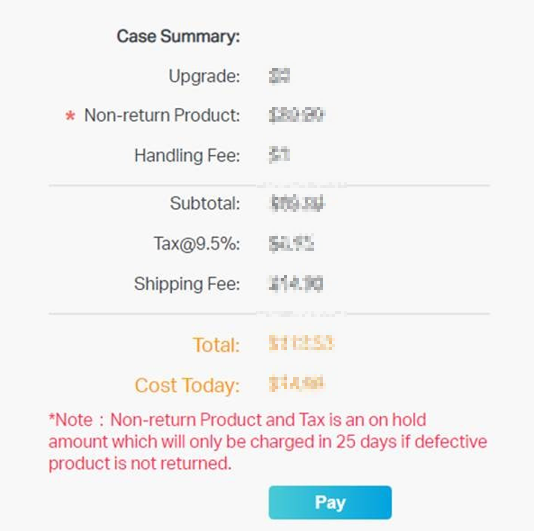
After you submit the RMA request, a case summary will appear detailing all applicable fees.
Step 9: Complete Payment Through PayPal
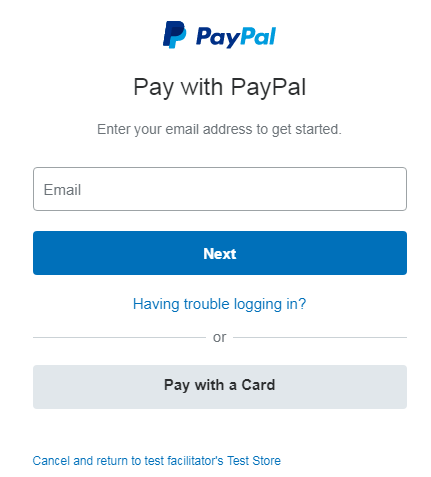
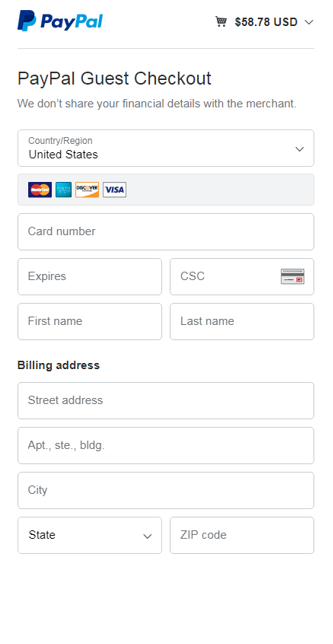
Once submitted, click Pay (if applicable) to be redirected to PayPal to complete the payment process.
Note: If clicking Pay does not work, see Why Doesn't It Allow Me to Pay When I Submit an RMA?
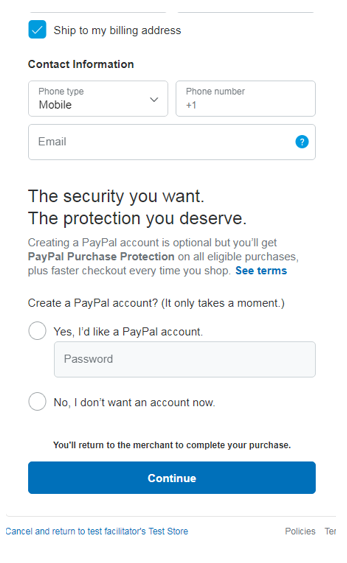
You can sign in to your PayPal account or complete the Guest Form. A PayPal account is not required to finish payment.
Note: You can either sign in to your PayPal account or complete the Guest Form.
Step 10: Return to the Product Registration System to Track Your Request
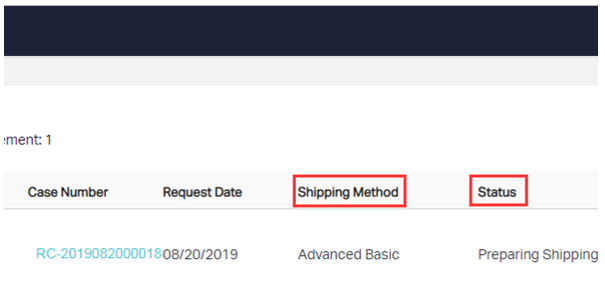
Once you have completed the payment form, you will be redirected back to the TP-Link Product Registration System, where you can view the status of your request under the Replacement page. For guidance on tracking your replacement after submission, see How to Check the Status of a Replacement on the TP-Link Registration System.
Looking For More
Is this faq useful?
Your feedback helps improve this site.

TP-Link Community
Still need help? Search for answers, ask questions, and get help from TP-Link experts and other users around the world.