
How to Fix USB Hub Connection Failure After System Sleep
This article addresses an issue where USB devices connected via a USB Hub are not recognized after a Windows 10 or Windows 11 system wakes from Sleep mode.
After resuming, the devices may appear in Device Manager with error messages such as “Unknown USB Device (Port Reset Failed)” or “Device Descriptor Request Failed.” This article provides guidance on restoring normal USB Hub functionality.
Key Takeaways
- Disable USB power-saving settings to prevent Windows from turning off USB controllers.
- Turn off USB Selective Suspend to improve USB device recovery after Sleep mode.
- USB detection errors after Sleep mode are usually caused by Windows power management rather than the USB Hub hardware.
- Errors such as Unknown USB Device (Port Reset Failed) and Device Descriptor Request Failed often indicate USB power recovery issues.
Fixes for USB Issues After System Sleep & Wake
When the system enters sleep mode and then wakes, it may fail to restore adequate power to USB ports, causing device detection errors and USB reset failures.
To restore USB Hub functionality, you can use one of two methods.
Method 1. Prevent the PC from Turning off the USB Hub to Save Power
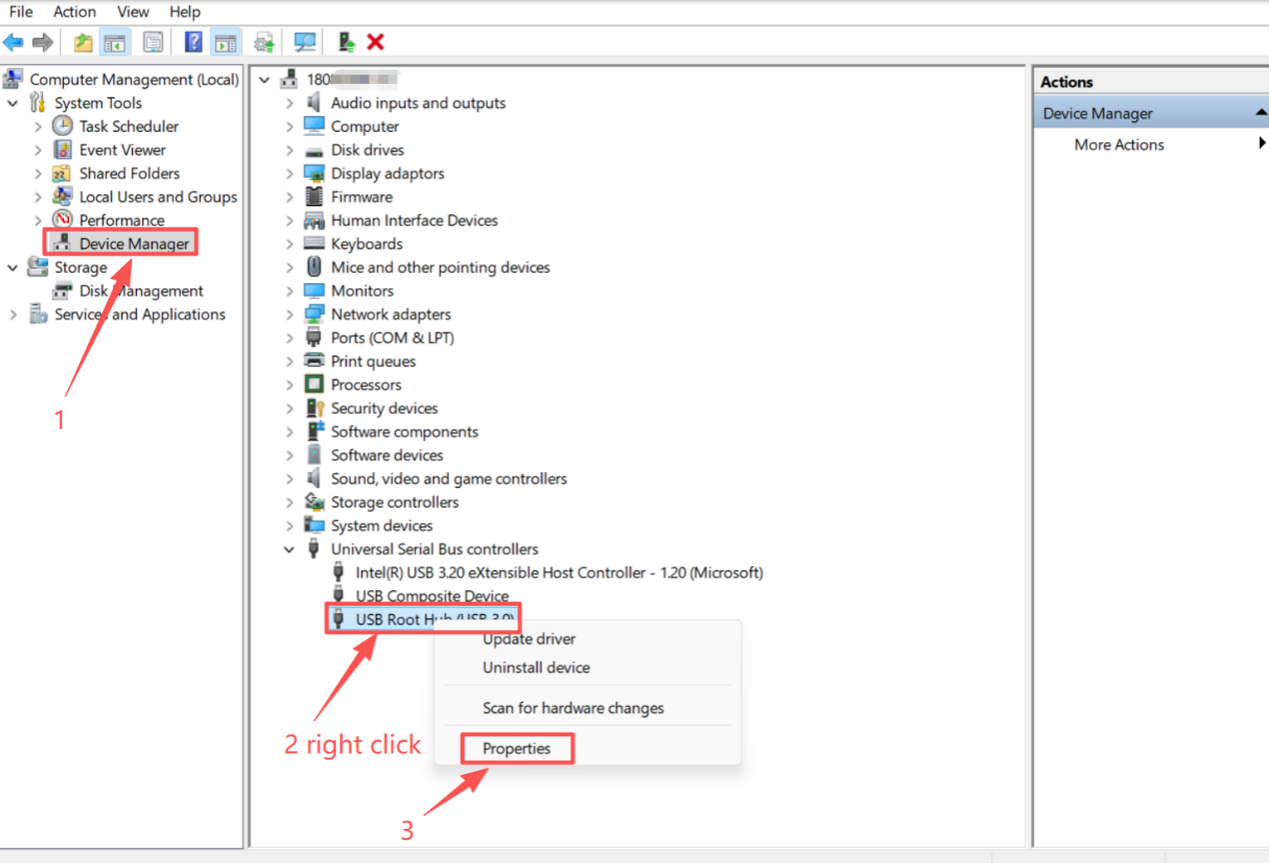
Step 1. Press Win + X, open “Device Manager”, then go to “Universal Serial Bus controllers”, right-click on the corresponding “USB Root Hub(USB 3.0)” or something else like it, then click on the “Properties”.
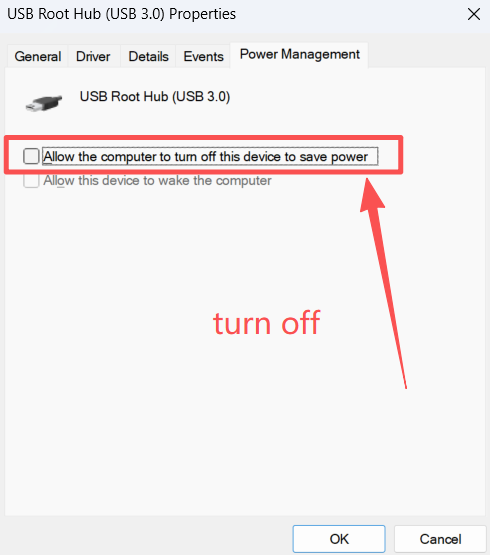
Step 2. Click on “Power Management”, then turn off “Allow the computer to turn off this device to save power”.
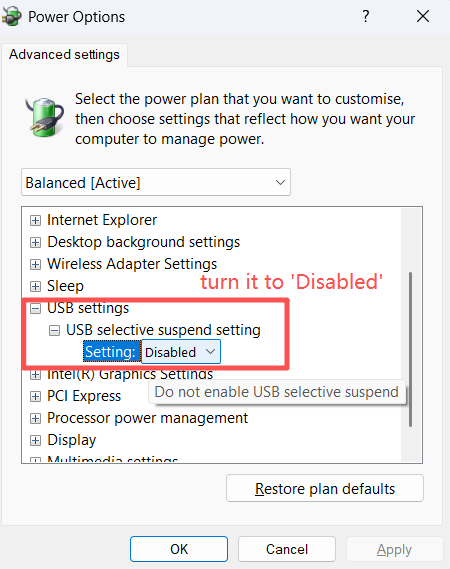
Method 2. Turn off USB Selective Suspend Settings in Power Options.
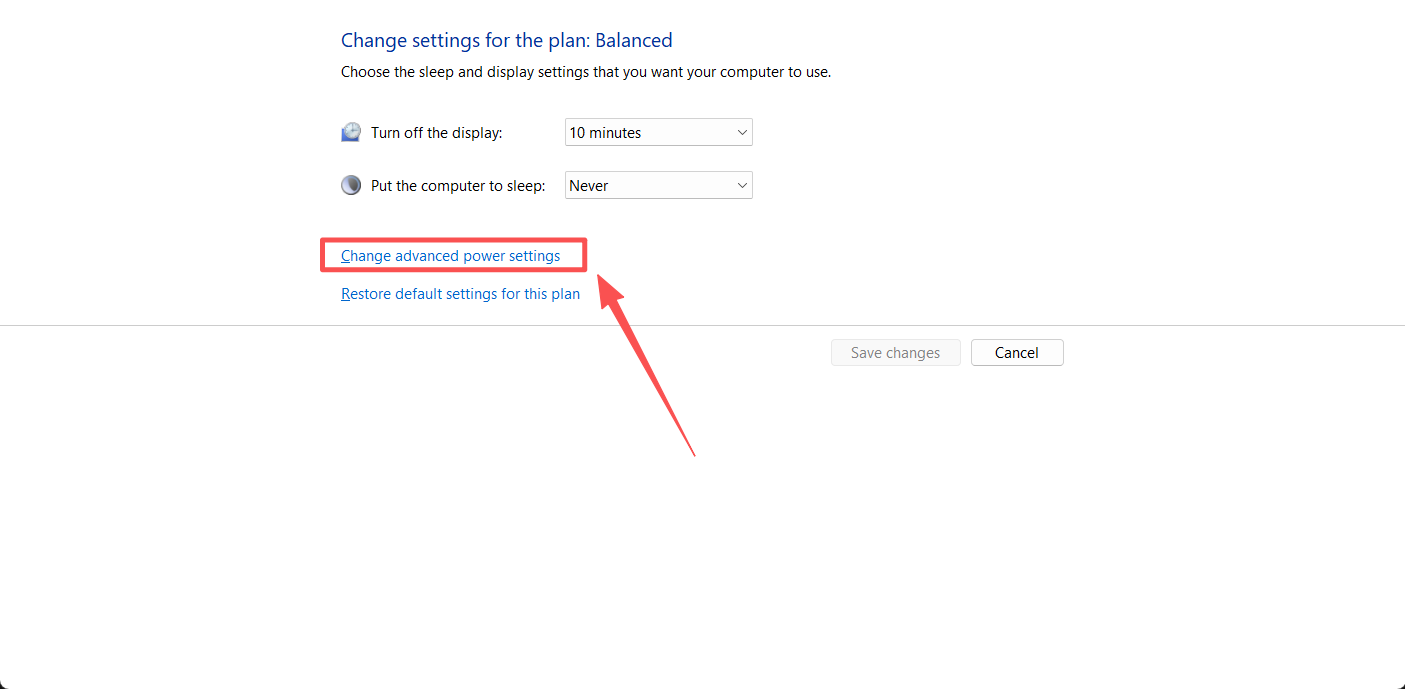
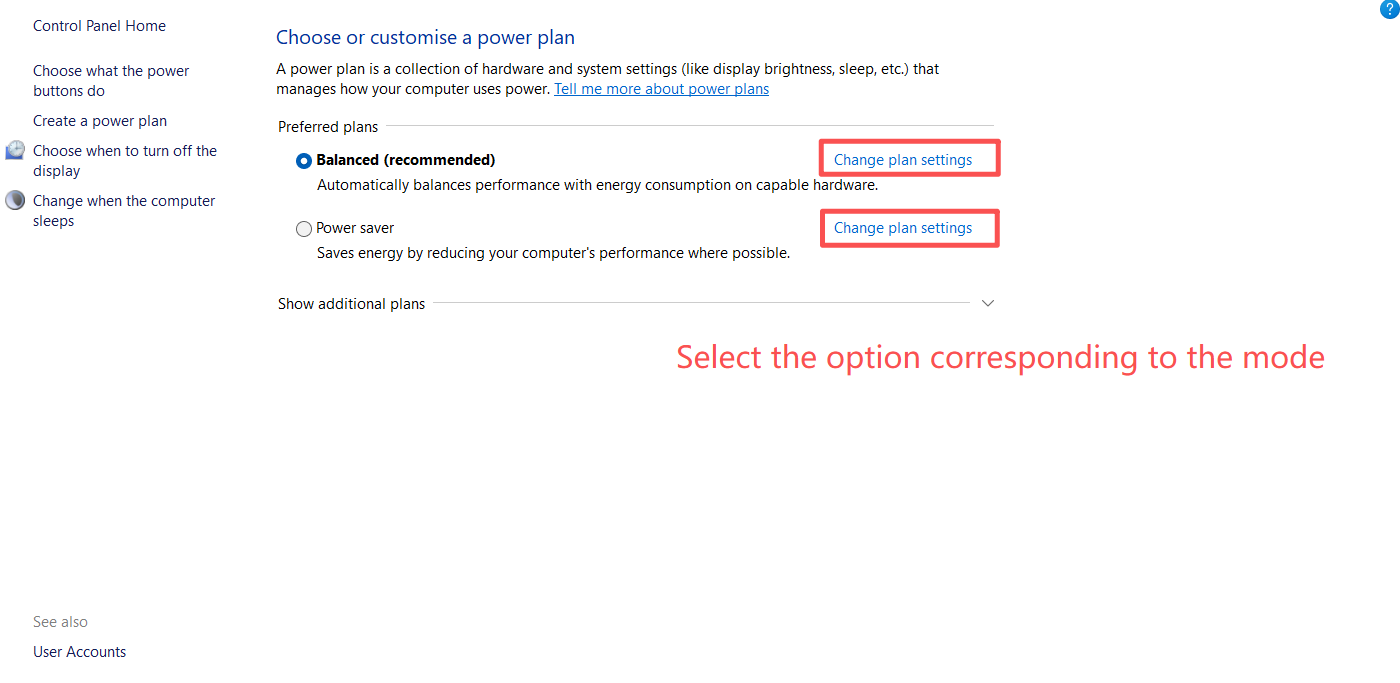
Step 1. Press Win + R, type powercfg.cpl, and press Enter. Then click on “Change plan settings” in the pop-up box for your current power mode (e.g., Balanced or Power Saver) > “Change advanced power settings” > “USB settings” > “USB selective suspend setting”, and set it to Disabled. Click “OK” to apply the changes.
Q&A
Q1: Why Can't I Find “Power Management” in the Properties Card?
This is because you selected the wrong USB entry. Only entries connected to the PC via the USB interface have this option.
Ищете больше информации?
Полезен ли этот FAQ?
Ваши отзывы помогают улучшить этот сайт.



TP-Link Community
Still need help? Search for answers, ask questions, and get help from TP-Link experts and other users around the world.
From United States?
Получайте информацию о продуктах, событиях и услугах для вашего региона.