
Как зарядить аккумулятор умного дверного замка Tapo: пошаговая инструкция и информация о состоянии батареи.
Умные дверные замки TP-Link Tapo используют перезаряжаемый аккумулятор, который заряжается через порт USB-C. В зависимости от модели аккумулятор можно извлечь из замка для зарядки или заряжать, не вынимая его.
В этом руководстве приведены шаги по зарядке аккумулятора, а также объяснены индикаторы на светодиоде заряда, чтобы вы могли отслеживать статус. После установки аккумулятора на место может потребоваться синхронизировать время замка через приложение Tapo, особенно если замок не подключён к Wi-Fi. Если вы ещё не настроили замок, сначала ознакомьтесь с руководством по настройке умного дверного замка Tapo.
Основная информация
- Зарядка аккумулятора умных замков Tapo осуществляется через прилагаемый кабель USB-C, подключённый к адаптеру питания с выходом 5 В (адаптер приобретается отдельно).
- Для оптимальной зарядки рекомендуется использовать адаптер 5 В / 2 А.
- Некоторые модели поддерживают зарядку во время работы. Для зарядки в рабочем состоянии подключите USB-кабель непосредственно к порту Type-C внешнего аккумулятора (Power Bank) с выходом 5 В / 2 А или выше.
- Во время зарядки светодиод аккумулятора горит оранжевым цветом. Когда зарядка завершена — зелёным.
- После установки аккумулятора откройте приложение Tapo и подключитесь к замку, чтобы синхронизировать время. Это необходимо для корректной работы запланированных PIN-кодов.
Зарядка аккумулятора умного дверного замка Tapo
Шаг 1. Снимите крышку аккумуляторного отсека с внутреннего блока замка
Шаг 2. Извлеките аккумулятор и зарядите его
Подключите прилагаемый USB-кабель к порту Type-C аккумулятора, затем подключите его к розетке с помощью адаптера питания с выходом 5 В. Если ваш замок поддерживает зарядку во время работы, извлекать аккумулятор не нужно. Просто подключите прилагаемый USB-кабель к порту Type-C замка и вставьте его в адаптер питания с выходом 5 В / 2 А (или выше).
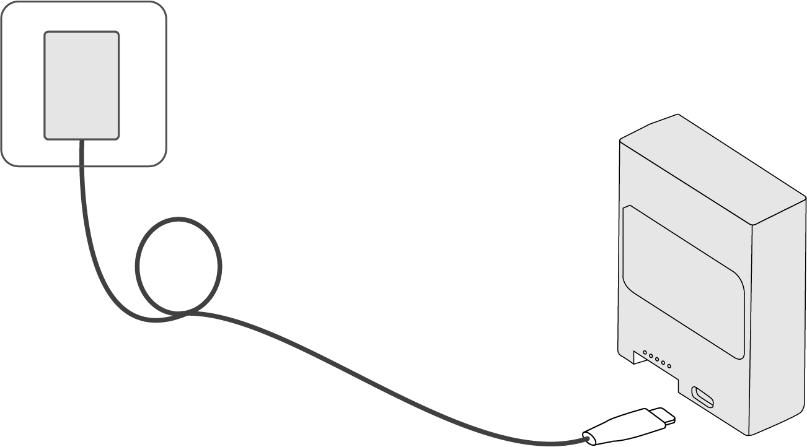
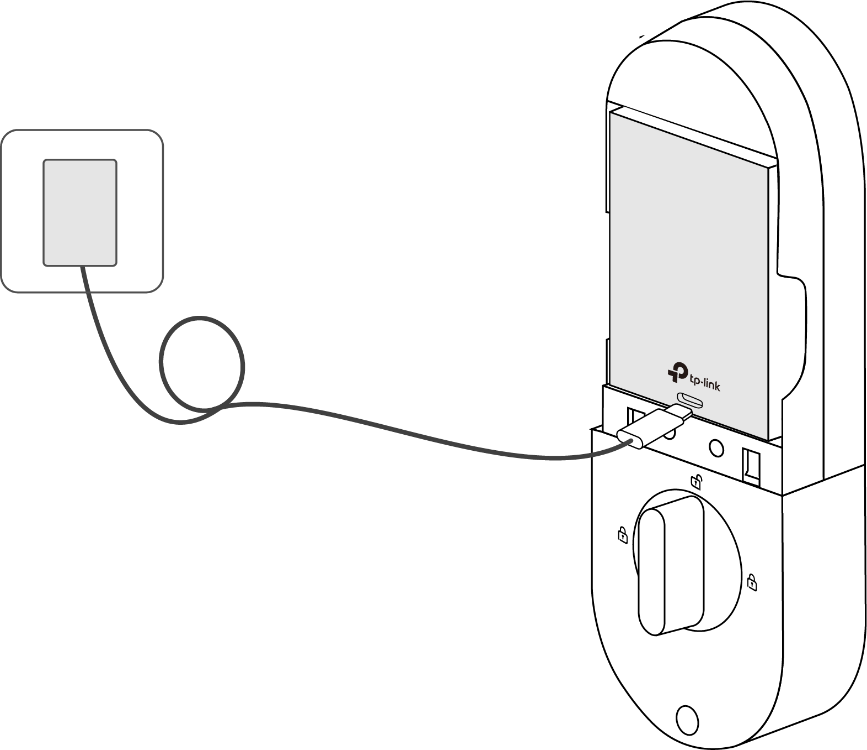
Светодиодный индикатор аккумулятора:
- Зарядка: оранжевый (непрерывный свет)
- Полностью заряжен: зелёный (непрерывный свет)
Примечания:
1. Зарядка занимает несколько часов. Для достижения наилучших характеристик зарядки рекомендуется использовать адаптер 5 В / 2 А.
2. Адаптер питания не входит в комплект поставки.
Шаг 3. Вставьте аккумулятор и синхронизируйте время
Если вы извлекали аккумулятор, вставьте его обратно во внутренний блок замка после зарядки. Если замок не подключён к сети Wi-Fi, каждый раз после установки аккумулятора открывайте приложение Tapo и подключайтесь к замку со смартфона, чтобы синхронизировать время.
Примечание: Если после установки аккумулятора замок не подключён к Wi-Fi, локальное время замка не будет синхронизироваться автоматически. Это означает, что запланированные PIN-коды не вступят в силу до тех пор, пока вы не откроете приложение Tapo и не подключитесь к замку для получения актуального времени.
Вопросы и ответы
Вопрос 1: Почему в приложении заряд аккумулятора умного дверного замка Tapo всегда отображается как 100%?
Это нормальное поведение. Умный замок имеет резервную ёмкость аккумулятора, которая не отображается в процентах. Отображаемый уровень будет долго оставаться на отметке 100%, пока расходуется этот дополнительный буфер. Только после того, как этот резерв будет исчерпан, отображаемый уровень начнёт постепенно снижаться.
Вопрос 2: Перестанет ли мой замок работать, если я извлеку основной аккумулятор для зарядки?
Это зависит от наличия резервного аккумулятора в вашем замке. Если он есть, резервный аккумулятор будет обеспечивать питание и работу замка. В противном случае замок перестанет работать.
На данный момент только Tapo DL130 оснащён резервным аккумулятором.
Вопрос 3: Как зарядить резервный аккумулятор?
Резервный аккумулятор заряжается от основного. Его нельзя извлечь или зарядить отдельно.
Вопрос 4: Как настроить уведомления о низком заряде аккумулятора?
Дверной замок автоматически отправляет уведомления, когда уровень заряда аккумулятора падает до определённого порога.
Вопрос 5: Как продлить срок службы аккумулятора?
Для увеличения времени автономной работы замка можно использовать функции энергосбережения.
Эти настройки позволяют установить расписание работы Wi-Fi для замка. Вне заданного времени Wi-Fi будет отключаться для экономии заряда.
Перейдите в приложение Tapo > выберите ваш Дверной замок > нажмите значок Настроек (в правом верхнем углу) > Настройки энергосбережения.
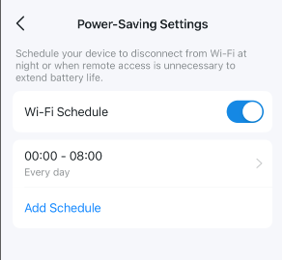
Чтобы узнать больше о каждой функции и настройке, перейдите в Центр загрузок, чтобы загрузить руководство для вашего продукта.
Ищете больше информации?
Полезен ли этот FAQ?
Ваши отзывы помогают улучшить этот сайт.


TP-Link Community
Still need help? Search for answers, ask questions, and get help from TP-Link experts and other users around the world.
From United States?
Получайте информацию о продуктах, событиях и услугах для вашего региона.