
Access Point Mode vs Router Mode on TP-Link Wireless Routers: What's the Difference?
Access Point mode vs Router mode is one of the most common questions when setting up a TP-Link wireless router. This article explains the functional differences between the two modes to help you choose the right one for your network. If you're ready to switch modes, learn how to set up a TP-Link router as an Access Point.
Key Takeaways
- A TP-Link wireless router combines a Wireless Access Point and a wired router in one device.
- In Router mode, it manages Internet sharing for all connected devices and supports advanced features including Parental Controls, Access Control, QoS, Bandwidth Control, NAT Forwarding, IPv6, and VPN.
- In Access Point mode, the router provides some basic functions only. Gateway-dependent features, including Parental Controls, QoS, Bandwidth Control, NAT Forwarding, IPv6, and VPN, are unavailable because the WAN port is no longer in use.
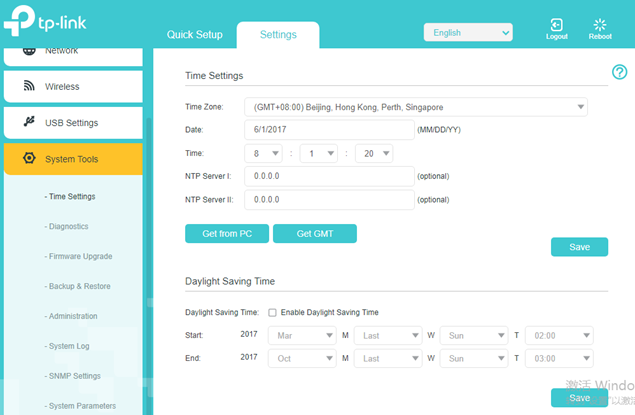
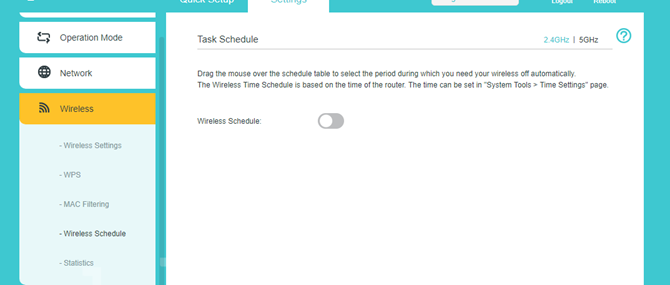
- Some features work in both Router mode and Access Point mode, including LED Control (Night Mode), Time Settings (NTP Server), Wi-Fi Schedule, Auto Reboot, and USB Sharing.
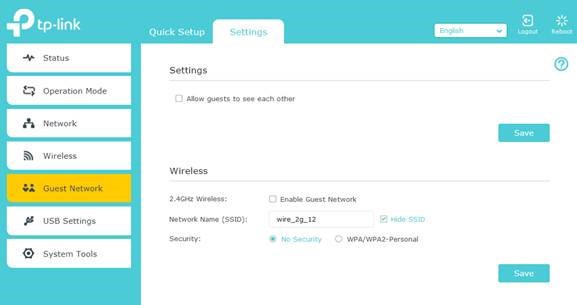
- In Access Point mode, the Guest Network is no longer isolated from the main network. Devices on the guest network can access the main network.
The table below shows which features are supported in each mode
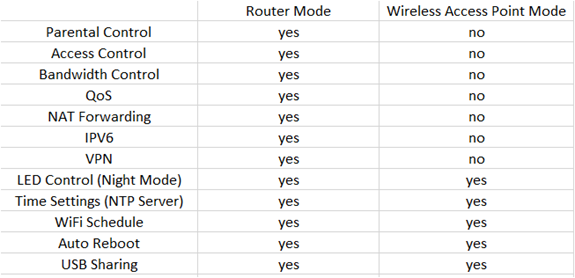
Note: We recommend checking the exact features available in your router's web interface, as functions under AP mode may vary across different TP-Link devices. If you need more information specific to your model, contact TP-Link support.
A TP-Link wireless router combines a Wireless Access Point and a wired router. The wired router component lets all connected devices share the Internet and supports features like Parental Controls, Access Control, QoS, Bandwidth Control, NAT Forwarding, IPv6, and VPN. The Wireless Access Point component handles wireless connectivity only. When you switch a TP-Link wireless router from Router mode to Access Point mode using the Operation Mode option on the TP-Link web interface, the features that require Router mode are no longer available.
For TP-Link wireless routers such as the TL-WR840N that do not have an Operation Mode option in the web interface, you can set them up as a wireless access point by disabling the DHCP server. After disabling the DHCP server, the router technically still operates in Router mode but no longer uses the WAN port. Because of this, features that require the WAN port, including Parental Controls, Access Control, QoS, Bandwidth Control, NAT Forwarding, IPv6, and VPN, can still be found in the router's interface but will not function. Finally, features supported in both Router mode and Access Point mode, including LED Control, Auto Reboot, Time Settings, USB Sharing, and Wi-Fi Schedule, remain available after changing modes.
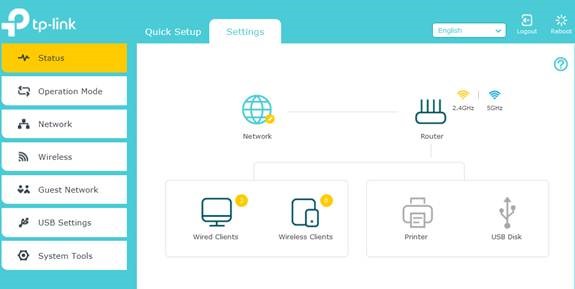
The example below uses the Archer A7 to show how the menu changes between modes.
When the Archer A7 is in Router mode, the menu appears as follows:
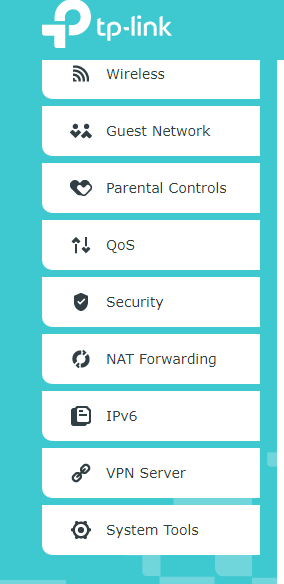
After switching the Operation Mode from Wireless Router Mode to Access Point Mode, the menu would be changed as the following pictures:
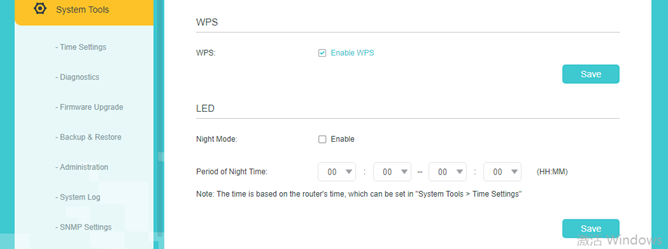
LED Control (Night Mode), Time Settings (NTP Server), Wireless Schedule, and USB Sharing still work under Access Point Mode:
Under the AP mode, the Guest Network will not be separate from the main network. Clients connected to the guest network can access to the main network.
Get to know more details of each function and configuration. Please go to the Download Center to download the manual of your product.
Полезен ли этот FAQ?
Ваши отзывы помогают улучшить этот сайт.
From United States?
Получайте информацию о продуктах, событиях и услугах для вашего региона.