
Как установить системное время для мобильного Wi-Fi роутера TP-Link
Системное время — это время, отображаемое во время работы маршрутизатора. Настроенное здесь системное время будет использоваться для других функций, зависящих от времени, таких как Родительский контроль.
Ключевые моменты
- Измените настройки времени маршрутизатора на странице веб-управления маршрутизатором.
- Выберите правильный часовой пояс, чтобы маршрутизатор отображал правильное местное время.
- Проверьте отображаемое время маршрутизатора после сохранения настроек.
Как изменить системное время
Сценарий 1: Для 3G/4G мобильных Wi-Fi маршрутизаторов
1. Войдите в веб-интерфейс маршрутизатора. Если вы не знаете, как это сделать, обратитесь к How to log in to web management page of TP-Link Mobile Wi-Fi
2. Установите часовой пояс маршрутизатора.
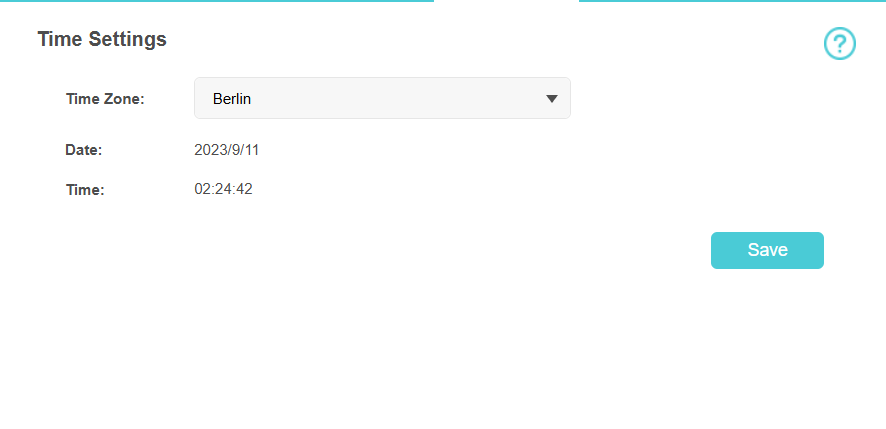
Перейдите в Advanced > Device > Time Settings. Выберите подходящий часовой пояс и сохраните настройки.
Сценарий 2: Для 5G мобильного Wi-Fi маршрутизатора
1. Войдите в веб-интерфейс маршрутизатора. Если вы не знаете, как это сделать, обратитесь к How to log in to web management page of TP-Link Mobile Wi-Fi
2. Перейдите в Advanced > System Tools > Time Settings.
A: Чтобы настроить системное время:
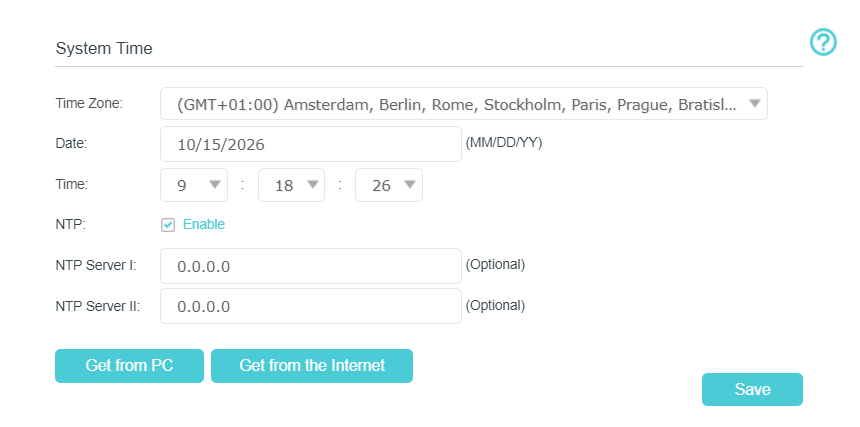
Настройте системное время одним из следующих способов:
Вручную: выберите свой часовой пояс и введите местное время.
Get from PC: нажмите эту кнопку, если хотите использовать текущее время управляющего ПК.
Get GMT: нажмите эту кнопку, если хотите получить время из интернета. Перед выбором этого способа получения системного времени убедитесь, что маршрутизатор имеет доступ в интернет.
Примечание. Оставьте поля NTP Server I и NTP Server II по умолчанию, если в этом нет необходимости.
B: Чтобы настроить переход на летнее время:
1. Выберите Enable Daylight Saving Time.
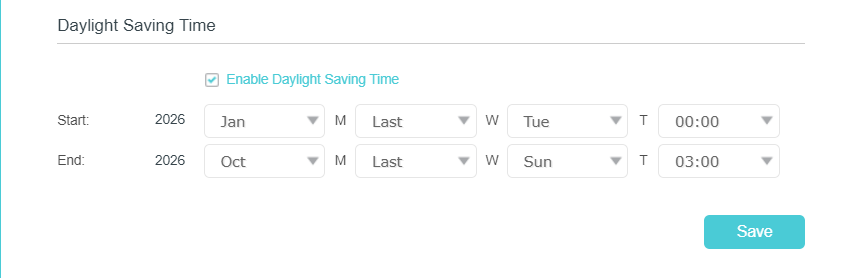
2. Выберите правильную дату и время начала, когда переход на летнее время начинается в вашем местном часовом поясе.
3. Выберите правильную дату и время окончания, когда переход на летнее время заканчивается в вашем местном часовом поясе.
4. Нажмите Save.
Примечания:
1. Переход на летнее время вступит в силу с дня (с понедельника по воскресенье) недели (первая, 2-я, 3-я, 4-я и последняя неделя) в данном месяце. Например, если вы хотите установить переход на летнее время с 13 марта 2026 года на маршрутизаторе TP-Link, вы можете установить время начала как 2026, март, 2-я, пятница.
2. Не все модели мобильных Wi-Fi маршрутизаторов поддерживают настройку перехода на летнее время. Если вы не видите эту опцию в веб-интерфейсе, пропустите этот шаг и продолжите оставшуюся настройку.
Чтобы узнать больше о каждой функции и настройке, перейдите в Download Center , чтобы скачать руководство для вашего продукта.
Ищете больше информации?
Полезен ли этот FAQ?
Ваши отзывы помогают улучшить этот сайт.




TP-Link Community
Still need help? Search for answers, ask questions, and get help from TP-Link experts and other users around the world.
From United States?
Получайте информацию о продуктах, событиях и услугах для вашего региона.