
How to Use Screen Features of the Video Call Camera
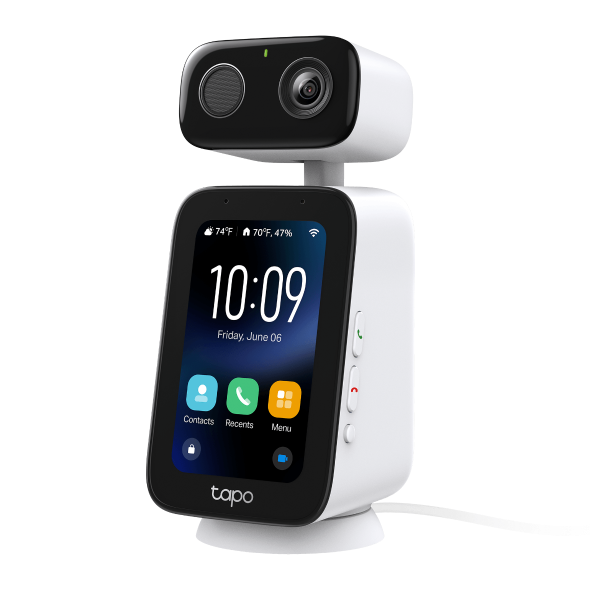
The video call camera has a touchscreen that displays commonly used features for quick access. This article will introduce the screen features and related app instructions.
Note: The screen and app interfaces may vary due to firmware updates.
Key Takeaways
- After you set up the camera successfully, you can call the account you added the device to from Contacts on the screen. To add more contacts, on the camera’s live view page, tap Contacts to enter the email address of your Family & Friends or the MAC address of another Tapo C825.
- You can change the Display Settings or Add Reminder either on the screen or in the app. To customize the wallpaper, you have to go to the device settings page > Screen Display in the Tapo app.
- The left-side physical buttons are customizable. Go to the device settings page > Screen Display > Button Settings in the Tapo app.
Make a Call from the Screen and Add Contacts
After you set up the camera successfully, you can call the account you added the device to from Contacts on the screen.
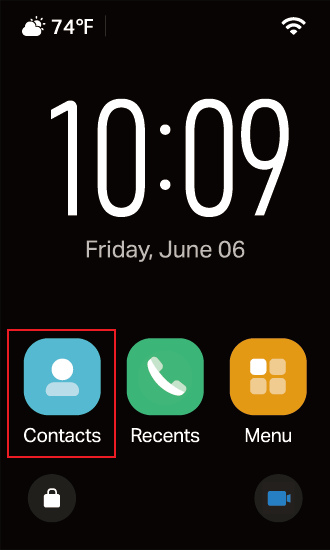
To add more contacts, please follow the steps below.
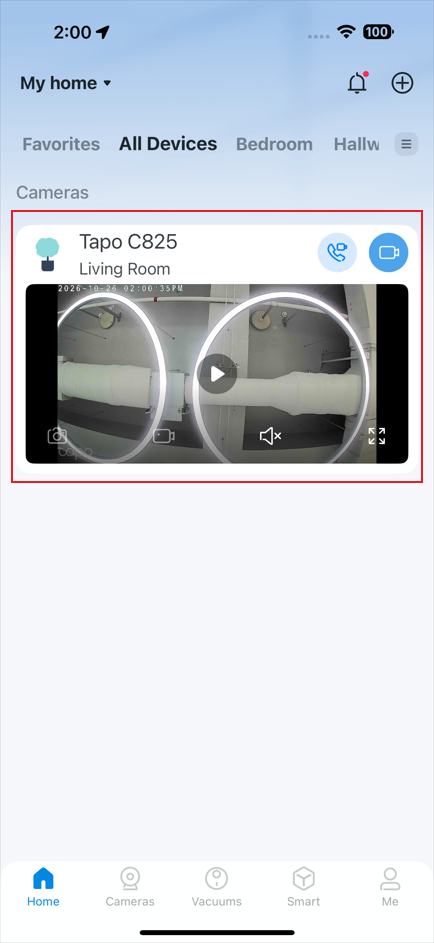
Step 1: In the Tapo app, tap the camera’s device card to enter the live view page.
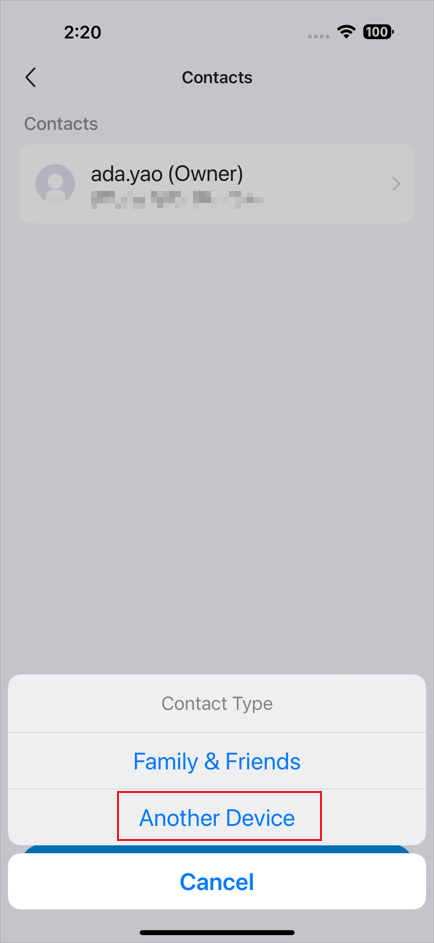
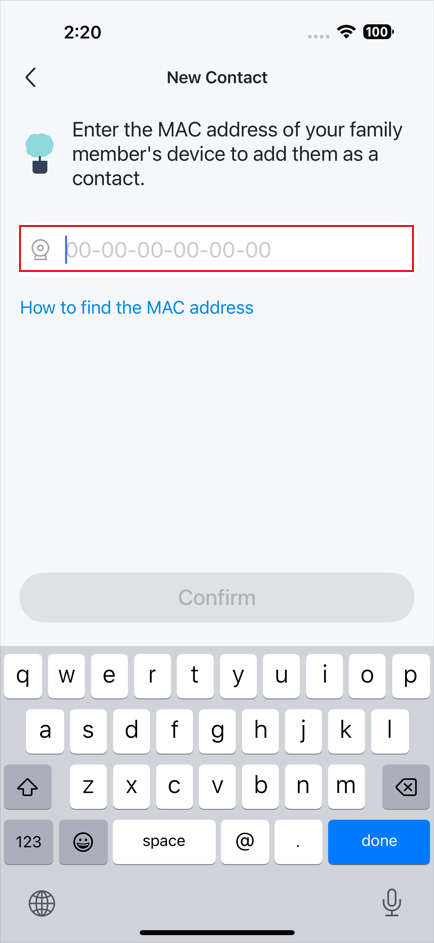
Step 2: Tap Contacts > + Add Contact, then choose a Contact Type: Family & Friends or Another Device.
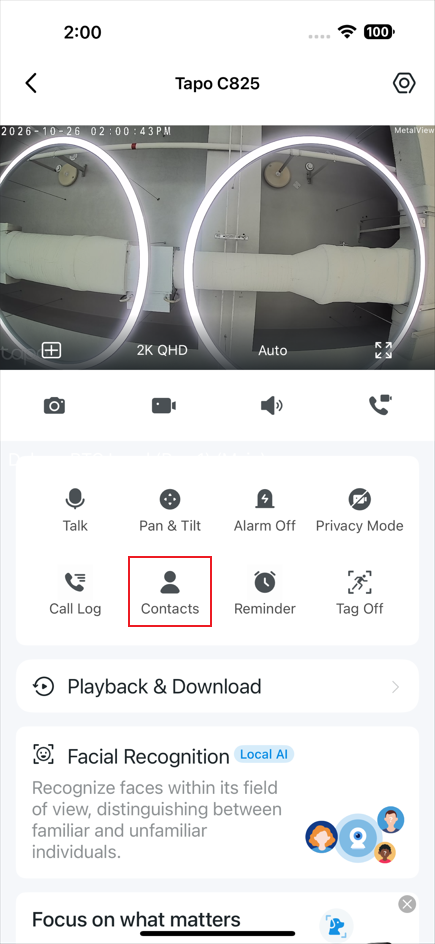
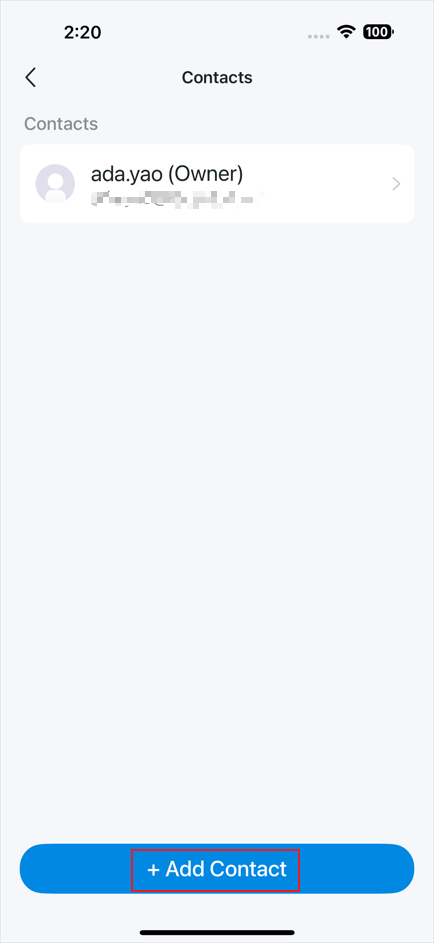
Family & Friends: Enter the email address with which you want to share this device. After the invitee accepts the invitation in the Tapo app, they will be added to Contacts.
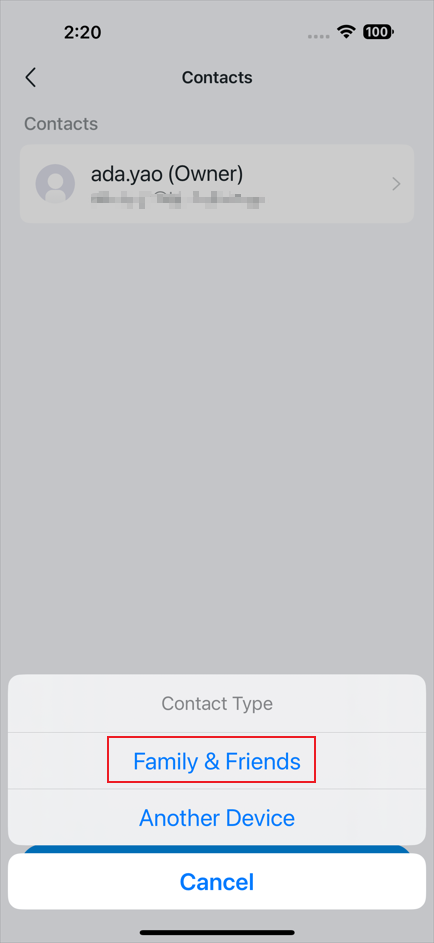
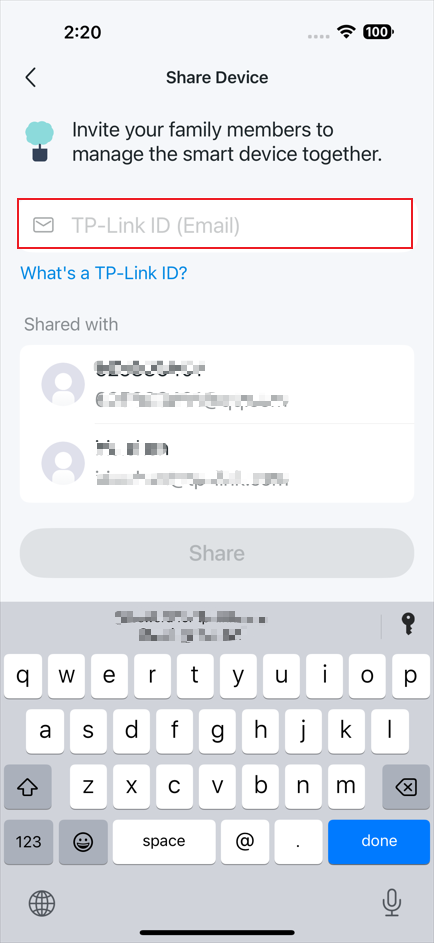
Another Device: Enter the MAC Address of another Video Call Camera (Tapo C825). You can find the MAC address on its back panel.
Change the Display Settings
Tap Menu on the Home Screen, and then enter Display. You can adjust the brightness, set your preferred sleep timer, turn Screen Off Display on or off, and change the text size.
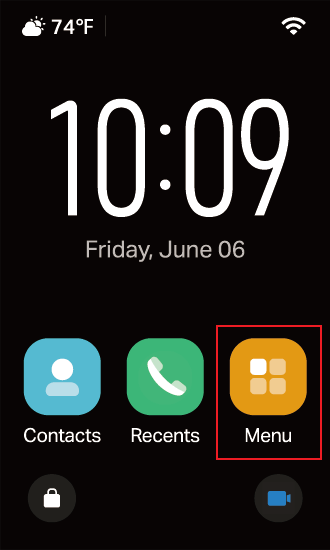
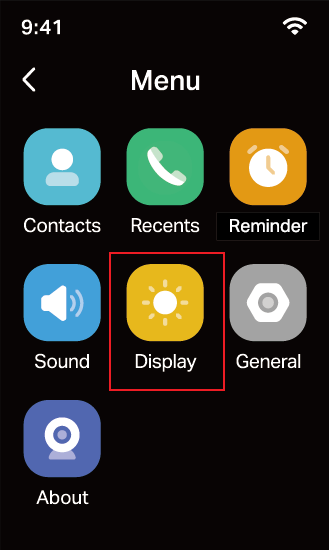
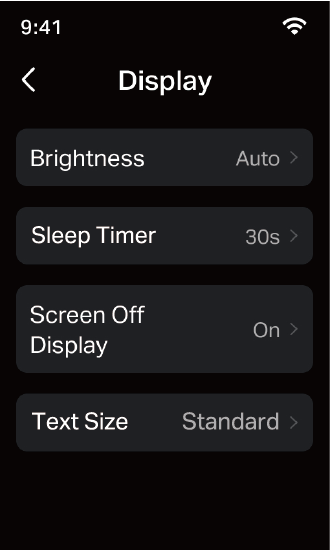
To customize the wallpaper or look for more display settings, please follow the steps below.
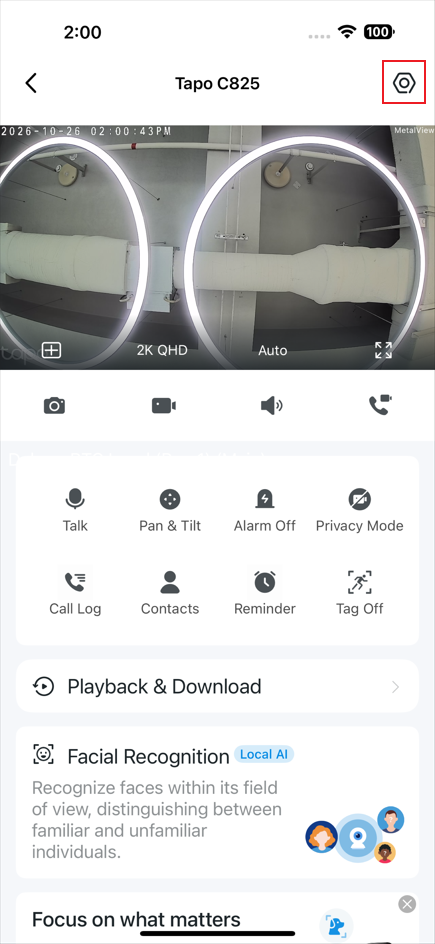
Step 1: In the Tapo app, tap the camera’s device card to enter the live view page.
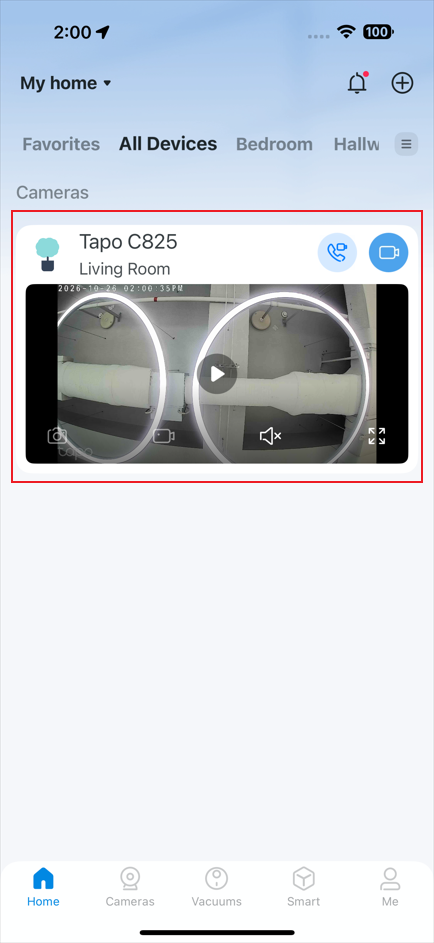
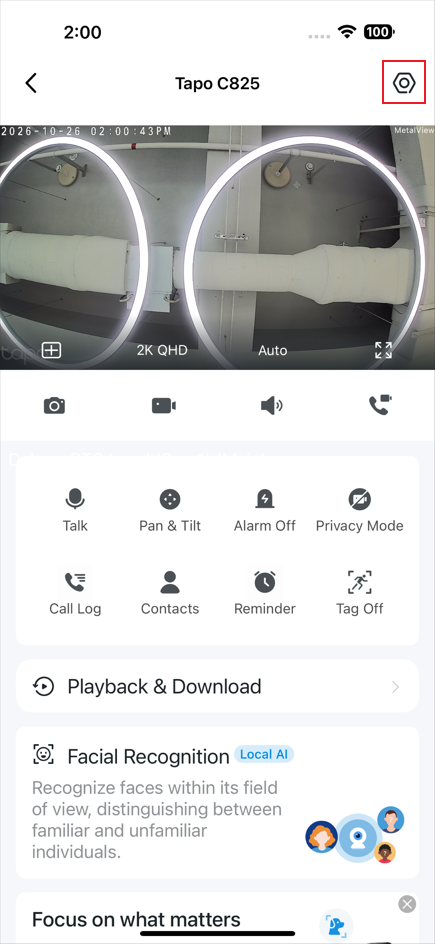
Step 2: Tap the gear icon to enter the device settings page.
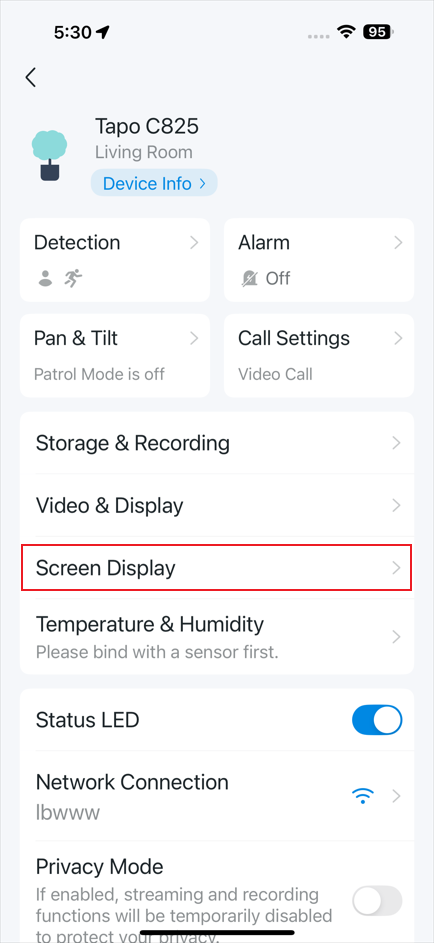
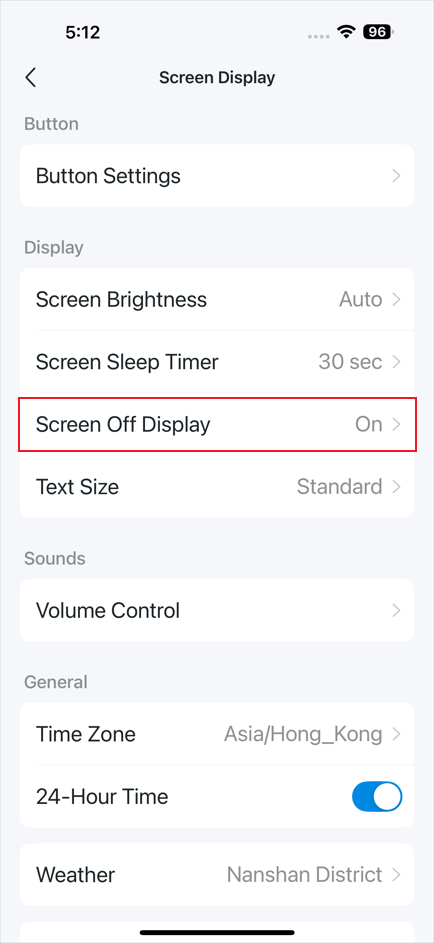
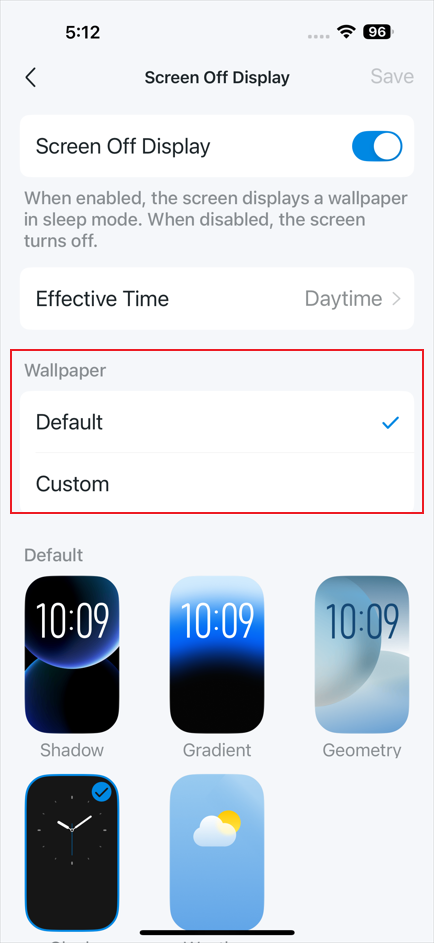
Step 3: Tap Screen Display > Screen Off Display to customize the wallpaper or choose from the default ones.
Add a Reminder
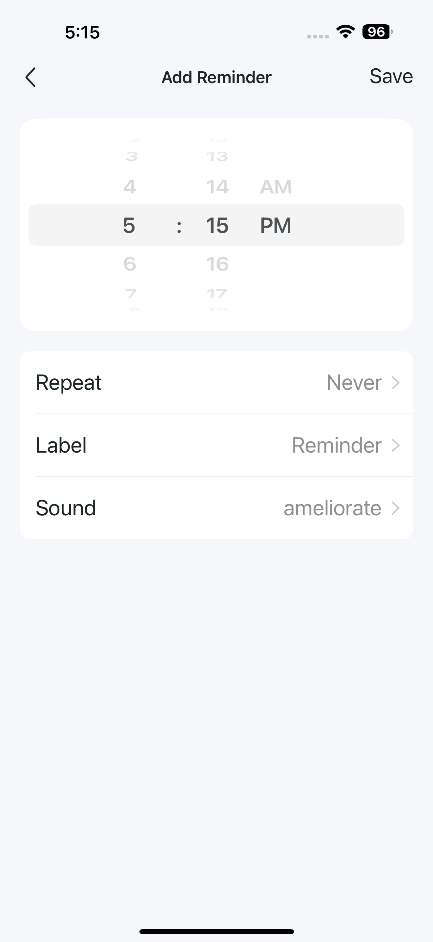
Tap Menu on the Home Screen, and then enter Reminder. Tap + to add a reminder as needed.
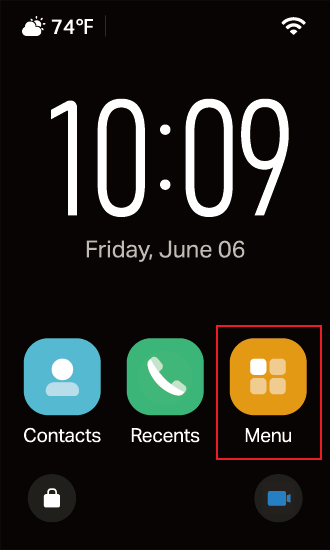
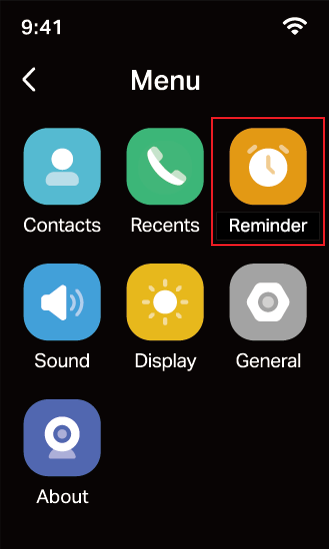
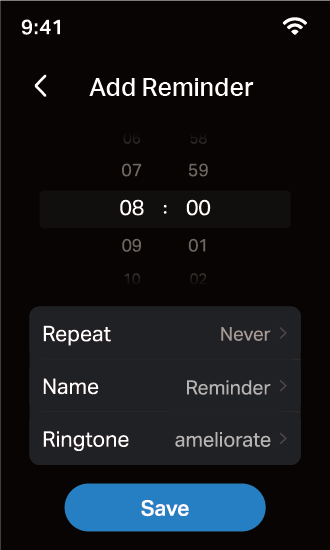
You can also add reminders in the Tapo app.
Step 1: In the Tapo app, tap the camera’s device card to enter the live view page.
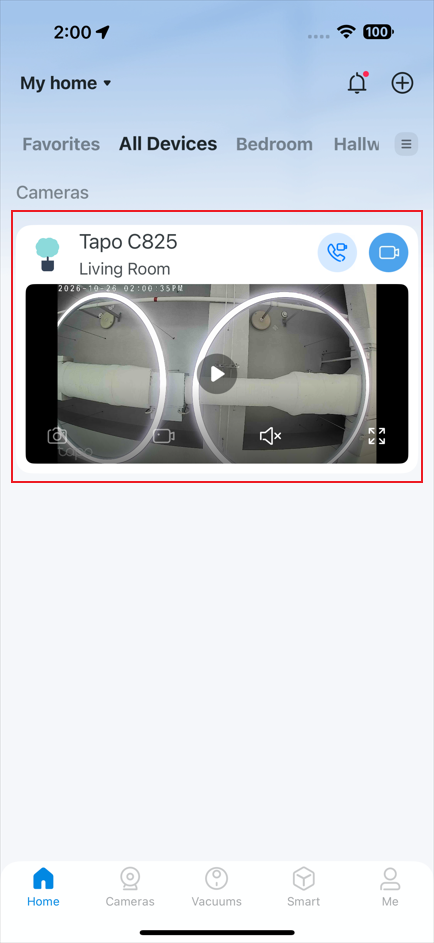
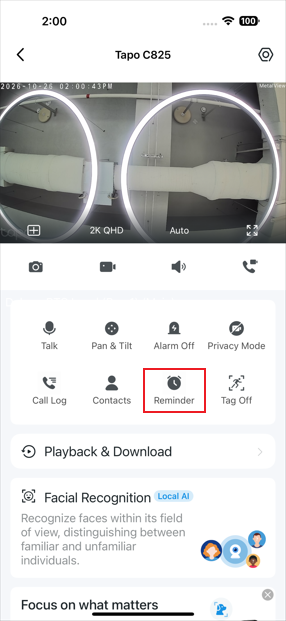
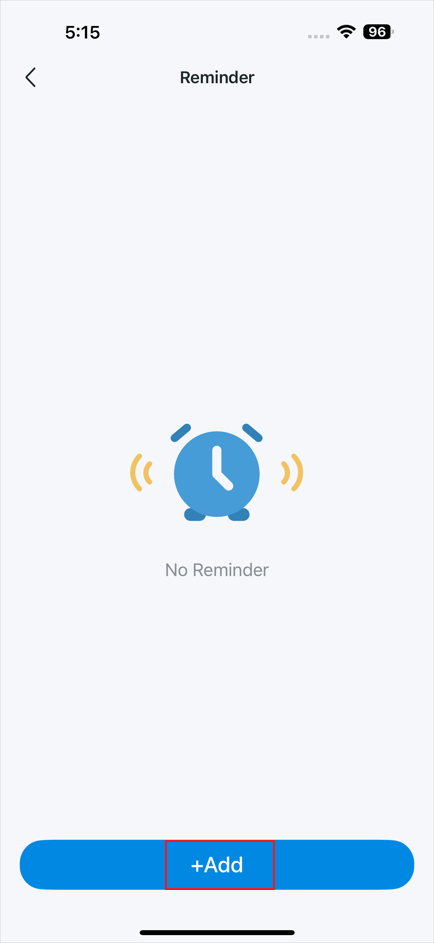
Step 2: Tap Reminder on the live view page. Then tap + to add a reminder as needed.
Customize Right-Side Physical Buttons on the Device
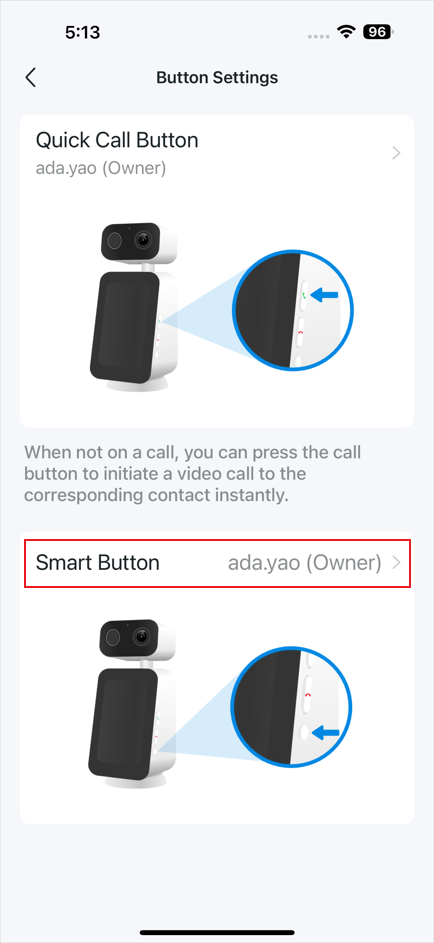
By default, the green button (answer button) accepts an incoming call; the red button (end button) rejects an incoming call or ends an ongoing one; the round button controls the screen on/off.
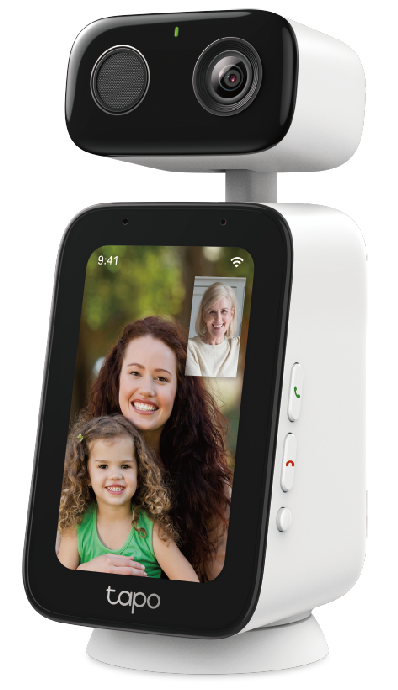
To customize the buttons, please follow the steps below.
Step 1: In the Tapo app, tap the camera’s device card to enter the live view page.
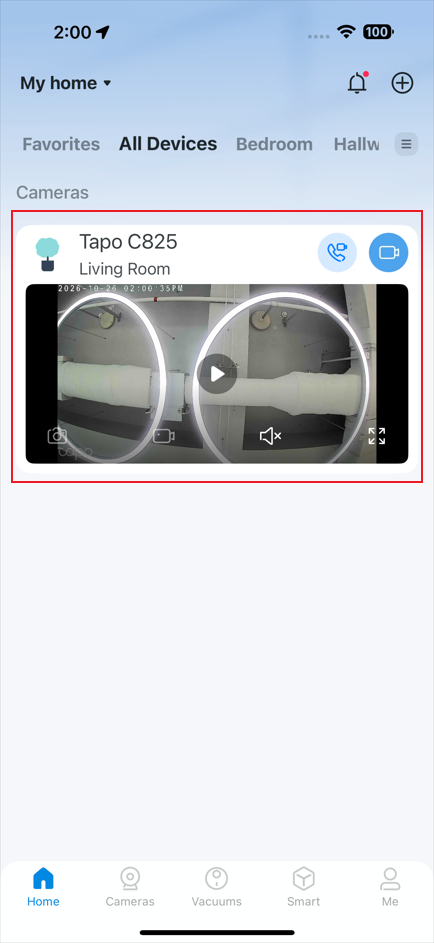
Step 2: Tap the gear icon to enter the device settings page.
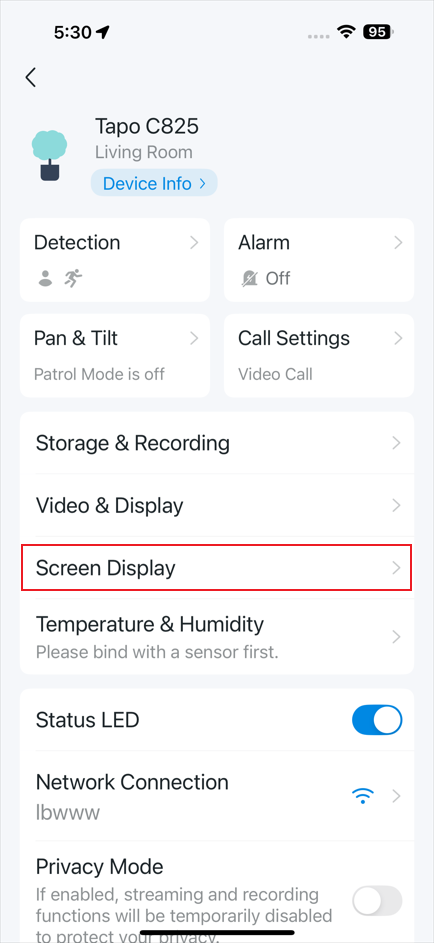
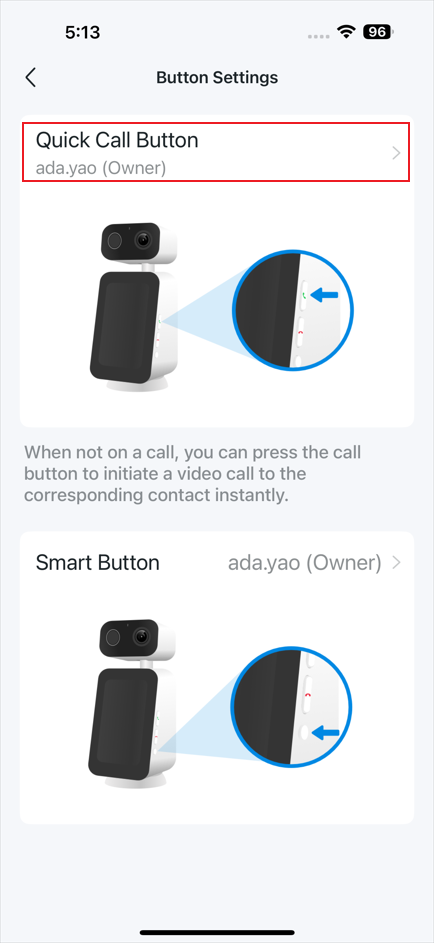
Step 3: Tap Screen Display > Button Settings.
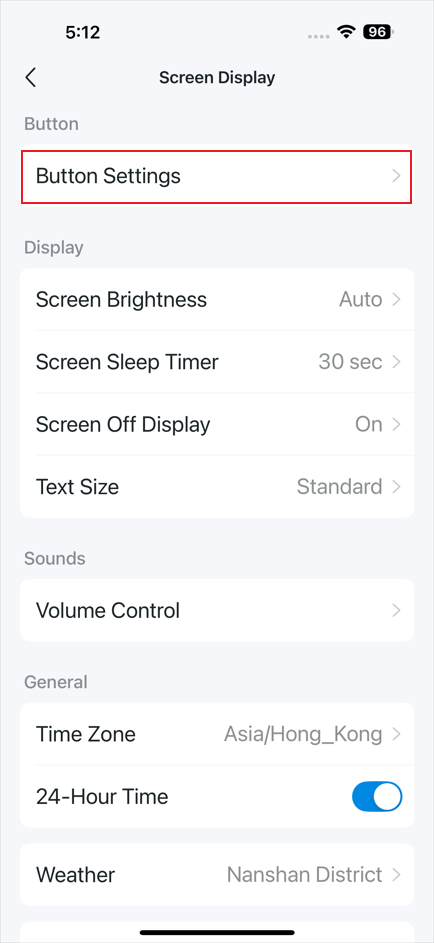
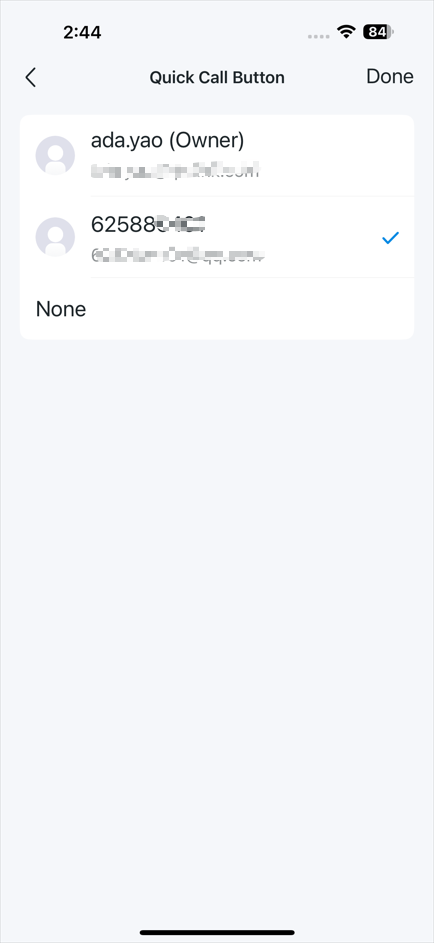
Step 4: Tap the Quick Call Button, select a contact from the list, and tap Done. When no call is in progress, you can press the red button to call its assigned contact instantly.
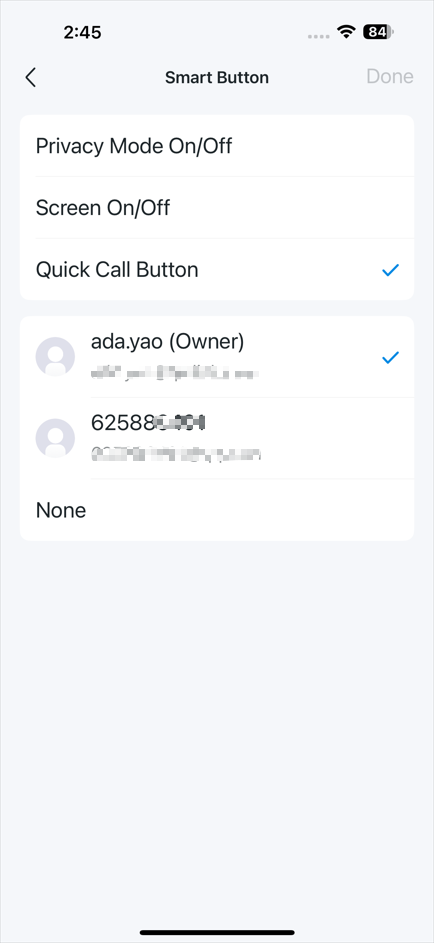
Step 5: Tap Smart Button. You can set it as a Privacy Mode On/Off button, Screen On/Off button, or another Quick Call Button.
Looking For More
Finden Sie diese FAQ hilfreich?
Mit Ihrer Rückmeldung tragen Sie dazu bei, dass wir unsere Webpräsenz verbessern.

TP-Link Community
Still need help? Search for answers, ask questions, and get help from TP-Link experts and other users around the world.
Von United States?
Erhalten Sie Produkte, Events und Leistungen speziell für Ihre Region