
How to Set Up Range Extender Mode on a TP-Link Wireless Router
This page explains how to use a TP-Link router as a WiFi extender by enabling Range Extender Mode. This guide applies to select TP-Link router models only — check your product's spec page to confirm your model supports this feature. Range Extender Mode allows a compatible router to extend an existing Wi-Fi network without a separate range extender, making it a useful option for users who want to eliminate weak signal areas with hardware they already own.
Note: Only some wireless router models support Range Extender Mode. The Archer A54 V1 is used as the demonstration model in this guide.
Key Takeaways
- Range Extender Mode allows a compatible TP-Link router to copy and extend an existing wireless signal, helping eliminate dead zones in larger spaces.
- Only select TP-Link router models support Range Extender Mode. Check your product's spec page to confirm compatibility.
- Setup is completed via Quick Setup in the router's web management page. Select Range Extender as the operation mode and follow the on-screen instructions.
- When a router is set to Range Extender Mode, several functions become unavailable, including Guest Network, parental controls, port forwarding, IP and MAC binding, Access Control, and security features.
Can I Use a TP-Link Router as a WiFi Extender?
Yes, you can use a TP-Link router as a WiFi extender — if your model supports Range Extender Mode. This is useful when you have a compatible TP-Link router and want to extend coverage to areas with a weak or no signal, without buying a dedicated range extender.
Range Extender Mode works by having the router connect to your existing Wi-Fi network wirelessly and rebroadcast the signal to expand its reach. This is also sometimes referred to as using a TP-Link router as a repeater without a cable. The setup takes just a few minutes through the router's web management page.
How to Set Up Range Extender Mode on a TP-Link Router
Step 1. Log in to the router's web management page. For help accessing it, see How to Log In to the TP-Link Range Extender Web Management Page.
Step 2. Click Operation Mode in the left menu, select Range Extender as the operation mode, and follow the on-screen instructions to complete the setup.
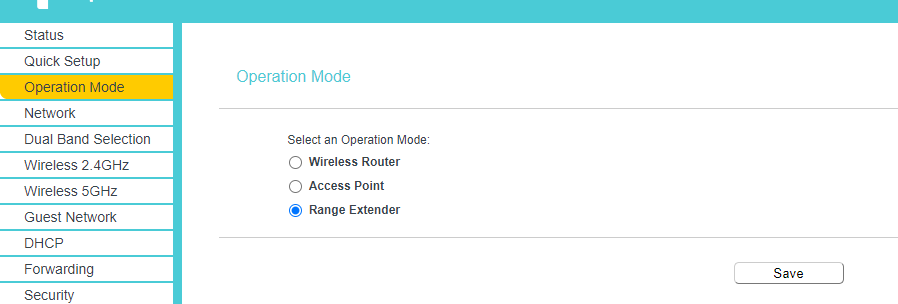
Note: When switching to range extender mode, some router functions, including Guest Network, parental controls, forwarding, IP/MAC binding, Access Control, and security, will be unavailable.
Tìm kiếm thêm
Câu hỏi thường gặp này có hữu ích không?
Phản hồi của bạn giúp cải thiện trang web này.

3.0&4.0-F_normal_1584493102128p.png)

TP-Link Community
Still need help? Search for answers, ask questions, and get help from TP-Link experts and other users around the world.