
How to Set Up Deco After Switching to a New ISP
If your internet stops working after changing to a new Internet Service Provider (ISP), your Deco may need updated settings to match the new ISP’s requirements. This article covers steps to reconfigure your Deco’s internet connection without performing a factory reset.
Before You Begin
- Download the Deco app by visiting the Google Play Store, App Store, or by scanning the QR code.

- Gather your new ISP’s connection details, including:
- Connection Type: Dynamic IP, PPPoE, or Static IP
- VLAN ID (if required by your ISP)
Step-by-Step Guide
Step 1: Access Internet Settings.
Connect your phone to your Deco’s Wi-Fi network.
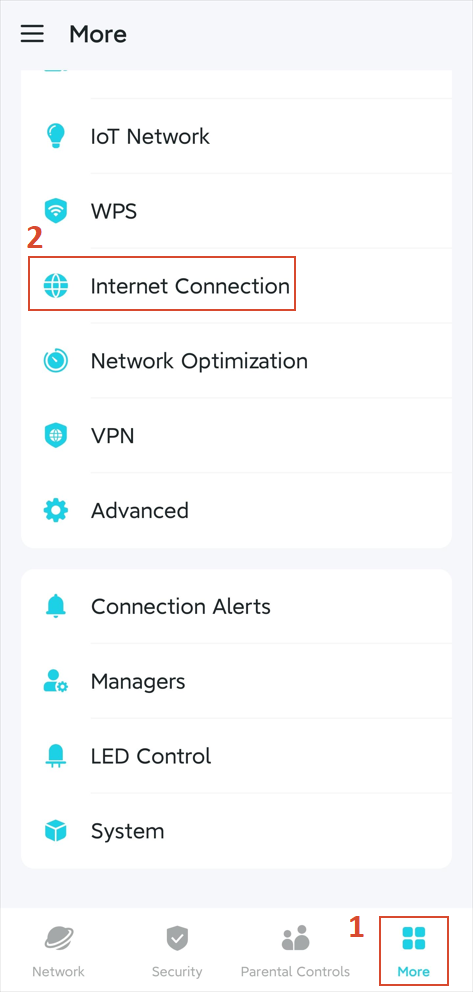
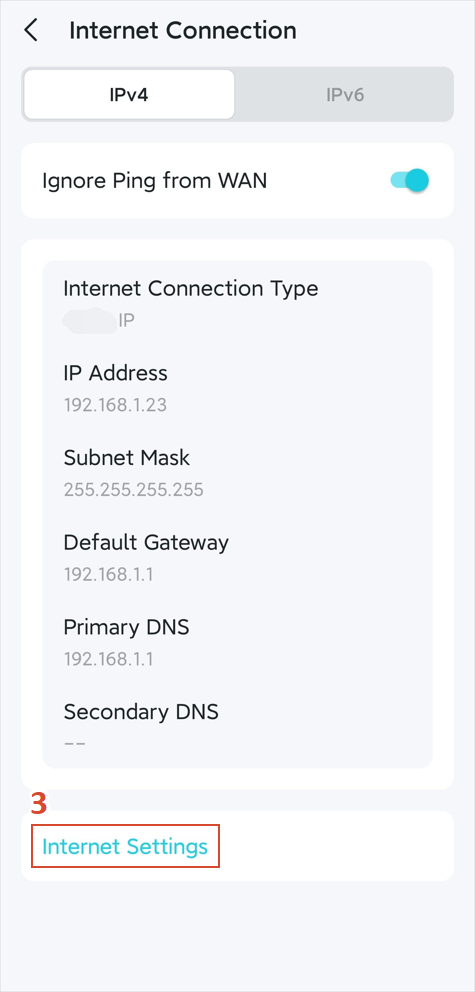
Open the Deco app, tap More > Internet Connection > Internet Settings.
Step 2: Select Your Connection Type
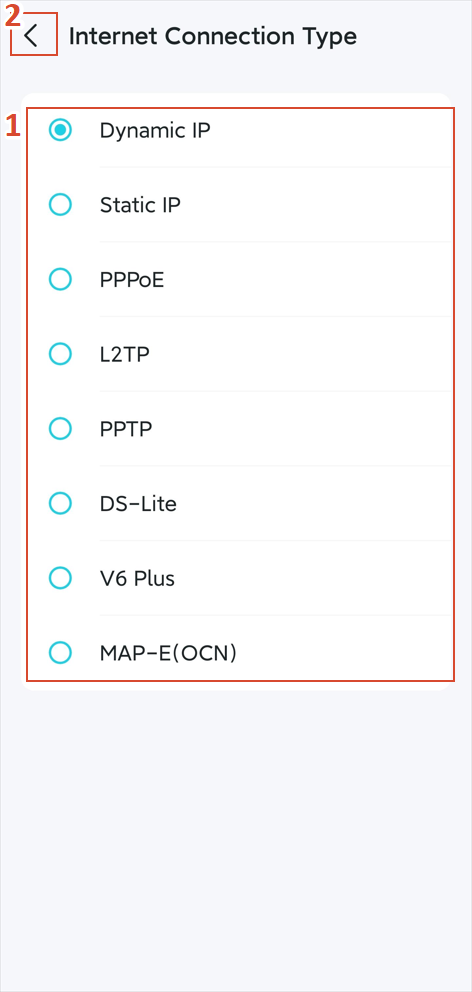
Tap Internet Connection Type, choose the option provided by your ISP, and go back.
Fill in the required information, and tap Save to apply the changes.
- Dynamic IP/IPoE: No additional input needed (default for most ISPs).
- PPPoE: Enter the username and password provided by your ISP.
- Static IP: Enter your ISP’s IP address, subnet mask, gateway, and DNS details.
Step 3 (If Required): Set Up VLAN ID
If your ISP uses VLAN tagging, follow Deco VLAN ID Setup to configure it.
QA
Q1: What if my internet still doesn’t work after reconfiguring Deco?
A1:
1) Restart your modem and Deco (power off both, wait 30 seconds, then power on the Deco first, followed by the modem).
2) Check the Deco app to ensure the settings match your ISP’s requirements.
3) If the issue continues, contact your ISP to confirm the connection details and if their service is active.
Get to know more details of each function and configuration, please go to the Download Center to download the manual of your product.
Looking For More
Is this faq useful?
Your feedback helps improve this site.

TP-Link Community
Still need help? Search for answers, ask questions, and get help from TP-Link experts and other users around the world.