
How to Find and Set Alexa Integration on TP-Link Devices
Alexa Integration lets you manage compatible TP-Link routers and Deco devices using Amazon Alexa voice commands. With tp link alexa integration enabled, you can prioritize devices on your network, turn off router LEDs, and more — all by voice. It works through both the Tether app (for routers) and the Deco app.
Key Takeaways
- Alexa Integration lets you control compatible TP-Link routers and Deco devices using Amazon Alexa voice commands.
- It is available in the Tether app under Smart Life Assistants, and in the Deco app under Link Account.
- Only one TP-Link product can be controlled via Alexa at a time — if you have multiple Alexa-supported devices on one TP-Link ID, you must choose one.
- With Alexa, you can prioritize devices on your network for a set period of time using voice commands.
How Do I Find Alexa Integration?
On the Tether App
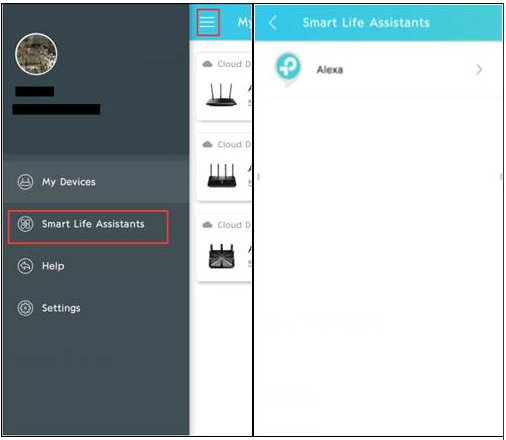
Open the Tether app, tap the menu icon, then tap Smart Life Assistants to find Alexa Integration.
On the Deco App
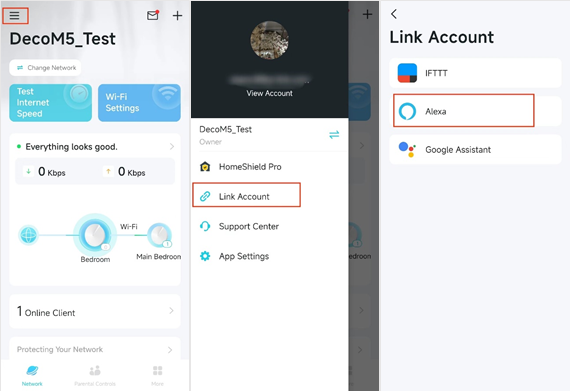
Open the Deco app, tap the menu icon, then tap Link Account to find Alexa Integration.
How Do I Set Alexa Integration?
Use the TP-Link Tether app for demonstration. Follow these steps to set up Alexa Integration:
Step 1. Enable TP-Link Router Skill on the Alexa app. Tap “Learn How” in the Alexa Integration page for more details.
Step 2. If you have two or more Alexa-supported TP-Link products bound to one TP-Link ID, you need to choose one product from the product list to control, since only one product at a time can be controlled using Alexa.
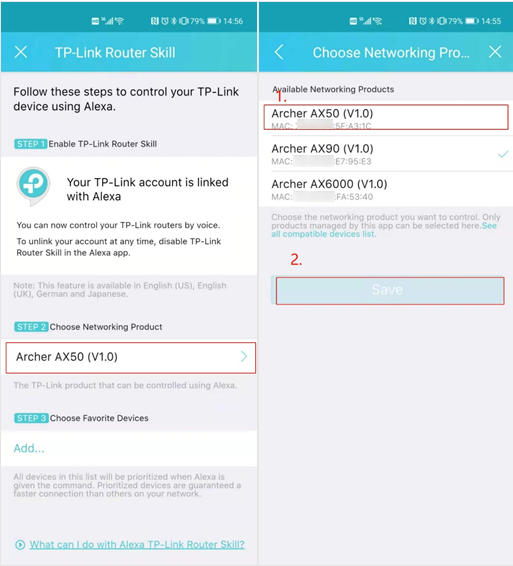
Alt: Two screens showing step 1 Archer AX50 highlighted under Choose Networking Product, and step 2 Save button highlighted on the product list
Step 3. With the TP-Link Router Skill, you can prioritize your favorite personal devices for a certain time. For example, you can say, “Alexa, ask TP-Link to prioritize my favorite devices for two hours.”
To choose your favorite devices, tap “Add…” then select personal devices connected to your network from the device list.
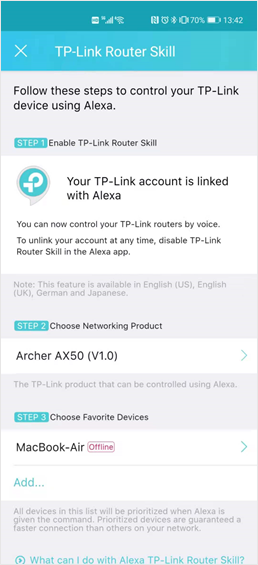
You can now use Alexa voice commands to control your TP-Link device.
Looking For More
Is this faq useful?
Your feedback helps improve this site.

_Overview_normal_20211130005706l.png)
_EU_1.0_Overview_1_normal_20220411032339n.png)

TP-Link Community
Still need help? Search for answers, ask questions, and get help from TP-Link experts and other users around the world.