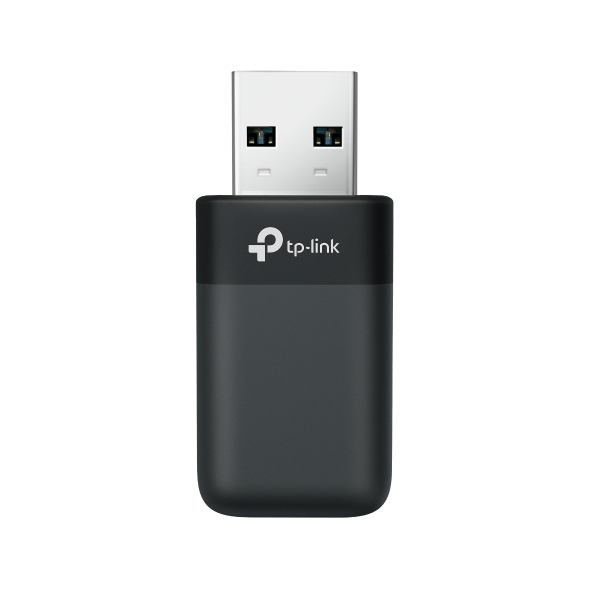
Linux USB Wi-Fi Adapters: Finding a Compatible Model and Getting Connected
Maybe your desktop has no built-in Wi-Fi, or your distro won't recognize the adapter you own. A Linux USB Wi-Fi adapter works when a driver exists for its exact hardware version and your kernel.
Select TP-Link adapters have official Linux drivers with a stated kernel range, so you can skip the forum guesswork. Here's what to check, which models qualify, how to set up, and what to do if something goes wrong. If you’re new to the hardware, start with how USB Wi-Fi adapters work.
Key Takeaways
- Linux support for a USB Wi-Fi adapter depends on three things: the driver for its exact model, a matching hardware version, and your kernel version.
- Run uname -r in a terminal to see your kernel version, then compare it with the driver's supported kernel range.
- Four TP-Link USB Wi-Fi adapters have official Linux drivers (one in beta): the Archer TXE70UH, Archer TX50U, Archer TX20U Nano, and Archer T2U Nano.
- The hardware version matters. Each driver covers specific hardware versions only, so check the label before you install.
- The listed kernel ranges currently end at 6.14. If your kernel is newer, check the download page for an updated driver before you install.
Why USB Wi-Fi Adapter Compatibility on Linux Is Different
On Windows, an adapter's driver usually installs automatically. On Linux, you match three things yourself: the driver, your kernel, and the adapter's hardware version.
The hardware version is easy to miss. It's printed on the label on the adapter or its box, usually as "Ver: 1.6" or similar, and store listings often don't show it. Support can change between hardware versions of the same model. For example, the Archer TX20U Nano has a Linux driver for V1.6 but not V1, and the Archer T2U Nano has one for V2.6 but not V1.
Drivers can also differ within one lineup. The Archer TXE70UH and Archer TX50U use the same driver version, while the two nano adapters each use their own.
In-Kernel vs. Out-of-Kernel Drivers: What the Difference Means for You
An in-kernel driver is included in the Linux kernel, so it's generally available with your distro's kernel. An out-of-kernel (out-of-tree) driver is one you download and build for your running kernel, and a kernel update may mean rebuilding it.
The TP-Link drivers in this guide are downloads from the TP-Link Download Center, so plan to install one. For the Archer TXE70UH and Archer TX50U, TP-Link's DKMS (Dynamic Kernel Module Support) package is designed to rebuild the driver after kernel updates.
What to Look for in a Linux USB Wi-Fi Adapter
Start by checking whether the manufacturer publishes a Linux driver for that exact model and hardware version, and which kernels it supports. After that, pick hardware that fits your setup.
- Official driver and kernel range. TP-Link's current Linux drivers for the adapters in this guide. support kernels up to 6.14, so confirm yours with uname -r before you buy.
- Wi-Fi generation. Wi-Fi 6 and Wi-Fi 6E give you the most headroom if your router supports them. Wi-Fi 5 works on older routers.
- Bands. Dual-band adapters use 2.4 GHz and 5 GHz. 5 GHz is usually faster up close, and 2.4 GHz reaches farther. Tri-band Wi-Fi 6E adds 6 GHz, which needs a Wi-Fi 6E router.
- Antenna design. Nano adapters are compact, while high-gain adapters use larger external antennas for better reception at a distance.
- USB version. USB 3.0 adapters need a USB 3.0 port for rated transfer speeds.
Compact Adapters for Everyday Use
Nano adapters sit almost flush with the USB port, so one can stay in a laptop. The trade-off is a smaller antenna, which may work best closer to the router. The Archer TX20U Nano (Wi-Fi 6) and Archer T2U Nano (Wi-Fi 5) fit here. The Archer TX50U is a step up in size, with internal antennas and a USB 3.0 connection.
High-Gain Adapters for Stronger Signal
A desktop a few rooms away from the router may benefit from a high-gain adapter. The Archer TXE70UH has two adjustable high-gain antennas and a 1.2 m USB 3.0 cable with a cradle, so you can move it off the floor and away from the PC case for better reception.
How to Set Up a USB Wi-Fi Adapter on Linux
Setting up a Wi-Fi adapter for Linux with TP-Link's official driver takes a few steps. The steps below cover the Archer TXE70UH and Archer TX50U, where the DKMS package does much of the work.
- Check your kernel. Run uname -r in a terminal and confirm it's between 3.13 and 6.14.
- Check your hardware version. Find it on the adapter's label and download the matching driver.
- Download and unzip the driver. Get it from the TP-Link Download Center (links below). The download contains a DKMS package (a .deb installer for Ubuntu, Debian, Linux Mint, and similar distros), a source package, and an install script.
- Install the DKMS package. It checks for DKMS, build tools (the compiler that builds the driver), kernel headers (files matched to your running kernel), and conflicting Wi-Fi drivers. If something is missing or conflicting, it gives you the command to fix it, then builds, installs, and loads the driver.
- Plug in the adapter. If it doesn't show up right away, restarting your computer may help.
- Confirm your computer sees the adapter. Run lsusb to check that your computer detects the adapter, then ip link to check that a new wireless interface appears.
- Connect. Pick your network from your desktop's network menu or terminal tools.
On a distro that doesn't use .deb packages, use the source package and install script included in the download.
Archer TX20U Nano: follow the readme included in the download.
Archer T2U Nano: the download is a source package without DKMS. With build tools and kernel headers installed, run make in the driver folder, then sudo make install, since installing usually needs admin rights. After a kernel update, you may need to rebuild it.
Package names for build tools and kernel headers differ by distro. TP-Link's Linux driver FAQ covers common errors.
Troubleshooting
- Your kernel is newer than 6.14. The driver isn't listed for your kernel yet. Check the download page for a newer driver version, or contact TP-Link Support.
- The adapter doesn't appear after installation. Confirm the hardware version on the label matches the driver you downloaded, then restart.
- The install stops for Secure Boot. On some systems with Secure Boot on, you'll need to approve the new driver before it loads. Follow the on-screen prompts during install. [VERIFY against the driver readme.]
- "Permission denied" errors. Run the install command with sudo (administrator access).
TP-Link USB Wi-Fi Adapters With Official Linux Drivers
Linux support depends mostly on your kernel version and the adapter's hardware version, not on the name of your distro. These four TP-Link adapters have official Linux drivers on the TP-Link US Download Center.
Last verified: October 6, 2026
Archer TXE70UH: AXE5400 Wi-Fi 6E High Gain Wireless USB Adapter
If your desktop sits in a home office down the hall from the router, the Archer TXE70UH is built for that distance. This tri-band Wi-Fi 6E adapter works on 2.4 GHz, 5 GHz, and 6 GHz. Older devices don't use 6 GHz, so that band has less overlap and interference. To use it, you'll need a Wi-Fi 6E router. The adapter is rated up to 2402 Mbps on 6 GHz and 5 GHz, and 574 Mbps on 2.4 GHz (maximum wireless signal rates).
Linux support: official driver 1.19.22 for Archer TXE70UH V1 and V1.6, kernels 3.13 to 6.14, with source and DKMS packages, published September 16, 2026. Download the Archer TXE70UH Linux driver.
Archer TX50U: AX3000 Dual Band Wi-Fi 6 Wireless USB Adapter
The Archer TX50U is a compact dual-band Wi-Fi 6 adapter with internal antennas, so you don't need to position it. It's rated up to 2402 Mbps on 5 GHz and 574 Mbps on 2.4 GHz (maximum wireless signal rates) over USB 3.0. With a compatible router, Wi-Fi 6 features like MU-MIMO and OFDMA help more devices share the network with less lag.
Linux support: official driver 1.19.22 for Archer TX50U V1 and V1.6, kernels 3.13 to 6.14, with source and DKMS packages, published September 16, 2026. Download the Archer TX50U Linux driver.
Archer TX20U Nano: AX1800 Nano Wi-Fi 6 Wireless USB Adapter
Want Wi-Fi 6 in a nano size? The Archer TX20U Nano measures 26.8 × 15.7 × 7.5 mm and is rated up to 1201 Mbps on 5 GHz and 574 Mbps on 2.4 GHz (maximum wireless signal rates) over USB 2.0. It supports WPA3 for current Wi-Fi security.
Linux support: driver 1.19.21 (beta) for Archer TX20U Nano V1.6 only, kernels 3.13 to 6.14, published November 14, 2025. TP-Link doesn't list a Linux driver for V1. Download the Archer TX20U Nano Linux driver.
Archer T2U Nano: AC600 Nano Wireless USB Adapter
The Archer T2U Nano measures 15 × 7.1 × 18.6 mm, small enough to plug in and leave it in. It's a dual-band Wi-Fi 5 (802.11ac) adapter rated up to 433 Mbps on 5 GHz and 200 Mbps on 2.4 GHz (maximum wireless signal rates) over USB 2.0. Its driver covers the widest kernel range here, which helps on older systems.
Linux support: official driver 5.15.9.7 for Archer T2U Nano V2.6, kernels 2.6.18 to 6.14, as a source package without DKMS, published August 25, 2026. Download the Archer T2U Nano Linux driver.
Compare TP-Link USB Wi-Fi Adapters With Linux Drivers
Each of these four adapters has an official TP-Link Linux driver and differs mainly in bands, size, and USB connection.
|
Model |
Wi-Fi |
Bands |
USB |
Form factor |
Linux hardware versions |
Kernel range |
|
|
[Archer TXE70UH] |
Wi-Fi 6E, AXE5400 |
2.4, 5, 6 GHz |
3.0 |
High-gain, 2 adjustable antennas, 1.2 m cradle |
V1, V1.6 |
3.13 to 6.14 |
|
|
[Archer TX50U] |
Wi-Fi 6, AX3000 |
2.4, 5 GHz |
3.0 |
Compact, internal antennas |
V1, V1.6 |
3.13 to 6.14 |
|
|
[Archer TX20U Nano] |
Wi-Fi 6, AX1800 |
2.4, 5 GHz |
2.0 |
Nano |
V1.6 |
3.13 to 6.14 |
|
|
[Archer T2U Nano] |
Wi-Fi 5, AC600 |
2.4, 5 GHz |
2.0 |
Nano |
V2.6 |
2.6.18 to 6.14 |
|
Pick Your Adapter, Then Check Your Kernel
Linux USB Wi-Fi adapter compatibility comes down to driver support for your model, hardware version, and kernel. The Archer TXE70UH and Archer TX50U give you the simplest install, with a DKMS package designed to rebuild after kernel updates in range. The Archer TX20U Nano brings Wi-Fi 6 to a nano size, and the Archer T2U Nano covers the widest range of kernels.
Check your kernel with uname -r, check the hardware version on the label, then confirm the range and publish date on the driver's download page. To compare more options, see our best USB Wi-Fi adapter guide or Wi-Fi 6E USB adapters explained, or browse TP-Link USB adapters.
Frequently Asked Questions
Do Wi-Fi USB adapters work on Linux?
Often, yes, as long as a driver for that adapter's hardware version covers your kernel. The four TP-Link adapters above have official Linux drivers. For how USB adapters work in general, see do USB Wi-Fi adapters actually work.
What is the best Wi-Fi adapter for Linux?
The best Wi-Fi adapter for Linux is one with an official driver for your kernel and hardware version. Run uname -r first, then pick a form factor that fits, like high-gain for a distant desktop or nano for a laptop.
What is the best USB Wi-Fi adapter for Linux Mint?
On Linux Mint, your kernel version matters more than the distro name. Type uname -r into the terminal to find it. Then look for an official driver that covers it. Mint uses .deb packages, so the DKMS package for the Archer TXE70UH or Archer TX50U installs directly.
Which USB Wi-Fi adapter is compatible with Ubuntu?
That depends on the kernel your Ubuntu system runs, not the release name. Type uname -r, then check the number against the range on the driver's download page. All four adapters in this guide list kernels up to 6.14.
How do I find my adapter's hardware version?
Check the label on the adapter or its box for "Ver:" followed by a number, like 1.6 or 2.6. Download the driver for that exact version.
My kernel is newer than 6.14. What now?
The current drivers aren't listed for your kernel yet. Check the adapter's download page for a newer driver, or contact TP-Link Support before installing.
How do you install a USB Wi-Fi adapter on Linux?
Check your kernel and hardware version, then download the driver for your model from the TP-Link Download Center. For the Archer TXE70UH and Archer TX50U, the DKMS package checks your system before it builds and installs the driver. Then plug in the adapter and connect.