How Does a Wi-Fi Extender Work? (And When to Use One)
If you're curious about how Wi-Fi extenders work, here's the short answer. A Wi-Fi extender captures your router's existing Wi-Fi signal and rebroadcasts it, reaching rooms and corners your router can't cover on its own. It solves a common problem: a strong signal in the living room that fades to nothing in the back bedroom or the basement office.
This article explains how an extender extends your Wi-Fi, how to tell whether one is the right fix for your dead zone, and what to look for if you decide to get one.
Key Takeaways
- A Wi-Fi extender captures your router's signal and rebroadcasts it, extending coverage to rooms and dead zones the router can't reach.
- Extenders, boosters, and repeaters are largely the same type of product marketed under different names, so the distinction rarely matters when you're shopping.
- An extender improves coverage, not your Internet plan's speed. It won't make a slow connection faster than your provider delivers.
- Some speed reduction is normal on single-band extenders, but tri-band models minimize it by keeping the router connection and the device connection separate.
- An extender works best for one or two specific weak spots. Whole-home Wi-Fi problems usually call for a broader mesh solution instead.
What Is a Wi-Fi Extender?
A Wi-Fi extender, sometimes called simply a range extender, is a small device that connects to your existing router's Wi-Fi signal and rebroadcasts it further into your home. Plug it into an outlet partway between your router and the weak spot, and it fills in the gap your router's signal can't reach on its own. It doesn't replace your router; it works alongside it, picking up a signal that already exists and pushing it farther.
Extender, Booster, or Repeater? A Quick Note on Terms
You'll see "Wi-Fi range extender," "Wi-Fi booster," and "Wi-Fi repeaters" used interchangeably online, and in practice, they usually describe the same type of device. Some brands use one term consistently, while others use all three on the same product page. Either way, assume they're pointing at the same solution: extending a signal that already exists.
What Does a Wi-Fi Extender Do?
Picture a home office with one bar of Wi-Fi and a video call that keeps freezing. Add an extender partway between the router and that office, and the same room now gets more signal, enough for a call to run without dropping. That's the specific problem an extender solves: coverage.
An extender doesn't make your Internet faster or increase your plan's bandwidth. It simply gets the signal you're already paying for to reach farther into your home.
How a Wi-Fi Extender Works
Here's how a Wi-Fi range extender works. Plug the router extender into a wall outlet within range of your router, then connect it to your network. Most extenders make this step easy, with the press of a button, a companion app, or a short guided setup, depending on the model.
During that connection step, the extender scans for your router's Wi-Fi network name and locks onto it, similar to how your phone searches for nearby networks before you pick one to join. Once it finds your router's signal, it remembers that connection, so it reconnects on its own from then on without you having to set it up again.
After initial setup, the extender normally reconnects automatically. From then on, the extender settles into its ongoing job, continuously picking up your router's signal and rebroadcasting it, creating a bridge into areas your router is struggling to reach.
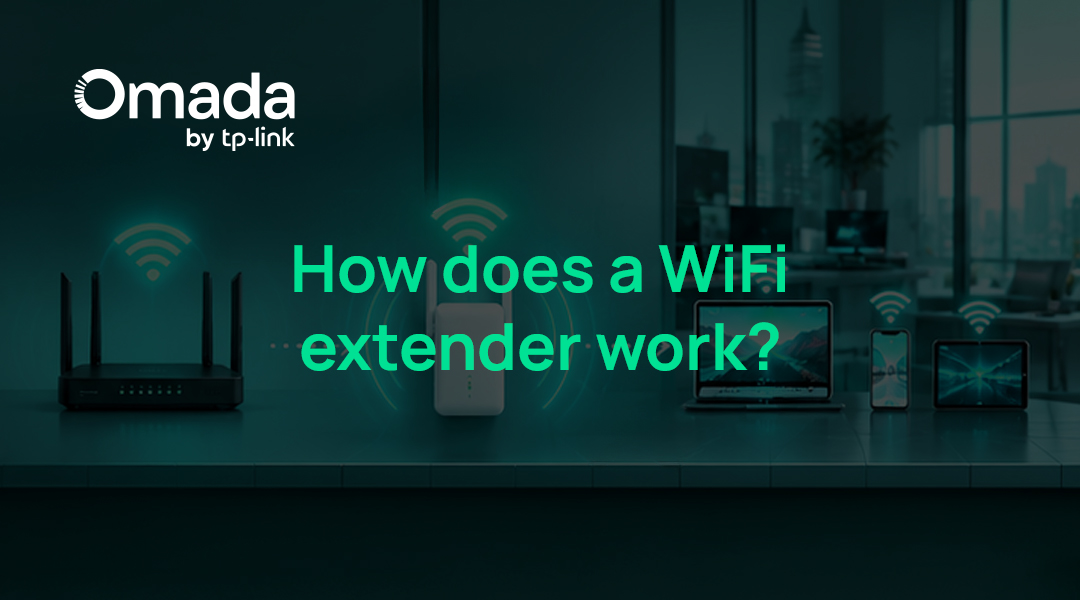
This creates two connections instead of one: your router to the extender, and the extender to your device. Your phone or laptop may switch between the router and extender as you move around the house. Mesh features such as OneMesh™ or EasyMesh can make roaming smoother, although the client device ultimately decides when to switch. If you're not sure your router itself is well placed to begin with, these tips on positioning your router for best signal can help.
Does a Wi-Fi Extender Slow Down Your Internet?
Some speed reduction is common on a single-band Wi-Fi network extender, and here's why. A single-band extender uses one wireless connection to do two jobs: talk to your router and talk to your devices. That single connection has to split its time between both, which is why it can feel slower than expected. This doesn’t change the speed of your Internet plan, but it can reduce the throughput your device receives through the extender.
Some tri-band extenders can dedicate an additional band to the router-to-extender connection, reducing the performance tradeoff of repeating traffic on the same band.
Is a Wi-Fi Extender Right for You?
Picture streaming a show in the back bedroom, and it starts buffering right as the episode gets good. Or you're on a work call from the guest room, and your voice keeps cutting out. Those moments usually make you stop and ask the real question: Is this problem just this one room, or does it show up everywhere in your home?
Signs an Extender Is the Right Fix
An extender is a strong match when your problem is contained. Look for these signs before you decide:
- One or two specific weak spots, not coverage problems throughout the whole house
- A router that otherwise works fine everywhere else it reaches
- You want a budget-friendly fix, without replacing your whole setup
If your weak spots are more widespread, a single extender may not be the full answer. A broader set of ways to boost your home Wi-Fi is worth a look before you commit to one fix.
Choosing One That Matches Your Router
An extender's generation affects how much benefit you get, and so does your router's. For example, if your router only supports Wi-Fi 6 and you add a newer Wi-Fi 7 extender to fix a dead zone in the back office, that extender still improves the room because it talks to your devices over its own dedicated connection, separate from its link to the router. The link back to your Wi-Fi 6 router is capped by that router, but the extender's own connection to your devices can still run the newer standard.
That distinction matters most when several devices are connected at once, like a laptop streaming, a phone updating, and a tablet on a video call. A newer extender has the capability to handle this. Pair a newer extender with a newer router, and both connections can run at the faster standard: the router-to-extender link and the extender-to-device link.
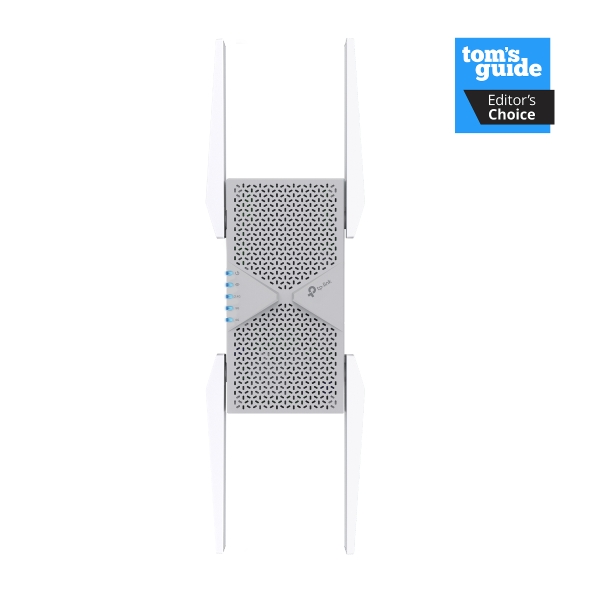
Tri-band models take this further, dedicating an extra band just to the router connection. The RE653BE Wi-Fi 7 extender uses its 6 GHz band this way, works with any Wi-Fi router, and delivers up to 10.2 Gbps combined across its three bands. Compatible devices can still connect to the extender using Wi-Fi 7 features, even when the upstream router uses an older Wi-Fi generation. Overall performance, however, remains limited by the router-to-extender connection and other network conditions.
TP-Link also offers tri-band Wi-Fi 6E options such as the RE815XE, which adds the 6 GHz band for compatible devices. If Wi-Fi 7 is more speed than you need right now, a Wi-Fi 6 extender still delivers a solid upgrade over older single-band models, just without the extra 6 GHz band.
TP-Link's Range of Wi-Fi Extenders
TP-Link offers extenders across a range of speeds and Wi-Fi generations, including entry-level models and newer Wi-Fi 7 tri-band options, so you can choose a size that fits your home and specific dead zone. A single weak spot in a small apartment calls for a different extender than a multi-story home with several rooms to cover. How you'll use that room matters, too. A bedroom that just needs stable browsing has different requirements than a home office running video calls and large file transfers.
Select TP-Link extenders also support OneMesh™, letting the extender join your existing OneMesh™ router's network under one Wi-Fi name instead of creating a second network to switch between.
Browse TP-Link's range extenders to compare current models and match one to your setup.
Closing the Gap in Your Wi-Fi Coverage
A Wi-Fi extender is a simple, targeted fix if you’re experiencing gaps in reliable coverage. It picks up your router's signal and rebroadcasts it to bring Wi-Fi to a dead zone, without replacing your router or switching to a mesh system.
If your coverage issues stretch across more of your home, it's worth exploring extending Wi-Fi coverage throughout your home before deciding an extender is the right call.
Frequently Asked Questions
Do you just plug in a Wi-Fi extender and it works?
Mostly, yes. Once it's paired with your router, an extender handles the signal pickup and rebroadcast on its own, with no ongoing setup needed. The one exception is placement: if the extended area still feels weak after setup, moving the extender a bit closer to that room usually helps more than any app setting will.
How far away can a Wi-Fi extender be from the router?
Close enough to receive a strong signal from your router, typically the same floor or a room or two away. Placing it too far weakens the signal it has to rebroadcast. A good starting point is roughly halfway between your router and the dead zone. Adjust from there based on results.
Are Wi-Fi extenders worth it?
For one or two specific weak spots, yes. They're an affordable way to cover a dead zone without replacing your router. If your entire house struggles with Wi-Fi, a mesh system usually solves the problem more thoroughly, since it's designed for whole-home coverage rather than one extended area.
Does a Wi-Fi extender increase your Internet speed?
No. An extender only extends your existing Wi-Fi signal into new areas. It can't make your Internet connection faster than what your provider delivers. If your whole household needs faster speeds, that's a conversation with your Internet service provider, not something an extender addresses.
How do you know if a Wi-Fi extender is working?
Check your device's Wi-Fi settings for a new network name, or the same name if you're using a OneMesh™ setup, and confirm you're connected to it in the previously weak spot. You should notice a stronger signal and a steadier connection. If you manage your devices through the Tether app, it also shows a live connection status.