How to Set Up a New Router Without Reconnecting Every Smart Device
You just got a new router, and now it is time to get it running and reconnect your smart home. Setting up a new router is straightforward, whether you're upgrading or replacing a router that stopped working. But if you have a smart home, one question comes up fast: what happens to the plugs, cameras, and bulbs that were connected to your old one?
The good news is that setting up a new router does not have to mean rebuilding your smart home from scratch. If your new router uses the same network name and password as your old one, most of your Wi-Fi-connected devices reconnect automatically, with no extra setup required. Select TP-Link devices can also sync these settings on their own through a feature called TP-Link Simple Setup.
This guide covers how to set up a new router step by step, and shows you how to keep your smart home devices online through the switch.
Key Takeaways
- Keep the same network name and password on your new router, and most Wi-Fi devices reconnect automatically. No app updates or re-pairing needed for the majority of your smart home setup.
- Ethernet-connected devices are never affected. Only devices connected over Wi-Fi need the network name and password to match.
- Basic router setup takes about 15 to 20 minutes. This includes connecting the modem and router to power and creating your network name and password.
- If a device does not reconnect automatically, open its app and select the new network. Plugs and bulbs usually reconnect quickly, while cameras and locks may need to go into pairing mode first.
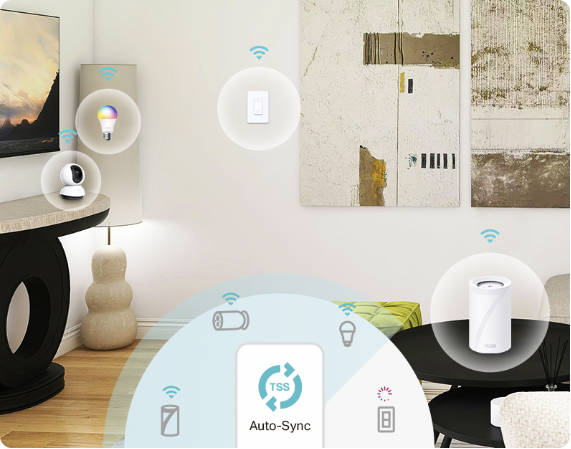
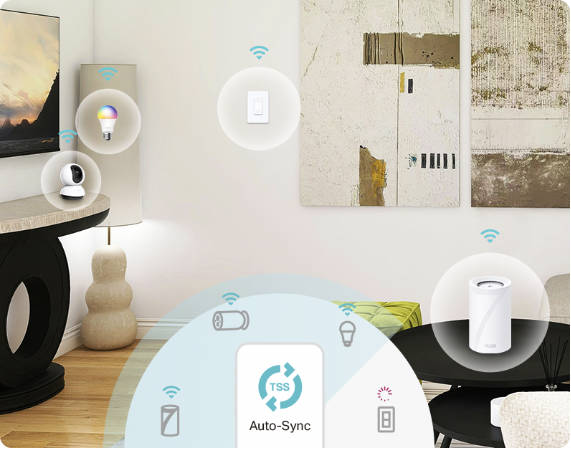
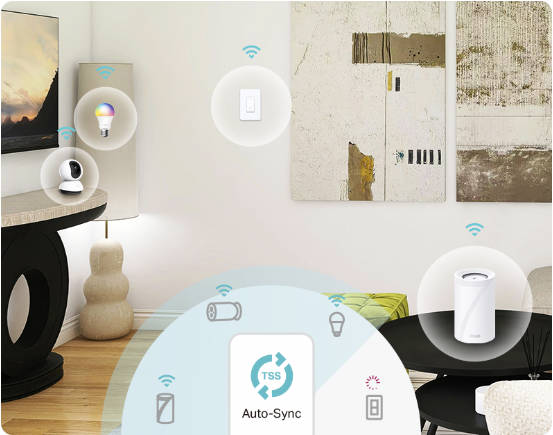
- TP-Link Simple Setup (TSS) can sync network changes automatically on supported devices. When your Wi-Fi details change, devices that support TSS update and reconnect without manual reconfiguration.
Keep Your Smart Home Connected
Keeping your smart home connected during a router upgrade comes down to one setting: your network name and password.
Most smart plugs, cameras, bulbs, and locks connect to your Wi-Fi network by its name, known as the SSID (Service Set Identifier), and its password. They do not know or care which physical router is broadcasting it. If your new router uses the same network name and password as your old one, your devices will treat it as the same network and reconnect automatically. Keeping these details consistent is the simplest way of switching routers without a major reconnection project.
Change either one, and every Wi-Fi-connected device disconnects at once. Each device then needs to be reconnected individually through its app, which becomes a bigger task the more devices you have.
Select TP-Link devices simplify the process with TP-Link Simple Setup (TSS), a feature that syncs key network information, including your Wi-Fi name and password, across supported devices. On devices that support TSS, if your network details ever change, connected devices update and reconnect automatically, without needing to be reconfigured. Support for TSS depends on your specific devices and their current software version. Treat it as a bonus on top of matching your network name and password, rather than as a replacement for them.
Anything wired directly to your router or modem through Ethernet, such as a smart hub or streaming device, keeps working through the switch regardless of network name or password changes.
How to Set Up a New Router
Setting up a new router is straightforward once you have the right components ready. Here is what you need and the steps to get connected.
What You'll Need to Set Up a New Router
- Your new router and its power adapter
- An Ethernet cable, usually included in the box
- Your modem, already connected to your wall outlet or cable line
- A phone, tablet, or computer to access your router's settings
- Your Internet service provider login, if your provider requires one
Router setup starts with gathering these basics before you touch any cables. Once you have everything ready, here is how to set up a router, step by step.
New Router Setup Steps
- Choose a central location. Place your new router in an open, elevated spot away from thick walls and metal objects. To help you find the best location, see this guide to router placement.
- Confirm your Internet connection. Before disconnecting your old router, plug a laptop directly into your modem with an Ethernet cable to confirm the connection is working.
- Power off your modem. Unplug your modem before connecting anything new.
- Connect the router to the modem. Plug one end of an Ethernet cable into the modem and the other into your new router's Internet or WAN port.
- Power everything back on. Plug in the modem first and let it fully start up, then plug in the router and wait for the lights to stabilize.
- Open your router's app or settings page. For TP-Link routers, this means opening the Tether app or visiting the router's default address in a browser.
- Set your network name and password. Enter the same SSID and password your old router used so your smart home devices reconnect automatically.
- Change your router's admin password. This is separate from your Wi-Fi password and protects access to your router's settings.
- Check for firmware updates. Some routers update automatically, while others need a manual check through the app.
- Test your connection. Confirm the Internet is working on one device before reconnecting the rest of your smart home.
If Your Smart Devices Didn't Reconnect
Some smart home devices need a manual reconnect, even when your network name and password stay the same. That is normal and not a sign of a problem.
This additional step is part of setting up a new router with an existing smart home, and it is usually quick. If a device does not come back online on its own, open its app and look for network or Wi-Fi settings. Select your network from the list, then enter your password to reconnect.
How long this takes depends on the device. Smart plugs and bulbs usually reconnect within a minute or two. Cameras and locks sometimes need to enter pairing mode first, typically by holding down a button on the device until a light blinks.
If you use Tapo or Kasa devices and run into trouble, TP-Link's device troubleshooting FAQ walks through reconnecting these devices after a network change.
Get Your Whole Smart Home Back Online
Setting up a new router doesn’t need to disrupt your smart home. Keep the same network name and password, and most of your Wi-Fi-connected devices reconnect without any extra steps. Devices that do not automatically reconnect typically take only a few minutes to reconnect one by one.
Knowing how to install a new router properly, from placement to setup, also helps your whole network perform better from day one. Still deciding on a new router? Explore TP-Link's lineup of Wi-Fi routers, or Deco mesh Wi-Fi systems for fast, reliable coverage everywhere you need it.
Frequently Asked Questions
Do I need to reconnect my smart devices when I get a new router?
Only if your new router uses a different network name or password than your old one. Keep the same SSID and password, and most Wi-Fi-connected devices reconnect automatically.
What happens to my Tapo and Kasa devices when I change my router?
If you keep the same network name and password, your Tapo and Kasa devices should reconnect on their own. If you change either one, each device drops offline and needs to be added back through its app.
How do I keep the same Wi-Fi name when switching routers?
During setup, open your new router's app or admin panel and enter the exact same network name and password your old router used. Match them exactly, including capitalization, so your devices recognize the network. Some devices that support TP-Link Simple Setup can automatically sync this information.
How long does it take to set up a new router?
Basic setup usually takes about 15 to 20 minutes, including connecting the hardware and creating your network. Reconnecting any smart devices that do not rejoin automatically adds a few minutes per device.
Can I use my old router's settings on a new router?
You cannot transfer settings directly between two different router models, but you can manually re-enter your old network name, password, and any custom settings you want to keep on the new router.