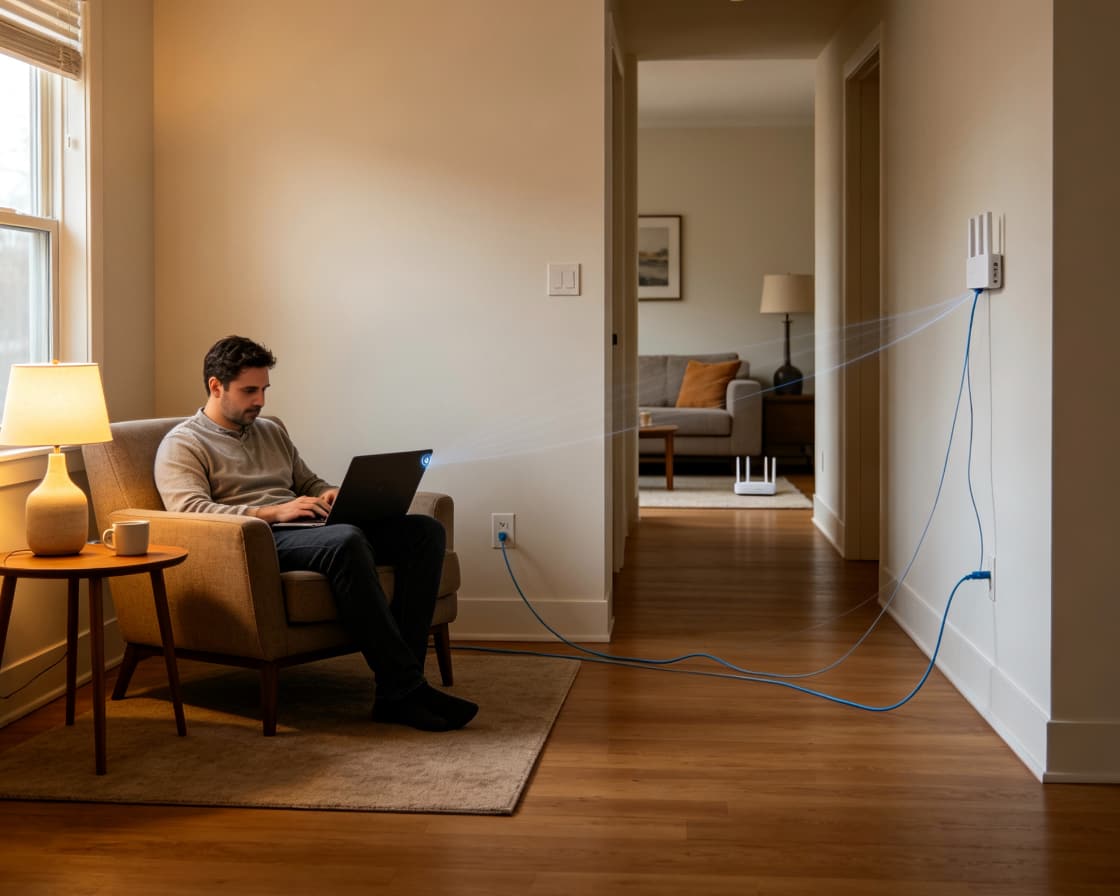
How to Fix a Weak Wi-Fi Signal in Your Home
Weak Wi-Fi can have many possible causes. Router placement, interference from other devices, building materials, and outdated hardware can all play a role. Many people may also keep using the router or gateway their Internet service provider (ISP) supplied, reluctant to change a setup that works in some parts of the house but has dead zones elsewhere.
But two causes of weak Wi-Fi show up more than any others: distance from the router and what's physically blocking the signal. Thick walls, concrete, brick, and metal can create a dead zone just a few feet from where your Wi-Fi works perfectly fine, regardless of how big your home is. Larger, multi-floor homes face this problem more often, simply because they combine greater distance with more walls and floors to pass through.
According to a recent CNET survey, nearly nine out of ten homes report having Wi-Fi dead zones. If you're looking for how to fix a weak Wi-Fi signal, the good news is that solutions exist for both distance and obstruction issues. This guide walks through what's actually causing your dead zones, what you can try for free, and which hardware solutions solve the problem for good.
Key Takeaways
- Weak Wi-Fi is usually a coverage problem, not a setup error. It's typically caused by distance from the router, physical obstructions, or both.
- A Wi-Fi dead zone is an area where the signal is too weak for a reliable connection. This can happen regardless of home size.
- Thick walls, concrete, brick, and metal create dead zones even in smaller homes. Large or multi-floor homes tend to combine these obstructions with greater distance.
- Free fixes rarely solve coverage gaps caused by structural materials or square footage. Repositioning your router or switching frequency bands can help, but only at the margins.
- Range extenders and mesh systems solve coverage gaps differently. Extenders fix individual dead zones but can cut throughput and add a separate network to manage, while mesh systems use multiple nodes working together for more consistent, whole-home coverage.
Why Wi-Fi Signal Gets Weak
Wi-Fi signal strength naturally decreases the farther it travels from your router, and it weakens further every time it passes through a physical barrier.
Walls, floors, ceilings, and dense materials like brick or concrete all absorb part of the signal as it travels. By the time it reaches the other side of a thick wall or several rooms away, there may not be enough signal left for a stable connection.
This is where the concept of a dead zone comes in. A Wi-Fi dead zone is a space in your home where the wireless signal is too weak to maintain a reliable connection. You might notice it as a room where video calls drop, pages won't load, or your phone shows full bars but nothing actually connects.
Either factor on its own, distance or obstruction, can create a dead zone. A small apartment with a concrete support wall can have the same problem as a large home with rooms far from the router. Homes that combine both, like a larger home with substantial interior walls, tend to see dead zones more often and in more places.
Common Causes of Weak Wi-Fi Signal
The specific cause behind your weak signal usually comes down to where your router sits, what it has to push signal through, or both. In some regions, homes are commonly built with concrete and brick walls and other dense materials that make it harder for Wi-Fi signal to travel freely between rooms, regardless of the home's overall size. Once you know the cause, you can take the right steps to boost your Wi-Fi signal instead of guessing at fixes.
Use the descriptions below to recognize which one applies to your situation.
Your Router Is Too Far From Where You Need It
Most people place their router wherever the Internet service line enters the home, often in a closet, a basement, or a corner near the modem. If that spot is far from where you actually spend time, the signal has to travel a long way to reach you, weakening as it goes.
The fix is positioning, not new hardware. A central, elevated spot, away from large furniture or appliances, gives the signal a shorter, more open path to reach every room.
If you're looking for how to boost your Wi-Fi signal without buying new hardware, repositioning is the first thing to try. For a full walkthrough of ideal placement, see TP-Link's tips for router placement.
Walls, Floors, and Building Materials Block the Signal
When you’re trying to figure out how to boost your Wi-Fi signal through walls, remember that the building material matters more than the distance. Different materials block Wi-Fi signal at different rates. Drywall has a minimal effect, but thick walls, concrete, brick, and metal absorb or reflect a meaningful amount of the signal before it reaches the other side.
This cause isn't limited to large homes. A single thick wall, a concrete support column, or a metal-clad room can create a dead zone in a home of any size, even when the router sits reasonably close by. In older or more substantially built homes, this is often the primary cause of dead zones.
Distance Adds Up Faster in Large or Multi-Floor Homes
Wi-Fi follows a simple rule: the farther a device is from the router, the weaker the signal gets. Wi-Fi also travels in a relatively direct path. It doesn't bend around walls or furniture, so it has to pass straight through whatever stands between the router and your device. That's why placing a router higher and in an open space improves performance: it gives the signal a more direct, less obstructed path.
In a large or multi-floor home, this distance problem compounds with the materials problem above. Rooms such as upstairs bedrooms, basement offices, and garages often combine distance with extra floors and walls in between, which is why these homes tend to need a coverage solution rather than a placement tweak alone.
Older Routers Weren't Built for Today's Coverage Demands
Older routers tend to have lower power output, fewer antennas, and less efficient signal management than newer hardware. A router built around Wi-Fi 5 or earlier wasn't designed with today's homes and denser building materials in mind. An older router is often the hidden reason behind bad Wi-Fi in larger homes, even when placement and obstructions aren't the issue.
Each Wi-Fi generation has improved how routers handle coverage and capacity. Wi-Fi 5 introduced faster speeds on the 5 GHz band; Wi-Fi 6 improved how routers manage many connected devices at once; Wi-Fi 6E added a less congested 6 GHz band; and Wi-Fi 7 introduced Multi-Link Operation, which lets devices use multiple bands at the same time. If your router predates Wi-Fi 6, it's working with less capability to push through obstacles and cover distance alike.
Wi-Fi Coverage Solutions for Homes with Dead Zones
Whether your dead zones come from distance, building materials, or both, the solution is hardware designed to extend coverage, not a different router placement or settings change. Two main options exist for this: range extenders, which target specific dead zones, and mesh Wi-Fi systems, which rebuild your network for broader coverage.
If the router can't reach every room, the home needs a solution built for that problem. Here's how to extend your Wi-Fi range with hardware designed for distance and obstacles, rather than placement tweaks alone.
Wi-Fi Range Extenders
A range extender is a device that connects to your existing router's signal and rebroadcasts it, pushing coverage into areas the router alone can't reach.
If a room is too far from your router, or the signal can't push through a particular wall or floor, a range extender fills that specific gap without replacing your network. Range extenders work well in homes with one or two clear dead zones, whether that's a back bedroom at the end of a long hallway or a room cut off by a concrete wall.
There are real tradeoffs to weigh, too. Extenders often cut throughput roughly in half, since the device has to receive and rebroadcast the same signal. Many also create a separate Wi-Fi network with its own name, meaning your devices don't automatically hand off between the router and the extender as you move through the house. Setup can also get complicated when you're trying to extend signal across multiple problem areas, which is part of why range extenders work best as a fix for one or two specific spots rather than a whole-home solution.
Select Wi-Fi 6 and newer TP-Link range extenders and routers support EasyMesh technology, which lets a router and extender work together as a more unified network rather than two separate ones. If you're considering an extender, this may be a good fit for your home.
Mesh Wi-Fi Systems
For homes where range extenders fall short, a mesh Wi-Fi system is the most complete fix. It uses multiple nodes placed throughout your home that work together as one unified network, rather than a single router broadcasting from one point.
This addresses both root causes at once. Mesh systems reduce the distance any single device has to cover, since each node only needs to reach the next one, and they let you place nodes strategically around major obstacles like thick walls or concrete floors. Unlike a router-and-extender setup, your devices move between mesh nodes on one continuous network, without a separate network name to manage.
Mesh systems make the most sense for homes with low Wi-Fi signal across several dead zones, whether that's because of square footage, multiple floors, dense building materials, or some combination of the three, where a router plus an extender can't match the consistency of nodes built to work together from the start.
To understand how mesh networks compare to other options in more depth, see TP-Link's guide to mesh Wi-Fi for whole-home coverage.
How to Maximize Your Wi-Fi Signal
Before or alongside a hardware upgrade, here's how to improve your Wi-Fi signal using your current setup. These won't replace a range extender or mesh system if distance or building materials are creating a real coverage gap, but they're a useful complement to either.
- Reposition your router. Move it to a central, elevated spot to reduce both the distance the signal has to travel and the number of walls it has to pass through.
- Switch bands strategically. Use the 5 GHz band for devices close to the router and the 2.4 GHz band for devices farther away or behind walls, since 2.4 GHz penetrates obstacles more easily and travels farther.
- Update your router's firmware. Firmware updates often include performance improvements.
- Reduce interference. Switch to a less congested Wi-Fi channel in your router's settings to avoid competing with neighboring networks.
TP-Link Solutions for Weak Wi-Fi Signal
If the causes and free fixes above haven't resolved your coverage gaps, the most reliable long-term solution for a large or multi-floor home is a mesh Wi-Fi system. Rather than patching individual dead zones one at a time, mesh covers the full home from the start by distributing coverage across multiple nodes that work together, eliminating range limitations, and keeping your devices on one seamless network wherever you go.
For homes with multiple dead zones, whether due to square footage, building materials, or multiple floors, TP-Link's Deco mesh Wi-Fi lineup includes several Wi-Fi 7 options tailored to different coverage needs.
The Deco BE25 is TP-Link's most affordable Wi-Fi 7 mesh system, designed for smaller homes, apartments, and anyone taking their first step into mesh. It delivers whole-home coverage up to 6,600 square feet, connects up to 150 devices at once, and includes a 2.5 Gbps port for faster wired connections.
For larger homes or homes with more substantial construction, the Deco BE67 covers up to 8,100 square feet, connects up to 200 devices, and adds the less congested 6 GHz band along with 320 MHz channels for additional bandwidth.
The Deco BE85 is built for the most demanding setups, including homes with dense building materials or many connected devices. It supports Multi-Link Operation, combines wireless and wired backhaul between nodes, and includes a 10 Gbps port for high-speed wired connections.
For coverage that extends beyond your home's walls, the Deco BE25 Outdoor is suited for outdoor and indoor use, with IP65 dust and water resistance and the option to power it over Ethernet for a single-cable setup.
If your situation is closer to one or two specific dead zones rather than coverage gaps throughout the home, TP-Link's range extenders offer a more targeted starting point.
Choose the Right Fix for Your Home
Weak Wi-Fi almost always comes down to coverage: either your router is too far away, something is blocking the signal, or both. The right fix depends on how many dead zones you're dealing with and what's causing them. Free adjustments like repositioning your router can help at the margins, but they may not solve coverage gaps caused by distance or dense building materials on their own.
For a single problem room, a range extender can fill that gap. For multiple dead zones, a larger or multi-floor home, or a home with substantial construction, a mesh Wi-Fi system can deliver more consistent coverage without the tradeoffs of a router-and-extender setup.
Explore TP-Link's range extender and Deco mesh collections to find the right fit for your home, or check out 10 Ways to Boost Your Home Wi-Fi for more ways to get the most out of your current setup.
Frequently Asked Questions
What causes a weak Wi-Fi signal in certain rooms?
Weak signal in specific rooms usually comes down to distance from the router, physical obstructions like walls and floors, or both. Building materials such as concrete, brick, and metal can cause dead zones even in smaller homes.
Are Wi-Fi range extenders a good solution to fix dead zones
Yes, for one or two specific dead zones, whether that's a room far from the router or one cut off by a thick wall. They do come with tradeoffs, including reduced throughput and a separate network to manage, so they work best as a targeted fix rather than a whole-home solution.
What is the difference between a Wi-Fi extender and a mesh system?
A range extender rebroadcasts your existing router's signal to extend coverage into an additional area, often on a separate network. A mesh system uses multiple nodes that work together as a single, unified network, providing more consistent coverage across distance and obstacles alike.
How do I know if I need a mesh Wi-Fi system?
If you have more than one dead zone, whether from a larger layout, multiple floors, or dense building materials, a mesh system generally provides more consistent coverage than a router and extender combination.
Can thick walls block Wi-Fi signal?
Yes. Thick walls, along with concrete, brick, and metal, absorb or reflect a significant portion of a Wi-Fi signal, which is why rooms behind dense materials are common spots for dead zones, regardless of how big the home is.
Do I need to replace my Internet service provider's router to use a mesh system?
No. You can connect a mesh Wi-Fi system to your existing gateway and let the mesh handle coverage from there. This is especially useful in larger or multi-floor homes where the router from your Internet Service Provider reaches some rooms but not others. The mesh nodes fill in the gaps, so dead zones become a non-issue without any changes to your Internet service or existing equipment.