
Forgot Your TP-Link ID Password or Got Locked Out on Deco
If you have forgotten your TP-Link ID password or your account has been locked, you can get back in quickly through either the Deco app or the TP-Link website. Both methods send a reset link to your registered email address, so you will need access to that inbox before you get started.
Key Takeaways
- This guide covers two scenarios: a forgotten TP-Link ID password and a locked account, for Deco users.
- Two TP-Link ID password reset methods are available: through the Deco app or through the TP-Link website.
- You will need access to the email address linked to your TP-Link ID (which also serves as your username) to complete the reset.
- If you are currently logged in to the Deco app, you must log out before starting a password reset.
- Resetting your TP-Link ID password is a simple process that takes just a few steps.
What Is a TP-Link ID?
Your TP-Link ID is a single account that lets you sign in to the Deco app and other TP-Link services using one email address and password. It connects your Deco devices to the cloud, giving you remote access and account management in one place.
Method 1: TP-Link ID Password Reset Through the Deco App
Before you begin: If you are currently signed into the Deco app, you must log out first.
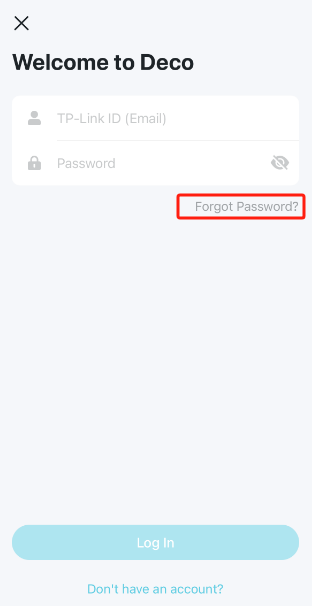
Step 1: Open the Deco app. On the login screen, tap Forgot Password?
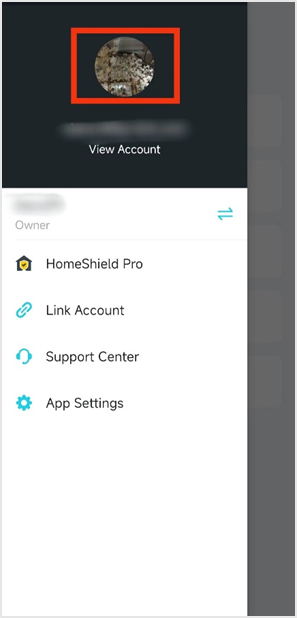
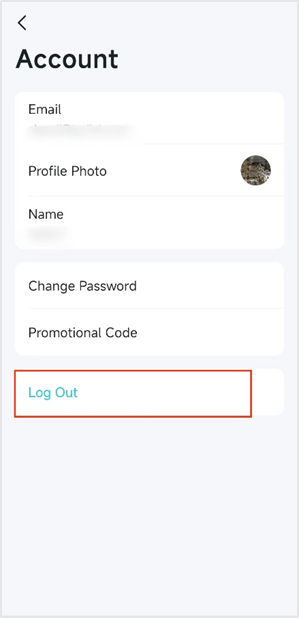
To log out if you are already signed in, tap the menu icon, then tap your profile icon to open your account panel.
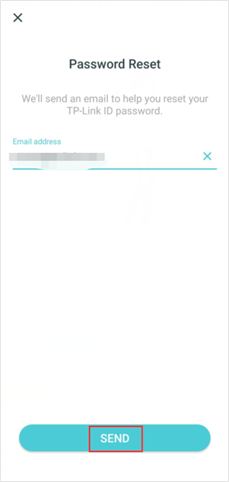
Step 2: Enter the email address for your TP-Link ID, then tap Send.
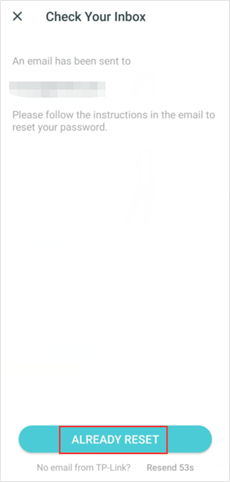
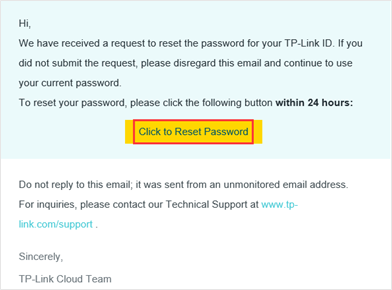
Step 3: Check your email inbox for the password reset message. Follow the instructions in the email to create a new password. The reset link is valid for 24 hours.
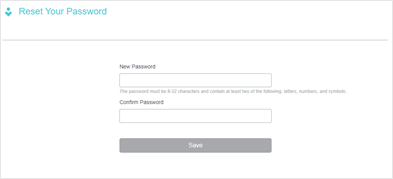
Note: Your new password must be between six and 32 characters and cannot include spaces.
If you do not receive the reset email, see the troubleshooting section below.
Step 4: After resetting your password, return to the Deco app and tap Already Reset. You can now sign in with your new password.
Method 2: TP-Link ID Password Reset Through the TP-Link Website
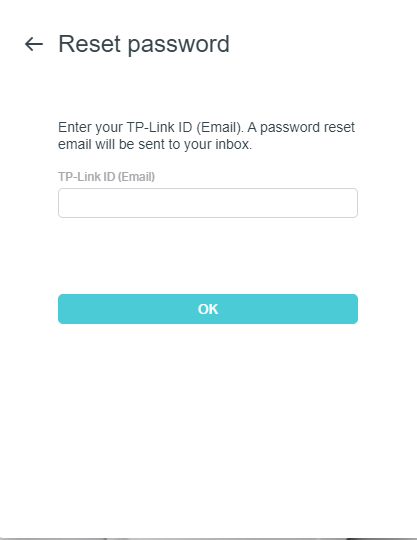
- Open a browser and go to https://community.tp-link.com/en/forgetpw. Enter your registered email address on the page that opens, then click OK. A reset email will be sent to your inbox.
- Open the reset email and click Click to Reset Password.
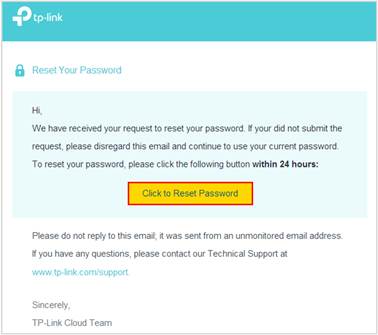
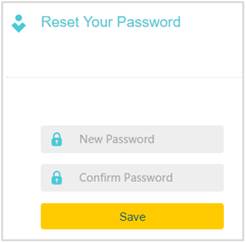
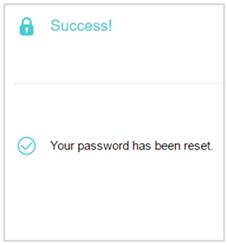
- On the page that opens, enter and confirm your new password, then click Save. You can now log in with your updated password.
Troubleshooting
Account Is Locked
If your account becomes locked, use either reset method above to complete a TP-Link ID password reset and restore access.
Reset Email Not Received
If the reset email has not arrived, check your spam or junk folder and confirm you entered the correct email address for your TP-Link ID. For more detailed help, see the full troubleshooting guide for missing TP-Link verification emails.
Tips for Keeping Your TP-Link ID Account Secure
A strong password goes a long way toward protecting your account. When creating or updating your TP-Link ID password, keep these practices in mind:
- Use a password that is at least eight characters long.
- Combine letters, numbers, and symbols to make it harder to guess.
- Avoid using common passwords like "123456" or "password."
- Do not reuse passwords from other accounts.
If you want to change your TP-Link ID password at any time, you can do so through the Deco app under your account settings.
هل تجد هذه الأسئلة مفيدة؟
مشاركتك تساعدنا في تحسين الموقع

-F_large_1560310831908g_normal_1577328413052u.jpg)

TP-Link Community
Still need help? Search for answers, ask questions, and get help from TP-Link experts and other users around the world.