
Security Check Guidance for TP-LinkBox 7
Your TP-LinkBox 7 is the gateway to your home network. Checking its security settings can help protect your personal data, connected devices, and internet access from unauthorized use.
This guidance describes the settings that should be reviewed to check whether the TP-LinkBox 7 is securely set up and whether it continues to be maintained in a secure state. Detailed step-by-step instructions for locating and reviewing these settings can be provided separately.
A. Check Whether the TP-LinkBox 7 Is Securely Set Up
1. Check the router management password
The router’s admin password is used to log in to the management page (Web GUI).
What to verify:
• Whether the default admin password is still in use (if any); and
• Whether the management password has been changed to a strong user-defined password.
Expected secure state:
• The default admin password is no longer used (if any);
• The management password is strong; and
• The management password is different from the wireless password.
Security note:
• If the default password is still used, or if the management password is weak or easy to guess, unauthorized users may be able to access the router settings.
A strong password should contain a mix of uppercase and lowercase letters, numbers, and symbols, and should not use common words or predictable patterns.
2. Check the wireless password
The wireless password protects access to your Wi-Fi network.
What to verify:
• Whether the wireless network is protected by a password; and
• Whether the wireless password is different from the router management password.
Advanced->Wireless-> Wireless Settings:
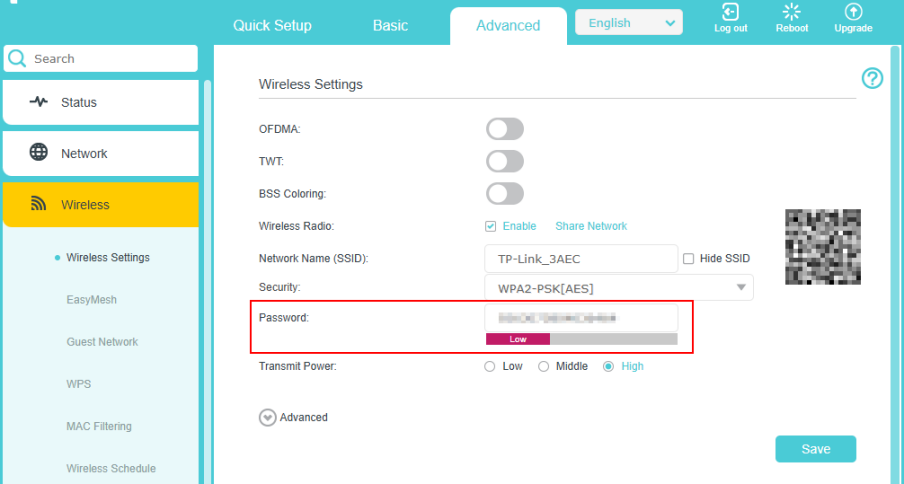
Expected secure state:
• The wireless network is protected by a strong, user-defined password; and
• The wireless password is different from the admin password.
Security note:
• If the wireless network has no password, or if the password is weak or reused for router management, unauthorized users may be able to connect to the network or attempt further access.
A strong wireless password should be long, unique, and should not contain names, phone numbers, or simple patterns.
3. Check the wireless security mode
The wireless security mode determines how Wi-Fi traffic is protected.
What to verify:
• Which wireless security mode and encryption method are currently in use.
Advanced->Wireless-> Wireless Settings:
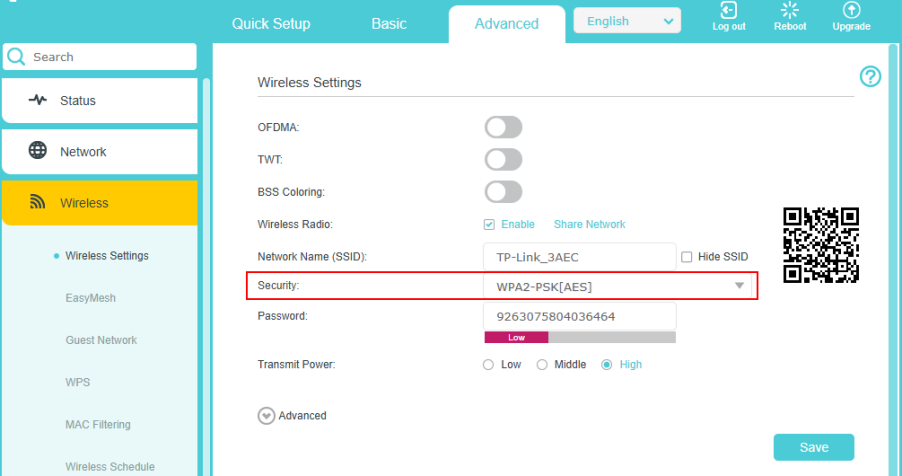
Expected secure state:
• The wireless security mode is set to WPA2-PSK/WPA2-Personal with AES encryption; or
• The wireless security mode is set to WPA2/WPA3-Personal.
Security note:
• If the wireless network is set to Open, WEP, TKIP, or another outdated or less secure option, wireless protection may be reduced.
Where compatible with all client devices, WPA2/WPA3-Personal is generally preferred.
4. Check Remote Management settings
Remote Management allows access to the TP-LinkBox 7 management page from the internet.
What to verify:
• Whether Remote Management is enabled or disabled.
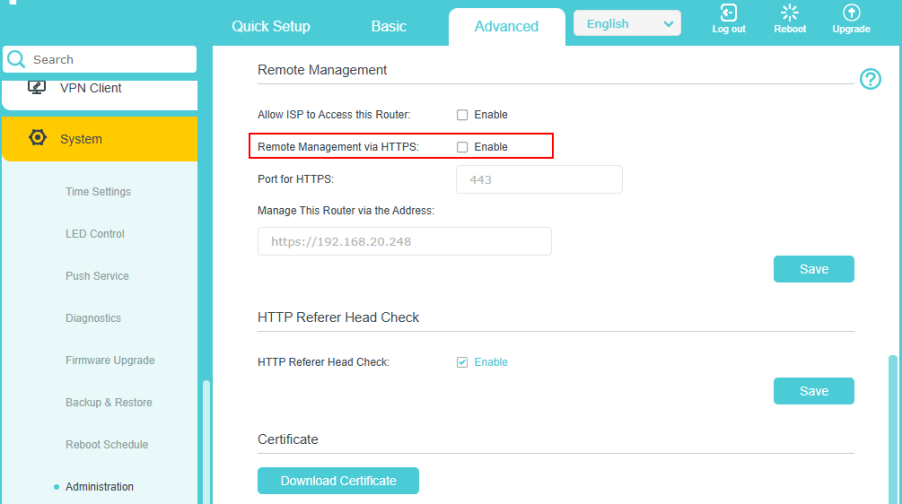
Expected secure state:
• Remote Management is disabled unless remote administration is intentionally required.
Security note:
• If Remote Management is enabled unnecessarily, the management interface may be exposed to login attempts or unauthorized access from external networks.
5. Check WPS settings
WPS (Wi-Fi Protected Setup) can simplify device pairing but may introduce security risks.
What to verify:
• Whether WPS is enabled or disabled.
Advanced->Wireless->WPS:
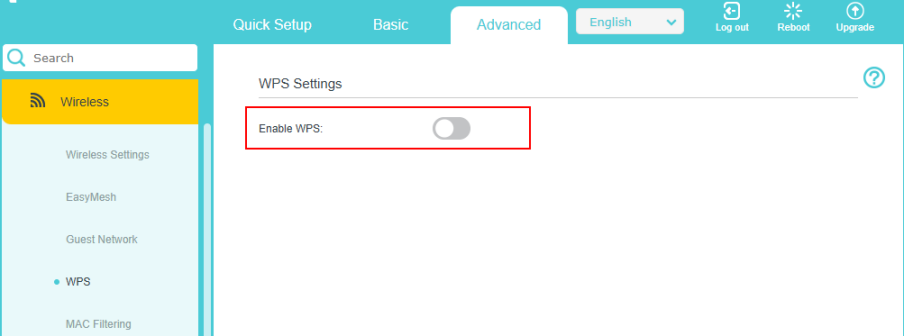
Expected secure state:
• WPS is disabled unless it is specifically required for intended use.
Security note:
• If WPS is enabled without a specific need, it may increase the attack surface of the wireless network.
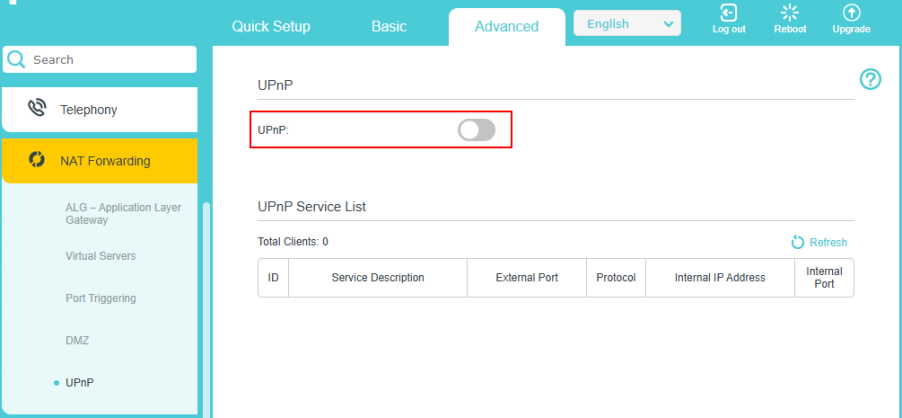
6. Check UPnP settings
UPnP allows devices and applications to open ports automatically on the TP-LinkBox 7.
What to verify:
• Whether UPnP is enabled or disabled.
Advanced-> NAT Forwarding-> UPnP:
Expected secure state:
• UPnP is disabled unless it is specifically required for intended operation.
Security note:
• If UPnP is enabled unnecessarily, network services may be exposed in ways the user does not expect.
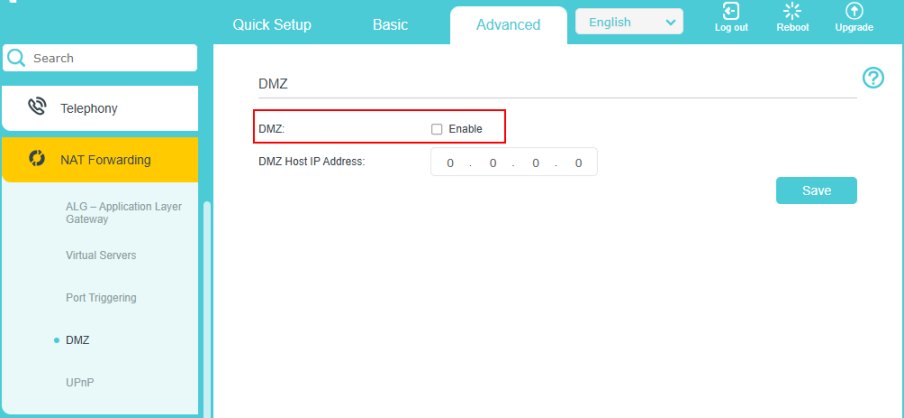
7. Check DMZ settings
DMZ exposes one local device directly to the internet.
What to verify:
• Whether DMZ is enabled or disabled.
Advanced-> NAT Forwarding -> DMZ:
Expected secure state:
• DMZ is disabled unless there is a clear and specific reason to use it.
Security note:
• If DMZ is enabled, the selected device may be exposed to significantly higher risk from external traffic.
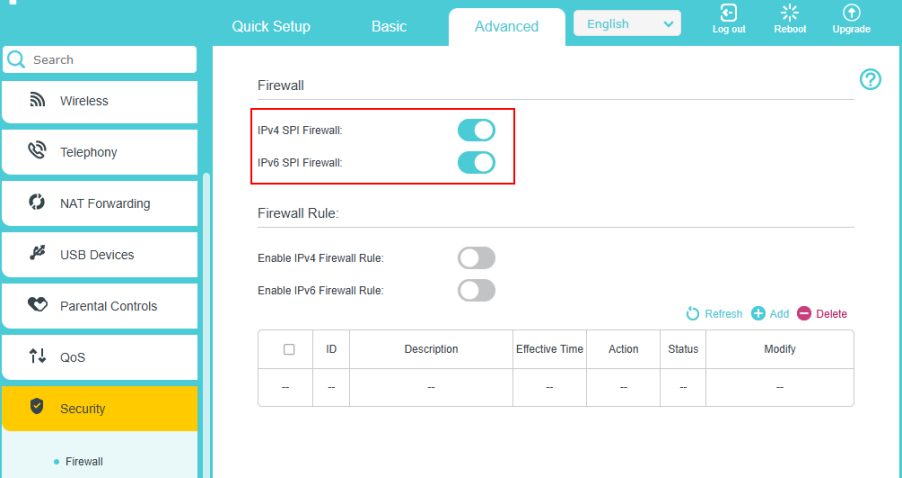
8. Check that the firewall is enabled
The TP-LinkBox 7 firewall helps block unauthorized inbound access and suspicious traffic.
What to verify:
• Whether the firewall is enabled or disabled.
Advanced-> Security-> Firewall:
Expected secure state:
• The firewall remains enabled during normal operation.
Security note:
• If the firewall is disabled, protection against unauthorized inbound traffic may be reduced.
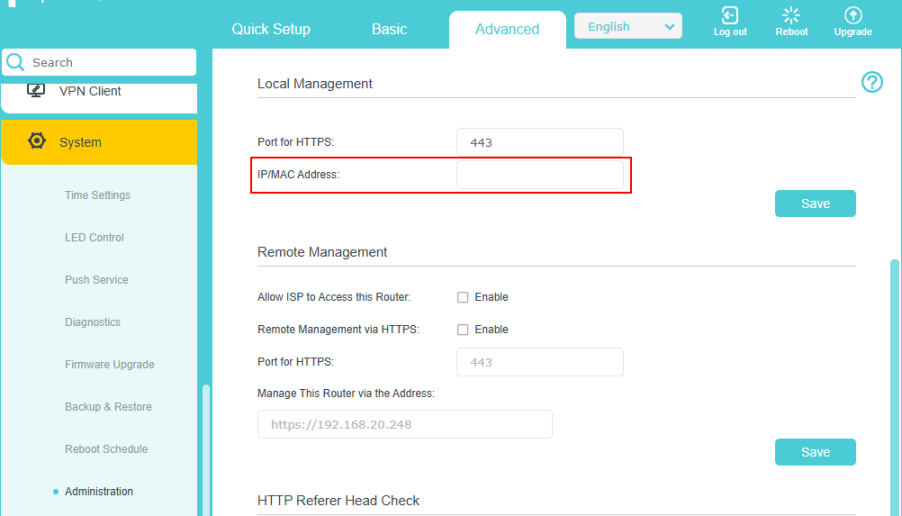
9. Check management access restriction settings
The TP-LinkBox 7 supports restricting access to the management page to specified IP addresses or MAC address.
What to verify:
• Whether access to the management page is limited to trusted local IP addresses or trusted devices.
Advanced-> System-> Administration:
Expected secure state:
• Where appropriate, access to the management page is restricted to trusted devices only.
Security note:
• Restricting management access can reduce the chance of unauthorized local access to the Web GUI.
This is an additional security enhancement and may not be necessary in every home network environment.
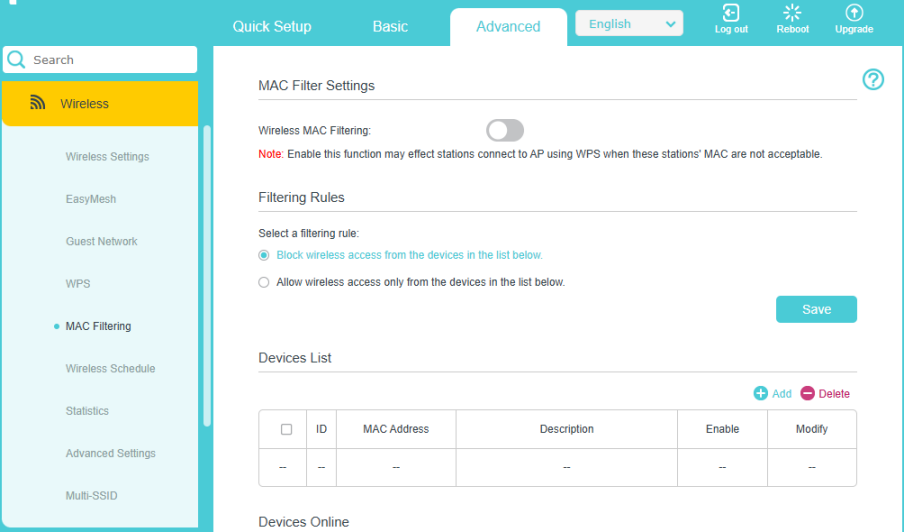
10. Check Wireless MAC Filtering settings
The TP-LinkBox 7 supports Wireless MAC Filtering.
What to verify:
• Whether only intended devices are included in the allow-list or filter configuration.
Advanced-> Wireless-> MAC Filtering:
Expected secure state:
• If MAC Filtering is used, the configuration matches the intended set of trusted devices.
Security note:
• Wireless MAC Filtering can provide an additional layer of control, but it should not be used as a substitute for strong wireless encryption and a strong Wi-Fi password.
This is an optional additional safeguard rather than a baseline wireless security requirement.
B. Check Whether the TP-LinkBox 7 Is Maintained in a Secure State
11. Check the firmware version and update status
Firmware updates may include security patches, bug fixes, performance improvements, and compatibility enhancements.
What to verify:
• Whether the TP-LinkBox 7 is running the latest available official firmware version; or
• Whether a newer official firmware version is available.
Expected maintained secure state:
• The TP-LinkBox 7 is kept up to date with applicable official firmware released by TP-Link.
Security note:
• If relevant firmware updates are not installed, the router may remain exposed to known vulnerabilities that have already been addressed in later releases.
Only official firmware released by TP-Link should be used.
12. Re-check that core security settings remain in the intended state
Security settings may change over time, either intentionally or unintentionally.
What to verify:
• Whether key security settings remain aligned with the intended secure configuration, including:
• The admin password is no longer the default password;
• The wireless password remains strong and different from the admin password;
• The wireless security mode remains set to WPA2-AES or WPA2/WPA3-Personal;
• Remote Management remains disabled when not needed;
• WPS remains disabled when not needed;
• UPnP remains disabled when not needed;
• DMZ remains disabled when not needed; and
• The firewall remains enabled.
Expected maintained secure state:
• These settings continue to match the intended secure configuration unless intentionally changed for a specific reason.
Security note:
• If one or more of these settings change to a less secure configuration, the overall security of the TP-LinkBox 7 may be reduced.
13. Check for signs of unauthorized or unexpected changes
The TP-LinkBox 7 should be reviewed periodically for changes that the user did not intend.
What to verify:
• Whether there are unexpected configuration changes;
• Whether unknown devices are connected;
• Whether security-related features have been enabled or disabled without the user’s knowledge; and
• Whether the router shows unusual behavior that may suggest unauthorized changes.
Expected maintained secure state:
• No unexpected or unauthorized changes are observed.
Security note:
• Unexplained changes may indicate that the configuration should be reviewed and that passwords or other security settings should be updated.
If unusual behavior is detected, review the configuration, remove or investigate unknown devices as appropriate, and update passwords if needed.
Summary of Security Checks
To check whether the TP-LinkBox 7 is securely set up, review whether:
• The default admin password has been changed;
•The Wi-Fi password is strong and different from the admin password;
• The wireless security mode is set to WPA2-AES or WPA2/WPA3-Personal;
• Remote Management is disabled when not needed;
• WPS is disabled when not needed;
• UPnP is disabled when not needed;
• DMZ is disabled when not needed; and
• The firewall is enabled.
To check whether the TP-LinkBox 7 continues to be maintained in a secure state, review whether:
• The latest applicable official firmware is installed; and
• The security settings listed above remain in their intended secure state unless intentionally changed for a specific reason.
By reviewing these settings regularly, users can reduce security risks and better protect their network and connected devices.
Looking For More
Finden Sie diese FAQ hilfreich?
Mit Ihrer Rückmeldung tragen Sie dazu bei, dass wir unsere Webpräsenz verbessern.

TP-Link Community
Still need help? Search for answers, ask questions, and get help from TP-Link experts and other users around the world.
Von United States?
Erhalten Sie Produkte, Events und Leistungen speziell für Ihre Region