
How to Install External Antennas on M8550
Introduction
The external antenna we install here is different from the Wi-Fi antenna. The external antenna is suitable for enhancing 4/5G networks. Generally, you only need an external antenna when you can't get a strong enough signal. If the router can get a good signal on its own, an external antenna may not necessarily improve performance.
Requirements
1. Make sure your antennas support the working frequency and band.
|
|
Supported band |
|
M8550(EU) V1 |
5G:N1/N3/N5/N7/N8/N20/N28/N38/N40/N41/N71/N75/N76/N77/N78 4G FDD-LTE: B1/B3/B5/B7/B8/B20/B28/B32/B71 4G TDD-LTE: B38/B40/B41/B42/B43 |
|
M8550(US) V1/V1.6 |
5G: N2/N5/N12/N14/N25/N29/N30/N41/N48/N66/N71/N77 |
2. Make sure your antenna's connector type meets these requirements:
- Connector type: M8550 requires a TS-9 female connector (refer to Specifications for details).
- Special note: Due to the compact antenna slot size, verify the interface dimensions before purchase.
- Recommended type: Use straight (non-angled) antennas for optimal compatibility.
Compatible example:
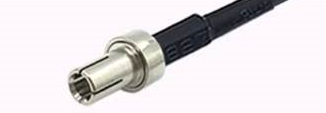
3. For those using an existing SMA antenna and purchasing only an SMA-to-TS9 adapter, please verify compatibility with these dimensions:
- External antenna slot (M8550 V1.0): 14.5 mm (length) × 5.5 mm (width)
- TS9 port diameter: 2.5 mm
Installation
Step 1. Pull down to open the external antenna cover.
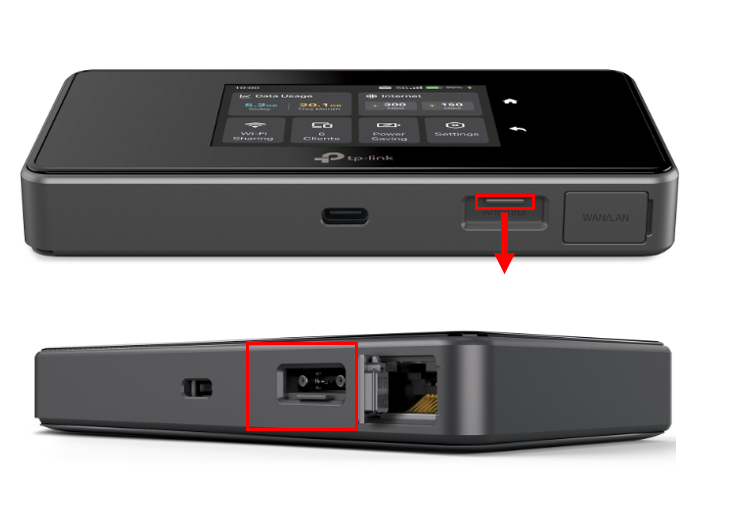
Step 2. Connect both of your 4/5G external antennas to the antenna ports.
Note: The antenna pictures are for reference only. You'll usually want to use an outdoor antenna. Indoor antennas are often similar to the router's internal antenna. We cannot guarantee the performance while using any third-party 4/5G external antennas.
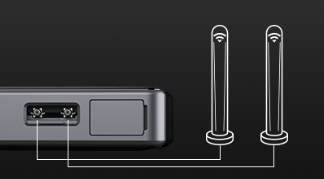
Step 3. You can operate the M8550 directly on the screen or log in to the web management page.
- Via M8550 screen
On the home page, click Settings > Device Settings > Antennas, check External, and then click Save.
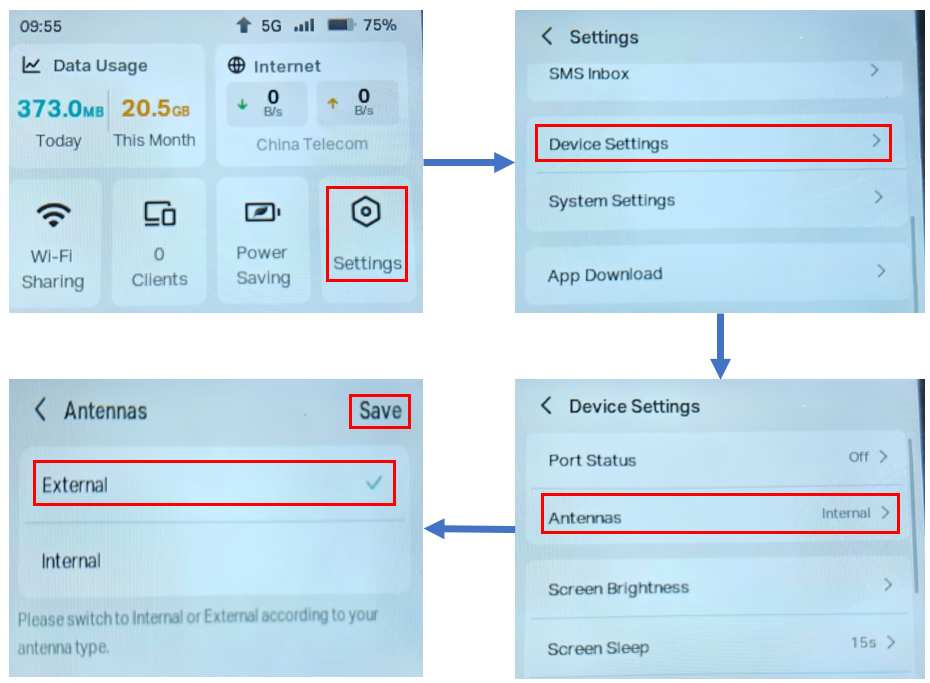
- Via web management page
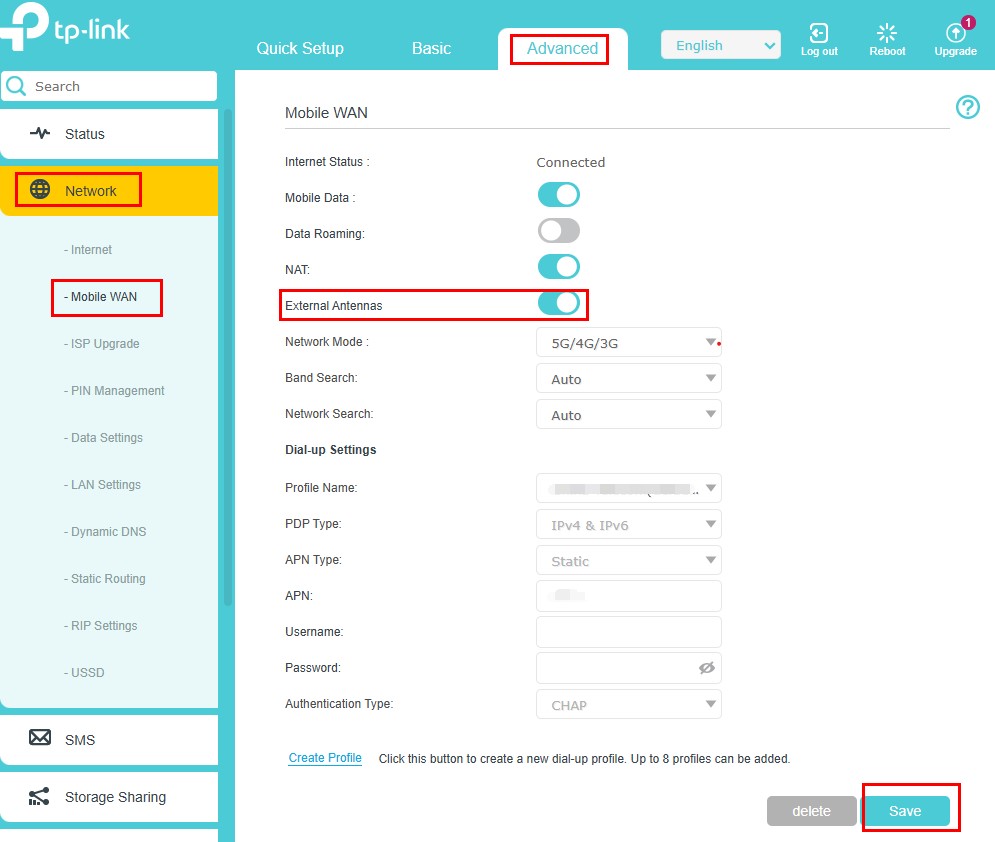
Log in to the web interface, go to Advanced > Network > Mobile WAN, and enable External Antennas. When enabled, the external antennas will replace part of the internal antennas.
QA
Q1: When do I need to use an external antenna?
A1: If you are in a remote area far from the base station and the router cannot get a strong signal, you can consider using an external antenna.
Q2: What are the possible reasons when the external antenna has no apparent effect?
A2: You can try swapping the antenna connectors. Check the antenna's orientation. Make sure the antenna supports the same frequency band as your current dialing frequency. Indoor antennas generally don't work well.
Get to know more details of each function and configuration please go to Download Center to download the manual of your product.
Looking For More
Finden Sie diese FAQ hilfreich?
Mit Ihrer Rückmeldung tragen Sie dazu bei, dass wir unsere Webpräsenz verbessern.

TP-Link Community
Still need help? Search for answers, ask questions, and get help from TP-Link experts and other users around the world.
Von United States?
Erhalten Sie Produkte, Events und Leistungen speziell für Ihre Region