
So aktivieren Sie die 24/7-Aufzeichnung bei akkubetriebenen Tapo-Kameras
24/7 Capture erstellt innerhalb eines festgelegten Zeitplans kontinuierlich Schnappschüsse in einem bestimmten Intervall. Wird eine Bewegung oder ein Ereignis erkannt, wechselt die Kamera zur Aufnahme mit normaler Bildrate. Die Funktion erweitert den Erkennungsbereich und liefert Ergebnisse ähnlich einer kontinuierlichen Aufnahme, benötigt jedoch weniger Energie und hilft so, mehr wichtige Momente zu erfassen. Diese Anleitung erklärt, wie Sie 24/7 Capture aktivieren und die Einstellungen für bessere Leistung und Akkulaufzeit optimieren.
Hinweis: Die Verfügbarkeit der Funktion variiert je nach Modell. Prüfen Sie den Abschnitt „Dieser Artikel gilt für“ unten bzw. in der Seitenleiste oder die Kameraeinstellungen in der Tapo-App, um festzustellen, ob 24/7 Capture unterstützt wird.
Das Wichtigste auf einen Blick
- 24/7 Capture verwendet eine schnappschussbasierte Überwachung, um Aufnahmezeit und Energieeffizienz auszubalancieren.
- Bei erkannten Bewegungen oder Ereignissen wechselt die Kamera zur Aufnahme mit normaler Bildrate.
- Kürzere 24/7-Capture-Intervalle verbessern die Aufnahmedetails, erhöhen jedoch den Akkuverbrauch.
- Für einen stabilen langfristigen Betrieb von 24/7 Capture wird die Verwendung eines Solarpanels empfohlen.
So aktivieren Sie 24/7 Capture
Hinweis: Durch die Aktivierung von 24/7 Capture steigt der Energieverbrauch. Für den Dauerbetrieb wird die Verwendung eines Solarpanels empfohlen. Bei zu niedrigem Akkustand wird 24/7 Capture automatisch deaktiviert.
Schritt 1. Öffnen Sie die Startseite der Tapo-App und tippen Sie auf die Gerätekarte Ihrer Kamera, um die Live-Ansicht zu öffnen. Tippen Sie oben rechts auf das Zahnradsymbol, um die Geräteeinstellungen zu öffnen, und wählen Sie anschließend 24/7 Capture.
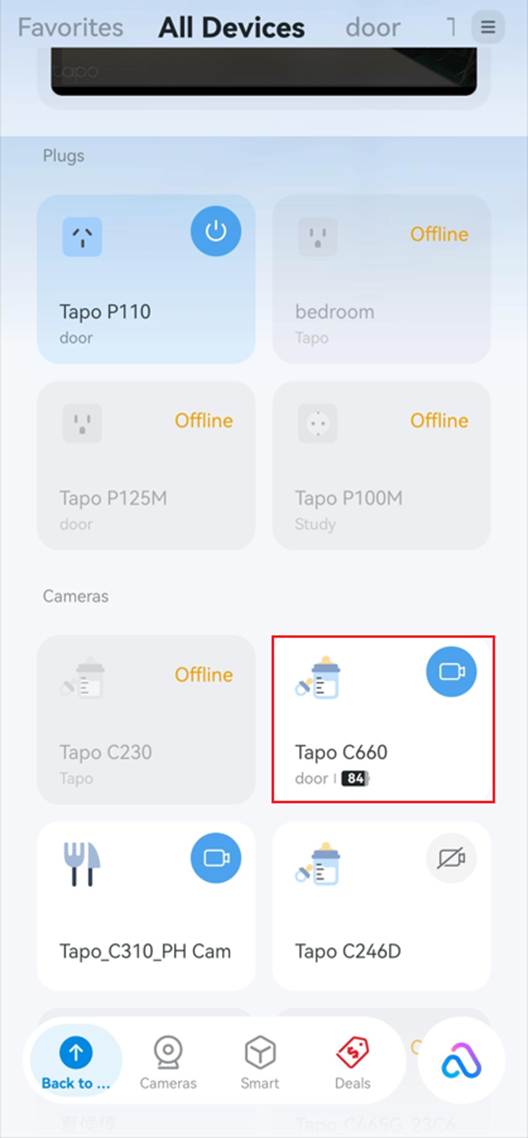
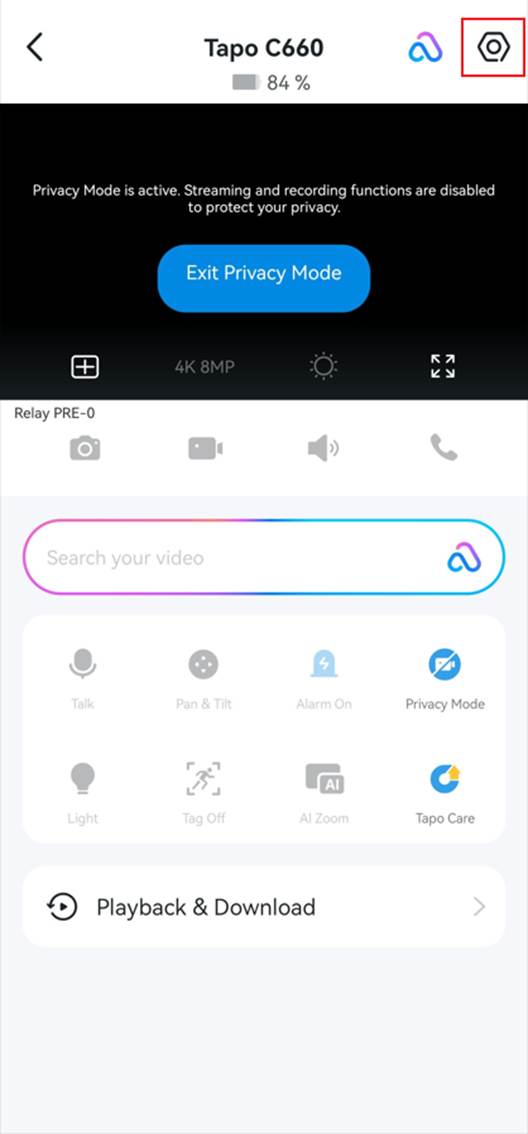
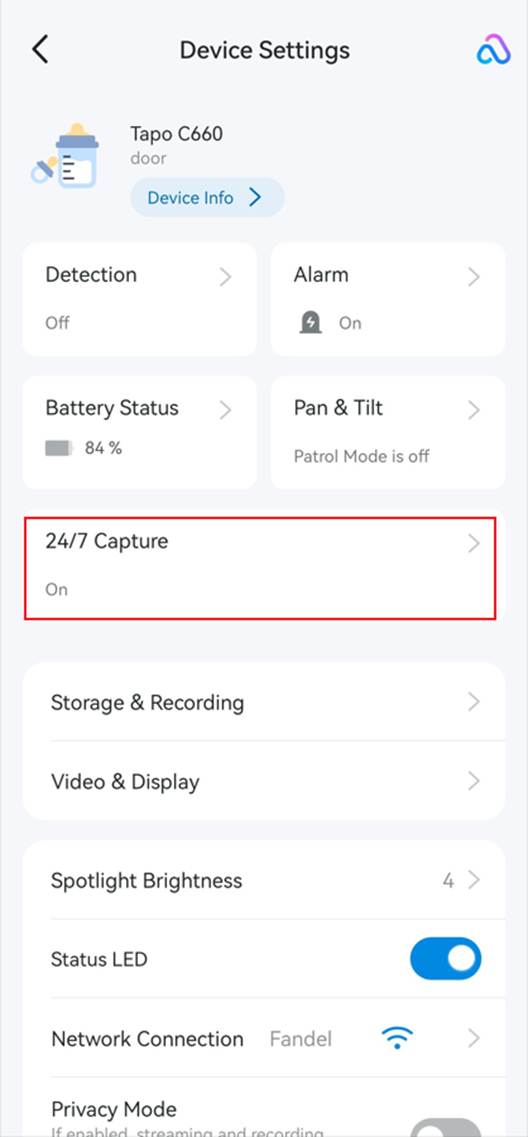
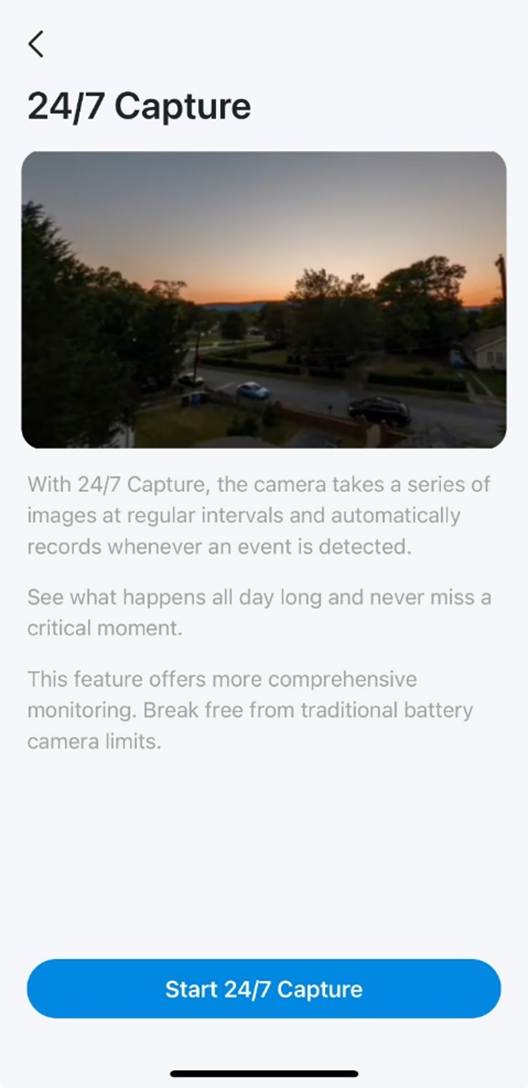
Schritt 2. Wenn Sie 24/7 Capture zum ersten Mal konfigurieren, tippen Sie auf 24/7 Capture starten. Andernfalls aktivieren Sie 24/7 Capture über den Schalter.
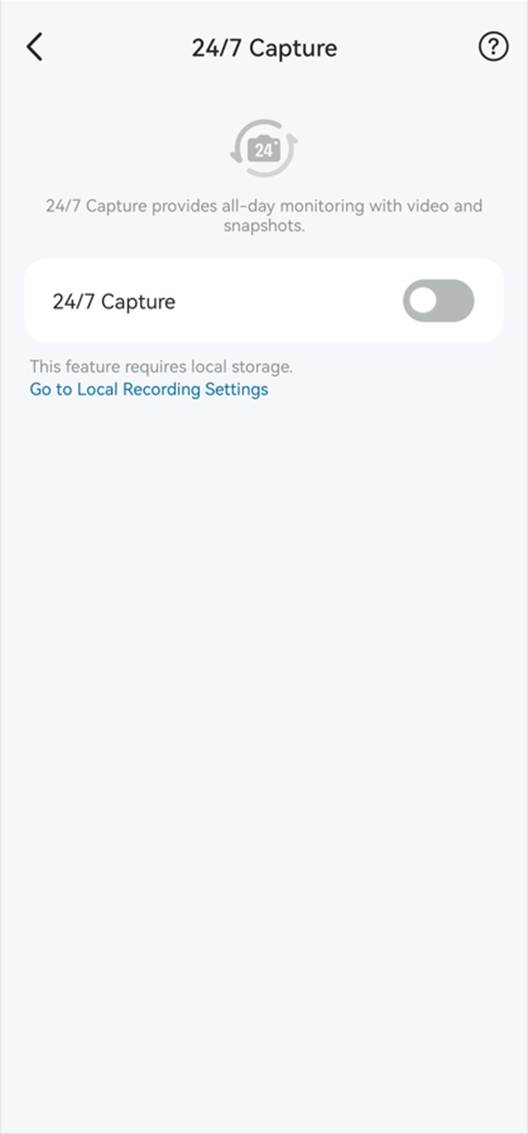
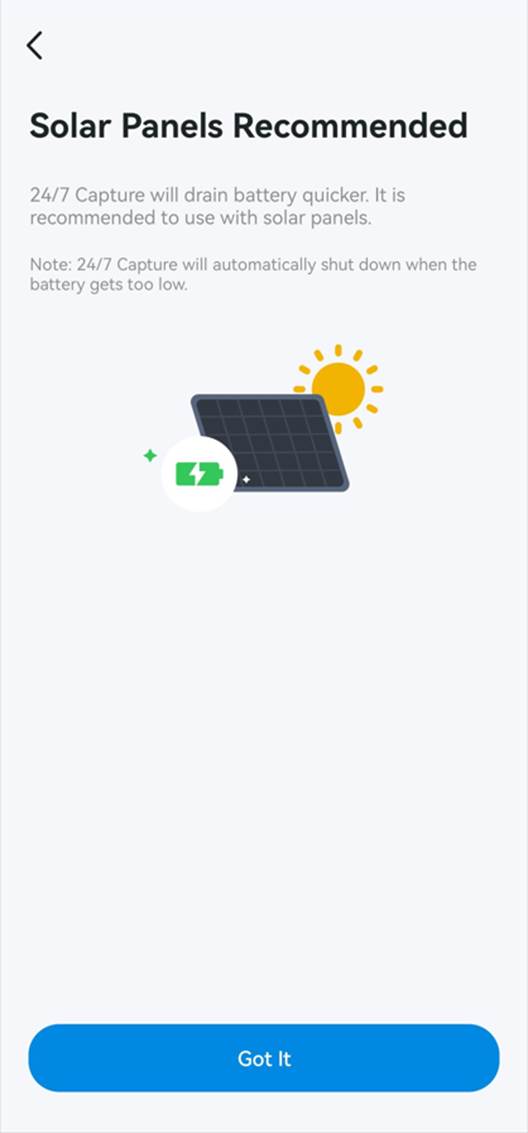
Schritt 3. Verbinden Sie Ihre Kamera mit einem Solarpanel und tippen Sie anschließend auf Verstanden.
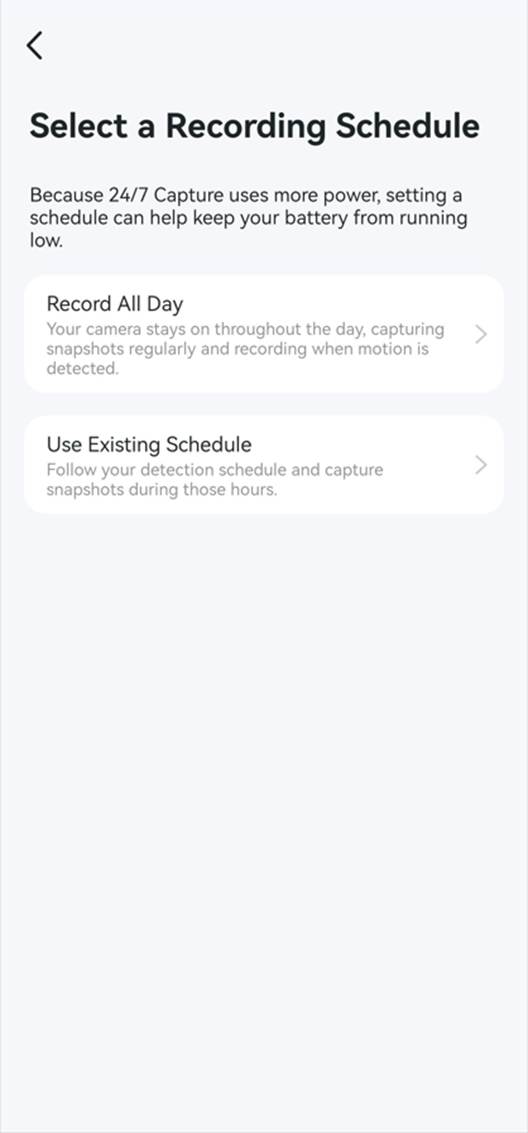
Schritt 4. Wählen Sie einen Aufnahmezeitplan für 24/7 Capture.
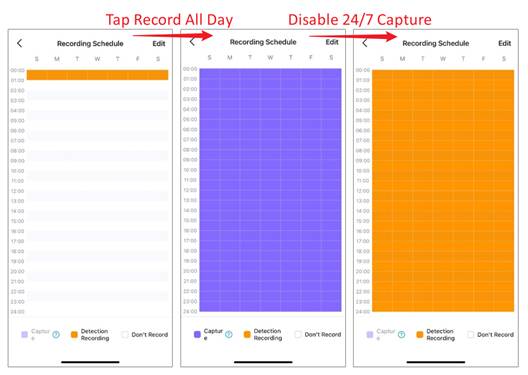
- Ganztägig aufnehmen: Ihre Kamera bleibt den ganzen Tag aktiv, erstellt regelmäßig Schnappschüsse und nimmt bei erkannter Bewegung auf.
- Vorhandenen Zeitplan verwenden: Die Kamera folgt Ihrem aktuellen Erkennungszeitplan und erstellt während dieser Zeiten Schnappschüsse.
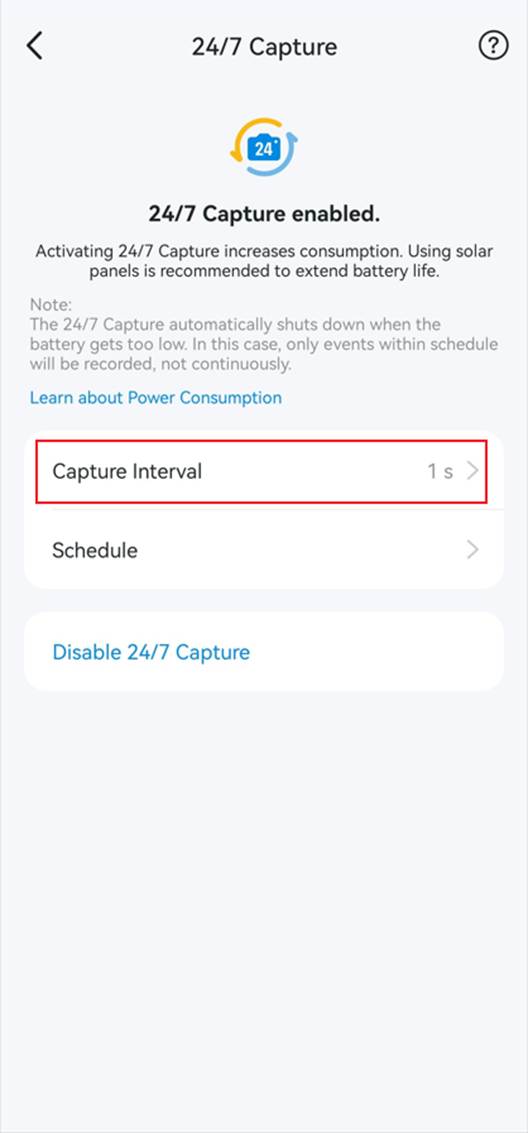
Schritt 5. Tippen Sie auf Aufnahmeintervall, um festzulegen, wie häufig Schnappschüsse erstellt werden. Kürzere Intervalle entladen den Akku schneller.
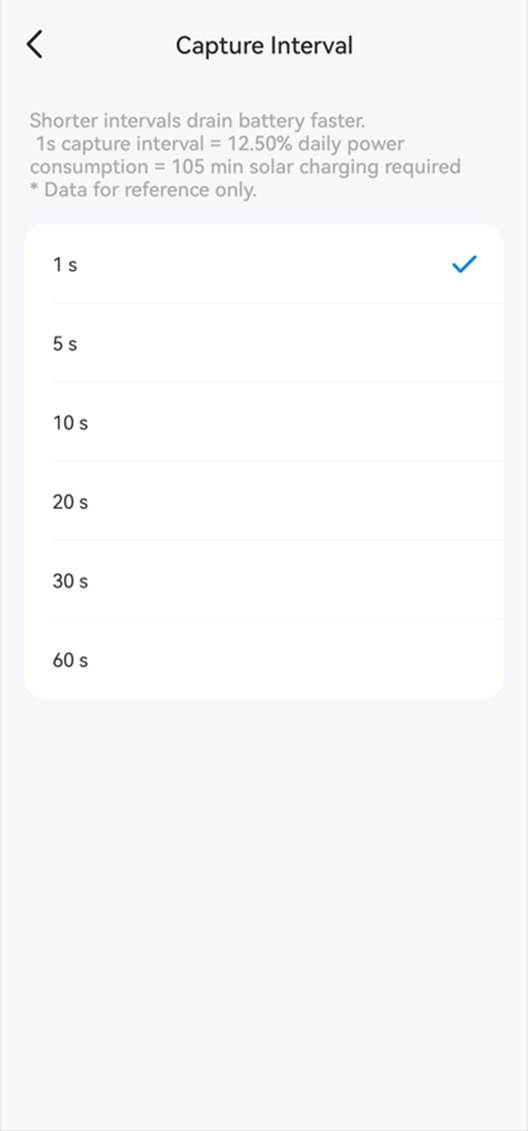
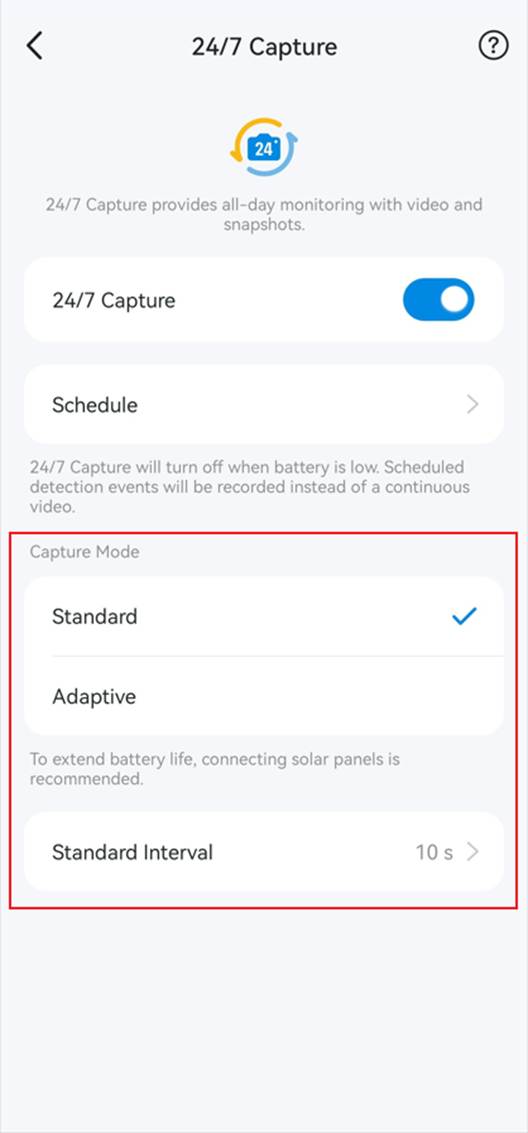
Bei einigen Modellen können Sie für den Aufnahmemodus Standard oder Adaptiv auswählen.
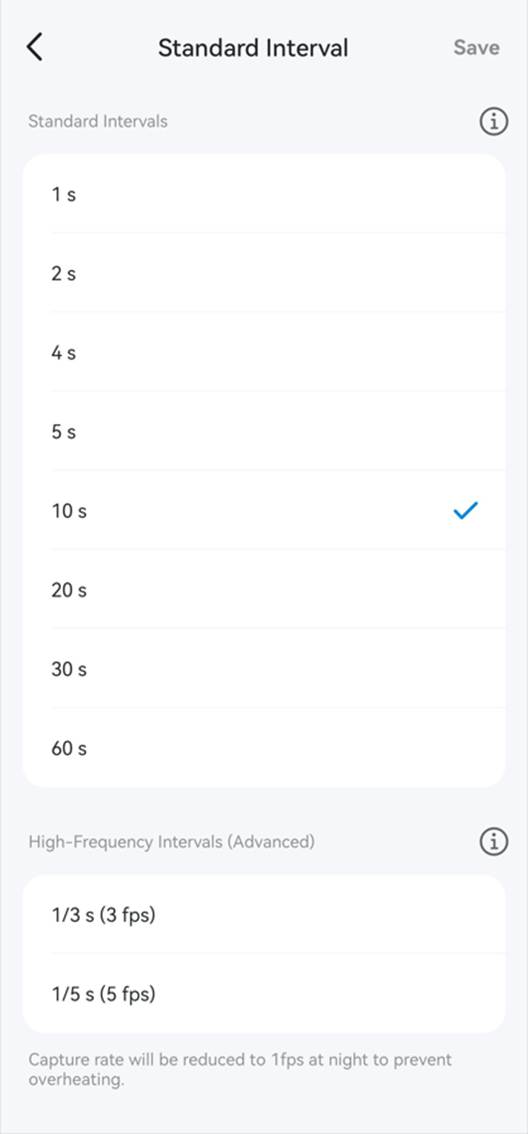
Im Standardmodus können Sie Standardintervalle oder Hochfrequenzintervalle auswählen.
Hinweis: Bei Verwendung von Hochfrequenzoptionen (z. B. 1/3 s oder 1/5 s) reduziert das System die Rate nachts automatisch auf 1 fps, um Überhitzung zu vermeiden. Tagsüber wird die ursprüngliche Rate wiederhergestellt.
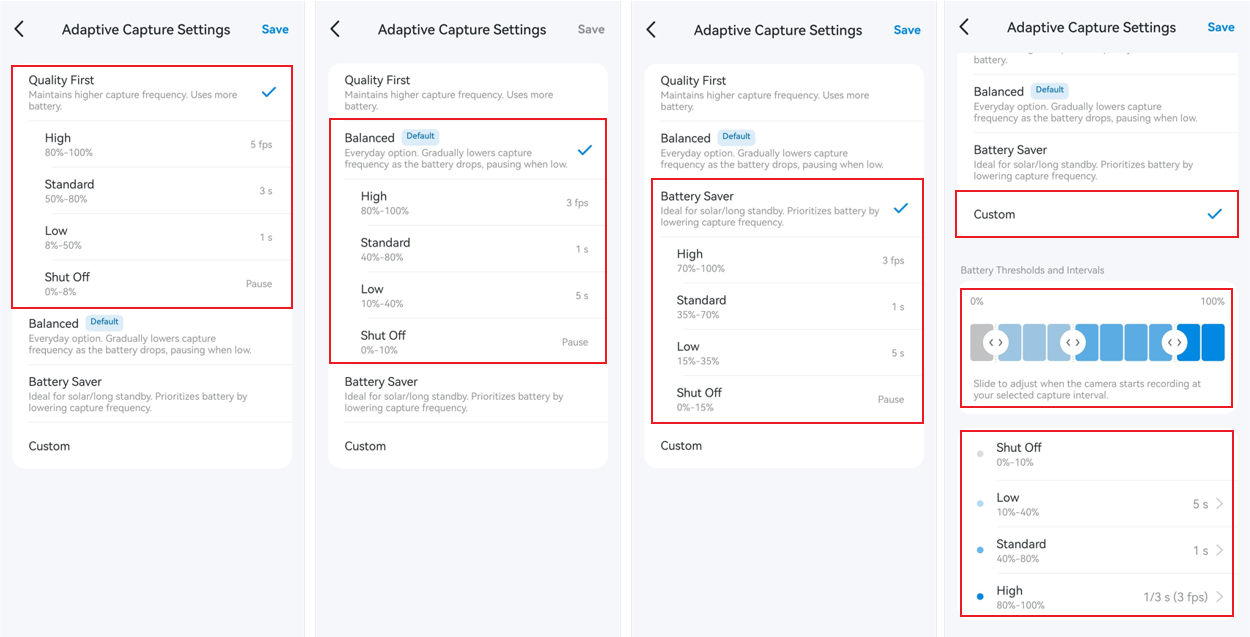
Im adaptiven Modus können Sie Qualität zuerst, Ausgewogen, Akkusparmodus oder Benutzerdefiniert auswählen. Die Aufnahmefrequenz wird abhängig vom Akkustand angepasst.
- Qualität zuerst: Behält eine höhere Aufnahmefrequenz bei. Verbraucht mehr Akku.
- Ausgewogen: Verringert die Aufnahmefrequenz schrittweise mit sinkendem Akkustand und pausiert bei niedrigem Akkustand.
- Akkusparmodus: Ideal für Solarbetrieb bzw. lange Standby-Zeiten. Priorisiert die Akkulaufzeit durch Verringerung der Aufnahmefrequenz.
- Benutzerdefiniert: Ermöglicht die manuelle Anpassung von Akkuschwellenwerten und Aufnahmeintervallen.
Fragen und Antworten
F1: Wie sehen 24/7-Capture-Schnappschüsse auf der Wiedergabeseite der Tapo-App aus?
24/7 Capture sorgt dafür, dass Ihre Kamera kontinuierlich aufzeichnet, also nicht nur bei erkannten Ereignissen, sondern auch dann, wenn keine Erkennungsereignisse auftreten.
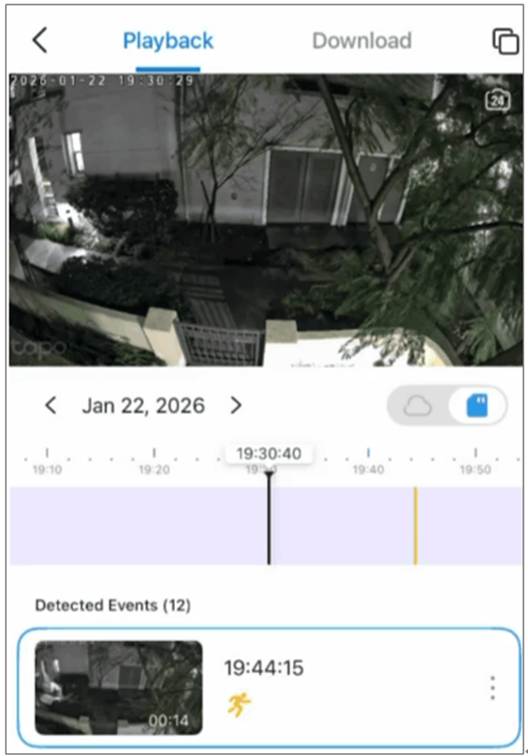
- Wenn keine Ereignisse erkannt werden, erstellt die Kamera zur Schonung des Akkus Schnappschüsse mit niedrigerer Bildrate entsprechend dem gewählten Intervall. Dadurch entsteht bei der Wiedergabe in der Tapo-App ein Zeitraffereffekt.
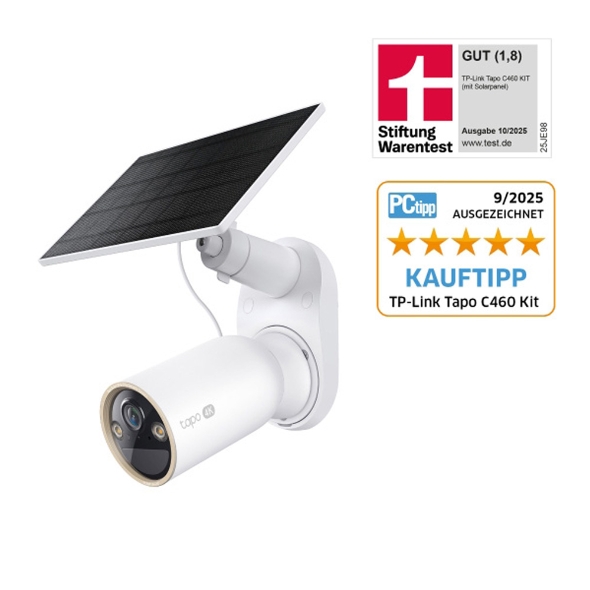
- Wenn ein Ereignis erkannt wird (z. B. Bewegung, Person oder Fahrzeug), wechselt die Kamera für klare Details zur normalen Aufnahme mit hoher Bildrate. Beim Tapo C460 werden die Aufnahmen in diesem Fall beispielsweise mit 15 fps aufgezeichnet.
Beachten Sie die folgende Abbildung in der Wiedergabe-Zeitleiste: Violetter Balken = 24/7-Capture-Aufnahme (Wiedergabe als Zeitrafferclip). Andere farbige Balken = durch Erkennungsereignisse ausgelöste Aufnahmen, z. B. ein orangefarbener Balken für Bewegungsereignisse.
F2: Was ist der Unterschied zwischen 24/7 Capture, PIR-Erkennung und kontinuierlicher Aufnahme?
Einzelheiten finden Sie in der folgenden Tabelle:
|
Funktion |
24/7 Capture |
PIR-Erkennung |
Kontinuierliche Aufnahme |
|
Auslösemechanismus |
Erkennung von Bildunterschieden |
Infrarot-Bewegungserkennung |
Permanente Aufnahme |
|
Stromverbrauch |
Mittel (deutlich höher als PIR, aber niedriger als bei kontinuierlicher Aufnahme) |
Niedrig |
Hoch |
|
Speicherverbrauch |
Niedriger als bei kontinuierlicher Aufnahme |
Niedriger als bei 24/7 Capture |
Am höchsten |
|
Erkennungsbereich |
Größer (bis zu 15 m für Personen, über 30 m für Fahrzeuge) |
Kürzer (bis zu 9 m) |
Nicht zutreffend (keine Erkennung) |
|
Anwendungsfall |
Ideal für energieeffiziente Überwachung mit guter Abdeckung |
Am besten für geringen Stromverbrauch |
Am besten für permanente Aufzeichnung, jedoch mit hohem Stromverbrauch |
F3: Welche Auswirkungen hat die Aktivierung von 24/7 Capture?
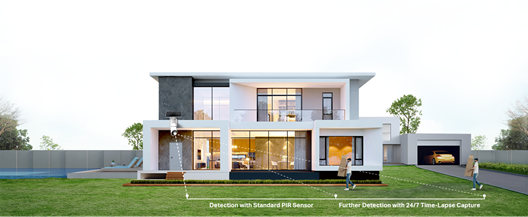
Nach der Aktivierung von 24/7 Capture wird der Erkennungsbereich erweitert und es können auch Ereignisse außerhalb des ursprünglichen PIR-Erkennungsbereichs erkannt werden. Es wird empfohlen, den Erkennungsbereich festzulegen oder die Installationsposition anzupassen, um unnötige Erkennungswarnungen zu vermeiden.
Da 24/7 Capture außerdem die Anzahl der Aufwachvorgänge erhöht und die ursprüngliche PIR-Aufweckerkennung aktiv bleibt, gelten weiterhin die Installationshinweise zur Vermeidung häufiger Aufwachvorgänge und übermäßiger Akkuentladung. Richten Sie die Kamera beispielsweise nicht direkt auf eine stark befahrene Straße oder schwankende Bäume.
F4: Kann 24/7 Capture ohne SD-Karte oder Hub-Speicher verwendet werden?
Nein. Für die ordnungsgemäße Funktion von 24/7 Capture ist eine SD-Karte oder Hub-Speicher erforderlich. Der Tapo-Care-Cloud-Speicher unterstützt 24/7 Capture derzeit nicht.
Um 24/7 Capture zu aktivieren, schalten Sie Lokale Aufnahme ein und wählen Sie in Tapo-App > Kameraeinstellungen > Speicher & Aufnahme als Speicherort Kameraspeicher oder Hub-Speicher aus.
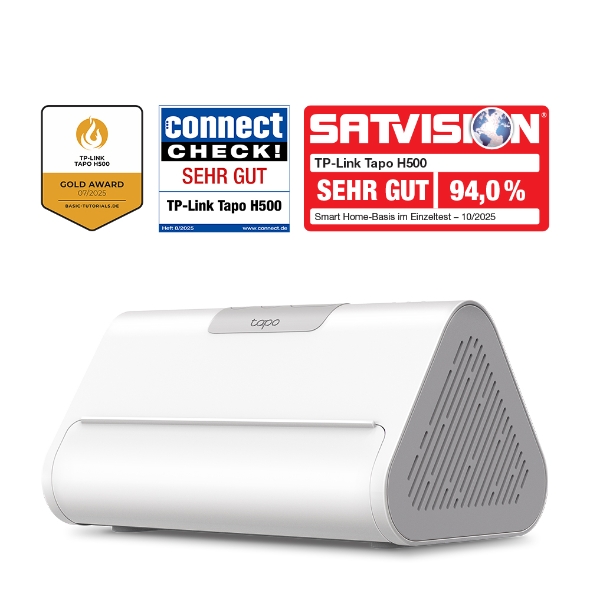
Hinweis: Aktualisieren Sie Ihren H200 auf Version 1.6.5 oder höher und den H500 auf Version 1.3.1 oder höher, damit der Hub-Speicher vollständig mit 24/7 Capture kompatibel ist.
F5: Wie wirken sich die Intervalleinstellungen von 24/7 Capture auf die Akkulaufzeit aus?
Die geschätzte Akkuleistung finden Sie in der folgenden Tabelle:
|
Bildintervall (s) |
Akkulaufzeit bei voller Ladung (ohne Solarpanel) |
Solar-Ladezeit für einen Nutzungstag |
|
1 |
8 Tage |
105 Minuten |
|
5 |
25 Tage |
<45 Minuten |
|
10 |
37 Tage |
<45 Minuten |
|
20 |
42 Tage |
<45 Minuten |
|
30 |
51 Tage |
<45 Minuten |
|
60 |
55 Tage |
<45 Minuten |
Hinweise:
1. Akkulaufzeit und Solar-Ladezeit basieren auf Tapo-Labortests mit angenommenen 23 Ereignissen am Tag und 12 Ereignissen in der Nacht pro Tag. Jedes Ereignis löst eine 13-sekündige Videoaufnahme aus; in der übrigen Zeit befindet sich das Gerät im Standby-Modus.
2. Die Solar-Ladezeit wird unter Standard-Testbedingungen (1000 W/㎡, 25 ℃, AM1.5) gemessen. Die tatsächliche Leistung kann je nach Geräteeinstellungen, Nutzungsverhalten, Router-Spezifikationen und Umgebungsbedingungen variieren.
F6: Wie viel Speicherplatz benötigt 24/7 Capture auf der SD-Karte?
Wenn kein Erkennungsereignis ausgelöst wird, benötigt 24/7 Capture bei einem Aufnahmeintervall von 10 Sekunden etwa 173 MB pro Tag. Bei einem Intervall von 1 Sekunde werden etwa 1730 MB pro Tag benötigt.
Die folgende Tabelle zeigt die ungefähre Anzahl an Tagen, für die der Speicher 24/7-Capture-Aufnahmen aufnehmen kann:
|
Aufnahmeintervall |
16GB |
32GB |
64GB |
128GB |
256GB |
512GB |
|
1 Sekunde |
~9 Tage |
~18 Tage |
~36 Tage |
~73 Tage |
~147 Tage |
~294 Tage |
|
10 Sekunden |
~91 Tage |
~184 Tage |
~368 Tage |
~736 Tage |
~1472 Tage |
~2944 Tage |
F7: Was ist beim Aktivieren von 24/7 Capture der Unterschied zwischen Ganztägig aufnehmen und Vorhandenen Zeitplan verwenden?
Wenn Sie Ganztägig aufnehmen auswählen, bleibt die Kamera den ganzen Tag und die ganze Woche aktiv, erstellt regelmäßig Schnappschüsse und zeichnet bei erkannter Bewegung auf.
Wenn Sie Vorhandenen Zeitplan verwenden auswählen, zeichnet die Kamera gemäß Ihrem bestehenden Erkennungszeitplan auf und erstellt während dieser Zeiten Schnappschüsse.
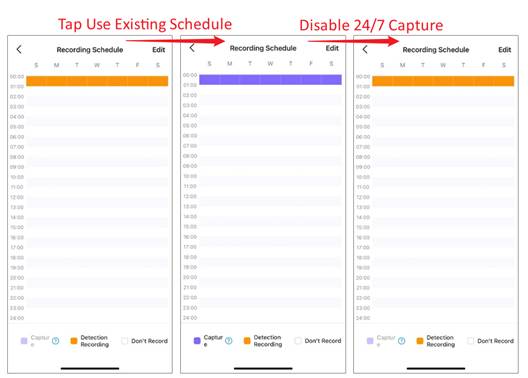
Unabhängig von der gewählten Option wird der Aufnahmezeitplan von 24/7 Capture wieder auf den Zeitplan für Erkennungsaufnahmen zurückgesetzt, wenn Sie 24/7 Capture manuell deaktivieren oder die Kamera die Funktion automatisch abschaltet.
Weitere Informationen zu den einzelnen Funktionen und Konfigurationen finden Sie im Download-Center, wo Sie das Handbuch Ihres Produkts herunterladen können.
Looking For More
Finden Sie diese FAQ hilfreich?
Mit Ihrer Rückmeldung tragen Sie dazu bei, dass wir unsere Webpräsenz verbessern.

TP-Link Community
Still need help? Search for answers, ask questions, and get help from TP-Link experts and other users around the world.
Von United States?
Erhalten Sie Produkte, Events und Leistungen speziell für Ihre Region