
How do I check if the TCP/IP properties are correct on Windows Vista& Windows 7?
 86562
86562Note: In order to connect to your router for configuration, the IP address of your computer must be in the same subnet with the router.
We take an example here. If the router’s LAN IP address is 192.168.1.1, please type in IP address 192.168.1.x (x is from 2 to 253), subnet mask 255.255.255.0, and default gateway 192.168.1.1.
Step 1
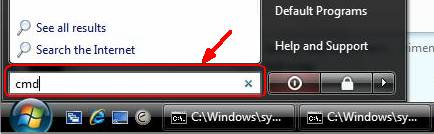
Click Start on the task bar, type cmd into the search box, and then press Enter to open prompt window.
Step 2
Type ipconfig /all at the prompt window, then press Enter. It will show the IP address, Subnet Mask, Default Gateway and so on.
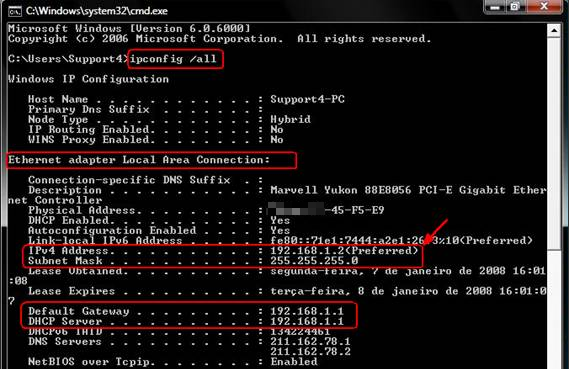
Note: If the IP address is 169.254.x.x or 0.0.0.0, it means that the IP address is incorrect, you need to configure the TCP/IP Properties for your computer.
Step 3 Ping the IP address of the router
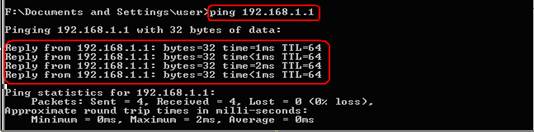
Type Ping 192.168.1.1 on the prompt window.
If the result is shown as below, it means the IP address is correct and you can connect to the router.
Note:
If the result shown as below, it means that your computer can not connect to the router, please double check the TCP/IP configuration according to above steps. Restart the computer and router is also recommended.
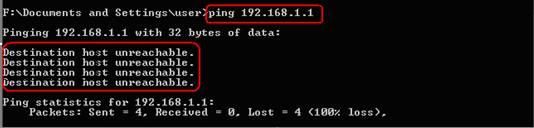
If you had changed the IP address, please type the new IP address instead of 192.168.1.1.
Is this faq useful?
Your feedback helps improve this site.

TP-Link Community
Still need help? Search for answers, ask questions, and get help from TP-Link experts and other users around the world.