
How to Enable and Use Snooze Alerts on Tapo Cameras and Doorbells
Snooze Alerts lets you temporarily pause notifications and alarms on your Tapo cameras and doorbells while keeping recordings active. This guide explains how to enable and manage Snooze Alerts, how it works across devices and schedules, and what to expect when it comes to alerts, recording, and smart actions.A
Key Takeaways
- Snooze Alerts can be enabled in Tapo App > Cameras tab.
- Snooze Alerts pauses notifications and alarms but continues recording events.
- Certain critical alerts still come through even during snooze.
- Snooze overrides existing notification and alarm schedules.
- Snooze Alerts settings sync across all devices under the same account.
How to Enable Snooze Alerts
Note: Feature availability may vary by device model, hardware, and firmware version. Make sure your Tapo app and device firmware are up to date, and the device is online.
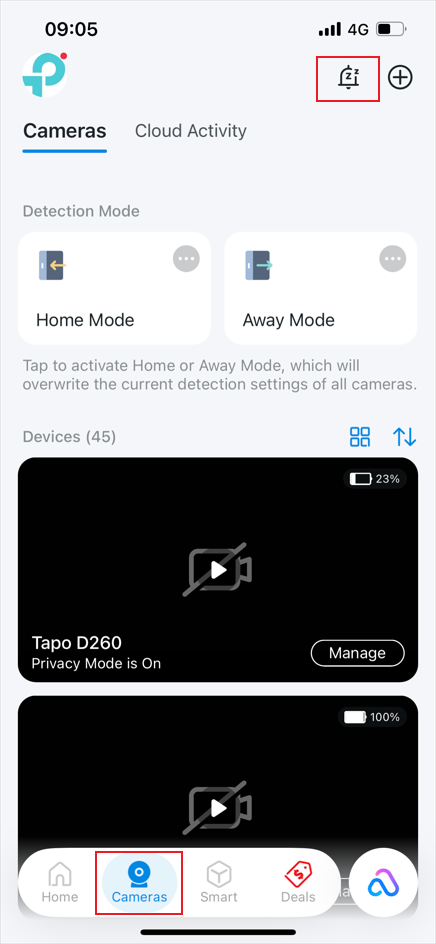
- Open the Tapo app Cameras tab, tap the Snooze icon in the top right corner.
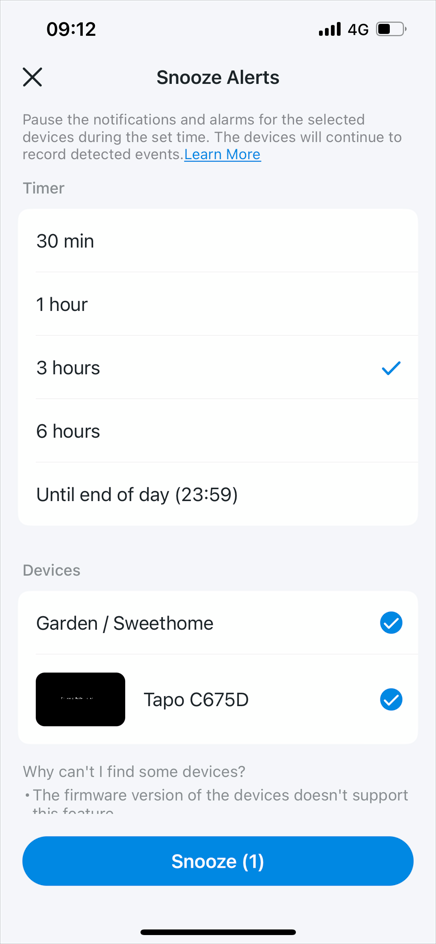
- Set a Snooze Duration: 30 min, 1 hour, 3 hours, 6 hours, or Until the end of the day.
- Select Services: Choose individually, select by Room/House, or tap Select All.
- Tap Snooze to apply.
How to Check or Disable Snooze Alerts
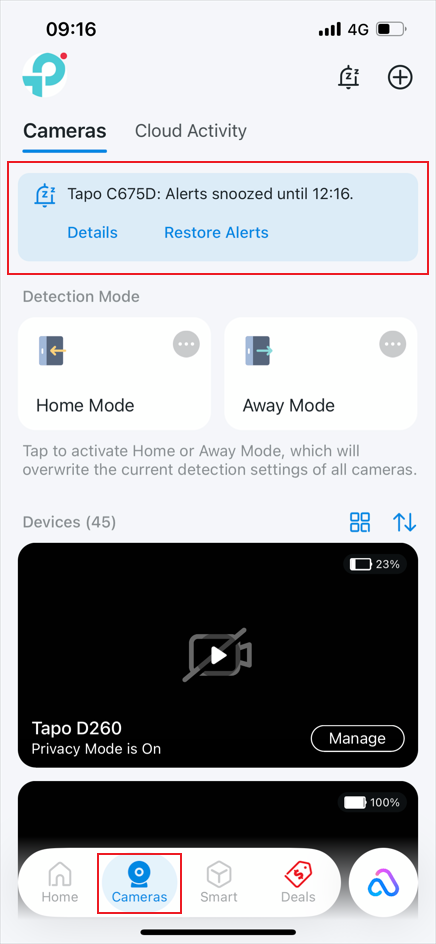
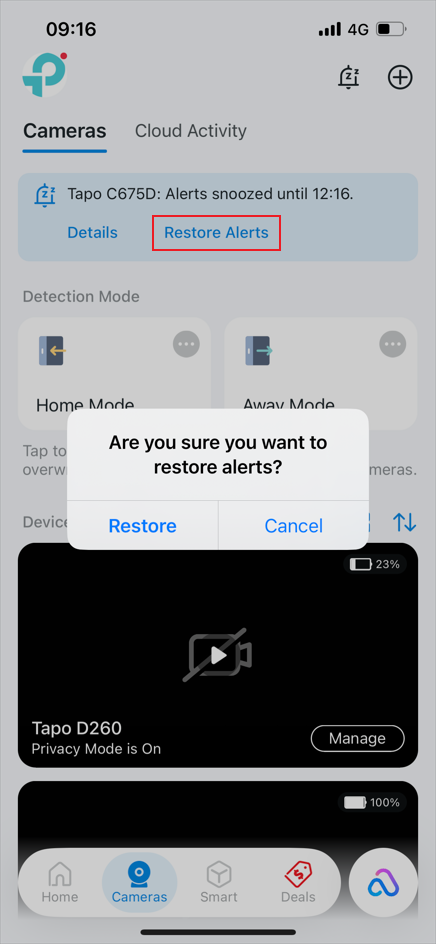
- Go to the Tapo app Cameras page to view Snooze status.
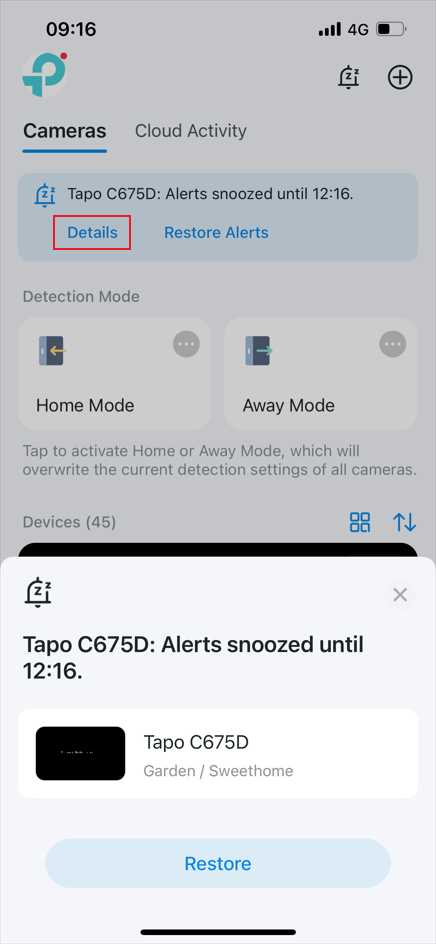
- Tap Details to see all snoozed devices and remaining time.
- Tap Restore Alerts to end snooze and resume notifications.
How Snooze Alerts Work
1. Notifications and Alarms
- Notifications and alarms are paused during snooze. However, all events are still recorded in the Message Center (tap the Bell icon in the Tapo app Home page).
- The following notifications are NOT affected by snooze and will still be delivered: Anti-theft alarms, missed/answered doorbell rings, smoke alarms, glass break detection, video call alerts, manually triggered alarms, SD card not formatted or full alerts, battery status alerts (low/empty/fully charged), and critical activity type configured on Tapo C840.
- Detection, notification, and alarm settings can be adjusted during snooze, but changes will not take effect until snooze ends.
2. Recording
- Tapo Care Cloud Recording and Local Recording continue as normal during snooze.
3. Smart Actions
- When a device is in snooze mode, triggered actions (e.g., notifications, alarms) will not be executed.
- If camera/doorbell detection is used as a trigger or condition in Smart Actions, it will continue to execute during the snooze.
4. Schedule Priority
- Snooze takes priority over existing notification and alarm schedules. Example: If alarms are scheduled off from 00:00–08:00 but snooze is set at 07:00 for 6 hours, snooze takes priority.
5. Device Sync Rule
- Snooze applies across all phone/tablet devices logged into the same TP-Link account.
6. Chime/Hub Behavior
- Connected chimes or hubs follow the snooze status of the linked doorbell or camera.
Q & A
Q1: Why can’t I see my devices on the Snooze Alerts page?
- The device firmware does not yet support this feature.
- Shared devices do not currently support enabling this feature.
- If the device is connected to a hub, the hub firmware must also support this feature.
Q2: Why are notifications still not working after turning off Snooze Alerts?
Please refer to What should I do if Tapo/Kasa notifications are delayed or not working? | Tapo
To learn more about each function and configuration, please visit the Download Center to download the manual for your product.
Looking For More
Is this faq useful?
Your feedback helps improve this site.

TP-Link Community
Still need help? Search for answers, ask questions, and get help from TP-Link experts and other users around the world.