
How to Build Ethernet Backhaul With Two TP-Link EasyMesh Routers
TP-Link EasyMesh Ethernet backhaul connects your main router to a satellite router via a physical Ethernet cable rather than a wireless signal. This EasyMesh wired backhaul setup provides a faster, more stable connection between mesh nodes, improving overall network performance and reliability. Note that both the main router and satellite router must support EasyMesh Ethernet backhaul for this configuration to work. This guide covers two scenarios: switching an existing EasyMesh network from wireless to a wired backhaul, and adding a new satellite router with an Ethernet backhaul from the start.
Key Takeaways
- Ethernet backhaul requires both the main router and the satellite router to support it. Not all EasyMesh devices support this feature.
- If both routers are already in an EasyMesh network with compatible firmware installed, switching to Ethernet backhaul only requires connecting the main router's LAN port to any Ethernet port on the satellite via an Ethernet cable.
- When adding a new satellite router to an EasyMesh network using Ethernet backhaul, the satellite must be in factory mode before setup. If it has been configured previously, it must be reset to factory defaults first.
- Once the Ethernet backhaul is active, the wireless backhaul disconnects automatically. If the Ethernet backhaul is disconnected, the mesh network will automatically fall back to wireless backhaul.
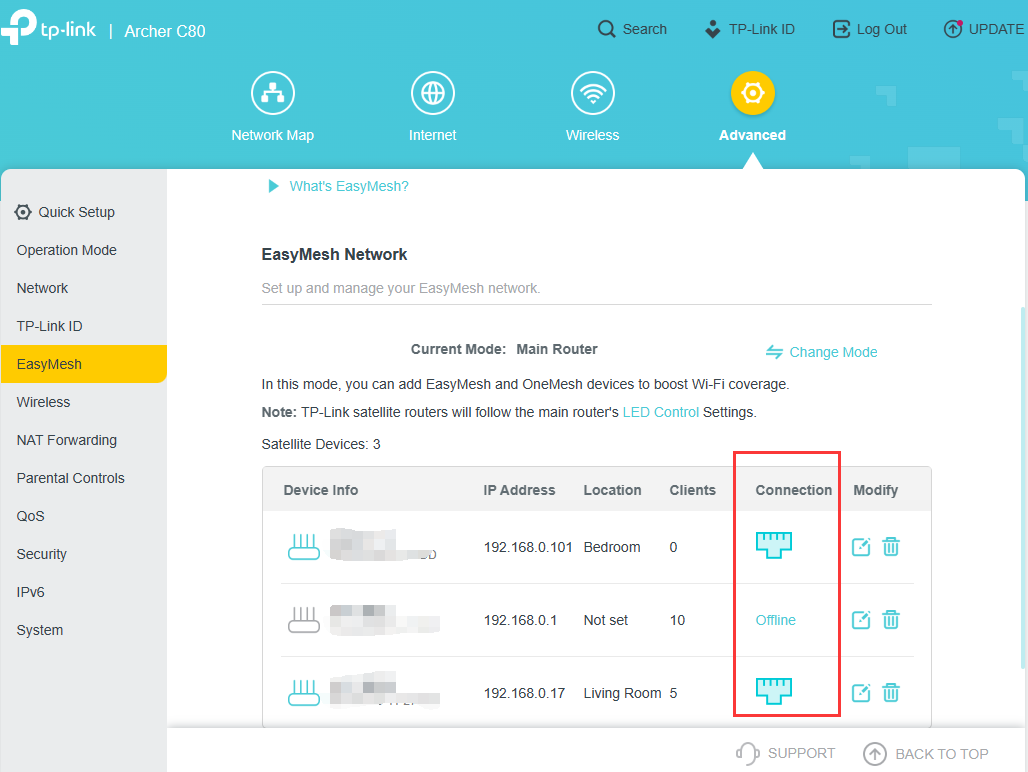
- Ethernet backhaul status can be verified from the main router's web interface under the EasyMesh page. An Ethernet icon next to a satellite device confirms it is connected via wired backhaul.
How to Build EasyMesh Ethernet Backhaul on TP-Link Routers
Scenario 1: Switch from Wireless Backhaul to Ethernet Backhaul
If both the main router and satellite router are already in an EasyMesh network and the firmware that supports Ethernet backhaul has been installed, you can connect the main router’s LAN port directly to any Ethernet port on the satellite via an Ethernet cable to use Ethernet backhaul.
Scenario 2: Add a New EasyMesh Satellite Router Using Ethernet Backhaul
Before proceeding, ensure the satellite router is in factory mode. If it has been configured previously, reset it to factory defaults.
Connect the main router's LAN port to the satellite's LAN port via an Ethernet cable.
Notes:
1. When adding a new router to EasyMesh, use the satellite router's LAN port as the backhaul port. Once EasyMesh is set up, all ports on the satellite router (WAN, LAN, WAN/LAN) are available for Ethernet backhaul.
2. As long as the Ethernet backhaul is built successfully, the wireless backhaul will disconnect automatically. Similarly, if the Ethernet backhaul is disconnected, devices will rebuild the mesh network via the wireless backhaul.
How to Confirm Whether Ethernet Backhaul Is Working
Log in to the main router's web interface and go to the EasyMesh page. Each satellite device will show its connection type — an Ethernet icon indicates it is connected via Ethernet backhaul.
If the wireless icon still appears, check that the Ethernet cable is securely connected and functioning correctly.
Looking For More
Is this faq useful?
Your feedback helps improve this site.
3.0_A_RGB_normal_1584493572647x.png)
3.0_A_RGB_normal_20231221090838z.png)

TP-Link Community
Still need help? Search for answers, ask questions, and get help from TP-Link experts and other users around the world.