
VPN Connected but Can't Access or Discover LAN Devices
When a TP-Link router is configured as a VPN server, users trying to remotely access LAN resources may encounter two common problems: devices reachable by IP address but blocked by a firewall, and devices invisible to network discovery. Both scenarios are covered below.
Key Takeaways
- If a LAN device is accessible by IP address but behaves unexpectedly over VPN, its firewall may be blocking incoming traffic from the VPN client's subnet. Windows PCs commonly block remote traffic from VPN clients because the VPN client's IP address is on a different subnet.
- To resolve a firewall-related access issue, temporarily disable the firewall to confirm it is the cause, then create a new inbound rule to allow traffic from the specific VPN client IP address if the firewall needs to stay enabled.
- Some older devices or devices with specific network requirements may not be compatible with VPN access. Port forwarding can be used as an alternative solution in those cases.
- Network discovery (browsing devices in Windows File Explorer > Network) does not work over VPN because network discovery packets cannot pass through a VPN tunnel.
- When connected remotely via VPN, LAN devices can still be accessed directly by IP address. For example, a NAS can be reached via smb://[IP of NAS] or ftp://[IP of NAS] in File Explorer, even if it does not appear in the Network view.
If you configure your router as a VPN server and try to remotely access LAN resources or manage devices over the internet, you may encounter the following issues:
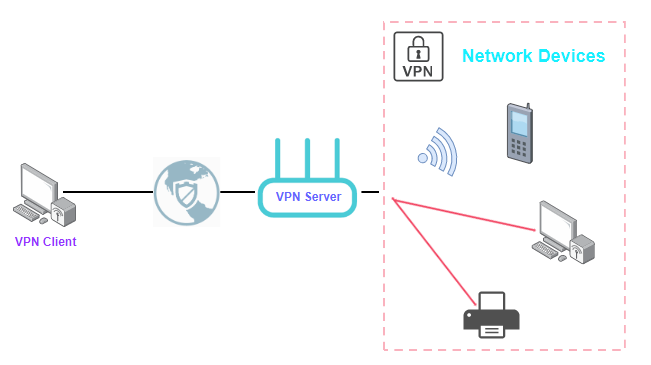
Case 1: Unable to Access a Specific LAN Device
If you're having trouble accessing certain LAN devices while connected to a VPN, there are a few reasons. To check if a device is accessible, you could use the ping command. How to Use the Ping Command
1. The firewall settings on the device you are trying to access may be blocking incoming traffic from VPN connections. For example, a Windows PC typically blocks remote traffic from a VPN client since its IP address is from a different subnet.
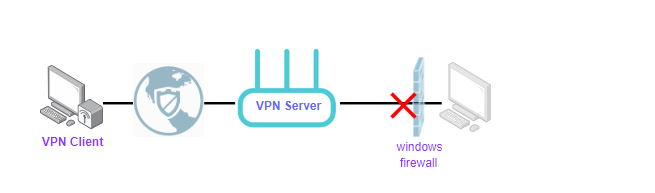
To resolve this issue, try disabling the firewall temporarily to see if that resolves it. If so, you can create a new inbound rule to allow traffic from the VPN client's specific IP address if you still need the firewall enabled. To create a new inbound rule, refer to Create an Inbound Port Rule (Windows)
2. Some devices may not be compatible with VPN networks or may require special configuration. This can include older devices or devices with specific network requirements. If so, port forwarding could be used as an alternative solution. How to Set Up Port Forwarding on the TP-Link Wi-Fi Router. It’s also recommended to contact the device's support team for assistance.
Case 2: Unable to Discover Devices on the Network
If you open File Explorer on a Windows computer and click on the "Network" icon in the navigation pane, you can view a list of devices that are visible on your local network, such as computers, printers, routers, NAS, digital signage displays, and other network devices.
However, when your device is connected via a VPN connection, you may not be able to see them. The reason is that the network discovery packets, which allow devices to advertise their presence, can’t pass through VPN tunnels. In this situation, you can access devices on your local network by using their IP addresses directly, rather than relying on network discovery protocols to find them.
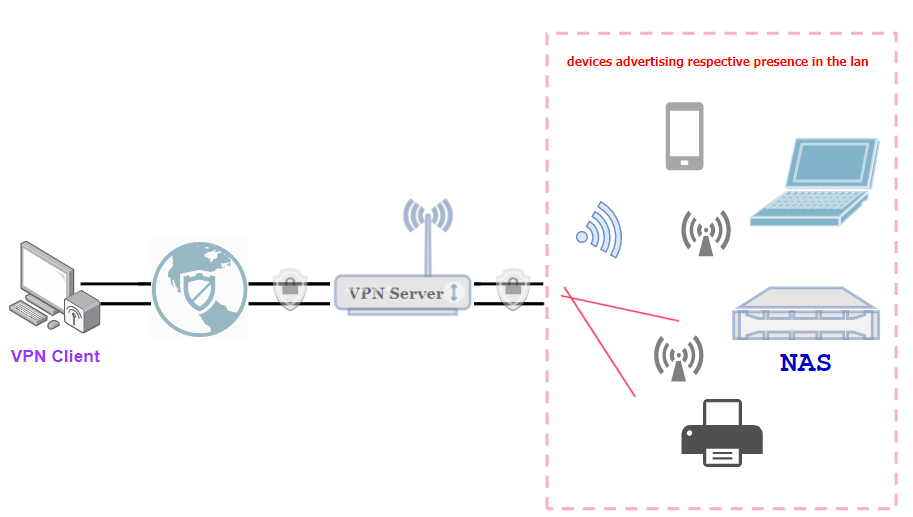
For example, if your PC is on the same LAN as a NAS, you can easily find it. However, if you are using a remote PC as a VPN client, you may not be able to find the NAS, but can still access it by visiting smb://IP of NAS or ftp://IP of NAS in a File Explorer.
Looking For More
Is this faq useful?
Your feedback helps improve this site.

TP-Link Community
Still need help? Search for answers, ask questions, and get help from TP-Link experts and other users around the world.