
How to Get a New Device Alert When Someone Connects to Your Wi-Fi
This guide shows you how to enable the New Device Alert feature on your TP-Link router. When turned on, the Tether app will send you a notification whenever a new device connects to your network, helping you monitor for unknown or unauthorized access.
Key Takeaways
- Enable New Device Alerts in the Tether app under App Settings > Notification.
- Your router must support HomeShield and be bound to a TP-Link ID.
- Once enabled, the app will send you a notification when any new device connects to your network.
- This feature is available for all HomeShield-supported TP-Link router models.
Requirements
1. Your TP-Link router supports HomeShield. (Check the product specifications on our website if you're unsure.)
2. You’re logged in with a TP-Link ID on the Tether app.
3. Your router is bound to the same TP-Link ID. (Tether app > More > Manager > Bind)
Configuration Guide
Follow these steps to enable New Device Alert:
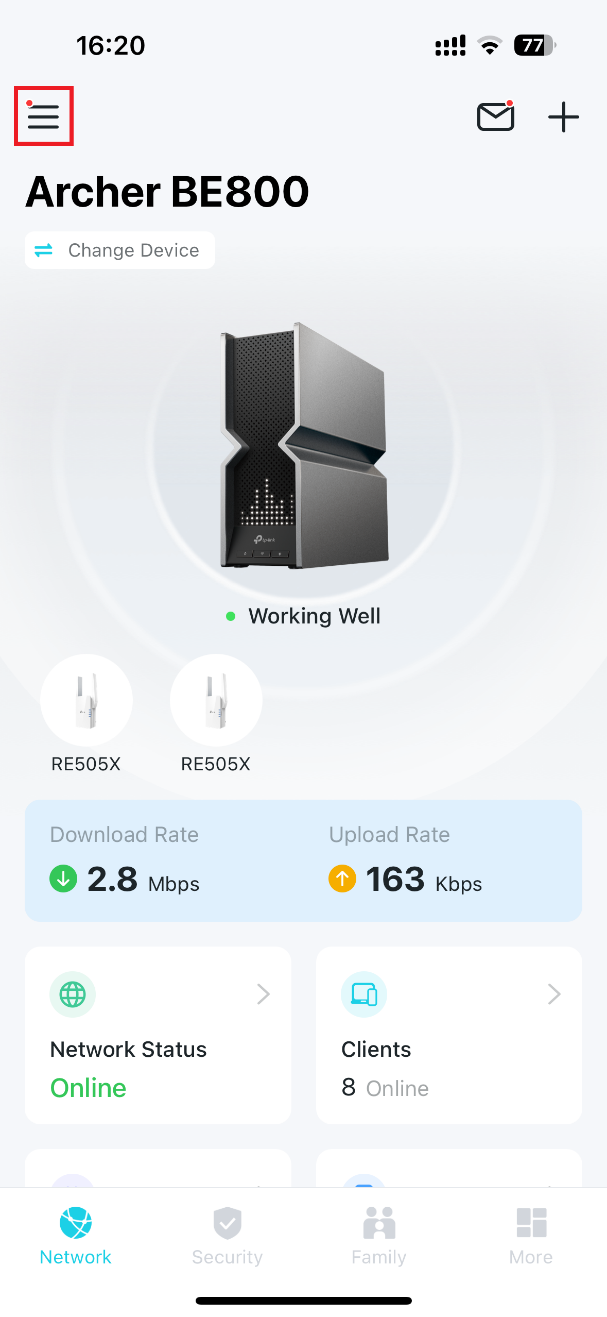
1. Open the Tether app on your phone, then tap the ≡ (three-line) icon in the top-left to open the menu.
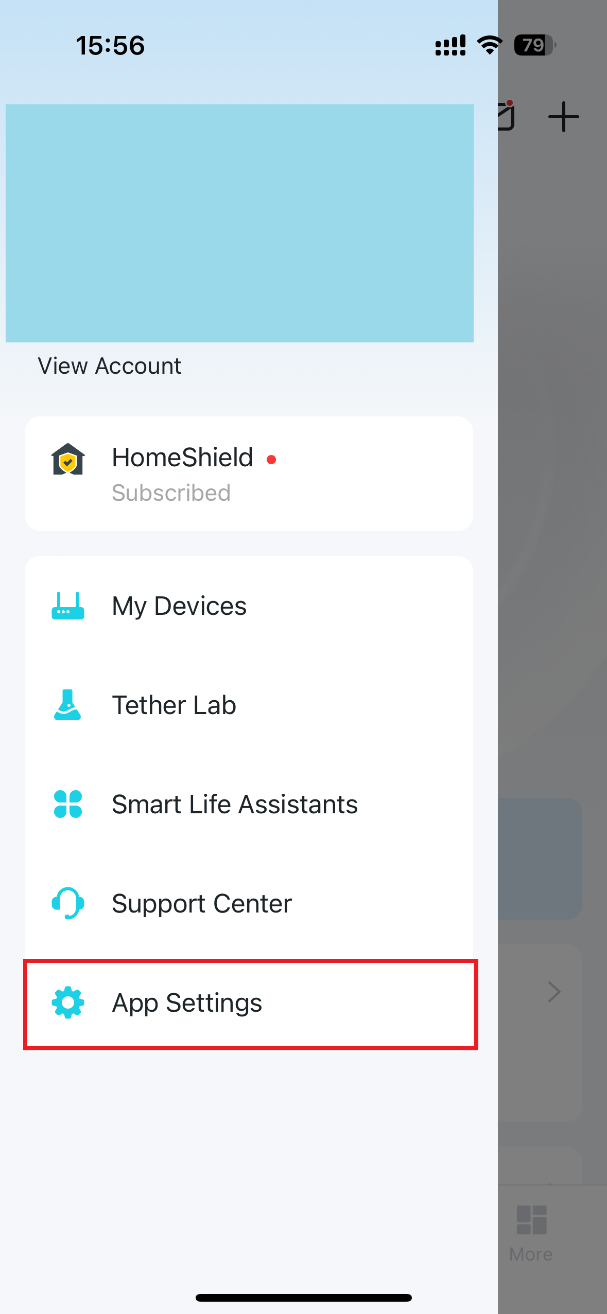
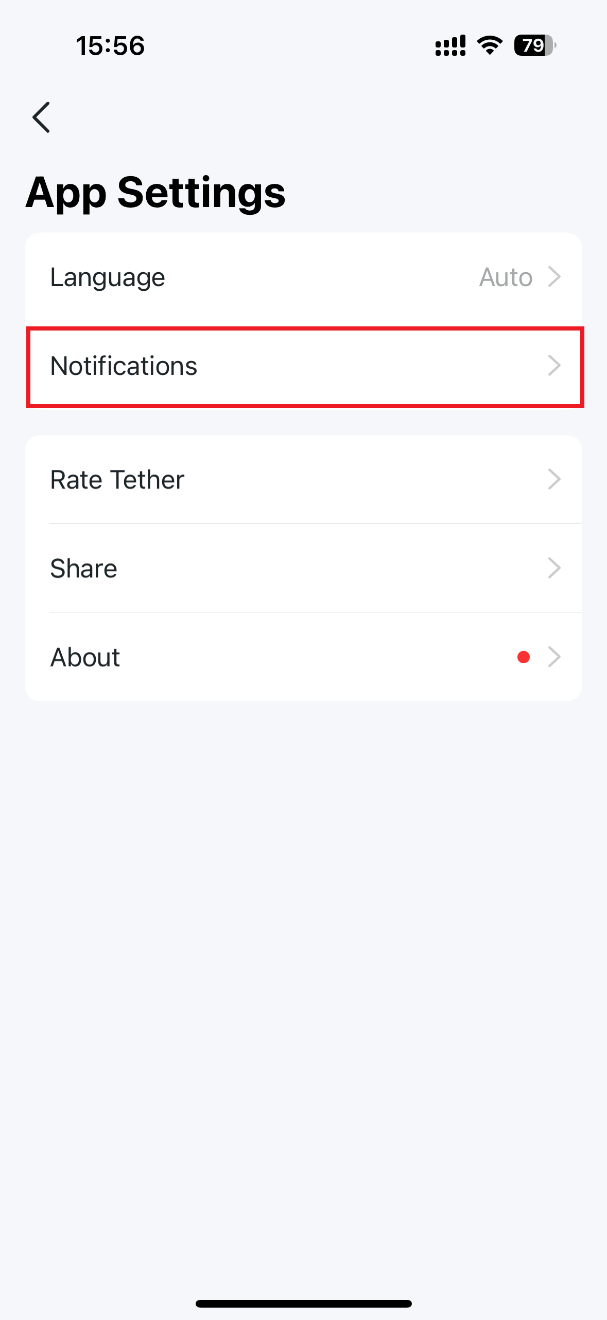
2. Go to App Settings > Notification, turn on the Notification toggle, enable New Device Alert, and tap Save in the top-right corner to apply the settings.
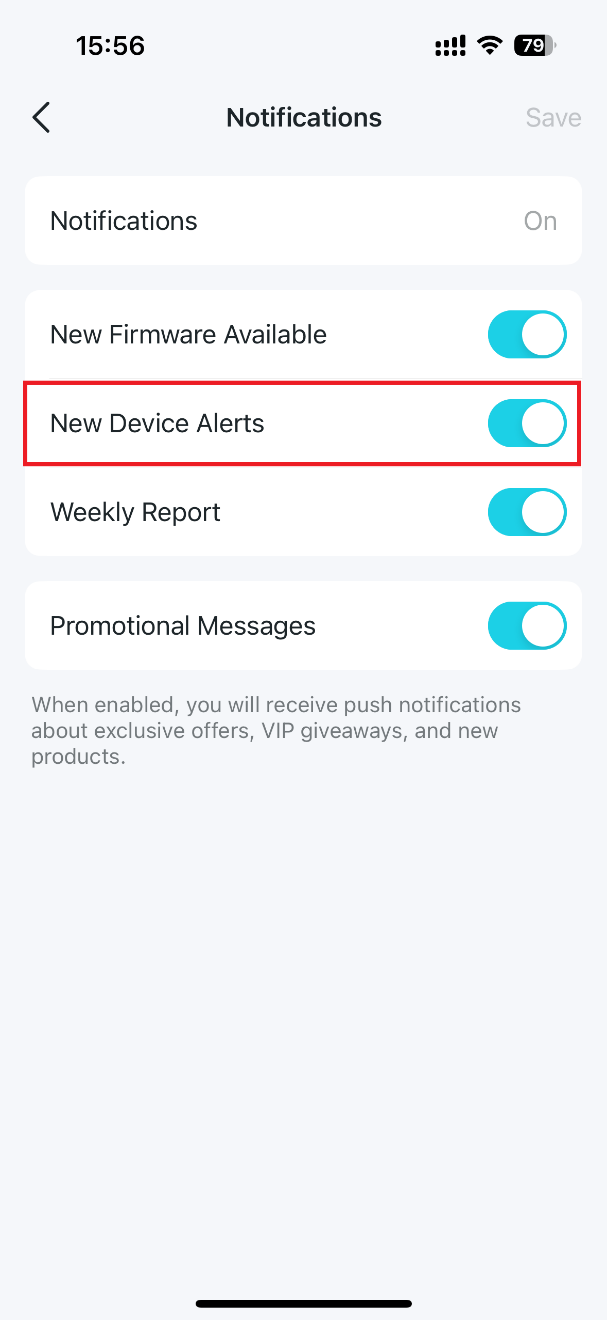
Once enabled, the Tether app will automatically notify you when a new device joins your Wi-Fi network.
To get to know more details of each function and configuration, please go to the Download Center to download the manual for your product.
Looking For More
Is this faq useful?
Your feedback helps improve this site.



TP-Link Community
Still need help? Search for answers, ask questions, and get help from TP-Link experts and other users around the world.