
How to set up QoS using TP-Link Wi-Fi Router
The QoS (Quality of Service) feature allows you to prioritize the internet traffic of specific devices to guarantee a faster connection when you need it the most. The router has preset an appropriate bandwidth allocation policy, so you don’t need to set different priorities for all devices. Simply set the desired device to High Priority and set how long you want it to remain in high priority, then the device will be allocated with more bandwidth when the network is overloaded.
Case 1. If your TP-Link Wi-Fi router supports the HomeShield function
Please refer to Scenario 10: QoS on the FAQ How to configure the HomeShield QoS feature on a TP-Link Router
You can refer to the bottom of the HomeShield Support Model to verify your model's compatibility.
Case 2. If your TP-Link Wi-Fi router supports the HomeCare function
You can refer to the bottom of the HomeCare Support Model to verify your model's compatibility.
Method 1: Via the Tether app
Different models have slightly different interfaces. Here we take Archer C5400 as an example.
Step 1. Open the TP-Link Tether app, and find the device card for your router under My Device.
Step 2. Tap on HomeCare at the bottom of the screen.
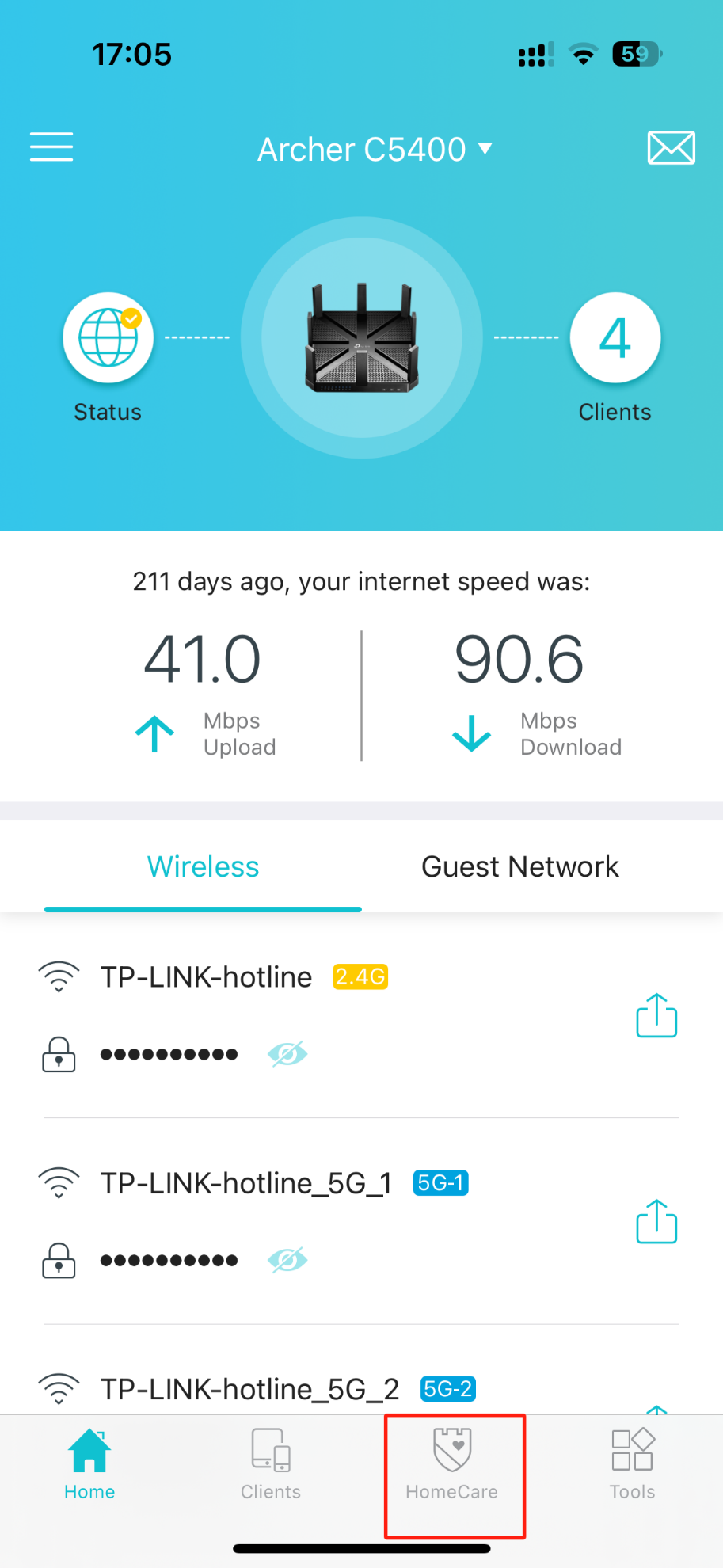
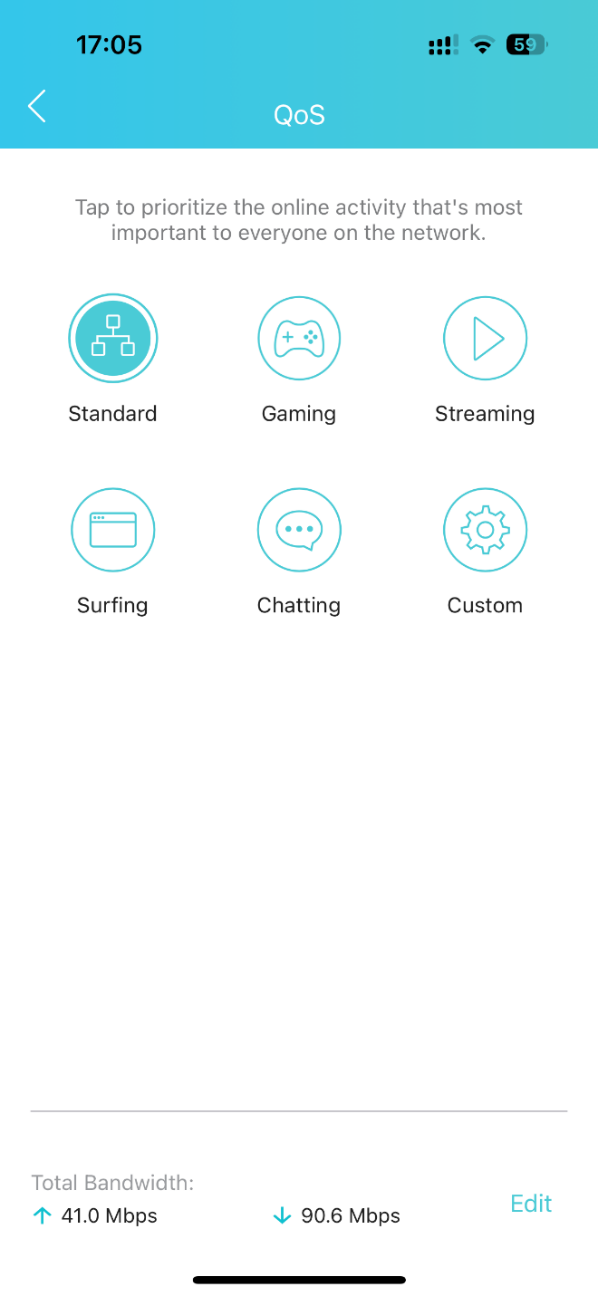
Step 3. Tap on QoS, and choose a preset filter or choose Custom.
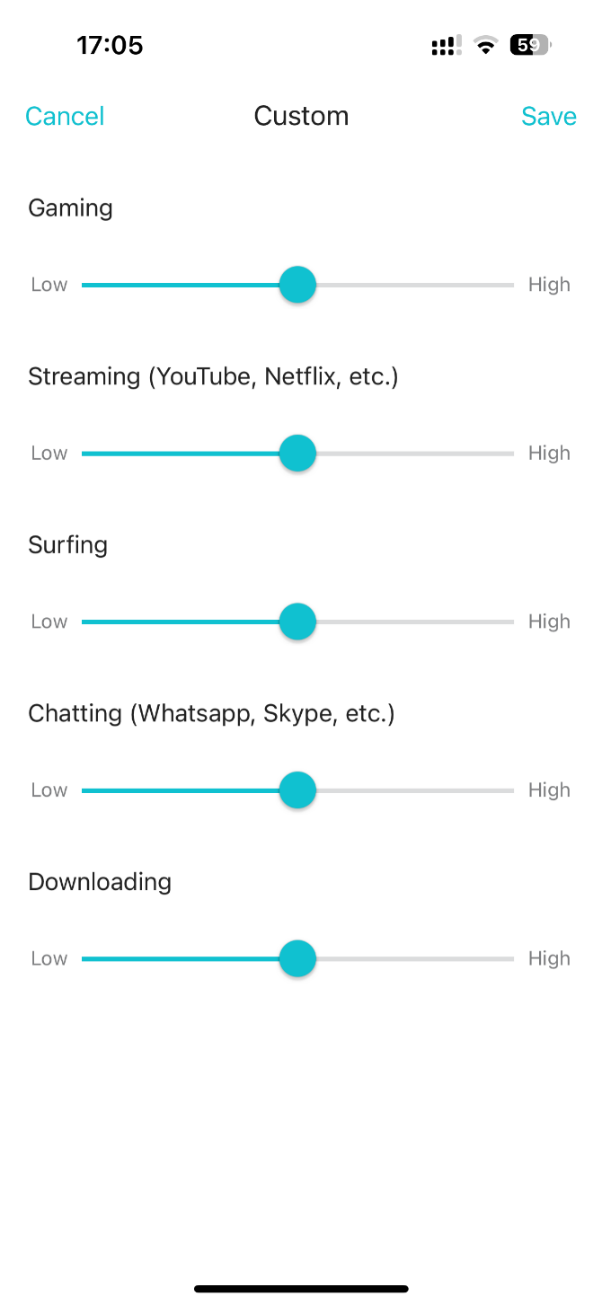
Step 4. If you chose “Custom,” you can move the sliders to your desired levels, then tap Save.
Method 2: Via the Web management page
Step 1. Log in to the web interface tplinkwifi.net of your TP-Link device by referring to How to Log in to Your TP-Link Router.
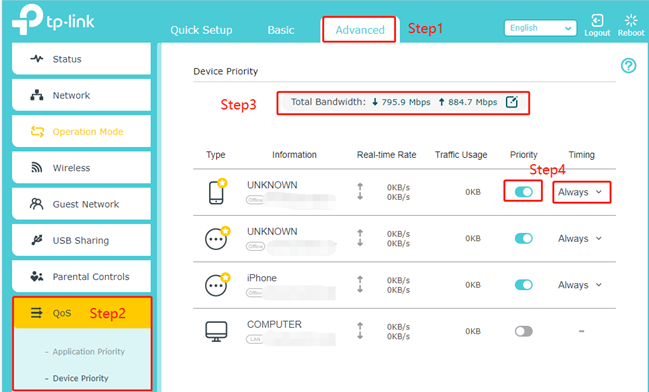
Step 2. Click on Advanced > QoS > Application Priority/Device Priority (Some models support only one of these options).
Step 3. Configure the QoS Settings.
Set high priority for applications
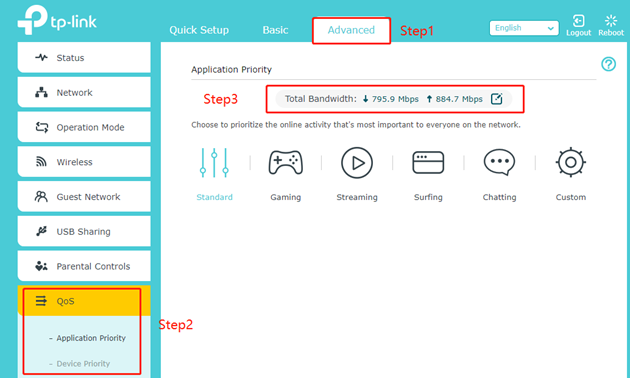
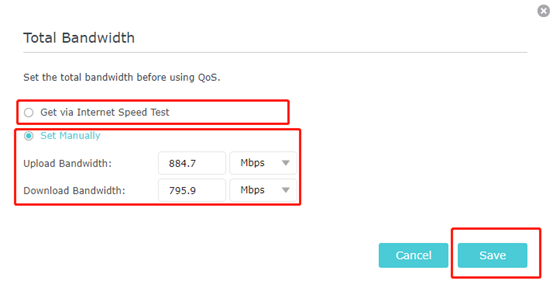
Click the edit button to set the total bandwidth for your Internet. The total bandwidth is the result of the Speed Test on our router. If it doesn’t match the bandwidth provided by your ISP, you can set it manually.
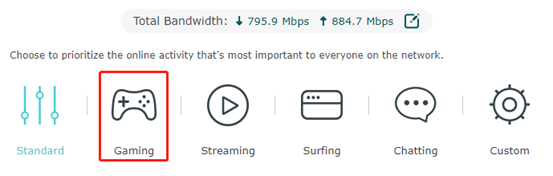
Choose an application priority according to your demand.
Set high priority for devices
Select the Device Priority in the QoS page, click the edit button to set the total bandwidth for your Internet. Toggle on Priority. Click the entry in the Timing column and select the time as the duration you want the device to be prioritized for.
Case 3. If your TP-Link Wi-Fi router doesn’t support either the HomeShield or the HomeCare function
Step 1. Log in to the web interface tplinkwifi.net of your TP-Link device by referring to How to Log in to Your TP-Link Router
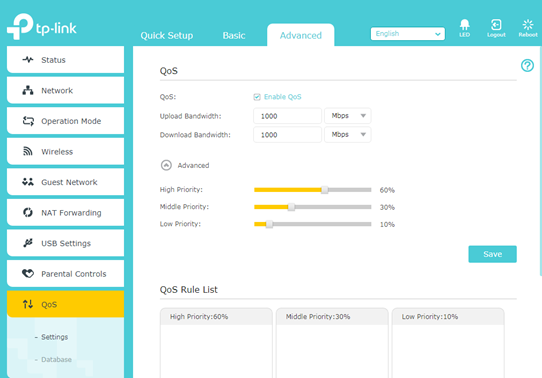
Step 2. Click on Advanced > QoS > Settings.
Step 3. Enable QoS, enter the upload and download bandwidth provided by your internet service provider.
Step 4. Click Advanced and drag the scroll bar to set the bandwidth priority percentage, then click on Save.
Step 5. Add a high-priority QoS rule for the phone and Click Ok.
1) Select By Device and then click View Existing Devices.
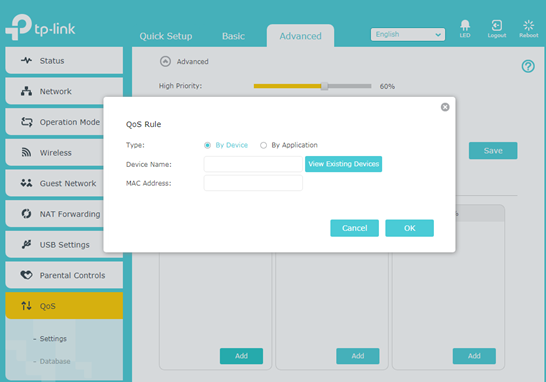
2) Choose the respective device from the list.
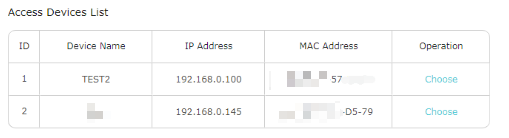
Step 6. Add a middle priority QoS rule for the Application.
Select By Application and then choose the Applications or custom Application and Click Ok.
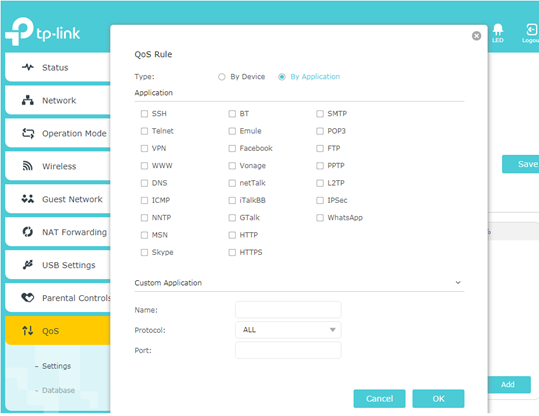
Done! Now QoS is implemented to prioritize internet traffic.
Is this faq useful?
Your feedback helps improve this site.

TP-Link Community
Still need help? Search for answers, ask questions, and get help from TP-Link experts and other users around the world.