USB vs PCIe Wi-Fi Card: How to Choose Between the Two
Your desktop PC needs Wi-Fi, and you've narrowed it down to two options: a USB Wi-Fi adapter or a PCIe Wi-Fi card. One plugs into an external port on your computer and the other installs inside the case.
That physical difference is the starting point for the USB vs PCIe Wi-Fi decision, but it isn't the whole story. Setup effort, speed, stability, and cost all play a role, too. A comparison table is coming up shortly for a quick side-by-side view.
This guide breaks down both formats in plain language for gaming PCs, home office desktops, and laptops that could use a boost. For laptops specifically, USB is the only option, since they don't have the internal slot a PCIe card needs.
Key Takeaways
- A USB Wi-Fi adapter plugs into an external port while a PCIe Wi-Fi card installs inside the case and connects directly to the motherboard.
- Wi-Fi generation matters more than the format you choose. A newer USB adapter with Wi-Fi 7 can outperform an older PCIe card built on an earlier standard.
- PCIe cards offer more consistent stability because they don't compete with other active USB devices for bandwidth, which affects reliability more than top speed.
- Before buying a PCIe card, confirm your desktop has a free PCIe slot available. Without one, a USB adapter is your only option.
- USB adapters are the simpler, more portable choice, while PCIe cards suit desktop users who want a permanent, dedicated connection.
What Is a USB Wi-Fi Adapter?
A USB Wi-Fi adapter is a small device that plugs into your computer's USB port to give it wireless Internet access. It's sometimes called a "Wi-Fi dongle," an informal name for the same device.
You plug it into an available USB port on the outside of your computer, so there's no need to open the case. USB 3.0 ports handle data noticeably faster than older USB 2.0 ports, which helps a Wi-Fi 7 adapter perform closer to its potential. Wi-Fi generations are numbered standards, and 7 is the current one.
Day to day, a USB Wi-Fi adapter is about as simple as networking hardware gets. Install the driver, plug it in, and you're online. Because it's external, you can also move it between different PCs whenever you need Wi-Fi somewhere else.
USB Wi-Fi Adapter Pros and Cons
The appeal of a USB adapter comes down to convenience: easy setup and the ability to move it between computers without tools. The tradeoffs are physical. The antenna sits at the back of a metal PC case, which can affect signal reception, and the adapter occupies a port you might want for something else. Most USB Wi-Fi adapters also don't include Bluetooth.
What Is a PCIe Wi-Fi Card?
A PCIe Wi-Fi card is a wireless networking card that installs directly into a desktop motherboard, connecting through the same interface used for graphics cards and other internal components. It's sometimes called simply a "Wi-Fi card."
Installing one means opening the computer case and seating the card into a free motherboard slot, then closing the case back up. Most PCIe Wi-Fi cards use a PCIe x1 slot, the smallest and most common expansion slot on a desktop motherboard. Before you buy, confirm your motherboard has one free. Without it, a PCIe card won't fit, and a USB adapter becomes your only path forward.
Once installed, a PCIe card stays fixed to that one PC. You won't move it between computers the way you would a USB adapter. In exchange, it doesn't occupy an external port once it's in place. Many PCIe Wi-Fi cards also include Bluetooth, which lets you connect wireless peripherals like keyboards, headphones, and game controllers without a separate Bluetooth adapter.
PCIe Wi-Fi Card Pros and Cons
A PCIe card's main advantage is stronger, more stable performance since it connects directly to the motherboard. The tradeoffs are the install effort of opening the case and the fact that it only works with the one desktop it's installed in.
You'll also need a free PCIe slot, and low-profile or small form factor cases may not have room for the card or its bracket. Weighing these USB vs PCIe Wi-Fi adapter pros and cons side by side is the fastest way to see which trade-offs matter for your setup.
Key Differences Between USB and PCIe Wi-Fi
When it comes to PCIe vs USB Wi-Fi adapter choices, the two formats differ most in setup effort, stability, cost, and speed, roughly in that order for most buyers. Speed comes last on purpose, since format alone usually isn't what makes a connection fast or slow.
PCIe Wi-Fi Card vs USB: Speed and Performance
Wi-Fi generation, antenna design, and port version play the biggest role in speed, not simply whether the adapter is USB or PCIe. A newer, higher-generation USB adapter can outperform an older, lower-generation PCIe card. Check the Wi-Fi standard first if speed is your priority.
Where PCIe has a real advantage is consistency. A direct motherboard connection means it doesn't compete with other active USB devices for bandwidth, which helps with stability rather than raw top speed. Picture a video call that stutters because an external hard drive and a webcam are pulling from the same USB controller at once. A PCIe card sidesteps that particular bottleneck entirely.
PCIe Wi-Fi Card vs USB Wi-Fi Adapter: Installation and Setup
Installing a USB adapter is straightforward: plug it into a port, install the driver, and connect to your network. A PCIe card takes more steps. You'll power down the PC, open the case, seat the card into a free slot, close the case, then install the driver.
If opening your case feels intimidating, it's a legitimate reason to lean toward a USB. A USB adapter gets you a working Wi-Fi connection without ever touching the inside of your computer, which makes it the simpler starting point if you're less hands-on.
Once either option is installed, you might want to fine-tune performance. TP-Link's guide to improving wireless adapter speed covers steps that apply to both USB adapters and PCIe cards.
USB vs PCIe Wi-Fi at a Glance
The table below recaps the factors covered above, plus two considerations specific to PCIe cards: Bluetooth support and portability between machines.
|
Factor |
USB Wi-Fi Adapter |
PCIe Wi-Fi Card |
|
Setup Effort |
Plug in and install the driver, no case-opening |
Requires opening the case and a free PCIe slot |
|
Stability |
Can share bandwidth with other active USB devices |
Direct motherboard connection avoids USB bandwidth sharing |
|
Speed |
Set by Wi-Fi generation and antenna design, not format |
Set by Wi-Fi generation and antenna design, not format |
|
Bluetooth Included |
Not included |
Often included on select models |
|
Portability Between Machines |
Moves easily between PCs |
Fixed to the desktop it's installed in |
How to Choose Between a Wi-Fi Adapter and a PCIe Card
The right choice depends on how you use your PC and what kind of setup you have: gaming, everyday use, a laptop, or a desktop tower. If you're working with a laptop, USB is your only option, since there's no internal slot for a PCIe card. If your case is full or hard to access, that can settle the decision on its own. A PCIe card needs an open case and a free slot, while a USB adapter just needs one open port.
Best for Gaming
Are USB Wi-Fi adapters good for gaming? For most setups, yes. Most gaming latency comes from distance to the router, interference, or the router itself, not from whether your adapter is USB or PCIe.
PCIe does have one real, narrower advantage: it doesn't compete with other USB peripherals for bandwidth, which can help if you have several USB devices connected at once. For most gamers, a good USB adapter is enough. PCIe is only worth prioritizing if USB bandwidth congestion is a specific, known issue in your setup.
Best for Everyday Browsing and Streaming
For everyday browsing, streaming, and general use, either format works well. These activities rarely push bandwidth or latency hard enough for the USB vs PCIe difference to matter. A USB adapter's simpler setup makes it the practical default here.
Best for Working From Home or Video Calls
If dropped calls or buffering during video calls have been a frustration, check your router's placement and signal strength first, since that's the more common cause than the adapter. A PCIe card's direct motherboard connection can help since it isn't competing with other USB-connected devices for bandwidth. That said, a well-placed USB adapter is often enough for calls and browsing. PCIe's added stability matters most when several USB devices are connected and active at the same time.
TP-Link Wi-Fi Adapters and PCIe Cards
TP-Link has both USB Wi-Fi adapters and PCIe Wi-Fi cards, giving you options across both formats depending on which fits your setup.
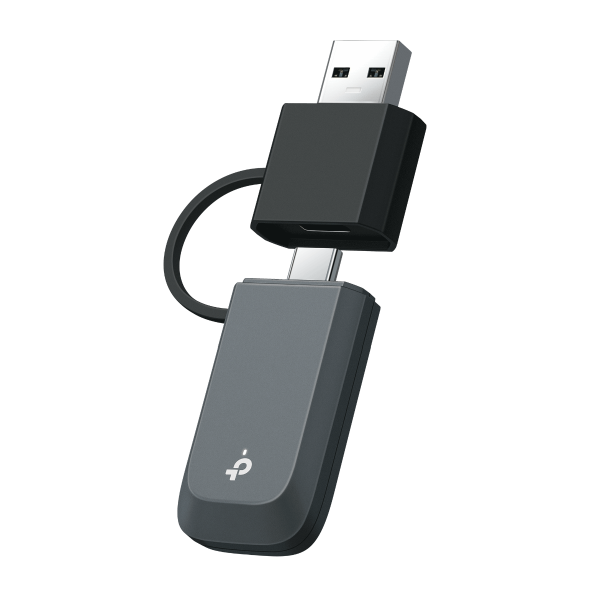
On the USB side, the Archer TBE400U is a compact Wi-Fi 7 adapter with a dual-port design that switches between USB-C and USB-A, so it fits a wide range of computers. For setups where signal reach matters more, the Archer TBE401UH pairs Wi-Fi 7 with high-gain antennas and a detachable cradle, positioning the adapter away from the back of the case for better reception.
On the PCIe side, the Archer TBE400E is a solid standard pick: a Wi-Fi 7 card (BE6500) with Bluetooth 5.4 that ships with both a standard and low-profile bracket, fitting smaller desktop cases. The Archer TBE550E steps up in speed tier (BE9300), thanks to a wider 6 GHz channel, and includes the same low-profile bracket, Bluetooth 5.4, plus an external antenna base for flexible desk placement.
Find the Right Fit for Your Desktop
USB and PCIe adapters are two ways to get Wi-Fi for a PC. The right pick depends on your setup, not on which format sounds more advanced. A USB adapter gives you simple, portable Wi-Fi with no case-opening required. A PCIe card offers a stable, dedicated connection for desktops with a free slot and a little more patience for setup.
Whichever direction works best for your PC, check the Wi-Fi standard before you buy. That detail is most likely to affect your actual speed. Explore TP-Link's USB adapters and PCIe adapters to compare the full lineup, or learn more about Wi-Fi 7 technology powering these newer models.
Frequently Asked Questions
Is a PCIe Wi-Fi card faster than a USB Wi-Fi adapter?
Not necessarily. Speed depends more on the model's Wi-Fi generation and antenna quality than on the format itself. Look up the specific model's specs rather than assuming PCIe automatically wins.
Do USB Wi-Fi adapters work well for gaming?
Yes, in most cases. Gaming lag usually comes down to your router's placement or nearby wireless interference, not the adapter itself. A solid USB adapter handles typical gaming setups without issue.
Can I add Wi-Fi to a desktop PC without opening the case?
Yes. A USB Wi-Fi adapter plugs into an external port and doesn't require opening the case. It's the simpler option if you'd rather not work inside your PC.
What is a Wi-Fi dongle, and is it the same as a Wi-Fi adapter?
Yes, a Wi-Fi dongle and a USB Wi-Fi adapter are the same device, just two names for it. Retailers and reviewers use both terms interchangeably, so searching for either one turns up the same category of product. A PCIe Wi-Fi card is a different product line, not another name for the same thing.
Do I need a PCIe Wi-Fi card if my motherboard doesn't have built-in Wi-Fi?
You'll need either a PCIe Wi-Fi card or a USB Wi-Fi adapter, since most motherboards don't come with Wi-Fi built in. Which one you pick comes down to your setup, not a hard requirement for PCIe.
Is a PCIe Wi-Fi card worth the extra money?
That depends on your priorities. A PCIe card earns its price if you want steady, direct performance and possibly built-in Bluetooth. If you'd rather keep things simple and portable, a USB adapter is the better value.
Can I use a USB Wi-Fi adapter and a PCIe card at the same time?
Technically, yes, though it's rarely necessary. Running both adds complexity without much benefit, since your computer typically only uses one active Wi-Fi connection at a time.