Powerline Adapter Setup: From Unboxing to Connected
Powerline adapter setup takes just a few minutes, and you don’t need to be an IT expert. A powerline adapter sends a wired Internet connection through your home's existing electrical wiring. Without replacing your router, you can stop relying on a weak Wi-Fi signal in your home office, or solve a stubborn dead zone in the perfect room for gaming.
This guide covers how to set up a powerline adapter, from unboxing to a working connection, plus troubleshooting and adding more adapters later.
Key Takeaways
- Powerline adapter setup uses your home's electrical wiring. It carries a wired Internet connection into a room with weak Wi-Fi, over your existing wiring.
- A basic kit includes everything you need: two adapters, an Ethernet cable, and a quick start guide, so you can set up right away.
- Place one adapter near your router, and the other in the target room. Plug the first adapter into an outlet near your router, and connect it via Ethernet. Plug the second adapter into an outlet in the room that needs a wired connection.
- Use the pair buttons to connect the two adapters. LED status indicators tell you when it’s connected.
What's in the Box
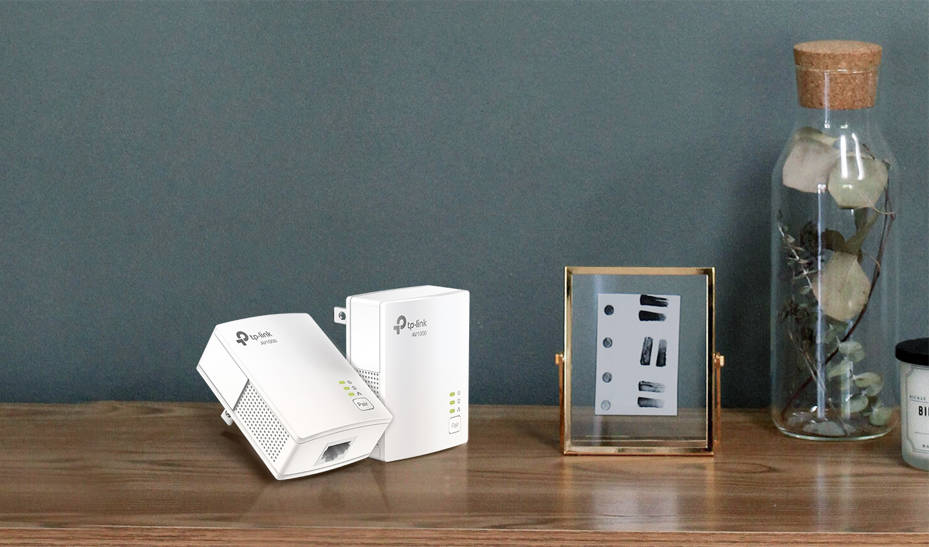
TP-Link powerline adapter kit setup starts with what's already in the box. A basic kit includes two adapters, one or two Ethernet cables, and a quick start guide. One adapter connects to your router, and the other goes in the room where you want a wired connection.
Some kits include more than two adapters for covering extra rooms. Others come with a Wi-Fi-enabled adapter that broadcasts its own Wi-Fi signal, acting as an extra access point in that room.
Understanding Your Powerline Adapter's Parts and LEDs
A powerline adapter setup diagram makes it easier to see how the pieces fit together. Each part plays a role in how powerline adapters work.
- The power LED confirms the adapter is getting electricity, and a solid light usually means it's ready.
- The pairing LED shows whether two adapters are linked. For most models, the LED blinks while it’s actively trying to connect, and holds steady when successfully paired.
- Ethernet ports hold the cables that connect adapters to your router and your device in the target room.
- One pair button on each adapter links the adapters, so they can share data through your wiring.
Some adapters also include a passthrough outlet, so adding powerline doesn’t stop you from using the wall socket to power your router or other nearby electronics. All of this runs through your home's electrical wiring.
Because LED colors and blink patterns differ by model, check your model's guide to confirm what each light status means.
How to Set Up a Powerline Adapter
Powerline Ethernet adapter setup follows the same five steps on almost any model. Work through them in order, and you'll have a wired connection running in a few minutes.
- Plug the first adapter into a wall outlet. Choose an outlet close to your router. Plug the adapter straight into the wall, not a power strip or surge protector, since those can weaken the signal.
- Connect the adapter to your router. Run an Ethernet cable from the adapter to a free port on your router. The network LED will light up to confirm the connection.
- Plug in the second adapter. Choose a wall outlet in the room where you want a wired connection.
- Pair the two adapters. Press the pair button on each unit so they recognize each other. Most adapters use the same basic timing: hold the button for about a second, then press the second adapter's button within two minutes. Some older models need a longer hold, from three to eight seconds, so check your model's guide if the standard timing doesn't work. Watch the pairing LED to confirm the link, and see TP-Link's guide to pairing and securing your powerline network if they won't connect.
- Connect your device. Run an Ethernet cable from the second adapter to your computer, game console, or streaming device. Your device can now get online through the wired link.
Adding More Adapters to Your Network
One powerline adapter connected to your router can pair with multiple adapters in different rooms. If you want a wired connection for a gaming setup in the basement, the desktop in your office, and a security camera in the garage, simply add more units to the network. Each new adapter joins using the same pairing process you already know, so there's no need to start over. To bring a new unit online, follow TP-Link's steps for adding an extra powerline adapter with the pair button.
Be sure to check how many adapters your network can support before you plan your expansion.
Troubleshooting Common Setup Issues
Most setup problems have simple fixes. If your adapters aren't cooperating, work through these common issues:
- Adapters won't pair. Try pressing the pair buttons again, and make sure both adapters are plugged directly into wall outlets, not a power strip.
- No LED activity. Confirm that the outlet has power by plugging in a different device to test it. If the outlet works, plug the adapter back in and make sure it’s fully inserted into the socket.
- The connection feels slow or drops. Powerline works best when both adapters share the same electrical panel, ideally on the same phase. Older or damaged wiring can also affect performance. Try moving one to a different outlet.
If a new adapter won't join at all, it's worth confirming powerline adapter compatibility, since mixing different standards can cause trouble. Most snags in a TP-Link powerline adapter setup come down to the outlet, the panel, or re-pairing the units, so they're usually easy to sort out.
Setting Up a Powerline Adapter for Gaming
Online gaming is where a wired connection often gives a noticeable improvement over Wi-Fi. If you’re experiencing lag and dropped connections at the worst moments, a powerline adapter gaming setup is a straightforward fix. The powerline link gives your console a steadier, lower-latency path than Wi-Fi, without running Ethernet cables across the house.
To set up a powerline adapter for gaming, plug one adapter into an outlet near your router. Connect the adapter to the router with an Ethernet cable. Plug a second adapter into an outlet close to your game console, then pair the two adapters. Use an Ethernet cable to connect your console to the second adapter. Skip the power strips and plug both adapters directly into wall outlets.
Put Your Powerline Adapter to Work
Powerline adapter setup is simple: plug in, pair, and connect. Once the LEDs confirm the pairing, that dead zone upstairs, lagging TV room, or spotty office connection has a stable wired link.
If you're still choosing a kit, explore TP-Link's powerline adapter lineup to find solutions that fit your home.
Frequently Asked Questions
How long does it take to set up a powerline adapter?
Most people finish in under ten minutes. Once the pairing LED confirms a connection, your wired network is live and ready to use.
Why won't my powerline adapters pair?
Usually it's an outlet or placement issue. Powerline adapters work best when they share the same electrical panel, and pairing gets much less reliable across separate panels, even when both are wired to a common point. Damaged or older wiring can also get in the way.
Can I use a powerline adapter with a power strip or surge protector?
It's best not to. Surge protectors filter electrical noise, which is the same signal your powerline adapters use to communicate, so they can cut your speeds or block the connection. Plug each adapter straight into a wall outlet instead. If you need the outlet for something else, look for an adapter with a passthrough socket.
How many powerline adapters can I add to one network?
Most powerline networks support several adapters on the same wiring, though the exact number depends on the model. In a typical home, you can add adapters for a few extra rooms without trouble. Check your model's details for its specific limit.
Is a powerline adapter good for gaming?
Yes, it's a strong choice for gaming. A wired powerline connection is generally steadier and lower in latency than Wi-Fi, which helps with lag and dropped signals. Run an Ethernet cable from the adapter to your console for a more consistent connection.