
How to Fix a Slow TP-Link Wireless Adapter
If your TP-Link wireless adapter is getting slower speeds than other devices on the same network, several factors could be affecting its performance. This guide covers six common causes and how to address each one: the adapter's physical location, interference from other devices, association speed between the adapter and router, driver version, computer software, and router firmware.
Key Takeaways
- Wireless adapter speed is affected by six factors: the adapter's physical location, interference from other devices, the association speed between the adapter and router, the driver version, the computer's software, and the router's firmware.
- Physical obstacles like walls and metal materials reduce the wireless signal. Keeping the path between the router and the TP-Link wireless adapter as clear as possible improves performance.
- Antenna positioning matters: placing antennas at 45 degrees (diagonally) or 0 degrees (parallel to the floor) produces a stronger signal than vertical positioning.
- The 2.4 GHz band is more congested than the 5 GHz. Switching to 5 GHz is recommended for better speeds when available.
- Some anti-virus or network management software, such as SmartByte or Avast, can significantly reduce download speeds. Temporarily uninstalling them helps diagnose whether the software is the cause.
- Download speed on 5 GHz is typically around 50% of the wireless association speed. On 2.4 GHz, it is around 30–50% of the wireless link speed.
Six factors to Improve Speed
I. The Location of the Adapter
1). The Distance and Obstacles Between Adapter and Router
As we know, each wall or ceiling can affect wireless radio, particularly those built with solid metal. So, please keep the path between the wireless router and the TP-Link adapter as clear as possible.
2) Antenna Direction and Angle on TP-Link Wireless Adapter and Main Router
Antennas on wireless devices are used to receive and send wireless signals. To achieve a stronger wireless signal, we recommend placing the antennas at 45 degrees (diagonally) or 0 degrees (straight out parallel to the floor), as these angles are more effective.
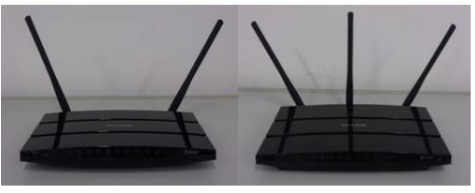
Note: for PCIE adapters, please take the location of the computer main board into consideration, and make sure the computer main board does not interfere with the transmission of the antenna on TP-Link wireless adapters.
II. Interference from Other Devices (2.4 GHz)
Nowadays, more and more network devices use the 2.4 GHz frequency to transmit signals, and various electromagnetic devices operate at 2.4 GHz, making the band too congested to reliably convey signals. We suggest that our customers use the 5 GHz frequency for network activities to achieve the best network experience.
III. The Association Speed Between the Adapter and the Router
Slow association speed will affect the internet speed as well. According to the working features on Wi-Fi, normally the download speed of 5 GHz would be around 50% of wireless association speed, and the download speed of 2.4 GHz would be around 30% - 50% of wireless link speed.
To ensure your TP-Link wireless adapter achieves better speeds, we need to set the wireless association speed to the highest value. Please change the wireless channel and channel bandwidth of your router. Different channels will have different performances. The more crowded the channel is, the poorer the performance it will get. Channel Bandwidth is also important to the wireless connection; make sure it is set to the best or biggest value for your router.
IV. The Driver of the Adapter
Our TP-Link team always releases new drivers for our wireless adapters to improve performance when issues are found and need to be resolved. To improve performance and reliability, please update the wireless adapter’s driver to the latest version released by TP-Link. You can download the latest driver from the TP-Link Download Center.
V. The Computer Itself
In our experience, some anti-virus software installed on the computer would have a great impact on the download speed of the adapter, such as SmartByte, Avast and so on. Please uninstall these types of software temporarily to test the download speed.
VI. The Firmware of the Router
Please do the comparison test using your other wireless devices in the same location as the TP-Link wireless adapter. If they all have the same speed as the TP-Link adapter, please make sure your router is running the latest firmware. You may also contact your router manufacturer's support team for further help.
Please contactTP-Link support with the following information after trying the above solutions, but all to no avail.
- The download speed on your other wireless devices in the same location as the TP-Link adapter
- The wireless association speed of the TP-Link adapter
- The driver version and computer system information
- The model number of your router
To learn more about each function and configuration, please visit the Download Center to download the manual for your product.
Looking For More
Is this faq useful?
Your feedback helps improve this site.



TP-Link Community
Still need help? Search for answers, ask questions, and get help from TP-Link experts and other users around the world.