
Kasa and Tapo Smart Devices Not Working with Alexa: Troubleshooting Guide
This page covers the most common issues when Tapo or Kasa smart devices aren't working with Alexa. It walks through five troubleshooting scenarios: unable to link, devices not discovered, live stream not working, device not responding to voice commands, and device not controllable in the Alexa app. This FAQ is for devices already added to the Tapo or Kasa app. If you use a Matter device, refer to Troubleshooting for Tapo/Kasa Matter configuration on Alexa.
Key Takeaways
- This page covers five common Alexa issues with Tapo and Kasa devices: unable to link, devices not discovered, live stream not working, device not responding to voice commands, and device not controllable in the Alexa app.
- If your Tapo or Kasa device won't connect to Alexa, open the Tapo or Kasa app, go to Me > Third-Party Services, and connect from there instead of through the Alexa app.
- If Alexa can't find your Tapo or Kasa devices, disable and re-enable the skill in the Alexa app, then say "Alexa, discover my devices."
- If your device is not responding to voice commands, ensure you are logged in to the primary Alexa account. Household accounts cannot control devices via voice.
Case 1: Unable to link with Alexa
1. Ensure your Tapo/Kasa and Alexa APP is up to date. It is recommended to try uninstalling and reinstalling the two apps that need to be lined up.
2. For Android phones, if you come to a web page instead of Alexa/Tapo/Kasa after starting the link procedure, please check your APP settings to be as below:
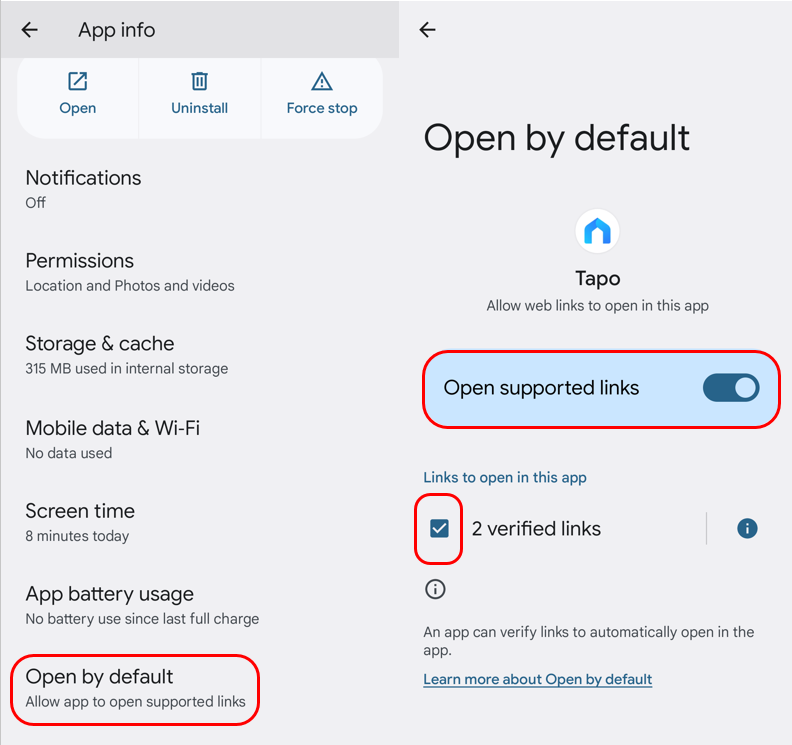
3. If you start the link in Alexa (enable the skill) but fail, please try to start the link in Tapo/Kasa APP > Me > Third-Party Services.
Note: The location of the Me button in the Tapo app may vary depending on the app version. It is located either in the bottom-right or top-left corner of the app.
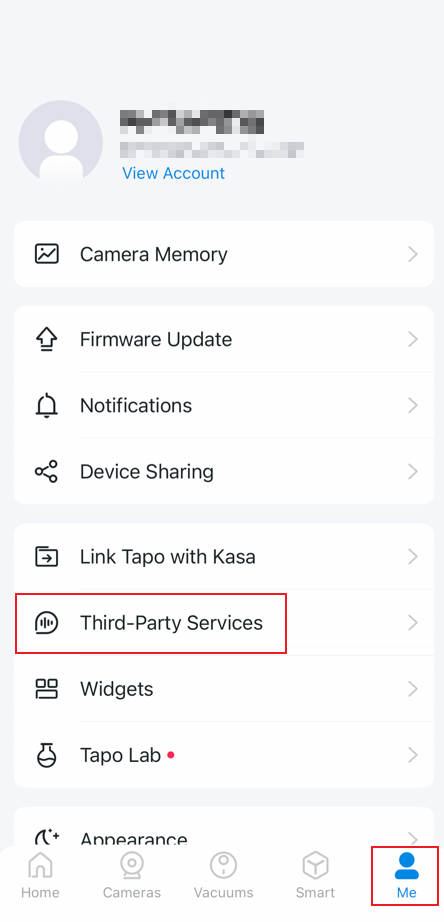 or
or 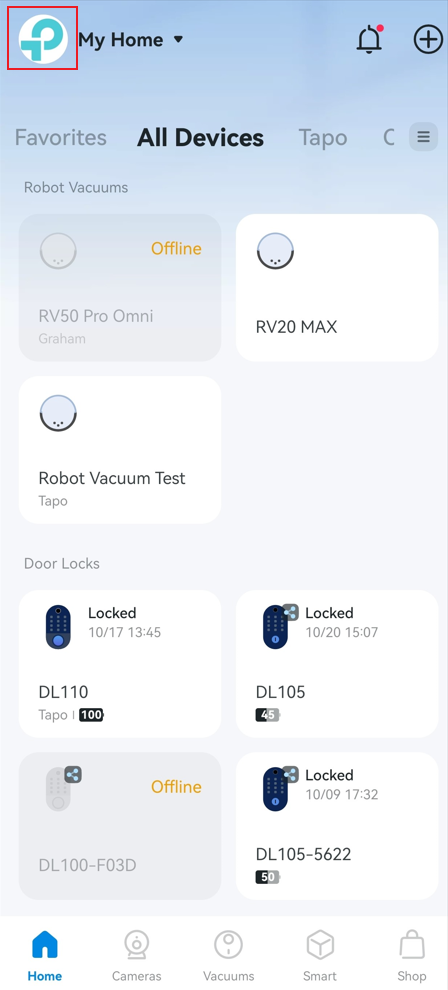
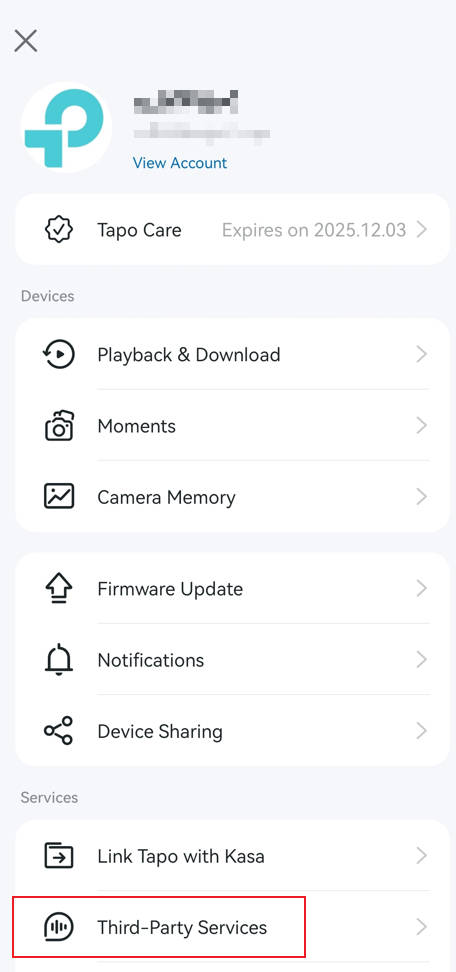
4. If you still can’t finish the link procedure, please contact TP-Link Technical Support and provide the exact time you failed to connect to Alexa.
Case 2: Cannot discover the device, or some devices do not show up on the Alexa app
1. Speak the voice command "discover my devices" to rediscover the device.
2. Disable and then re-enable the skill. Please refer to the steps below.
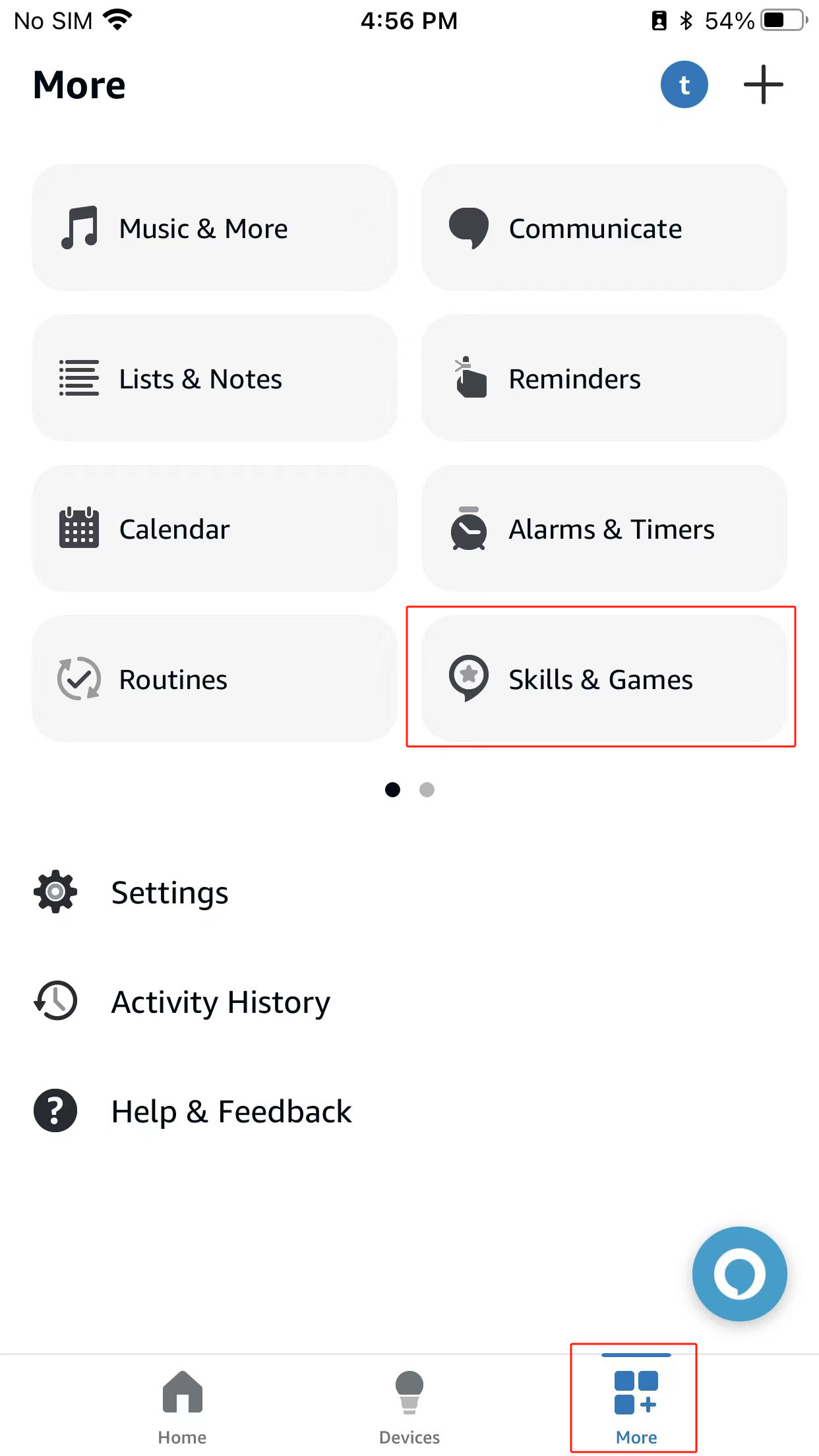
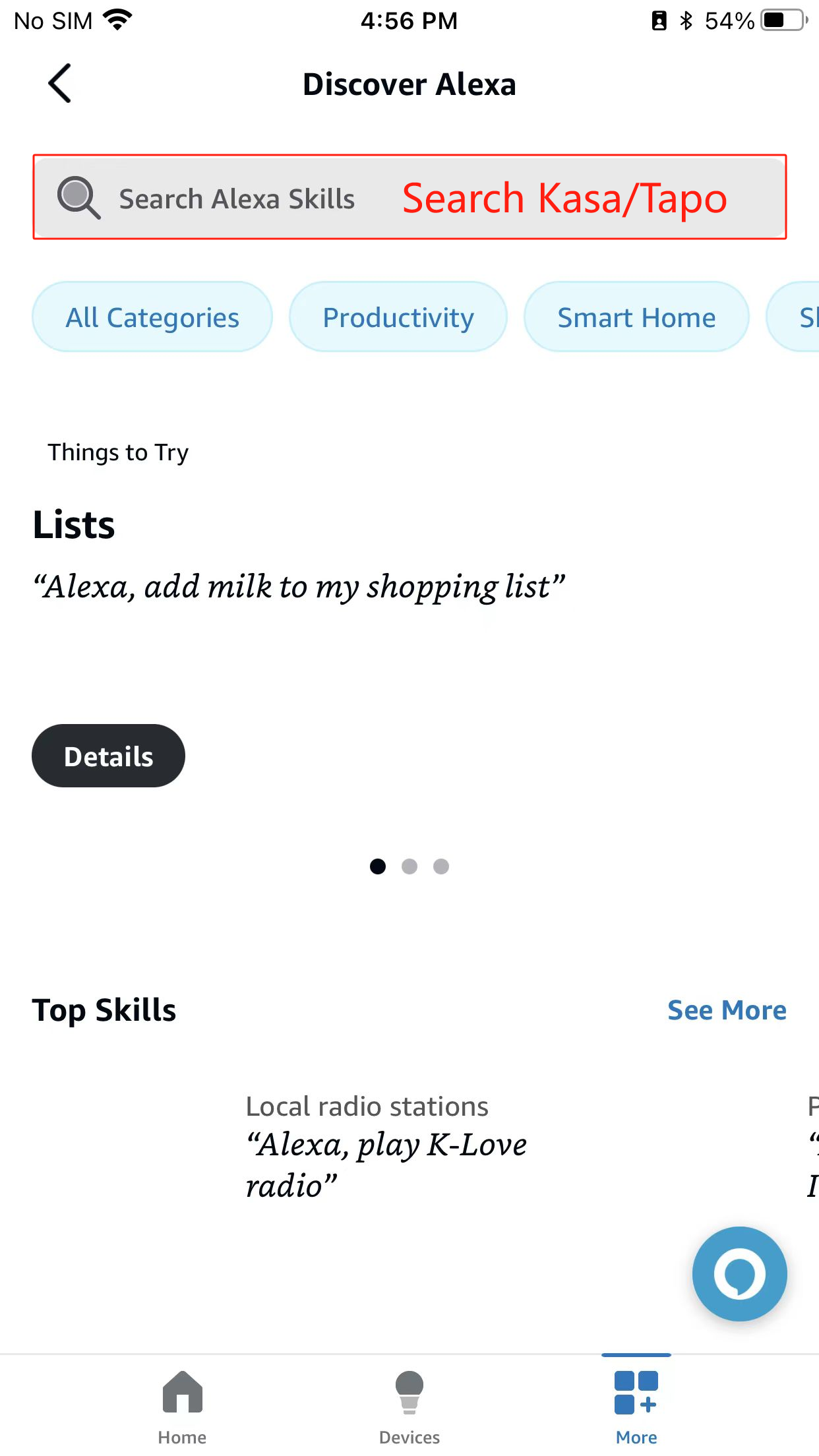
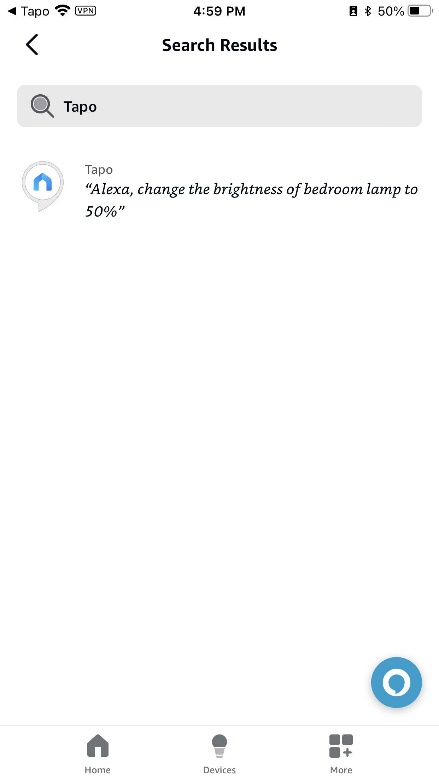
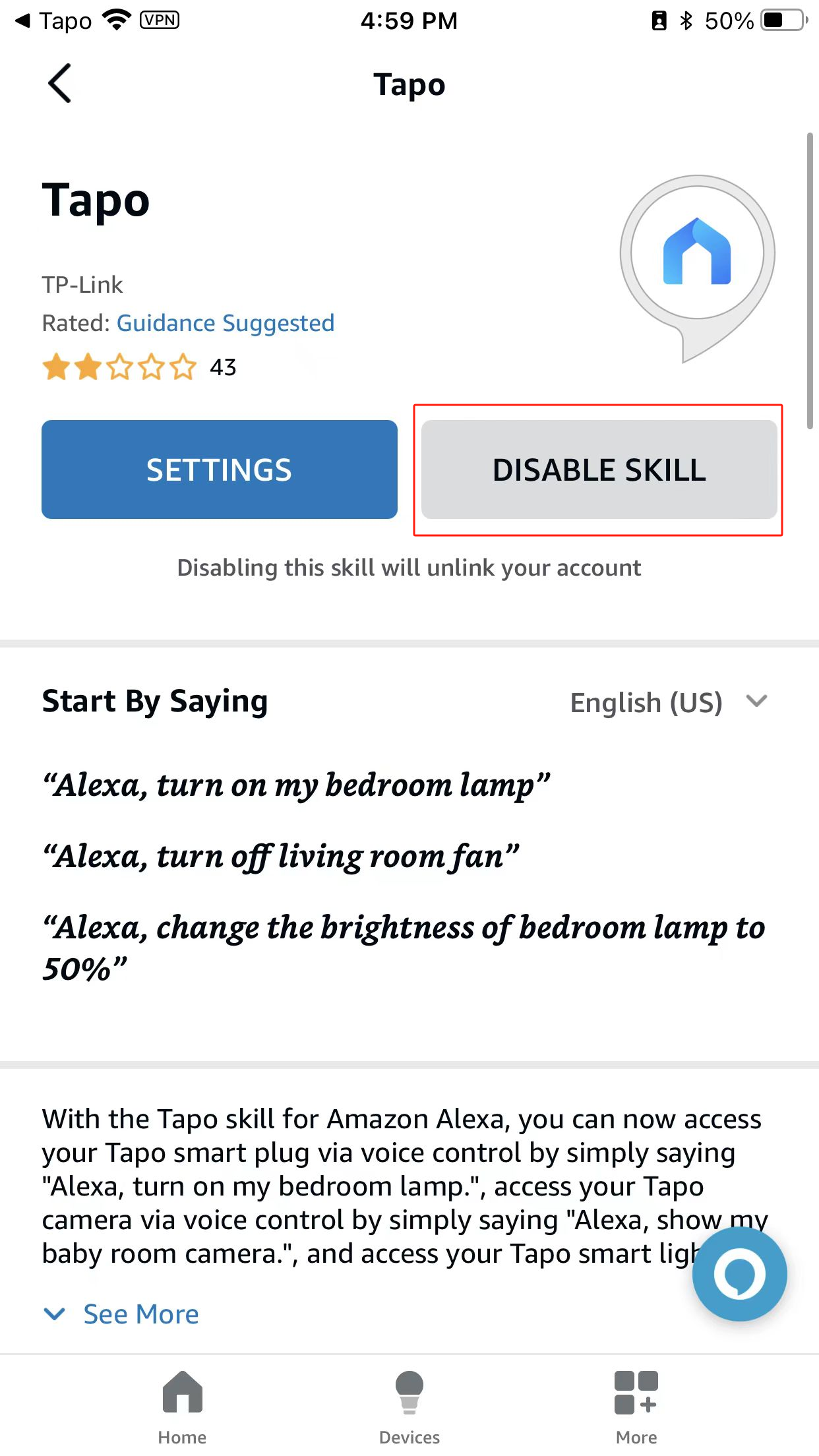
3. If the situaction is that your kasa device added to the Tapo app does not appear in Amzon Alexa after linking Tapo to Alexa, this is normal. Kasa devices will not appear when only the Tapo account is linked. To see them, also link your Kasa account in Amazon Alexa App.
4. Reset your Tapo/Kasa devices and reconfigure them in the Tapo/Kasa app.
How to reset Camera: Kasa | Tapo
How to reset Bulb: Kasa. | Tapo.
How to reset Plug: .Kasa | .Tapo
5. If your devices still can’t be discovered in the Alexa app, please record the time of your last attempt to discover devices and contact TP-Link technical support.
Case 3: Fail to watch live stream in the Alexa app/Echo Show
Note:Not all cameras support this feature.
1. Disable Wi-Fi on your phone, and check if you can access the device via cellular data on the Tapo/Kasa app. If not, please refer to Cannot view Tapo/Kasa Camera to troubleshoot.
2. If you can successfully access the device on the Tapo/Kasa app via cellular data, please record the time of the failed attempt and contact TP-Link Technical Support.
Case 4: Device is not responding to voice command
1. Check if you can manually control the device on the Alexa app. If not, please refer to How to Check and Fix an Unstable Tapo or Kasa Network Connection to troubleshoot.
2. Ensure that you logged in to the primary user account on the Alexa app. A Household account cannot control devices via voice commands. If you are unsure, use the voice command "Alexa, switch accounts" to switch accounts.
Case 5: Cannot control the device in the Alexa app
1. Disable Wi-Fi on your phone, and check if you can access the device via cellular data on the Tapo/Kasa app. If not, please refer to How to Check and Fix an Unstable Tapo or Kasa Network Connection to troubleshoot.
2. If you can successfully control the device on the Tapo/Kasa app via cellular data, please record the time of your last attempt to manage the device in Alexa and contact TP-Link technical support.
Looking For More
هل تجد هذه الأسئلة مفيدة؟
مشاركتك تساعدنا في تحسين الموقع


TP-Link Community
Still need help? Search for answers, ask questions, and get help from TP-Link experts and other users around the world.