
How to Test Your Deco Internet Speed
There are two ways to test your Deco internet speed, and which method you use depends on your model. Select Deco models support the built-in Test Internet Speed feature in the Deco app (Part 1). If your model does not include this feature, you can still run a manual Deco speed test using a computer and Speedtest.net (Part 2).
Key Takeaways
- The Test Internet Speed feature in the Deco app measures the speed that the main Deco unit receives from the modem. It does not measure the speed on a client device connected to the Deco. For more on why your device speed may differ from the app result, see Why is the actual wireless speed on my device lower than the Deco app speed result?
- The built-in speed test is powered by Speedtest® by Ookla. You must tap Continue on the Privacy Notice page to proceed, as Ookla may collect identifiable data such as your IP address during the test.
- Speed test results can vary based on network conditions, the test tool used, and environmental factors. If results appear slow, you can select a different test server in the app and retest. For broader troubleshooting help, see Troubleshooting Slow Internet Speed with Deco Devices.
- For Deco models that do not support the Test Internet Speed feature, you can connect a computer to the main Deco via Ethernet cable and visit www.speedtest.net or use the Speedtest app to test internet speed.
Part 1: How to Run the Test Internet Speed in the Deco App
Tap the Test Internet Speed feature on the Deco app to check the internet speed that the main Deco obtains from the front modem.
Note:
- The speed test result shows the speed that the main Deco gets from the modem, not the speed on the client connected to the Deco.
- The Test Internet Speed function depends on your Deco model and version. If your model supports it, you will see the corresponding option on the Deco’s network page.
- If you have multiple Deco models forming a mesh network together, the Test Internet Speed will only appear when the above Deco models are configured as the main Deco.
Here We Use Deco M5 as an Example
Launch the Deco app, and tap the Test Internet Speed feature on the Network page to test the speed that the main Deco obtains from the modem. Please tap Continue on the Privacy Notice page of the Speedtest® if you want to test the speed since this feature is powered by Speedtest®.
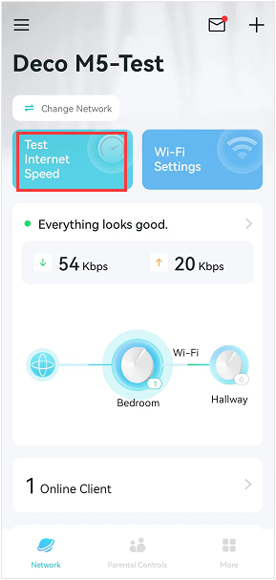
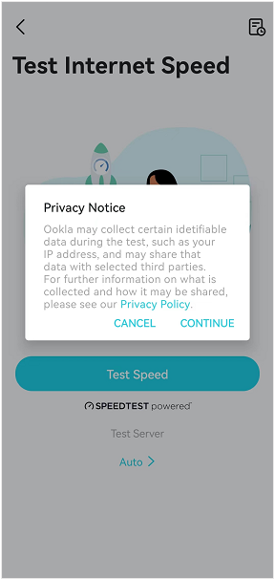
Note: The test speed will vary as a result of network conditions, the speed test tool, and environmental factors.
If the speed test result is slow, you can tap the ">" icon below Test Server to select a different server, then click on Done and Test Speed to test the speed again.
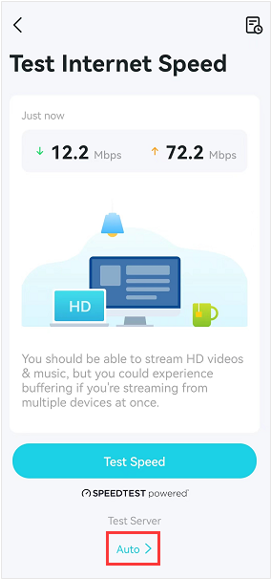
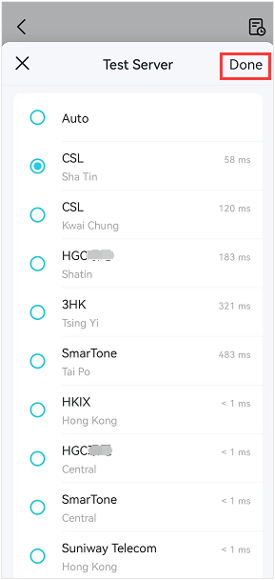
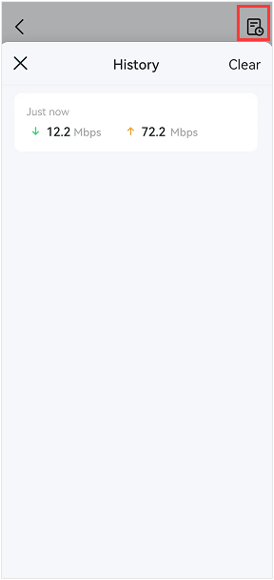
If you tap the icon at the top right corner, here is the speed test history.
Part 2: How to Test Internet Speed Without the Built-In Feature
For these models, connect a computer to the main Deco via Ethernet cable, then visit www.speedtest.net or use the Speedtest app to test the internet speed.
هل تجد هذه الأسئلة مفيدة؟
مشاركتك تساعدنا في تحسين الموقع
-F_large_1560310831908g_normal_1577328413052u.jpg)
-Flarge1560310831908gnormal_1587022111972i.jpg)

TP-Link Community
Still need help? Search for answers, ask questions, and get help from TP-Link experts and other users around the world.