
How to Configure the Internet Connection on the htp Line with TP-Link DSL Modem Router(DE)
The VLAN settings for htp depend on the internet connection type. This guide covers how to configure VLAN settings when establishing an internet connection on the htp line.
Key Takeaways
- You will need to access the Web management page at tplinkmodem.net, or 192.168.1.1, from a device connected to your router.
- You will need to know your internet connection type. Contact your Internet service provider (ISP) if you are unsure.
- You must be connected to the router's network, either by Ethernet cable or Wi-Fi, before you can access the login page.
- Use Chrome, Firefox, or Edge for the best compatibility with the web management page.
- If you prefer managing your router from a phone, the TP-Link Aginet app is an alternative to the browser-based login.
Scenario 1: xDSL / G.fast via Telekom Wholesale
Follow the steps below to configure your internet connection when htp provides service via Telekom.
1. Log in to the web interface of the modem router.
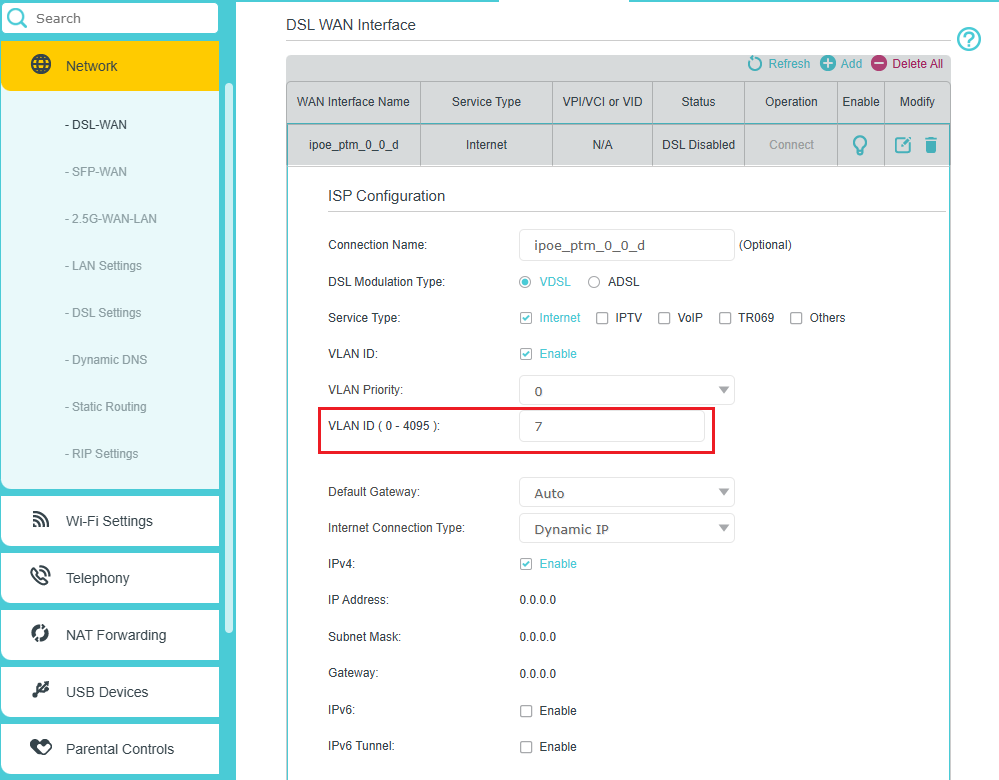
2. Go to Advanced > Network > DSL-WAN page and locate the DSL WAN Interface section.
3. Click the edit button of the internet profile, check the enable box of VLAN ID, and enter 7 in the VLAN ID (0-4095) field.
Scenario 2: xDSL / G.fast (Direct htp Access)
Follow the steps below to configure your internet connection when htp provides DSL service.
1. Log in to the web interface of the modem router.
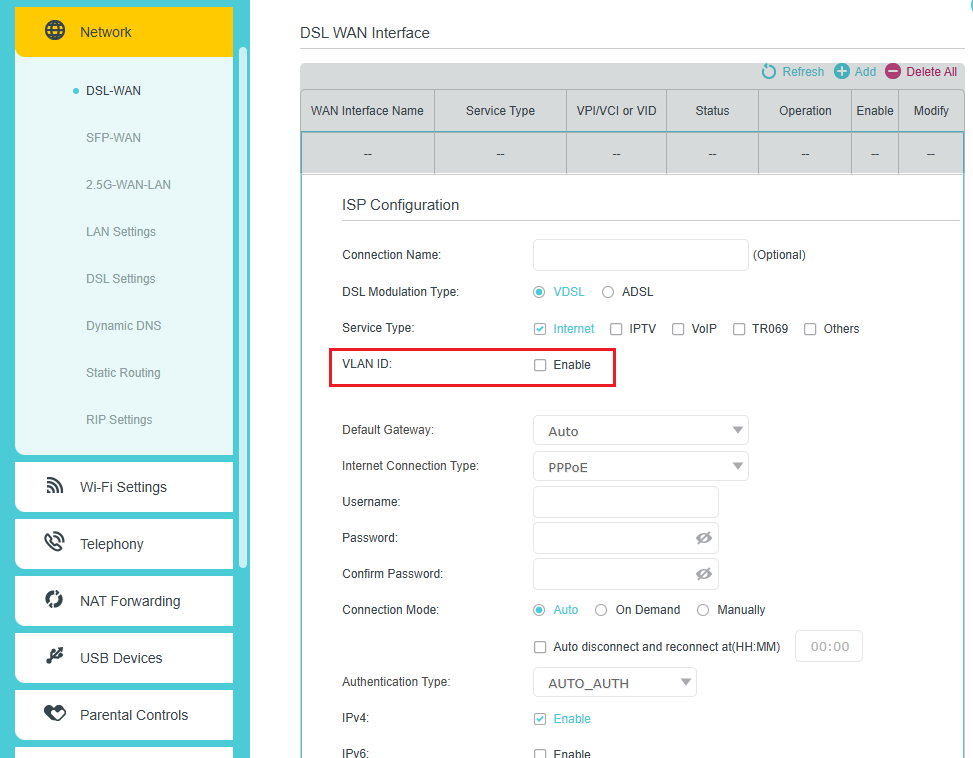
2. Go to Advanced > Network > DSL-WAN page and locate the DSL WAN Interface section.
3. Click the edit button of the internet profile, and make sure the enable box of VLAN ID is not selected.
Scenario 3: Fiber Connection
Follow the steps below to configure your internet connection when htp provides an FTTH service.
1. Log in to the web interface of the modem router.
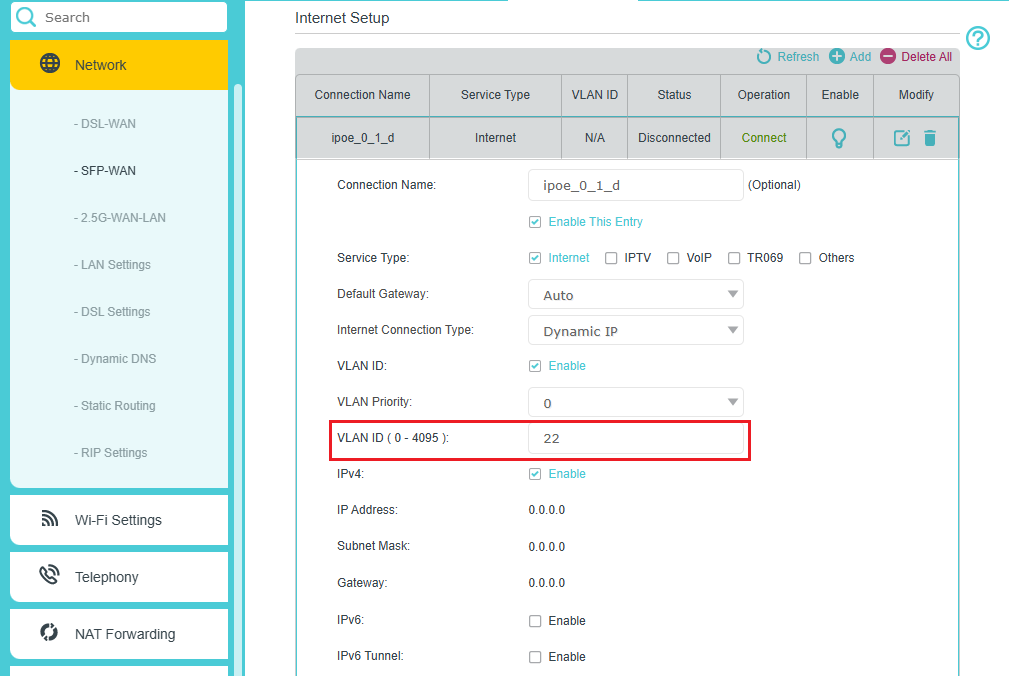
2. Go to Advanced > Network > SFP-WAN page and locate the Internet Setup section.
3. Click the edit button of the internet profile, check the enable box of VLAN ID, and enter 22 in the VLAN ID (0-4095) field.
Looking For More
Finden Sie diese FAQ hilfreich?
Mit Ihrer Rückmeldung tragen Sie dazu bei, dass wir unsere Webpräsenz verbessern.


1_normal_20220824061744p.png)

TP-Link Community
Still need help? Search for answers, ask questions, and get help from TP-Link experts and other users around the world.
Von United States?
Erhalten Sie Produkte, Events und Leistungen speziell für Ihre Region