
Table of Contents
TL-WR1512X_Product and Installation Guide
About This Guide
This guide provides a brief introduction to AX1500 Wi-Fi 6 Portable Router and regulatory information.
When using this guide, please notice that features of the router may vary slightly depending on the model and software version you have, and on your location, language, and internet service provider. All screenshots, images, parameters and descriptions documented in this guide are used for demonstration only.
Conventions
In this guide, the following conventions are used:
|
Convention |
Description |
|---|---|
|
Underline |
Underlined words or phrases are hyperlinks. You can click to redirect to a website or a specific section. |
|
Bold |
Contents to be emphasized and texts on the web page are in bold, including the menus, items, buttons and so on. |
|
> |
The menu structures to show the path to load the corresponding page. For example, Settings > System Tools > Firmware Upgrade means the Firmware Upgrade page is under the System Tools menu that is located in the Settings tab. |
|
Note: |
Ignoring this type of note might result in a malfunction or damage to the device. |
|
Tip: |
Indicates important information that helps you make better use of your device. |
1. Get to Know About Your Router
This chapter introduces what the router can do and shows its appearance.
1.1 Product Overview
To meet the wireless needs of almost any situation you might encounter, the TP-Link portable router, with multiple operating modes, is designed for home and travel use.
The portable size of the router means that you can put it in your pocket and take it with you wherever you go. The built-in adapter makes it perfect for travelers, students, and anyone else living life on the go.
1.2 Appearance
1.0_L_package_20250930084756u.png)
LED Explanation
| Status | Indication |
|---|---|
| Blinking Blue | The router is starting up / being upgraded / establishing the WPS connection. |
| Solid Blue | The router is connected to the internet or the main network, or the WPS connection is successfully established. |
| Solid Red | The router has started up but is disconnected from the internet. |
| Blinking Red | The router is being reset. Do not power off your router. |
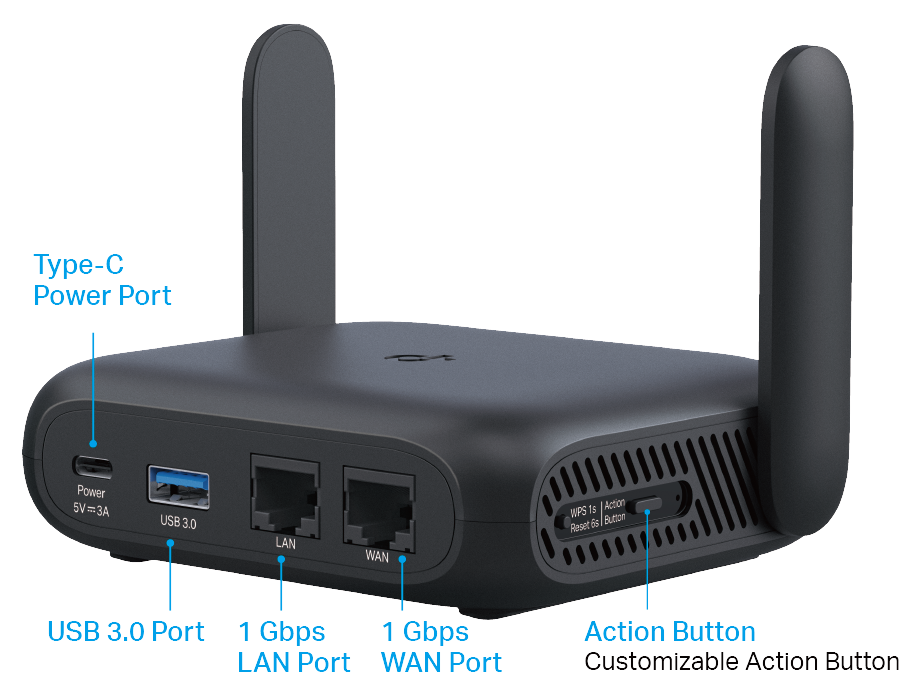
Buttons
| Item | Description |
|---|---|
| Action Button | The customizable action button offers you a physical shortcut to control a variety of functions, including Wi-Fi, LED and VPN Merge. |
| WPS/Reset Button |
Press the button for 1 second and immediately press the WPS button on your client to start the WPS process. |
| Press and hold the button for about 6 seconds until the LED blinks red to reset the router to its factory default settings. |
Interfaces
| Item | Description |
|---|---|
| Power Port | For connecting the USB-C charger provided in the package. To avoid potential damage, it is recommended to use the provided power adapter or a 5V/3A adapter that meets the certification and voltage standards. |
| USB 3.0 Port | Use this USB 3.0 port to connect your 3G/4G/5G USB modem, mobile device, or USB storage device to the router. |
| LAN Port | For connecting your PC or other wired devices to the router. |
| WAN Port | As a WAN port (by default): For connecting it to your modem, the Ethernet outlet, or for other internet services. |
| As a LAN port (need to set manually): For connecting your PC or other wired devices to the router |
2. Connect the Hardware
This chapter introduces how to place and connect your router before setting up the network.
2.1 Position Your Router
• The router should not be located where it will be exposed to moisture or excessive heat.
• Place the router in a location where it can be connected to the various devices as well as to a power source.
• Make sure the cables and power cord are safely placed out of the way so they do not create a tripping hazard.
• The router can be placed on a shelf or desktop.
• Keep the router away from devices with strong electromagnetic interference, such as Bluetooth devices, cordless phones and microwaves.
2.2 Connect Your Router
The router supports the following modes: Router, USB Internet (3G/4G/5G USB Modem and USB Tethering), Hotspot, Access Point, Range Extender, and Client. Refer to the scenarios below to determine an appropriate network mode, and carry out the corresponding steps.
| Network Mode | Recommended Scenarios | I Want to... | Requirements |
|---|---|---|---|
| Router | During Travel (e.g., hotel, airport, cafe, cruise ship, RV, camp, etc.) | Share the internet with more wireless devices when the wired network is limited to one device at a time. | An existing wired network provided by a modem or other network device. |
| 3G/4G/5G USB Modem | Share a 3G/4G/5G USB modem’s data with other devices. | A 3G/4G/5G USB modem (with a SIM card inserted). | |
| USB Tethering | Share a mobile device’s cellular data with other devices. |
A mobile device (with a SIM card inserted). A USB cable. |
|
| Hotspot | Turn an existing public Wi-Fi into a private network (wired and wireless). | A public Wi-Fi. | |
| Access Point | At Home (e.g., home, office, etc.) |
Turn an existing wired-only network into a wireless network. | An existing wired network provided by a router, switch, etc. |
| Range Extender | Expand an existing wired-only Wi-Fi network for better Wi-Fi | An existing Wi-Fi network. | |
| Client | Connect a wired-only device, such as a smart TV, media player, or game console, to a Wi-Fi network | An existing Wi-Fi network. |
Router Mode
Shares the internet with more wireless devices when the wired network is limited to one device at a time. Suitable for hotel rooms and home networks.
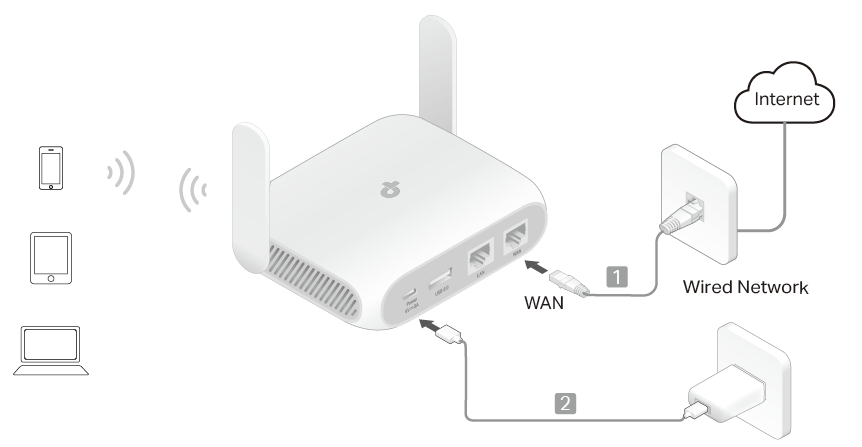
1. Connect the router’s 1G WAN port to the existing wired network with an Ethernet cable.
2. Power on the router.
3. Wait until the router’s LED turns solid (blue or red) before moving on.
4. Connect your device to the router (wireless or wired).
• Wireless: Connect your device to the router’s Wi-Fi. The default wireless network names (SSIDs) and wireless password are printed on both the Wi-Fi info card and the label at the bottom of the router.
• Wired: Turn off the Wi-Fi on your device and connect to the LAN port of the router with an Ethernet cable.
3G/4G/5G USB Modem / USB Tethering Mode
In 3G/4G/5G USB Modem mode, the router shares a 3G/4G/5G USB modem’s data with other devices. And in USB Tethering mode, the router shares a mobile device’s cellular data with other devices. The two modes are suitable for travel.
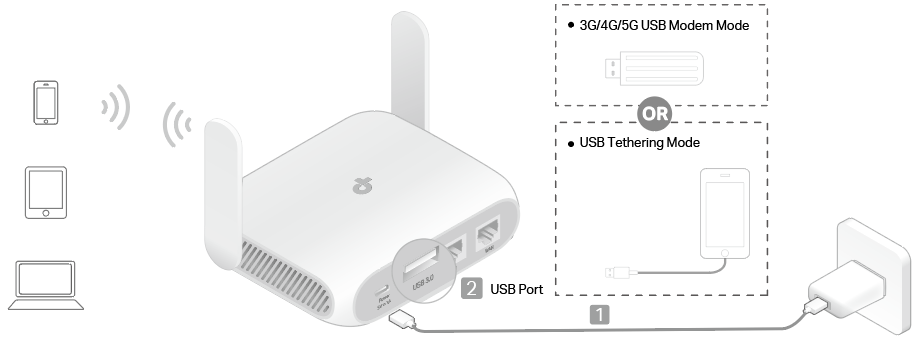
1. Power on the router.
2. Wait until the router’s LED turns solid (blue or red), which indicates that the router has started up, and then connect the router’s USB 3.0 port to your USB modem or mobile device.
3. Connect your device to the router (wireless or wired).
• Wireless: Connect your device to the router’s Wi-Fi. The default wireless network names (SSIDs) and wireless password are printed on both the Wi-Fi info card and the label at the bottom of the router.
Note: When USB tethering, avoid connecting the tethered mobile device to the router’s Wi-Fi.
• Wired: Turn off the Wi-Fi on your device and connect to the LAN port of the router with an Ethernet cable.
Hotspot Mode
Turns an existing public Wi-Fi into a private network (wired and wireless). Suitable for travel.
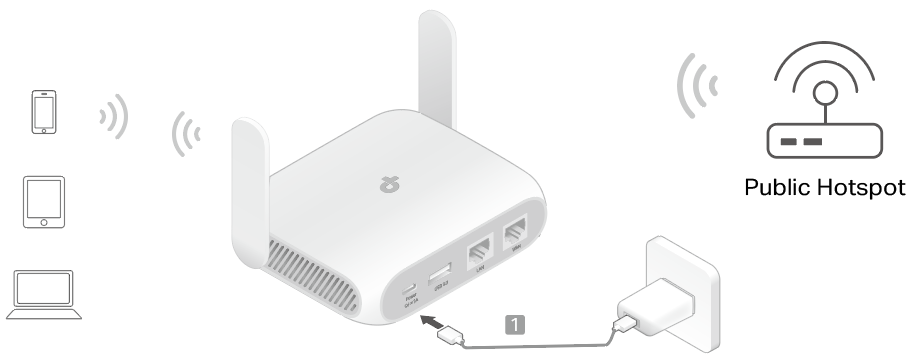
1. Power on the router.
2. Wait until the router’s LED turns solid red before moving on.
3. Connect your device to the router (wireless or wired).
• Wireless: Connect your device to the router’s Wi-Fi. The default wireless network names (SSIDs) and wireless password are printed on both the Wi-Fi info card and the label at the bottom of the router.
• Wired: Turn off the Wi-Fi on your device and connect to the LAN of the router with an Ethernet cable.
Access Point Mode
Turns an existing wired-only network into a wireless network. Suitable for dorm rooms or homes where there’s already a wired router but you need a wireless network.
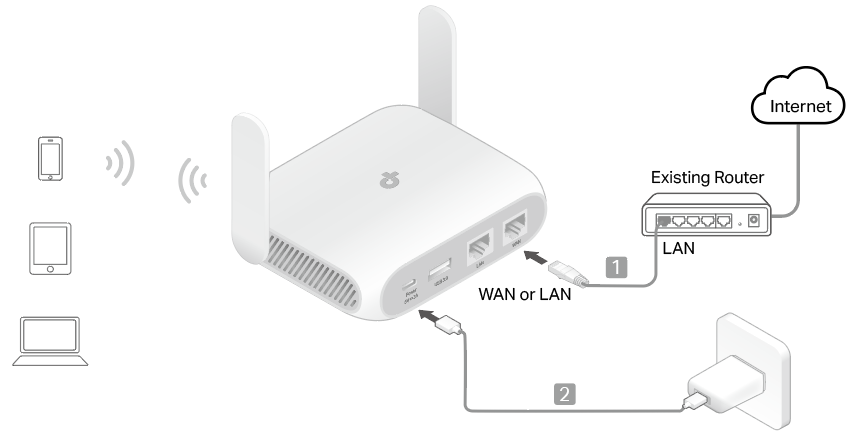
1. Connect the router’s 1G WAN or LAN port to the existing router with an Ethernet cable.
2. Power on the router.
3. Wait until the router’s LED turns solid (blue or red) before moving on.
4. Connect your device to the router (wireless or wired).
• Wireless: Connect your device to the router’s Wi-Fi. The default wireless network names (SSIDs) and wireless password are printed on both the Wi-Fi info card and the label at the bottom of the router.
• Wired: Turn off the Wi-Fi on your device and connect to the 1G WAN or LAN port of the router with an Ethernet cable.
Note: If the hotel’s internet has an authentication process, you will need to authenticate it on EACH device.
Range Extender Mode
Repeats signal from an existing wireless network. Suitable to extend wireless coverage, reaching devices that were previously too far from your primary router to maintain a stable wireless connection.
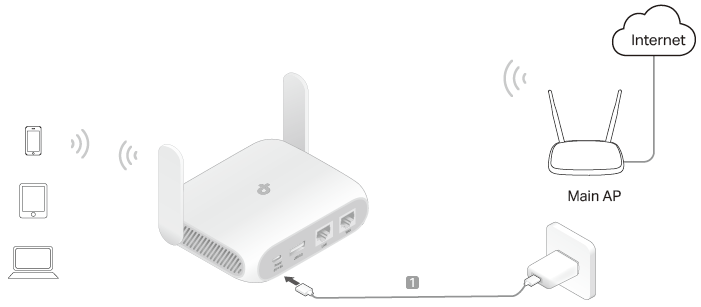
1. Power on the router near your main AP.
2. Wait until the router’s LED turns into solid red before moving on.
3. Connect your device to the router (wireless or wired).
• Wireless: Connect your device to the router’s Wi-Fi. The default wireless network names (SSIDs) and wireless password are printed on both the Wi-Fi info card and the label at the bottom of the router.
• Wired: Turn off the Wi-Fi on your device and connect to the 1G WAN or LAN port of the router with an Ethernet cable.
Client Mode
Acting as an adapter, the router in Client mode connects a wired-only device, such as a smart TV, media player, or game console, to a Wi-Fi network.
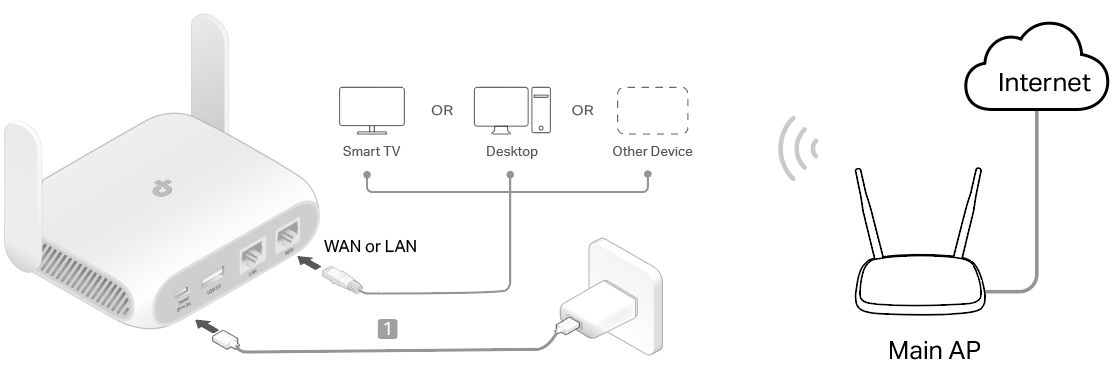
1. Power on the router near your main AP.
2. Wait until the router’s LED turns into solid red before moving on.
3. Connect a computer to the 1G WAN or LAN port of the router with an Ethernet cable.
Note: In Client mode, you can only connect your devices to the router through a wired connection.
More Info
- The latest software, management app and utility are available from the Download Center at https://www.tp-link.com/support.
- The Quick Installation Guide can be found where you find this guide or inside the package of the router.
- Specifications can be found on the product page at https://www.tp-link.com.
- A TP-Link Community is provided for you to discuss our products at https://community.tp-link.com.
- Our Technical Support contact information can be found at the Contact Technical Support page at https://www.tp-link.com/support.
Disclaimer
*Maximum wireless signal rates are the physical rates derived from IEEE Standard 802.11 specifications. Actual wireless data throughput, wireless coverage, and number of connected devices are not guaranteed and will vary as a result of network conditions, client limitations, and environmental factors, including building materials, obstacles, volume and density of traffic, and client location.
*Use of Wi-Fi 6 (802.11ax), and features including OFDMA, and MU-MIMO requires clients to also support the corresponding features.
*Wi-Fi generations represent the wireless standard IEEE 802.11 a/b/g/n/ac/ax. All devices need to support 802.11 Wi-Fi protocols. Users may require an extra modem device that is compatible with their internet service provider to gain internet access.
*It is recommended to use the supplied power adapter. If you use other power adapters, there is a risk of damaging the device.
*USB Internet Sharing depends on the compatibility of your 3G/4G/5G USB modem or mobile device and may not work with all devices.
*Actual network speed may be limited by the rate of the product's Ethernet WAN or LAN port, the rate supported by the network cable, internet service provider factors, and other environmental conditions.
*Please use the provided power adapter to avoid potential damage. Using other adapters may harm the device.
*HomeShield includes the Free Basic Plan. Fees apply for the Pro Plan. Visit tp-link.com/homeshield for more information.
Authentication
FCC compliance information statement

Product Name: AX1500 Wi-Fi 6 Portable Router
Model Number: TL-WR1512X
| Component Name | Model |
|---|---|
| I.T.E Power Supply |
DSA-18QFB FUS A |
Responsible Party:
TP-Link Systems Inc.
Address: 10 Mauchly, Irvine, CA 92618
Website: http://www.tp-link.com/us/
Tel: +1 626 333 0234
Fax: +1 909 527 6804
E-mail: sales.usa@tp-link.com
This equipment has been tested and found to comply with the limits for a Class B digital device, pursuant to part 15 of the FCC Rules. These limits are designed to provide reasonable protection against harmful interference in a residential installation. This equipment generates, uses and can radiate radio frequency energy and, if not installed and used in accordance with the instructions, may cause harmful interference to radio communications. However, there is no guarantee that interference will not occur in a particular installation. If this equipment does cause harmful interference to radio or television reception, which can be determined by turning the equipment off and on, the user is encouraged to try to correct the interference by one or more of the following measures:
- Reorient or relocate the receiving antenna.
- Increase the separation between the equipment and receiver.
- Connect the equipment into an outlet on a circuit different from that to which the receiver is connected.
- Consult the dealer or an experienced radio/ TV technician for help.
This device complies with part 15 of the FCC Rules. Operation is subject to the following two conditions:
- This device may not cause harmful interference.
- This device must accept any interference received, including interference that may cause undesired operation.
Any changes or modifications not expressly approved by the party responsible for compliance could void the user’s authority to operate the equipment.
Note: The manufacturer is not responsible for any radio or TV interference caused by unauthorized modifications to this equipment. Such modifications could void the user’s authority to operate the equipment.
FCC RF Radiation Exposure Statement
This equipment complies with FCC RF radiation exposure limits set forth for an uncontrolled environment. This device and its antenna must not be co-located or operating in conjunction with any other antenna or transmitter.
“To comply with FCC RF exposure compliance requirements, this grant is applicable to only Mobile Configurations. The antennas used for this transmitter must be installed to provide a separation distance of at least 20 cm from all persons and must not be co-located or operating in conjunction with any other antenna or transmitter.”
We, TP-Link Systems Inc., has determined that the equipment shown as above has been shown to comply with the applicable technical standards, FCC part 15. There is no unauthorized change is made in the equipment and the equipment is properly maintained and operated.
Issue Date: 2025-10-09
FCC compliance information statement
Product Name: I.T.E POWER SUPPLY
Model Number: DSA-18QFB FUS A
Responsible party:
TP-Link Systems Inc.
Address: 10 Mauchly, Irvine, CA 92618
Website: http://www.tp-link.com/us/
Tel: +1 626 333 0234
Fax: +1 909 527 6804
E-mail: sales.usa@tp-link.com
This equipment has been tested and found to comply with the limits for a Class B digital device, pursuant to part 15 of the FCC Rules. These limits are designed to provide reasonable protection against harmful interference in a residential installation. This equipment generates, uses and can radiate radio frequency energy and, if not installed and used in accordance with the instructions, may cause harmful interference to radio communications. However, there is no guarantee that interference will not occur in a particular installation. If this equipment does cause harmful interference to radio or television reception, which can be determined by turning the equipment off and on, the user is encouraged to try to correct the interference by one or more of the following measures:
- Reorient or relocate the receiving antenna.
- Increase the separation between the equipment and receiver.
- Connect the equipment into an outlet on a circuit different from that to which the receiver is connected.
- Consult the dealer or an experienced radio/ TV technician for help.
This device complies with part 15 of the FCC Rules. Operation is subject to the following two conditions:
- This device may not cause harmful interference.
- This device must accept any interference received, including interference that may cause undesired operation.
Any changes or modifications not expressly approved by the party responsible for compliance could void the user’s authority to operate the equipment.
We, TP-Link Systems Inc., has determined that the equipment shown as above has been shown to comply with the applicable technical standards, FCC part 15. There is no unauthorized change is made in the equipment and the equipment is properly maintained and operated.
Issue Date: 2025-10-09

Power Adapter:
| Manufacturer | Version | Model |
|---|---|---|
|
TP-Link Systems Inc. |
CE | DSA-18QFB FEU A |
|
TP-Link Systems Inc. |
UK | DSA-18QFB FUK A |
OPERATING FREQUENCY (the maximum transmitted power)
2400 MHz -2483.5 MHz(20dBm)
5150 MHz -5250 MHz (23dBm)
5250 MHz -5350 MHz (23dBm)
5470 MHz -5725 MHz (30dBm)
National restrictions
Frequency band 5150 - 5250 MHz:
Indoor use: Inside buildings only. Installations and use inside road vehicles and train carriages are not permitted. Limited outdoor use: If used outdoors, equipment shall not be attached to a fixed installation or to the external body of road vehicles, a fixed infrastructure or a fixed outdoor antenna. Use by unmanned aircraft systems (UAS) is limited to within the 5170 - 5250 MHz band.
Frequency band: 5250 - 5350 MHz:
Indoor use: Inside buildings only. Installations and use in road vehicles, trains and aircraft are not permitted. Outdoor use is not permitted.
Frequency band: 5470 - 5725 MHz:
Installations and use in road vehicles, trains and aircraft and use for unmanned aircrafts systems (UAS) are not permitted.
Outdoor use, including in road vehicles, is not permitted.
EU Declaration of Conformity
TP-Link hereby declares that the device is in compliance with the essential requirements and other relevant provisions of directives 2014/53/EU, 2009/125/EC, 2011 /65/EU and (EU) 2015/863.
The original EU declaration of conformity may be found at https://www.tp-link.com/en/support/ce/
RF Exposure Information
This device meets the EU requirements (2014/53/EU Article 3.1a) on the limitation of exposure of the general public to electromagnetic fields by way of health protection.
The device complies with RF specifications when the device used at 20 cm from your body.
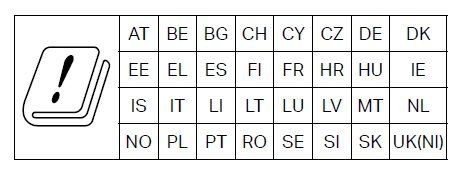
UKCA Mark

UK Declaration of Conformity
TP-Link hereby declares that the device is in compliance with the essential requirements and other relevant provisions of the Radio Equipment Regulations 2017.
The original UK Declaration of Conformity may be found at https://www.tp-link.com/support/ukca/
National restrictions
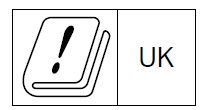
Attention: This device may only be used indoors in Great Britain.
Canadian Compliance Statement
This device contains licence-exempt transmitter(s)/receiver(s) that comply with Innovation, Science and Economic Development Canada’s licence-exempt RSS(s). Operation is subject to the following two conditions:
1. This device may not cause interference.
2. This device must accept any interference, including interference that may cause undesired operation of the device.
L’émetteur/récepteur exempt de licence contenu dans le présent appareil est conforme aux CNR d’Innovation, Sciences et Développement économique Canada applicables aux appareils radio exempts de licence. L’exploitation est autorisée aux deux conditions suivantes :
1. L’appareil ne doit pas produire de brouillage;
2. L’appareil doit accepter tout brouillage radioélectrique subi, même si le brouillage est susceptible d’en compromettre le fonctionnement.
Caution:
The device for operation in the band 5150–5250 MHz is only for indoor use to reduce the potential for harmful interference to co-channel mobile satellite systems;
DFS (Dynamic Frequency Selection) products that operate in the bands 5250- 5350 MHz, 5470-5600MHz, and 5650-5725MHz.
Avertissement:
Le dispositif fonctionnant dans la bande 5150-5250 MHz est réservé uniquement pour une utilisation à l’intérieur afin de réduire les risques de brouillage préjudiciable aux systèmes de satellites mobiles utilisant les mêmes canaux;
Les produits utilisant la technique d’atténuation DFS (sélection dynamique des fréquences) sur les bandes 5250- 5350 MHz, 5470-5600MHz et 5650-5725MHz.
Radiation Exposure Statement:
This equipment complies with IC radiation exposure limits set forth for an uncontrolled environment. This equipment should be installed and operated with minimum distance 20cm between the radiator & your body.
Déclaration d’exposition aux radiations:
Cet équipement est conforme aux limites d’exposition aux rayonnements IC établies pour un environnement non contrôlé. Cet équipement doit être installé et utilisé avec un minimum de 20 cm de distance entre la source de rayonnement et votre corps.
Industry Canada Statement
CAN ICES-003 (B)/NMB-003(B)
Korea Warning Statements:
당해 무선설비는 운용중 전파혼신 가능성이 있음.
NCC Notice & BSMI Notice
注意!
取得審驗證明之低功率射頻器材,非經核准,公司、商號或使用者均不得擅自變更頻率、加大功率或變更原設計之特性及功能。
低功率射頻器材之使用不得影響飛航安全及干擾合法通信;經發現有干擾現象時,應立即停用,並改善至無干擾時方得繼續使用。
前述合法通信,指依電信管理法規定作業之無線電通信。
低功率射頻器材須忍受合法通信或工業、科學及醫療用電波輻射性電機設備之干擾。
應避免影響附近雷達系統之操作。
安全諮詢及注意事項
請使用原裝電源供應器或只能按照本產品注明的電源類型使用本產品。
清潔本產品之前請先拔掉電源線。請勿使用液體、噴霧清潔劑或濕布進行清潔。
注意防潮,請勿將水或其他液體潑灑到本產品上。
插槽與開口供通風使用,以確保本產品的操作可靠並防止過熱,請勿堵塞或覆蓋開口。
請勿將本產品置放於靠近熱源的地方。除非有正常的通風,否則不可放在密閉位置中。
不要私自拆開機殼或自行維修,如產品有故障請與原廠或代理商聯繫。
限用物質含有情況標示聲明書
| 設備名稱:AX1500 Wi-Fi 6 Portable Router 型號(型式):TL-WR1512X Equipment name Type designation (Type) |
||||||
|---|---|---|---|---|---|---|
| 單元 Unit |
限用物質及其化學符號 Restricted substances and its chemical symbols |
|||||
| 鉛 Lead (Pb) |
汞 Mercury (Hg) |
鎘 Cadmium (Cd) |
六價鉻 Hexavalent chromium (Cr+6) |
多溴聯苯 Polybrominated biphenyls (PBB) |
多溴二苯醚 Polybrominated diphenyl ethers (PBDE) |
|
| PCB | ○ | ○ | ○ | ○ | ○ | ○ |
| 外殼 | ○ | ○ | ○ | ○ | ○ | ○ |
|
電源供應器 |
− | ○ | ○ | ○ | ○ | ○ |
| 其他及其配件 | − | ○ | ○ | ○ | ○ | ○ |
| 備考1.〝超出0.1 wt %〞及〝超出0.01 wt %〞係指限用物質之百分比含量超出百分比含量基準值 Note 1:“Exceeding 0.1 wt %” and “exceeding 0.01 wt %” indicate that the percentage content of the restricted substance exceeds the reference percentage value of presence condition. 備考2.〝○〞係指該項限用物質之百分比含量未超出百分比含量基準值。 Note 2:“○” indicates that the percentage content of the restricted substance does not exceed the percentage of reference value of presence. 備考3.〝-〞係指該項限用物質為排除項目。 Note 3:The “−” indicates that the restricted substance corresponds to the exemption. |
||||||

Продукт сертифіковано згідно с правилами системи УкрСЕПРО на відповідність вимогам нормативних документів та вимогам, що передбачені чинними законодавчими актами України.

Safety Information
- Keep the device away from water, fire, humidity or hot environments.
- Do not attempt to disassemble, repair, or modify the device. If you need service, please contact us.
- Do not use damaged charger or USB cable to charge the device. 請勿使用損壞的充電器或USB線來供應設備充電。損傷した電源アダプターまたはUSBケーブルを使用してデバイスを給電 しないでください。 손상된 충전기나 USB 케이블을 사용하여 제품을 충전하지 마십시오.
- Do not use any other chargers than those recommended. 請勿使用推薦充電器以外的任何其他充電器。推奨する電源アダプター以外は使用しないでください。권장되는 충전기 이외의 다른 충전기를 사용하지 마십시오.
- Do not use the device where wireless devices are not allowed.
- Adapter shall be installed near the equipment and shall be easily accessible. 變壓器應安裝在設備附近且易於操作。アダプターは機器の近くに設置し、容易に手が届くようにしてください。어댑터는 장치 근처에 설치하여 쉽게 접근할 수 있어야 합니다.
- Use only power supplies which are provided by manufacturer and in the original packing of this product. If you have any questions, please don’t hesitate to contact us.
- Operating Temperature: 0°C~40°C (32°F~104°F)/動作温度:0ºC~40ºC(32℉~104℉)/작동 온도: 0°C ~ 40°C (32°F ~ 104°F)/Température de fonctionnement: 0°C~40°C (32°F~104°F)/運作溫度: 0°C~40°C (32°F~104°F)
- This product uses radios and other components that emit electromagnetic fields. Electromagnetic fields and magnets may interfere with pacemakers and other implanted medical devices. Always keep the product and its power adapter more than 15 cm (6 inches) away from any pacemakers or other implanted medical devices. If you suspect your product is interfering with your pacemaker or any other implanted medical device, turn off your product and consult your physician for information specific to your medical device.
Please read and follow the above safety information when operating the device. We cannot guarantee that no accidents or damage will occur due to improper use of the device. Please use this product with care and operate at your own risk.
Explanation of the symbols on the product label 產品標籤上符號的解釋 製品ラベルのシンボルマーク表示と内容 제품 라벨의 기호 설명
The product label is on the bottom of the product and its power supply. Symbols may vary from products. 符號可能因產品而異 注意:產品標籤可以在產品底部和其I.T.E.電源供應器上找到。注: 製品ラベルは製品底あるいは背面および付属の電源アダプターにあります。また、ラベルではなく製品に直接印字されてる場合があります。シンボルマークは実際の製品と異なる場合があります。참고: 제품 라벨은 제품과 제품의 I.T.E. 전원 공급장치의 하단에서 찾을 수 있습니다.기호 표시 방법은 제품에 따라 다를 수 있습니다
|
Symbol シンボルマーク 기호 |
Explanation シンボルマークが表示する内容 설명 |
|---|---|
 |
Class II equipment クラス2電源機器 Class II 장비 |
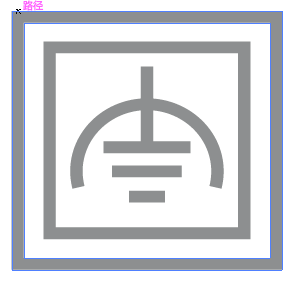 |
Class II equipment with functional earthing 機能接地を備えたクラス2電源機器 기능 접지가 가능한 Class II 장비 |
 |
Alternating current 交流 교류 |
 |
DC voltage DC電圧 DC 전압 |
 |
Polarity of output terminals 出力端子の極性 출력 단자의 극성 |
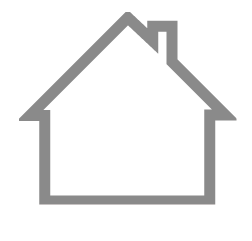 |
Indoor use only 屋内使用専用 실내에서만 사용 |
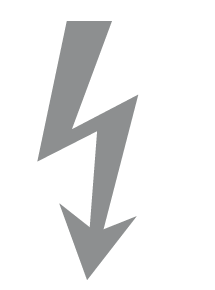 |
Dangerous voltage 高電圧注意 위험전압 |
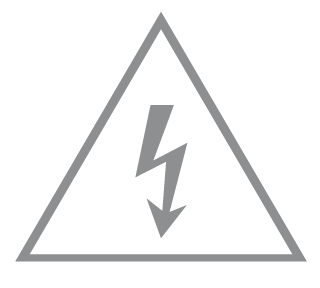 |
Caution, risk of electric shock 感電注意 주의: 감전 위험 |
 |
Energy efficiency Marking 省エネルギー表示 에너지 효율 등급 |
 |
Protective earth 保護アース (保護接地) 보호 접지 |
 |
Earth アース (接地) 접지 |
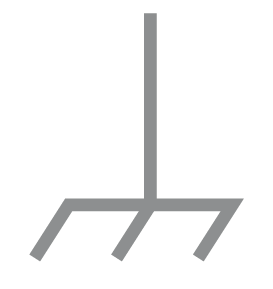 |
Frame or chassis フレーム/シャーシ 프레임 또는 섀시 |
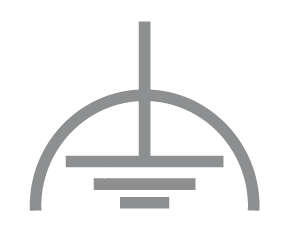 |
Functional earthing 機能アース (機能接地) 기능 접지 |
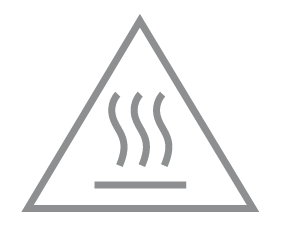 |
Caution, hot surface 高温注意 주의: 뜨거운 표면 |
 |
Caution 注意 주의 |
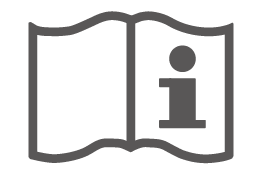 |
Operator’s manual 取扱説明書 운영자 매뉴얼 |
 |
Stand-by スタンバイ 스탠바이 |
 |
“ON”/”OFF” (push-push) “ON”/”OFF” (push-push) “ON”/”OFF” (누름 버튼 스위치) |
 |
Fuse ヒューズ 퓨즈 |
 |
Fuse is used in neutral N ヒューズはニュートラル (接地側) で使用されます 중성선(영선)에 퓨즈가 사용됨 |
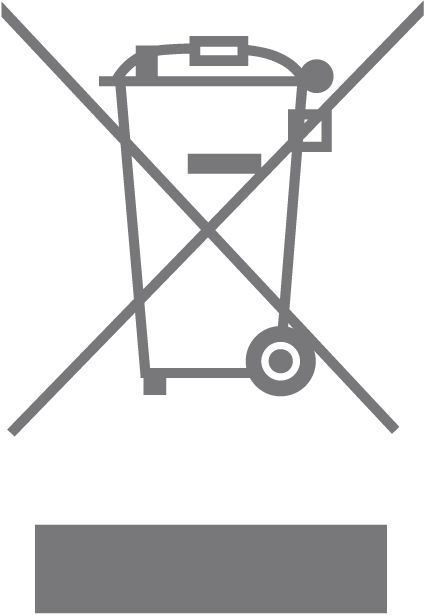 |
RECYCLING リサイクル 本製品には、電気電子廃棄物 (WEEE) の分別マークが付いています。これは、本製品がリサイクルまたは解体される際は、環境への影響を最小限に抑えるために、欧州議会・理事会指令2012/19/EU に従って取り扱われる必要があることを意味します。 ユーザーは、新しい電気機器または電子機器を購入する際、製品をリサイクル組織と小売業者のどちらに引き渡すかを選択できます。 재활용 이 제품에는 WEEE(폐 전기제품 및 전자제품) 선택적 분류 기호가 부착되어 있습니다. 이는 환경에 미치는 영향을 최소화하며 제품을 재활용하거나 분해하기 위해 유럽연합 지침 2012/19/EU에 따라 이 제품을 취급해야 한다는 것을 의미합니다. 사용자는 이 제품을 재활용 기관에 전달하거나 새 전기제품 또는 전자제품을 구매할 때 소매업체에 전달할 수 있습니다. |
 |
Caution, avoid listening at high volume levels for long periods 注意:大きな音で長時間聴き続けないでください 주의: 장시간 높은 음량으로 청취 지양 |
 |
Disconnection, all power plugs 全電源プラグの切断 모든 전원 플러그의 연결 해제 |
| m |
Switch of mini-gap construction ミニギャップ構造のスイッチ 미니 갭 구조 스위치 |
| µ |
Switch of micro-gap construction (for US version) 「マイクロギャップ構造のスイッチ (米国版用) マイクロギャップ/マイクロ切断構造のスイッチ (米国版以外のバージョン用)」 마이크로 갭 구조 스위치 (US 버전) 마이크로 갭/마이크로 디스커넥션 구조 스위치 (기타 버전) |
| ε |
Switch without contact gap (Semiconductor switching device) 接点ギャップがないスイッチ (半導体スイッチ) 접점 갭이 없는 스위치 (반도체 개폐 장치) |