
How to reset or reboot TP-Link ISP-customized Whole Home Mesh Wi Fi System
 9402
9402Introduction
This article introduces methods for physically resetting or rebooting the TP-Link Customized Whole Home Mesh Wi-Fi System, or resetting it through the Aginet app.
Requirements
- Download the Aginet app by visiting the Google Play Store, App Store, or by scanning the QR code.

- Ensure that you have successfully set up the Whole Home Mesh device in the Aginet app.
Configuration
Scenario 1: Reset device
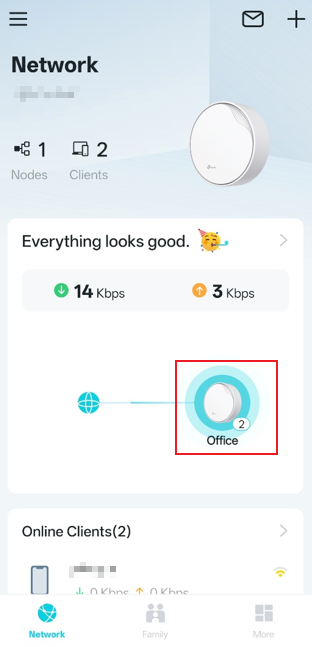
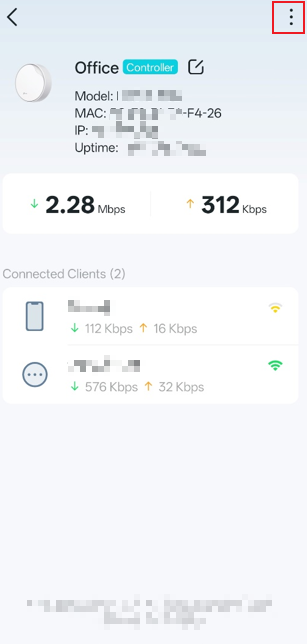
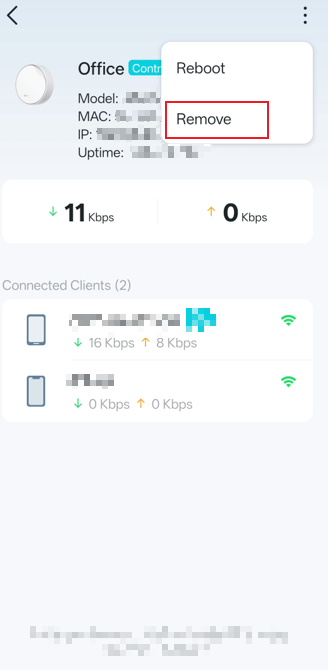
Method 1. Open the Network page in the Aginet app, tap Network Map, select the Device you want to reset, then tap the three-dot button in the top-right corner. Choose Remove to reset the device.
Method 2. Use a pin to press and hold the Reset button at the bottom of the device until the light flashes yellow. (This usually takes 2-5s.)
Scenario 2: Reboot device
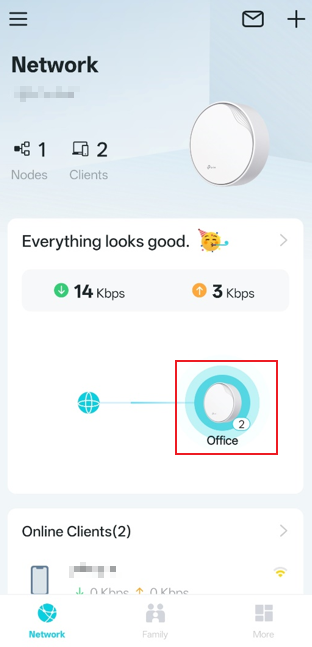
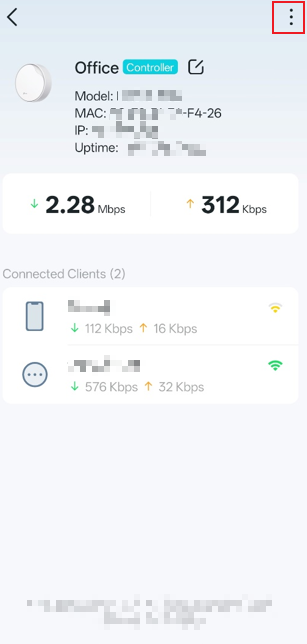
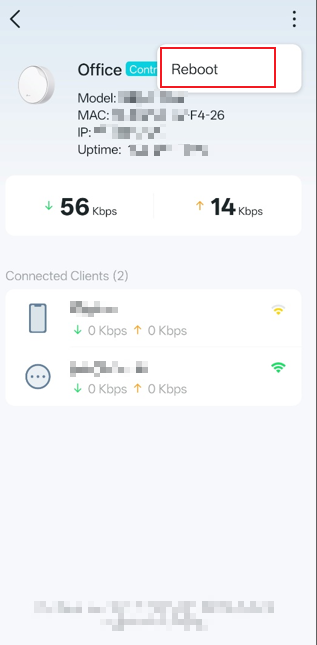
Method 1. Open the Network page in the Aginet app, tap Network Map, select the Device you want to reboot, then tap the three-dot button in the top-right corner. Choose Reboot to reboot the device.
Method 2. Unplug the device, then plug it back in to reboot it.
QA
Q1: What should I do if I can't find the "Remove" option in the Aginet app?
A1: Ensure your phone is connected to the device's network, as the Aginet app can only remove or reset devices on the local network.
Q2: If I fail to remove the device through the Aginet app or by holding the reset button for two seconds, what should I do?
A2: Please unplug the device, wait for two minutes, then plug it back in and try resetting again.
Get to know more details of each function and configuration, please go to the Download Center to download the manual of your product.
Is this faq useful?
Your feedback helps improve this site.



TP-Link Community
Still need help? Search for answers, ask questions, and get help from TP-Link experts and other users around the world.