
Set Up Schedule, Away Mode, and Timer for Kasa Smart Plugs, Bulbs, and Switches
 618442
The Kasa app lets you create schedules, set a timer, and enable away mode on your Kasa smart plugs, bulbs, and switches. This guide covers all three automation features so you can control your devices exactly when you want.
Key Takeaways
- You can create a Kasa schedule for a single device directly from its device page in the Kasa app. Trigger options include Custom Time, Sunrise, and Sunset, with a weekly repeat setting available.
- To schedule multiple Kasa devices at once, use the Smart Actions feature. Navigate to Smart > Smart Actions to get started.
- Kasa Away Mode randomly turns a device on and off within a set time window to make it look like someone is home.
- The Kasa timer lets you set a countdown to automatically turn a device on or off after a set amount of time.
- For Kasa dimmer devices, a Fade Rate option is available in Schedule settings to gradually transition lights on or off.
Kasa Schedule
Case One: Schedule a Single Device
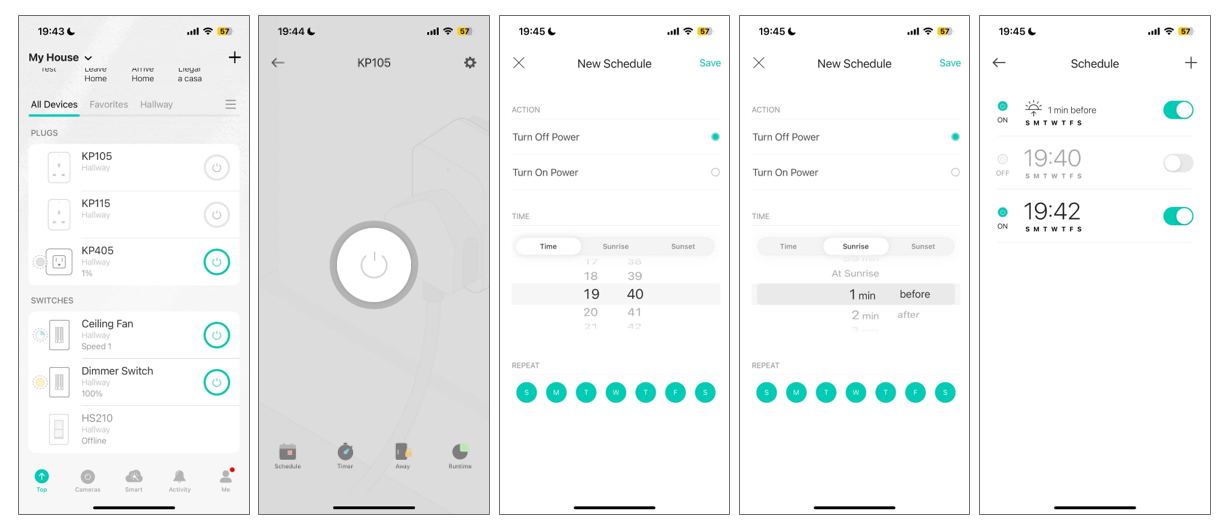
- On the Kasa app Home page, click the device card to enter the device page.
- Choose Schedule, then tap the + icon in the upper-right corner to add a new schedule.
- Choose either a Custom Time, Sunrise, or Sunset time. When choosing Sunrise or Sunset, you can also set an offset time. The time of Sunrise and Sunset will be synchronized according to regional realities.
- Set the Repeat times within a week.
- Click Save. After creating schedules, you can always enable or disable them manually.
Case Two: Schedule Multiple Devices at Once
To schedule multiple devices at once, follow these steps. This process uses automation, so the devices must be connected to the internet.
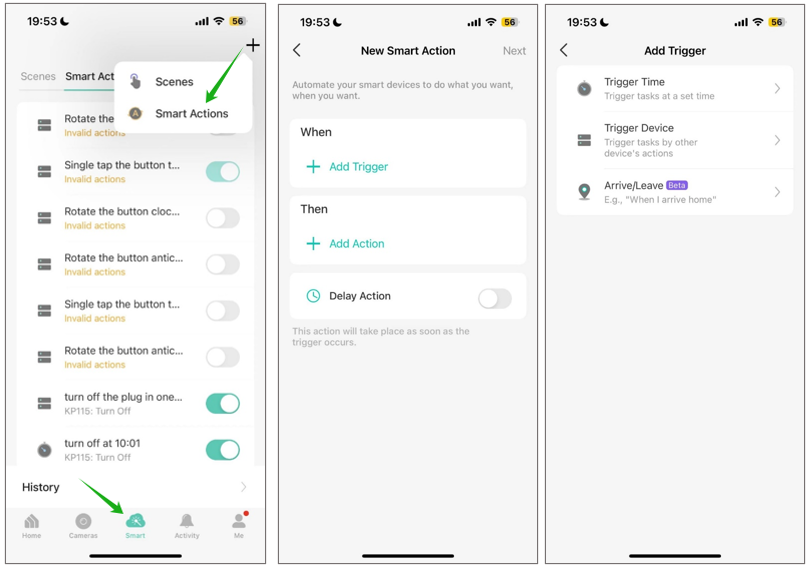
- Open Kasa App, go to Smart > Click the '+' icon on the top right corner > Choose Smart Actions.
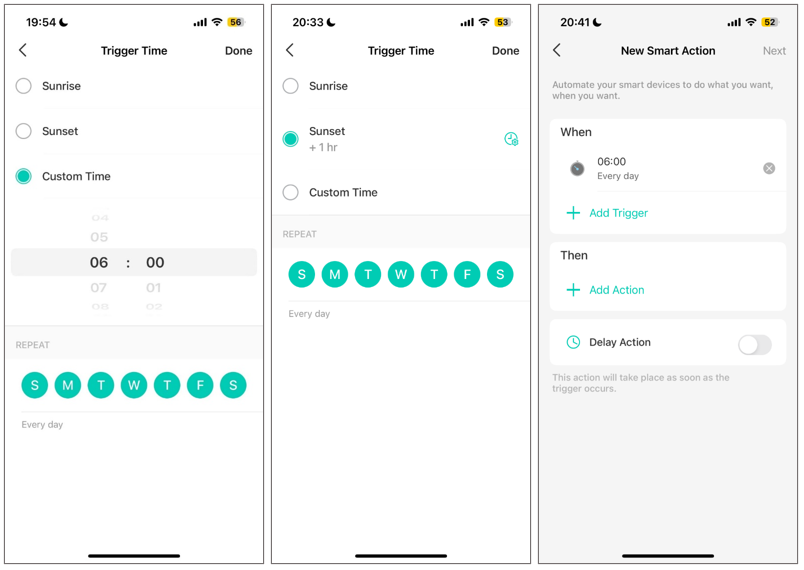
- Tap Add Trigger > choose Trigger Time. Choose either a Custom Time, Sunrise, or Sunset time. When choosing Sunrise or Sunset, you can also set an offset time.
Note: The time of Sunrise and Sunset will be synchronized according to regional realities. Tap Me > Settings > Location and Time to sync the correct time. If your Kasa device time isn't syncing correctly, see how to fix Kasa time sync issues before setting up your automation.
- Set the Repeat times within a week and Tap Done.
- Next, click Add Action to choose what smart devices you would like to control by the above time settings. Choose Control Smart Devices. There are two methods to add multiple devices to a schedule.
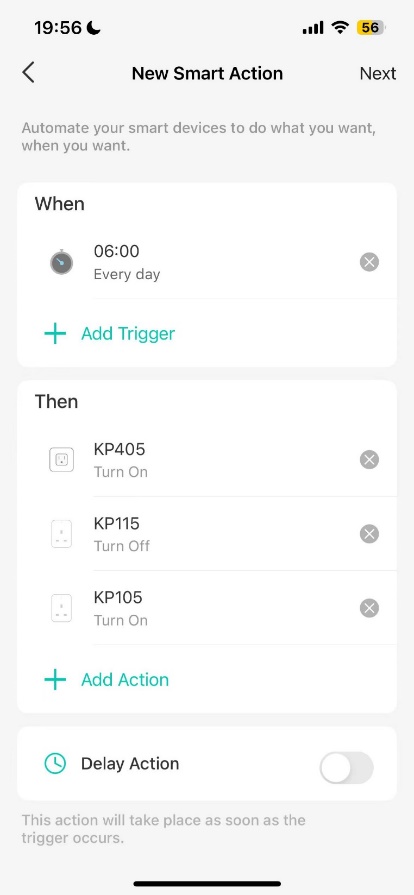
Method One. Select a smart device, set it to be turned on/off, then add it to the action list. Repeat the process, adding the devices you want to turn on/off via the schedule to the action list one by one.
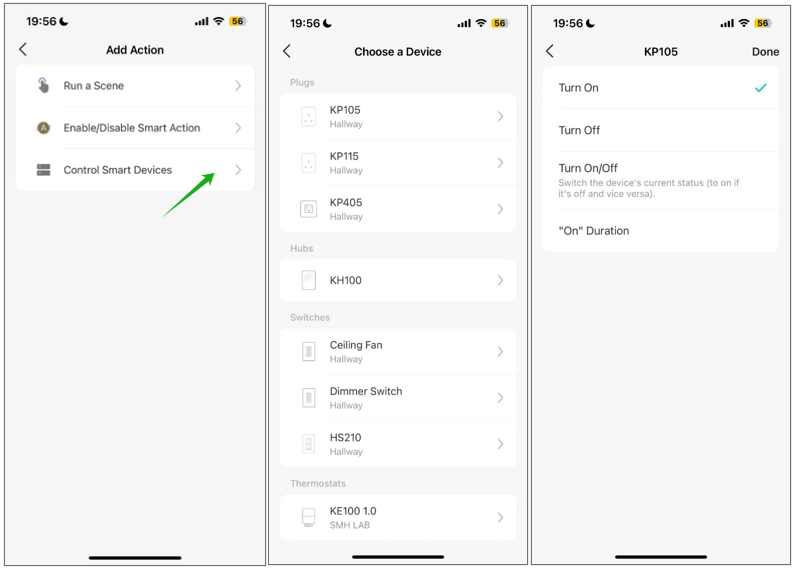
Here you can control different devices to turn on/off separately with the same schedule, e.g., while turning on plug KP405, turn off plug KP115 at 06:00.
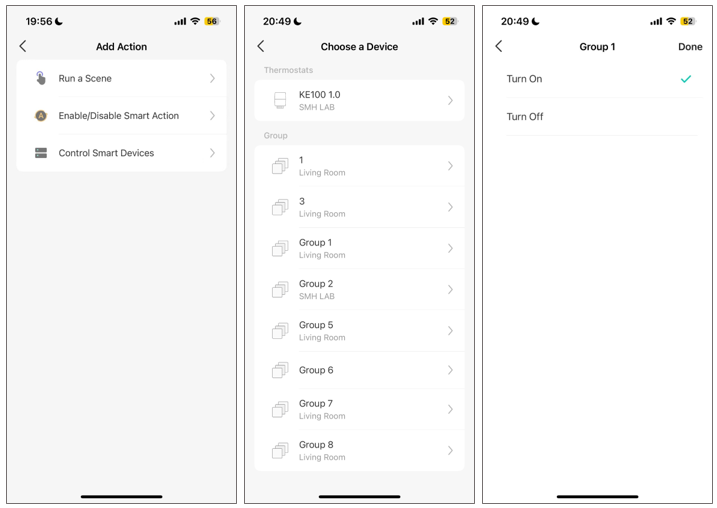
Method Two. Create a group for your scheduled devices and add the group as an Action.Go to the Home page, tap the '+' icon on the top-right corner to Add Group. Then add this group to the action list: choose Control Smart Devices, locate the Group section in the list, and choose a group.
Case Three: Fade On/Off with a Kasa Dimmer
- On the Kasa app Home page, click the device card to enter the device page.
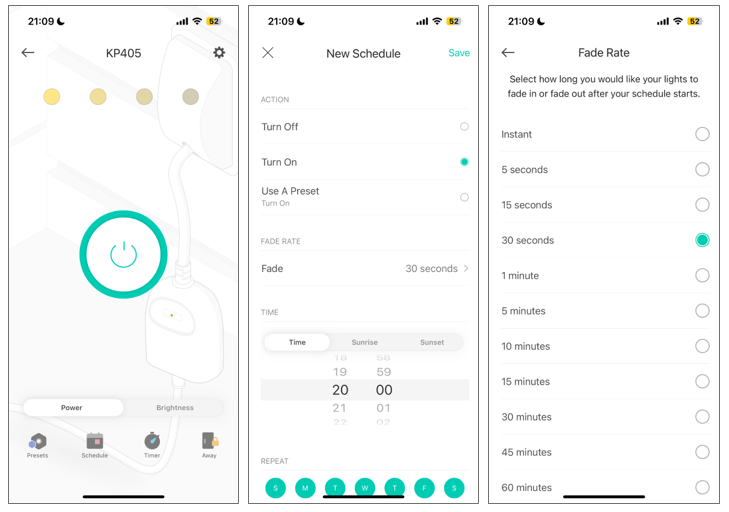
- Choose Schedule, then tap the + icon on the upper-right corner to add a new schedule.
- Choose either a Custom Time, Sunrise, or Sunset time. When choosing Sunrise or Sunset, you can also set an offset time. The time of Sunrise and Sunset will be synchronized according to regional realities.
- Tap Fade to set the Fade Rate to fade in/out your lights in a period of time you want.
- Set the Repeat times within a week.
Kasa Away Mode
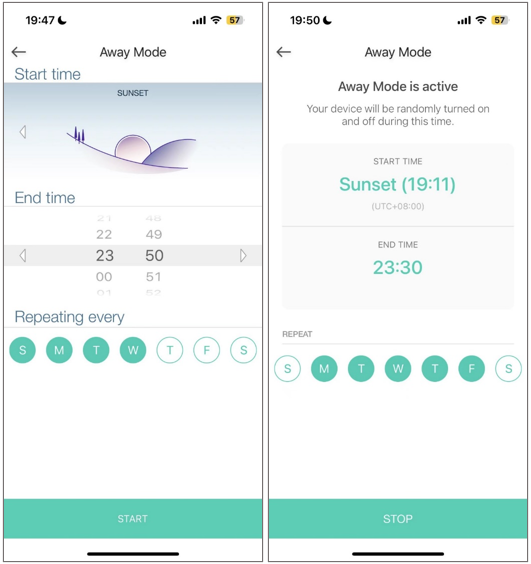
By enabling the Away Mode feature on the Kasa IoT devices, the smart device will be randomly turned on and off in the set time, pretending someone's at home. Here we take the Kasa smart plug to show you how to enable the Away Mode feature.
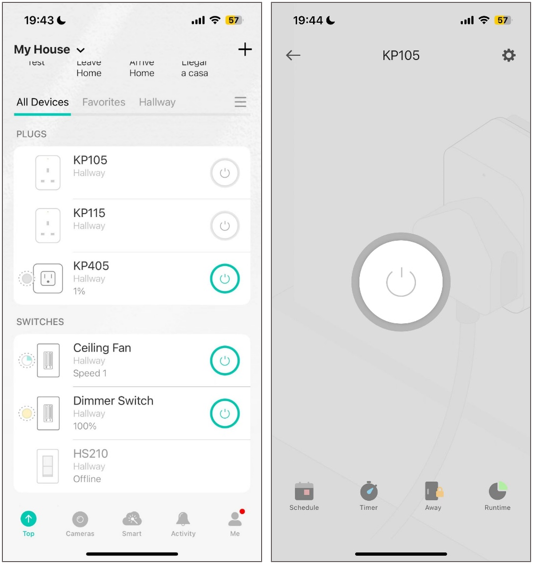
- On the Kasa app Home page, click the device card to enter the device page.
- Click the Away icon.
- Set up the start time and end time. You can choose either a Custom Time, Sunrise, or Sunset time. When choosing Sunrise or Sunset, you can also set an offset time.
Note: The time of Sunrise and Sunset will be synchronized according to regional realities. Tap Me > Settings > Location and Time to sync the correct time.
- Set the Repeat times within a week.
- Click Start to enable the away mode. You can stop the away mode on this page anytime.
Kasa Timer
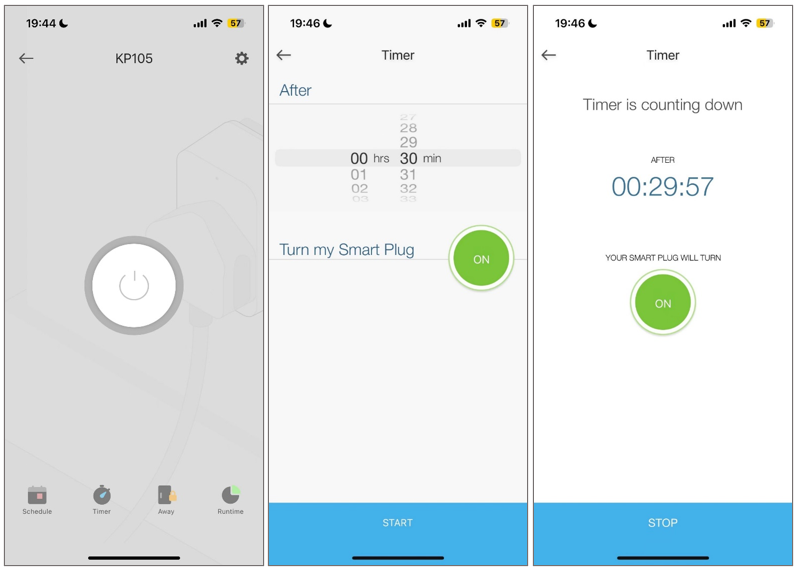
Follow the instructions below to set a countdown timer to automatically turn the smart device on or off after a certain amount of time.
- On the Kasa app Home page, click the device card to enter the device page.
- Click the Timer.
- Set a countdown time to turn on/off the smart device when the timer ends.
Auto-Off Timer for Kasa Smart Plugs
The auto-off timer feature can help you turn off the appliance automatically after the set time whenever it turns on.
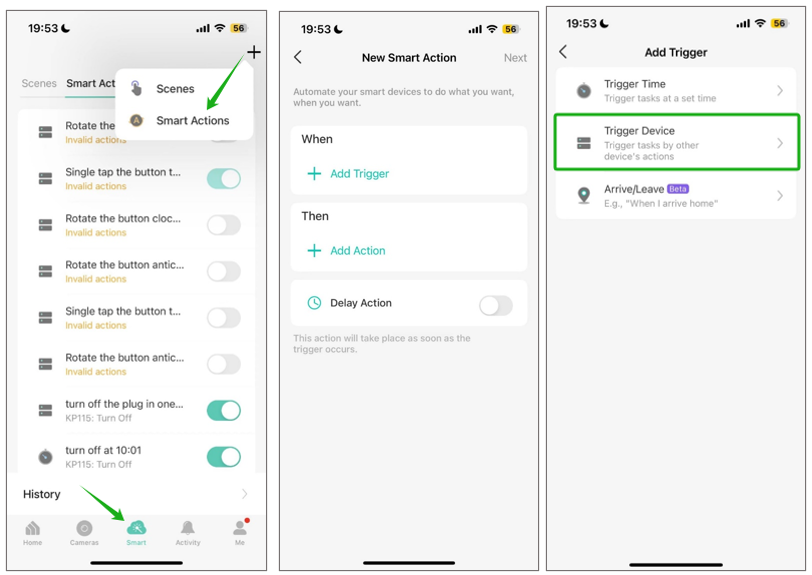
- Open the Kasa App, go to Smart > Click the '+' icon on the top right corner > Choose Smart Actions.
- Tap Add Trigger > choose Trigger Device.
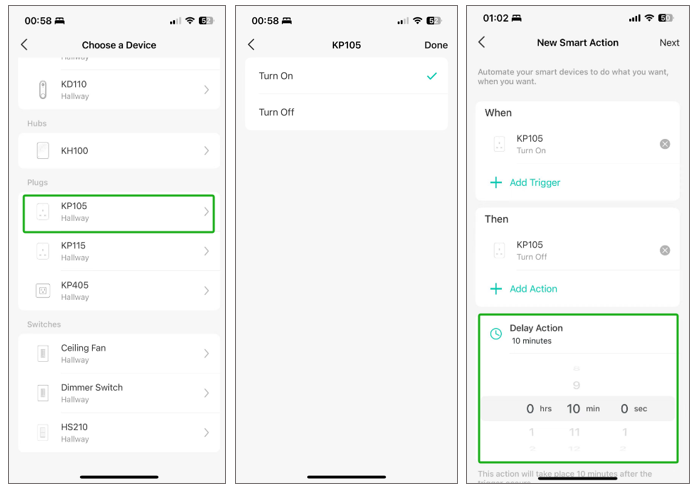
- Choose the same smart plug as both the Trigger and Action device, with different ON/OFF operations. For example, set 'Turn on KP105' as a trigger and 'Turn off KP105' as an action.
- Use Delay Action to set auto-off time. Then click Save. In this example, KP105 will be turned off automatically after 10 minutes each time it is turned on.
QA
Q1: When the mobile phone time zone changes, does the scheduled or Automation runtime of devices such as smart plugs, light bulbs, and switches change?
A1: The runtime for schedules and automations is determined by the device's own time zone. Devices such as smart plugs, light bulbs, and switches do not support individual device time zone settings. Therefore, their time zone is established during initial configuration (typically matching the time zone of the phone used during setup) and generally will not automatically change if your phone's time zone or Tapo App account time zone is modified. If you wish to change a device's time zone, you must reset the device and reconfigure it.
Q2: Under what circumstances does a device's time zone synchronize with the phone's time zone?
A2: A device's time zone will automatically synchronize with the phone's time zone when the year of the device's internal time does not match the year of the phone's time, and the device is on the local network or in a discoverable Bluetooth state. Other situations (e.g., only changing the phone's time zone or the App account's time zone) will not trigger synchronization.
Q3: If an automation includes multiple devices, which device's time zone will it use for operation?
A3: If the automation includes more than one device, the runtime will be based on the time zone of the first device in the automation. If no devices are included in the automation, the runtime will be based on the phone's time zone.
Is this faq useful?
Your feedback helps improve this site.



TP-Link Community
Still need help? Search for answers, ask questions, and get help from TP-Link experts and other users around the world.