
How to upgrade or downgrade my Tapo Care subscription
 151685
Introduction
Tapo Care offers flexible subscription plans ranging from Basic to Premium, with options for monthly or yearly billing cycles. If you wish to upgrade your plan to cover more cameras, extend your billing period, or prefer to downgrade, this article will guide you through the process. You can also compare Tapo Care plans or learn more details about Tapo Care.
Requirements
To upgrade your plan, you must meet at least one of the following conditions, and the other two conditions cannot be lower than your current level.
For example, you can upgrade from Premium 1 camera to Premium 10 cameras, but you cannot upgrade from Premium 1 camera to Basic 5 cameras:
- Increase the number of cameras: e.g., from one camera to multiple cameras.
- Upgrade the billing cycle: from Monthly to Yearly.
- Upgrade to Premium: from Basic Plan to Premium Plan.
Configuration
Scenario 1: Upgrade Tapo Care plan
Step 1. Confirm the original purchase platform.
You must upgrade your plan through the same platform you originally subscribed to; otherwise, you may encounter an “Unable to upgrade the plan” message. The current platforms are:
- Website: If you purchased on the Tapo Care website, you can complete subscription payments using a credit card or PayPal.
- Android app: Subscription payments will be processed through the Tapo app via Google Pay.
- iOS app: Subscription payments will be processed through the Tapo app via the Apple App Store.
Step 2. Upgrade on the corresponding platform.
Case 1: Upgrade on Web Platform
1. Log in to the Tapo Care website.
2. Select the previous plan you wish to upgrade.
Note: Do not select "Add Plan"; click an existing plan instead. Otherwise, you will add a new subscription instead of upgrading your current one.
3. Choose either Monthly or Yearly as your billing cycle.
4. Select a plan based on the number of cameras, then click the Upgrade Now button to proceed.
5. Pay the price difference between the unused portion of your previous plan and the new plan. The unused time from your previous plan will be deducted from the full price of the new plan.
Case 2: Upgrade on Android or iOS app
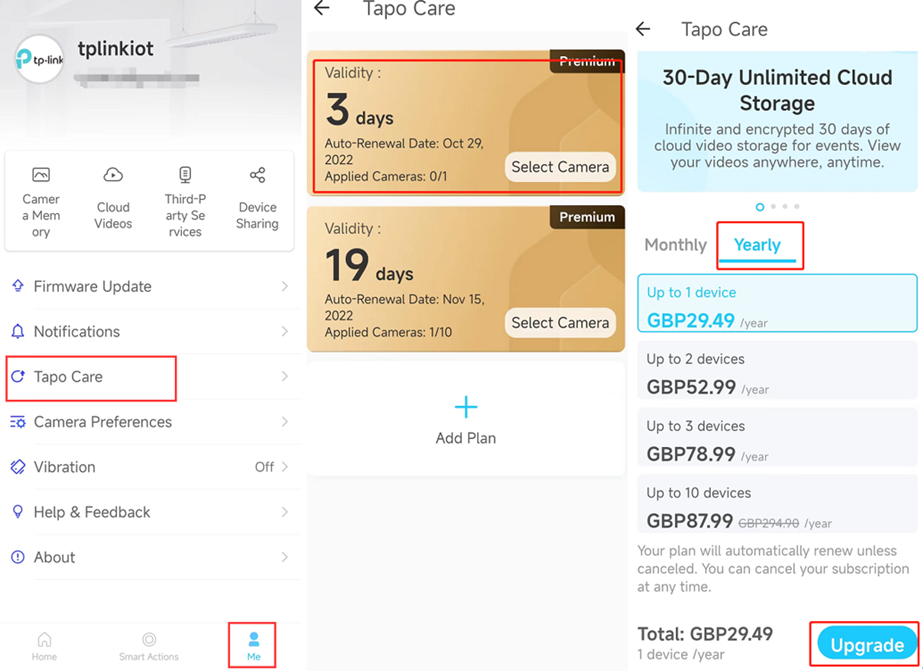
1. Open the Tapo app and navigate to Me > Tapo Care.
2. Select the previous plan you wish to upgrade.
3. Choose either Monthly or Yearly as your billing cycle.
4. Select a plan based on the number of cameras, then click the Upgrade button.
5. Complete the payment through Google Pay or Apple Pay.
For Google:
You won’t incur any additional charges during the upgrade process. Google Play will automatically convert the unused days from your previous plan into a corresponding number of days in the new plan at no extra cost.
For Apple:
You will need to pay the full price of the new plan, but you will receive a prorated refund for the unused portion of your previous plan from the Apple App Store.
Scenario 2: Downgrade Tapo Care plan
For Google:
To downgrade your subscription plan, cancel your existing subscription, and then subscribe to the new plan.
Please refer to the Tapo Care Cancellation and Refund section for detailed steps on how to cancel your Tapo Care subscription.
For Apple:
Go to App Store > Your account > Subscriptions > Select current Tapo Care plan > See All Plans and choose the plan you wish to switch to.
Note:
- Your plan change will not be processed immediately. It will become active on your next billing cycle.
- The prices in this article are only for illustrative purposes. The actual price will be based on the app or Tapo Care website.
- Tapo Care plans can be different based on regions and areas, learn Tapo Care plans in your area from the app or Tapo Care website.
QA
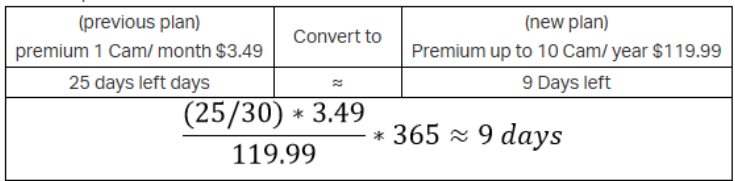
Q1: Why have the remaining days of my Tapo Care subscription decreased?
A1: Please check if you upgraded your subscription through the Android app. When upgrading via Google Pay, Google Play automatically converts the unused days of your previous plan into a corresponding number of days in the new plan at no extra cost.
For example:
Q2: Why haven’t I received my refund from Apple after upgrading through the iOS app?
A2: Apple typically takes several days to process refunds. You can check the status of your refund for apps or content purchased from Apple.
Is this faq useful?
Your feedback helps improve this site.



TP-Link Community
Still need help? Search for answers, ask questions, and get help from TP-Link experts and other users around the world.