
Upgrade the Firmware of TP-Link Aginet Router
 187
187Introduction
TP-Link is dedicated to improving product features to enrich your network experience. This article will introduce the upgrading steps for TP-Link ISP-Customized Router via three methods.
Requirements
- A smartphone with Aginet app installed.

- TP-Link ISP-Customized Router
- (optional) If the firmware release note indicates that the upgrade will reset your settings, you may back up the configuration to restore it after upgrading
Configuration
Method 1: Update the firmware via the Aginet app
Here we take VX800v as an example.
Log into the Aginet app and tap More > System > Firmware Update. Here you can see if your current firmware is up to date. If not, please follow the instruction on this page to update the firmware to the latest one.
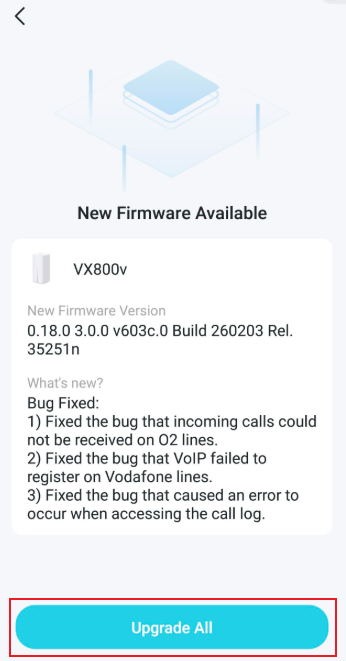
Note: If your router does not support Aginet app management but supports Tether app, please use Tether app for the upgrade. The steps are similar to those described above.
Method 2: Update the firmware manually via web management page
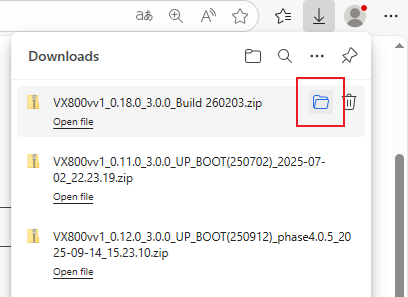
Step 1. Download firmware that matches your model and hardware version from TP-Link official website www.tp-link.com.
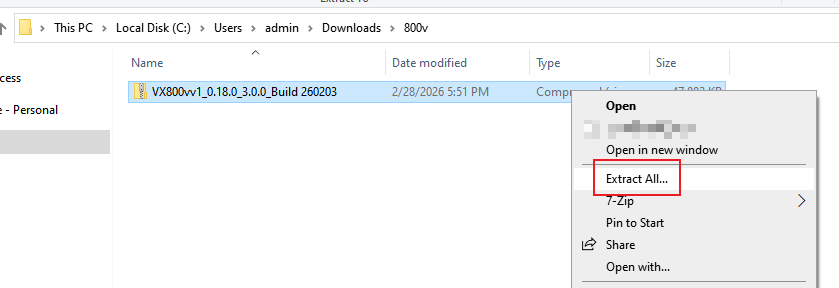
Step 2. Find and navigate to the zip file from which you want to extract the content. Right-click on the file and select Extract All from the context menu to extract the BIN file. (Microsoft Edge & Windows system as an example)
Step 3. Log in to the router's web interface. Ensure your device is connected to the router via Wi-Fi or an Ethernet port. Open a web browser and enter one of these addresses in the browser bar to access the web interface:
- For models starting with E/H: http://tplinkwifi.net
- For models starting with V/N/M: http://tplinkmodem.net
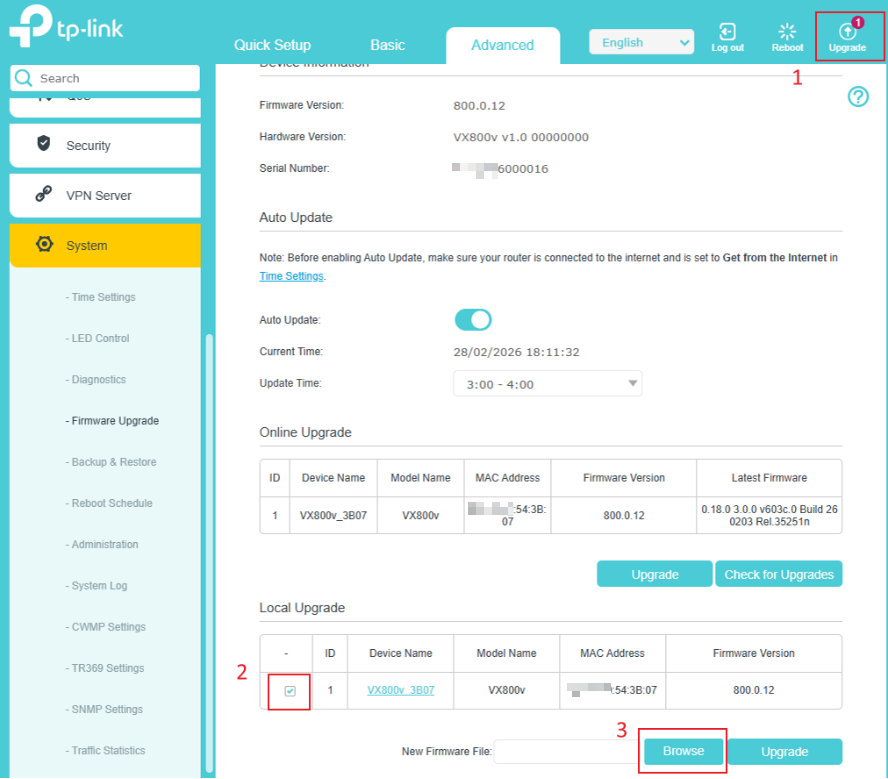
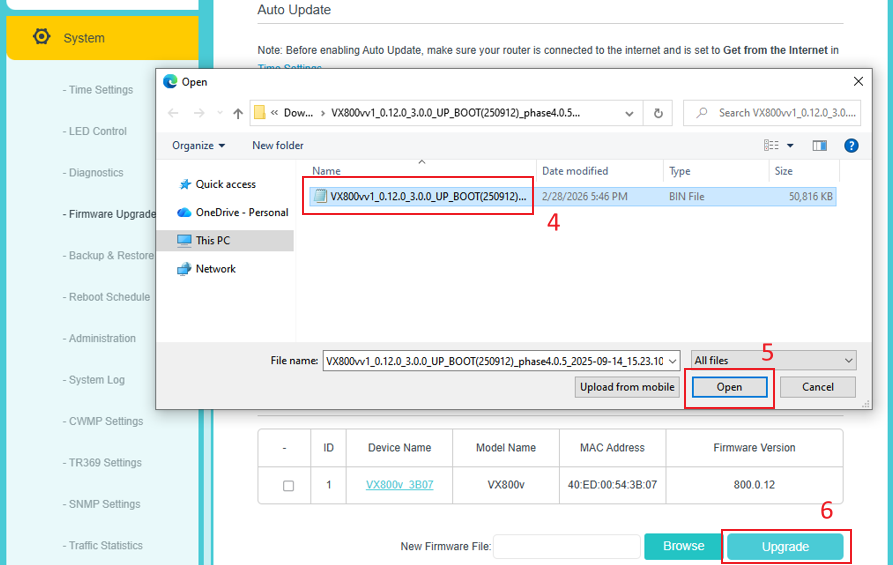
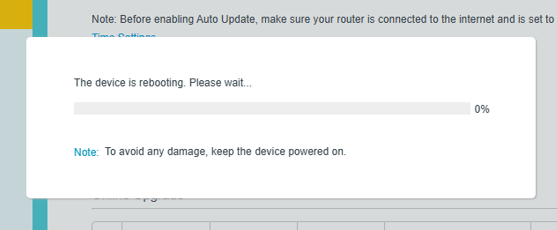
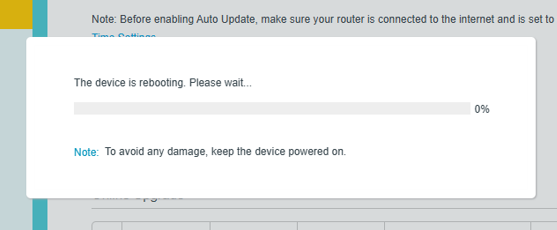
Step 4. Click Upgrade, check the device for upgrade, then click Browse to select the firmware you have already extracted from the folder. The firmware type is usually a BIN File. Click UPGRADE, and the device will reboot automatically.
Step 4. After the upgrade, please wait till the LED turns solid green/white.
Method 3: Online upgrade via web management page
Step 1. Log in to the router's web interface. Ensure your device is connected to the router via Wi-Fi or an Ethernet port. Open a web browser and enter one of these addresses in the browser bar to access the web interface:
- For models starting with E/H: http://tplinkwifi.net
- For models starting with V/N/M: http://tplinkmodem.net
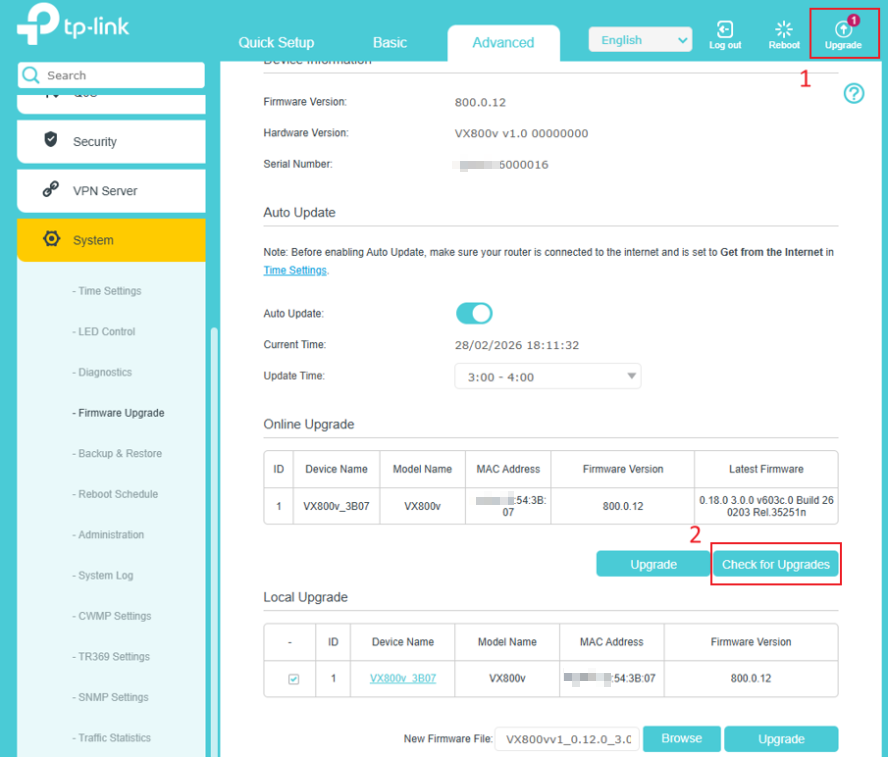
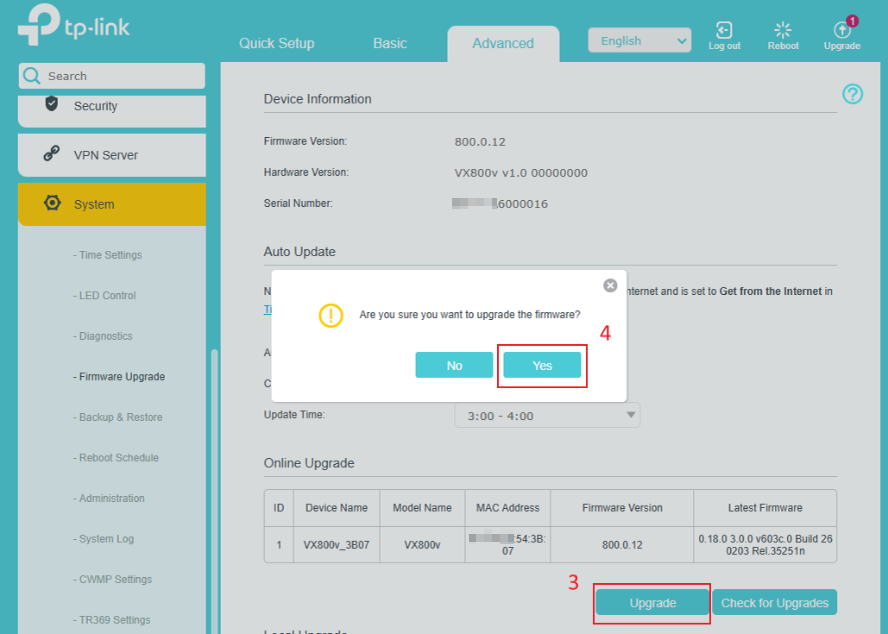
Step 2. Click Upgrade, then click Check for Upgrades to check if your firmware is the latest firmware. If not, click Upgrade, then click Yes to start the upgrade.
Step 3. After the upgrade, please wait till the LED turns solid green/white.
If above troubleshooting still could not resolve the problem, please contact TP-Link Support.
Get to know more details of each function and configuration please go to Download Center to download the manual of your product.
هل تجد هذه الأسئلة مفيدة؟
مشاركتك تساعدنا في تحسين الموقع

TP-Link Community
Still need help? Search for answers, ask questions, and get help from TP-Link experts and other users around the world.