
VX800v Setup Guide
Welcome! Let’s get your router up and running together.
This guide makes setup simple for everyone, covering helpful accessibility resources, what’s in the box, how it looks, and where to begin.
Our Aginet app and web management page also offer accessibility features, such as increasing page contrast, switching to landscape mode and increasing font size. You can enable them during router setup for an easier and more enjoyable experience! For more accessibility guidance, refer to Accessibility Support.
Note: For some models, Accessibility features will be supported by subsequent firmware upgrades.
Now, ready to explore your router and get connected?
Step 1. Learn About Your Router
This section introduces the router’s package contents and appearance, including its ports, buttons, and product label.
1. Unbox Your Router
Your package includes: a router, a power adapter, a TAE-RJ45 adapter, a TAE-RJ11 adapter, an Ethernet cable, a RJ45-RJ11 cable, and installation guides.
Power Adapter: A block-shaped charger with a cord. Plug it into the router’s power slot to power on the router.
Ethernet Cable: A thick, smooth cord with a slightly stiff feel. It has a rectangular plastic connector at each end, with a small lever-like clip on top. To use it, align the connector with the Ethernet port on your device and push it in until you hear or feel a click. The clip helps secure the connection; you can press it down to remove the cable when needed.
TAE-RJ45 Adapter: A rectangular adapter with a plastic housing, elongated, slightly curved design. One end has multiple pins to connect to various types of devices, and the other end features a port for connecting a RJ45 cable.
TAE-RJ11 Adapter: A small, square-shaped device typically used for converting power or data signals. The end of the cable features a RJ11 connector for plugging into the router's phone port.
RJ45-RJ11 Cable: A thick, smooth cord with a slightly stiff feel. It has a rectangular plastic connector at each end, with a small lever-like clip on top. The RJ45 connector is larger for Ethernet connections and networking devices, while the RJ11 connecter is smaller for telephone connections.
2. Appearance
The router is similar to a cuboid but with slightly curved edges. It shall be placed on a flat surface upright, such as a table or a shelf.
Now, locate four small rubber footpads on the bottom of the router and place your router with footpads facing down.
Then, face directly to the back panel. You’ll find eight ports and a few buttons lined up in a row. Here’s what they are, from top to down:
-
DSL Port: A square RJ-11 port, for connecting the port to the splitter or directly connect the port to the phone jack via a phone cable.
-
Two Telephone Ports: Two square RJ-11 ports, for connecting the analog telephone to the modem router. Note that you can connect a maximum of two ports (one to Phone 1 and the other to Phone 2) for Voice over IP (VoIP) services. These ports allow you to connect a phone device to the router and make calls over the Internet.
-
Two Gigabit LAN ports (1-2): Two square RJ-45 Ethernet ports, bigger than RJ-11 ports. For connecting additional wired devices.
-
2.5 Gbps WAN/LAN Port: A square RJ-45 Ethernet port. It defaults to a WAN port, for connecting the router to a modem or an Ethernet outlet, or other internet services.
-
DECT Button: A small round protruding button. Put your cordless DECT phone into registration mode and press the DECT button on the router for 3 seconds until the Phone LED starts flashing.
-
WLAN/WPS Button (below the WLAN/WPS button): A small round protruding button. To connect via WPS, press and immediately release the button, then press the WPS button on your device to connect via WPS. Press and hold the button for about 2 seconds, then release the button to turn the router’s Wi-Fi on or off.
-
SFP Port: A rectangular port that allows for the insertion of various SFP modules.
-
USB 3.0 Port: A small flat rectangular slot, for connecting USB storage devices.
-
Power Button: A small square protruding button. Press it to power on or power off the router.
- Power Slot: A round port. Plug in the power adapter to supply power.
Now, turn the router upside down while keeping the back panel facing you. There is a recessed label and a reset hole on the bottom of the router:
-
Product Label: located at the center of the bottom panel. It includes: the router’s default network name (SSID), the MAC address, login password, and a QR code for scanning to connect to the default Wi-Fi.
-
Reset Hole (below the label): A tiny recessed hole (needs a pin to press). To reset the router to factory default settings, press for 5 seconds and release. Then wait about 2 minutes for it to restart.
Step 2. Set Up Your Router
1. Position your router. Make sure that the router is within reach of an AC power outlet and near Ethernet cables for wired devices. If possible, try moving it closer to a window for better signal.
2. Scan the QR code below to download and install the Aginet app. Then follow the app instructions to set up your router.
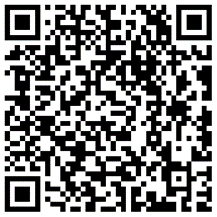
Alternatively, you can click the button below to download and install the Aginet app for iOS or Android.
Note: Please remain online (Wi-Fi or mobile data) throughout the app download and login steps.


Tip: You can also cable and set up your router with a web browser by visiting http://tplinkmodem.net or http://192.168.1.1. For detailed information, please refer to the router’s quick installation guide or user guide.
Support
For technical support, replacement services, user guides, and other information about your product model, please visit https://www.tp-link.com/support/
*TP-Link hereby declares that the device is in compliance with the essential requirements and other relevant provisions of directive 2019/882/EU. The original EU Declaration of Conformity may be found at https://www.tp-link.com/en/support/ce/
Von United States?
Erhalten Sie Produkte, Events und Leistungen speziell für Ihre Region