
A Guide for When Certain Websites Are Not Loading on a TP-Link Router
If certain websites are not loading on your Wi-Fi while all others work normally, the issue is typically caused by one of a small number of common router or network configuration problems. This guide covers 7 troubleshooting steps, including checks for DNS settings, Parental Controls, MAC Clone, and MTU, to help you identify and resolve the issue.
Key Takeaways
- If the issue affects only specific websites on a single device, the problem is likely due to that device's DNS settings or browser cache rather than the router.
- Bypassing the router and connecting directly to the modem helps isolate whether the issue is with the router or the ISP.
- Parental Controls or Access Control settings on the router may be blocking certain websites. Resetting the router to default settings will clear these rules.
- MAC Clone allows the router to use a connected computer's MAC address when communicating with the modem, which can resolve access issues caused by ISP MAC address restrictions.
Troubleshooting Steps
Step 1: Try different end-devices and web browsers. Rule out the possibility that the issue is with one specific device.
Step 2: Connect directly to the modem/gateway if you have one, bypassing the router. Confirm the issue is not caused by another device in your network.
Step 3: Change the DNS settings on the affected device. You may refer to How to configure wired TCP/IP Properties of my computer?
Step 4: Verify that no filtering rules, such as Parental Controls, are enabled on the router. Reset the router to test if necessary.
Note: You may press and hold the reset button/hole of the TP-Link router for 10 seconds until all lights flash once to reset it to the default settings.
Step 5: If the modem works fine when connected directly to a device, try MAC Clone on the TP-Link router while your computer is connected via Ethernet cable.
1) Connect your computer to one of the LAN ports on the router via Ethernet cable.
2) Log in to the web interface of your TP-Link router by referring to How do I log into the web-based Utility (Management Page) of TP-Link wireless router?
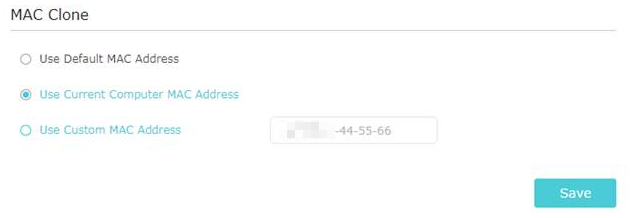
3) Go to Advanced > Network > Internet and focus on the MAC Clone section.
4) Choose an option as needed (enter the MAC address if Use Custom MAC Address is selected), and click Save.
Step 6: Change MTU, including MTU on the computer.
Step 7: Contact TP-Link Technical Support with the following information:
1) Results of the above attempts.
2) Internet Service Provider’s information and connection type of TP-Link router (Static IP, Dynamic IP, or PPPoE).
3) Which website(s) cannot be accessed, and which can? Get the website address.
4). Ping the website that can be accessed, and the website cannot be accessed, and get the screenshot. You may refer to How to Use the Ping Command.
5) Network structure of your TP-Link router. Is it a complicated network? Is there a VPN connection? Did you build the website?
Learn more about each function and configuration. Please go to the Download Center to download the manual for your product.
Looking For More
Is this faq useful?
Your feedback helps improve this site.

TP-Link Community
Still need help? Search for answers, ask questions, and get help from TP-Link experts and other users around the world.