
How to change the wireless settings of the TP-Link Mobile Wi-Fi Routers
 118884
Introduction
This guide provides detailed instructions for adjusting the wireless settings of your TP-Link Mobile Wi-Fi Router, including the SSID, password, and channel. It also offers verified configuration solutions to help you enhance network security and optimize Wi-Fi performance. Please note that the steps may vary slightly between 3G/4G and 5G models. For detailed explanations, please refer to the following article.
Requirements
- One device can open web browsers, such as a computer, tablet, or smartphone.
- One device that is installed with the tpMiFi app or Tether app by visiting the Google Play Store or App Store.
- Power on the TP-Link Mobile Wi-Fi Router and wait for it to reboot completely.
Configuration
Scenario 1: For 3G/4G Mobile Wi-Fi Routers
Method 1: Via the tpMiFi app
Step 1. Connect your phone to your Mobile Wi-Fi Router’s network, open the tpMiFi app. Tap the Mobile router under My Devices and go to Tools > Wireless Settings. You will see your current Wi-Fi name (SSID) and password displayed there.
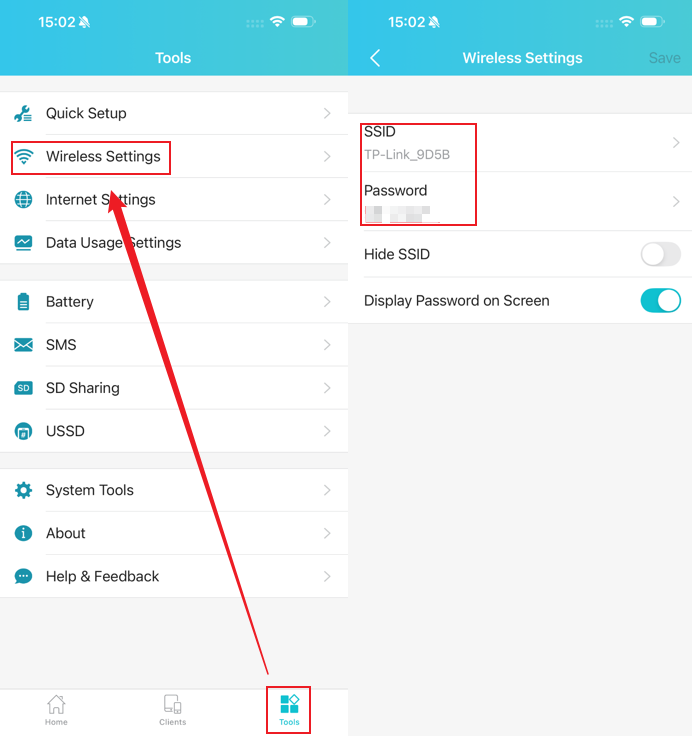
Step 2. Tap the field for SSID or the Password and enter your new Wi-Fi name or the new password, and click Save to apply your changes.
Note: To modify advanced wireless settings (such as channel selection) for 3G/4G models, please log in to the web management interface. Detailed steps can be found in Method 2.
Method 2: Via web management page
Step 1. After connecting your computer to the Mobile Wi-Fi Router’s network, open a web browser and enter http://tplinkmifi.net to access the web management interface.
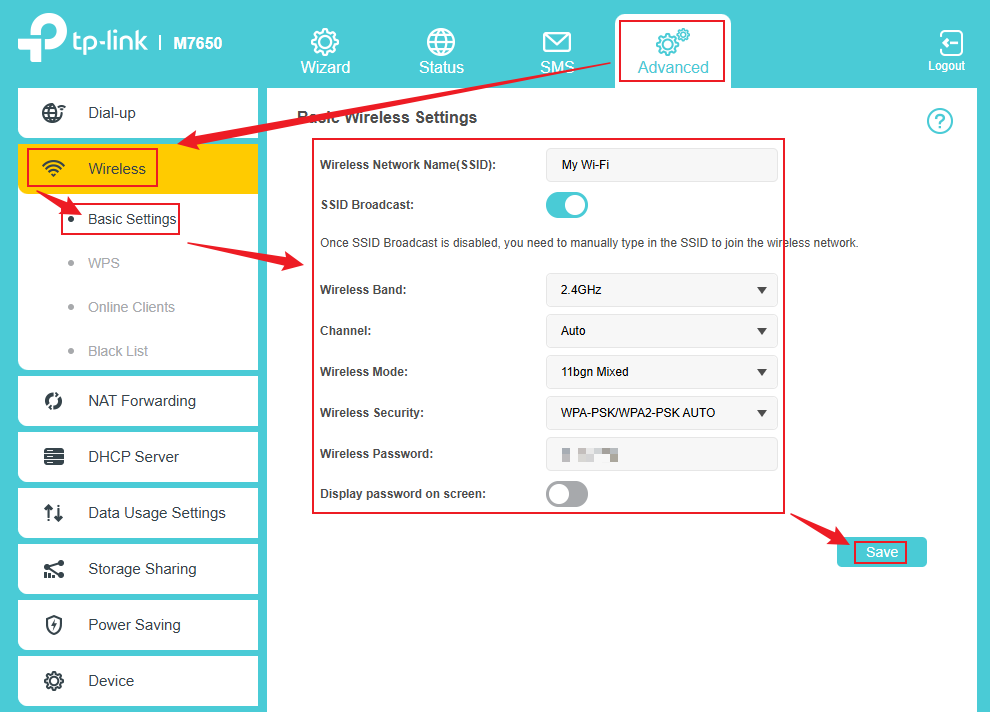
Step 2. Go to Advanced > Wireless > Basic Settings. Here, you can configure all Wi-Fi-related options. Remember to click Save after making any changes.
Note:
- The default wireless settings (excluding SSID and password) are preconfigured for optimal security and performance, so we recommend modifying them only if necessary for specific use cases.
- The Wi-Fi settings that can be changed may vary slightly between models. Please refer to the interface display on your model for detailed settings.
- Wireless Network Name (SSID)
SSID is the name of your wireless network. The default SSID for this device is TP-Link_XXXX (where “XXXX” represents the last four characters of its MAC address). You can customize it with up to 32 case-sensitive characters, after which it will appear in your device’s list of available networks.
- SSID Broadcast
SSID Broadcast determines whether your wireless network name is visible to clients. When enabled, your network appears in available Wi-Fi lists. While disabled, you have to enter the SSID to connect manually.
- Wireless Band
Wi-Fi Band selects the operating frequency (2.4 GHz or 5 GHz) for your wireless network. Please choose the appropriate band based on both your model and performance needs.
- Channel
Wireless Channel sets the specific frequency for your Wi-Fi band. Select “Auto” to let the device automatically choose the clearest channel, or manually select a channel only if you experience interference from nearby networks.
- Wireless Mode
Wireless Mode selects the Wi-Fi protocol for your network band. Choose 11bgn mixed for 2.4 GHz or 11a/n/ac mixed for 5 GHz for broad compatibility, or select a specific mode (e.g., 11n only) to match your device’s wireless adapter for optimal performance.
- Wireless Security
Security Mode offers two options: Unsecured (open network) or WPA-PSK/WPA2-PSK, which provides strong encryption using a pre-shared password and is recommended for most home and small office users.
- Wireless Password
You can enter 8~63 ASCII characters (case sensitive) or 64 hexadecimal characters (case insensitive) as your wireless password.
- Display password on screen
If enabled, your Wi-Fi password will be displayed on your mobile Wi-Fi's screen.
Scenario 2: For 5G Mobile Wi-Fi Router
Method 1: Via the mobile Wi-Fi screen
To modify your wireless network settings, simply click the Settings option on the screen. This will display all available Wi-Fi configuration options, including the Wireless SSID (Network Name), Password, and other advanced settings. After making your desired changes, click Save to apply them.
Note: For more detailed configuration options, we recommend using the web management interface. For guidance on this method, please refer to Method 3.
Method 2: Via the Tether app
Step 1. Connect your phone to the 5G Mobile Wi-Fi Router's Wi-Fi network, then open the Tether app to begin management.
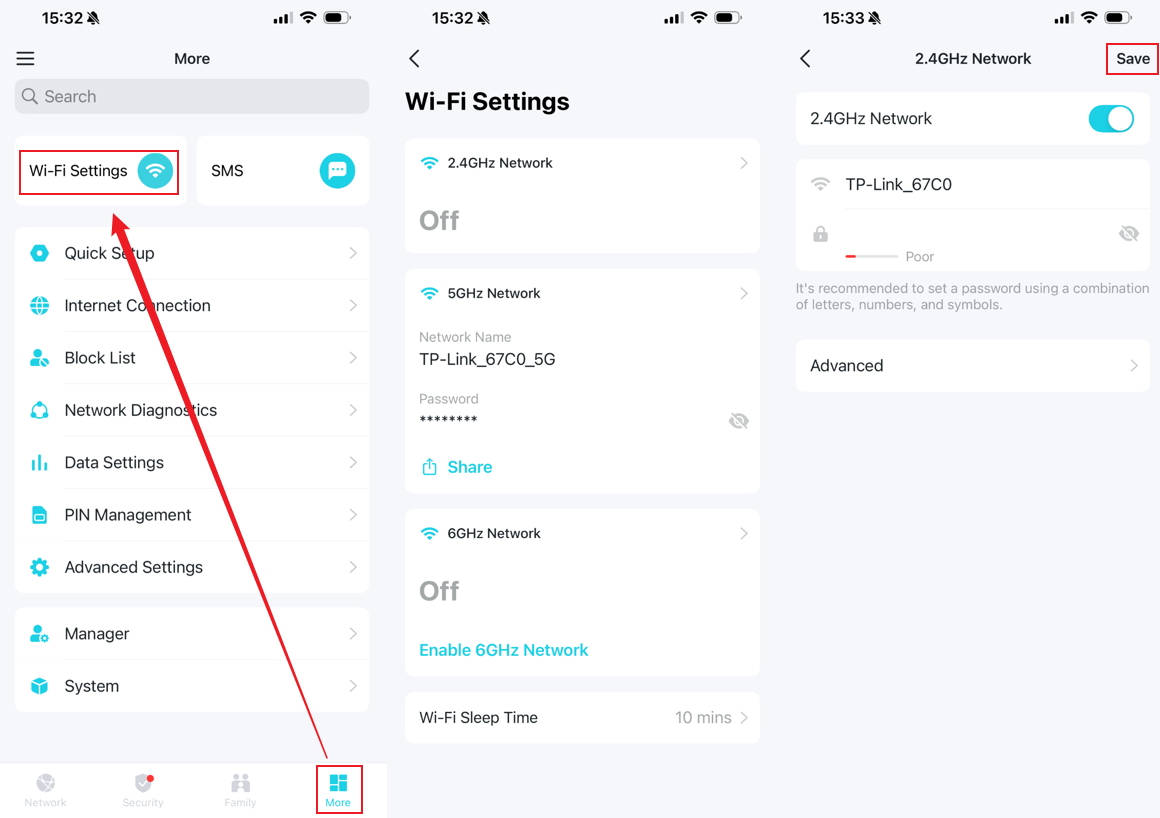
Step 2. In the Tether app, tap Mobile router under My Devices, then tap More > Wi-Fi Settings to access all wireless configuration options. You can change the Wi-Fi channel under the Advanced page.
Method 3: Via web management page
Step 1. After connecting your computer to the Mobile Wi-Fi Router’s network, open a web browser and enter http://tplinkmifi.net to access the web management interface.
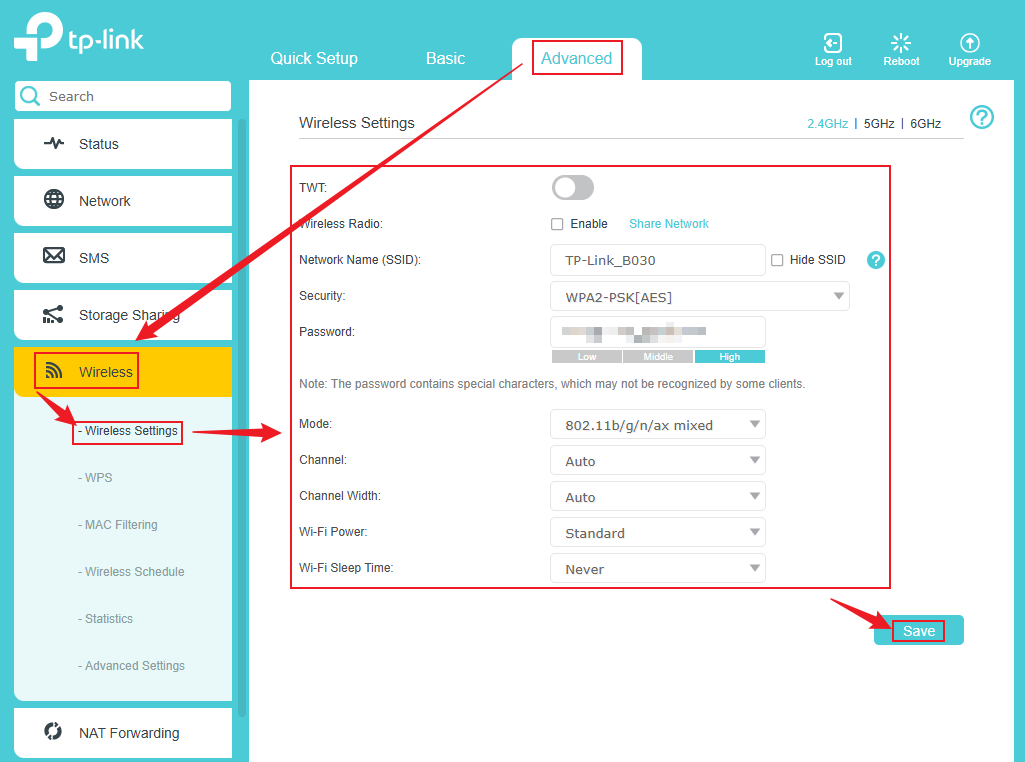
Step 2. After logging in to the web management interface, navigate to Advanced > Wireless > Wireless Settings to view all available wireless configuration options. After making your desired changes, click the Save button to apply the new settings.
- Wireless Band: 2.4GHz | 5GHz | 6GHz
Select 2.4 GHz, 5 GHz, or 6 GHz to change the corresponding settings.
- Wireless Radio
Tick this checkbox to turn on the wireless network.
- TWT
Target Wake Time allows 802.11ax routers and clients to negotiate their periods to transmit and receive data packets. Clients wake up only during TWT sessions and remain in sleep mode for the rest of the time, significantly extending their battery life.
- Channel Width
Select a channel width (bandwidth) for the wireless network. If you are not sure, select Auto.
- Wi-Fi Power
Select either Balanced, Standard, or Boost to specify the data transmit power. The default and recommended setting is Standard. Changing the Power Saving Mode will also change the Wi-Fi Power.
- Wi-Fi Sleep Time
If there is no client associated with the Wi-Fi for a certain period of time, the Wi-Fi will automatically be disabled. However, pressing the switch will turn it on again.
Câu hỏi thường gặp này có hữu ích không?
Phản hồi của bạn giúp cải thiện trang web này.


