Recent updates may have expanded access to feature(s) discussed in this FAQ. Visit your product's support page, select the correct hardware version for your device, and check either the Datasheet or the firmware section for the latest improvements added to your product. Please note that product availability varies by region, and certain models may not be available in your region.
A Wireless Distribution System (WDS) is a system that enables the wireless interconnection of access points in a wireless network. It allows a router’s wireless network to be expanded using multiple access points without the need for a wire to connect them, as is traditionally required.
Notes:
LAN IP of extended router should be different but in the same subnet of the root router;
The DHCP Server on extended router should be disabled;
WDS bridging only requires the WDS setting on either the root router or the extended router, on either 2.4GHz or 5GHz; No need to setup this up on both sides or bands.
Please follow this guide to setup the WDS bridging:
Step 1. Open the web browser and type in http://tplinkwifi.net or the IP of the router (Default it is 192.168.0.1 / 192.168.1.1) to login the Web Management Page of the extended router. The username and password are both "admin". If you are not sure about how to do this, please click here.
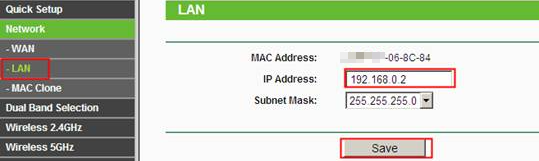
Step 2. Go to Network -> LANand change the LAN IP to a different IP address but still in the same subnet as the root router. Save the setting and reboot the extended router.
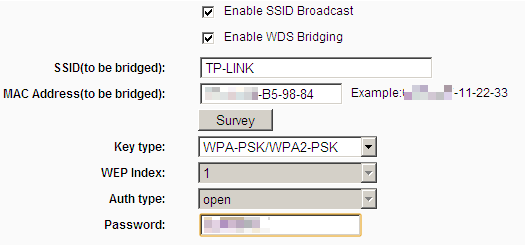
Step 3. Log into the web page with new IP Address. Go to Wireless 2.4GHz -> Wireless Settings. Check Enable WDS Bridging. Then the page will show like below.
Note: Here we use 2.4GHz wireless network as an example, if you want to WDS bridging the 5GHz wireless network, please go to Wireless 5GHz accordingly.
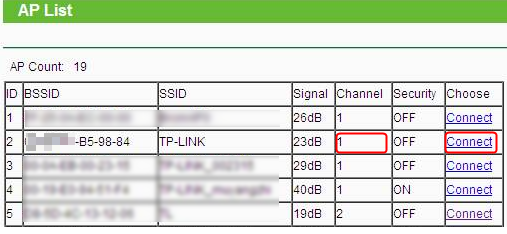
Step 4. Click Survey. On the pop-up window, find the SSID of your root router and click Connect.
Step 5. The root router’s SSID and BSSID have been filled automatically. Then please configure the security settings (Key type and Password) to match the ones on the root router.
Click Save button, then a window will pop out to inform you to change the channel. Click OK, it will change automatically. Please do NOT reboot the router.
Step 6. Go to DHCP-> DHCP Settings page. Select Disable DHCP Server, and click Savebutton and reboot the router.
Step 7. All settings required by WDS function is completed. You can make a simple check by the Ping utility. If the ping proceeds successfully (which means the WDS performs properly), you will see the similar screen as below: (in this example, 192.168.0.1 is the IP address of the root router)
If you want to customize the wireless network please go to Wireless and use a different SSID from your root router.
Get to know more details of each function and configuration please go toDownload Centerto download the manual of your product.
Câu hỏi thường gặp này có hữu ích không?
Phản hồi của bạn giúp cải thiện trang web này.
Mối quan tâm của bạn với bài viết này là gì?
Không hài lòng với sản phẩm
Quá phức tạp
Tiêu đề khó hiểu
Không áp dụng cho tôi
Quá mơ hồ
Khác
Cảm ơn
Chúng tôi đánh giá cao phản hồi của bạn. Nhấp vàođây để liên hệ với bộ phận hỗ trợ kỹ thuật của TP-Link.
From United States?
Get products, events and services for your region.
This website uses cookies to improve website navigation, analyze online activities and have the best possible user experience on our website. You can object to the use of cookies at any time. You can find more information in our privacy policy . Don’t show again
Your Privacy Choices
This website uses cookies to improve website navigation, analyze online activities and have the best possible user experience on our website. You can object to the use of cookies at any time. You can find more information in our privacy policy . Don’t show again
Những cookie này cần thiết để trang web hoạt động và không thể tắt trong hệ thống của bạn.
Cookie phân tích cho phép chúng tôi phân tích các hoạt động của bạn trên trang web của chúng tôi nhằm cải thiện và điều chỉnh chức năng trang web của chúng tôi.
Các cookie tiếp thị có thể được các đối tác quảng cáo của chúng tôi thiết lập thông qua trang web của chúng tôi để tạo hồ sơ về sở thích của bạn và hiển thị cho bạn các quảng cáo có liên quan trên các trang web khác.

 1207929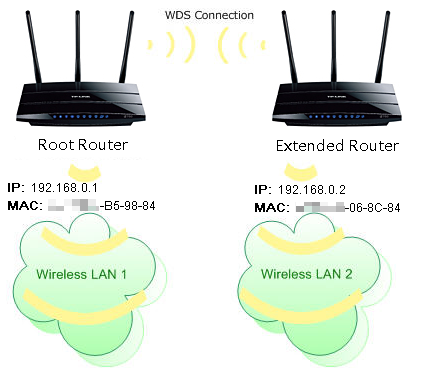

.png)
.jpg)
.jpg)
.png)